



 Solution
 Support Center
 About Us
 Contact
How to Synchronise Calendar with iPhone Effectively [2026]
 Clara Prescott Published on January 08, 2026Transfer Data3-min reading
When iPhone calendar not syncing issues occur, your meetings and reminders can quickly fall into chaos. It's not always just a network glitch. Often, system settings are to blame. This guide helps you identify the causes and fix them efficiently, so your schedule stays perfectly in sync.

In this article:
Part 1. Why Your iPhone Calendar Is Not Syncing
When you find that your iPhone calendar is not syncing, it is often not caused by a single factor. This issue could be related to network connectivity, account settings, system updates, or the syncing logic between devices. Understanding the cause is the first step to solving the problem. Here are some of the most common situations.
- Unstable network connection or syncing option turned off
The iPhone calendar relies on iCloud or other online accounts for synchronization. If the network is unstable or you have turned off the sync option in settings, it can cause the Apple Calendar not syncing issue. - Inconsistent sync cycles between different devices
When you check your schedule on an iPad, Mac, or other device, you may notice that the iPad calendar does not sync with your iPhone, or the calendar on your computer does not sync with your iPhone. This is because the devices’ data refresh cycles are not synchronized, or the iCloud account is not logged in correctly. - iCloud or third-party account malfunction
Many users may also encounter calendar notifications that do not sync when using Google or Outlook calendars. In this case, the problem usually lies in authorization or the sync protocol, and logging in again or refreshing the account can restore normal operation. - System or software version not updated
Older versions of iOS or the calendar app may have compatibility issues with the server. Regularly updating the system can not only fix bugs but also prevent cross-device issues, such as an iPhone calendar not syncing with the computer.
No matter where the problem lies, the core approach is first to identify the cause and then reestablish the sync channel. After understanding these potential obstacles, you can proceed to adjust the settings and get your iPhone to stay in real-time calendar sync with your other devices again.
Part 2. How to Sync Calendar on iPhone
If you have already identified the cause of the problem, the next step is to manually adjust the settings to ensure that data from all devices can sync correctly. Whether you are using iCloud or a third-party account (such as Google or Outlook), the following methods can help you quickly restore normal syncing.
iCloud
iCloud is the most common and stable way to sync, ensuring that the schedules on iPhone, iPad, and Mac are completely consistent. However, the prerequisite is that you must not forget your iCloud password.
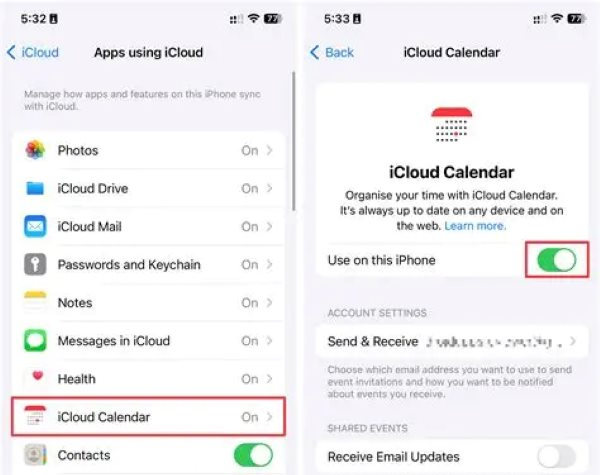
Open Settings , tap your Apple ID, and go to iCloud .
Find Calendars under Show All and turn on the sync switch. Make sure all devices are logged into the same Apple ID.
After completing the steps above, wait a few minutes to see updates on your iPad or Mac. If you encounter delays when syncing the calendar between iPhone and iPad, you can try turning iCloud sync off and then on again to force the system to refresh the data.
Accounts
Besides iCloud, you can also sync your calendar with iPhone and iPad through Google, Outlook, or other third-party accounts. This method is suitable for using the same schedule across different ecosystems.
Open the iPhone Settings and go to Calendar > Accounts .
Click Add Account and select Google, Outlook, or another email service as needed.
After adding your account, the system will display sync options. Go to the corresponding email account and enable the Calendar sync toggle.
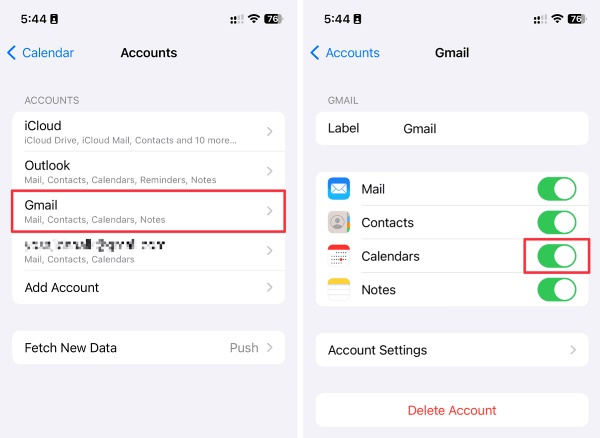
Once enabled, your account calendar will automatically appear in the iPhone's Calendar app and stay updated with the server in real time. If you notice sync delays or missing data, try turning the Calendar toggle off and then back on to refresh the sync status.
After completing these basic settings, most synchronization issues are usually resolved. However, if you want more flexible management, transfer, or backup of calendar data, you can continue to the next section to learn about more efficient synchronization methods using professional tools.
Part 3. Best Way to Transfer and Sync iPhone Calendar
If you want to quickly transfer, sync, or back up your calendar across different devices, there is a more efficient and controllable way: use imyPass iPhone Transfer. This tool can help you easily sync data between iPhone, iPad, Mac, and PC without any network or account limitations.

4,000,000+ Downloads
More comprehensive cross-platform support, allowing fast transfer of calendars, contacts, photos, and other data between various devices.
Fast data synchronization, avoiding the delay issues of iCloud sync.
Supports family sharing management, making it easy to import or export the family sharing calendar on iPhone, facilitating multi-device collaboration.
Strong compatibility, adapted to the latest iOS versions.
Click the download button above to complete the installation on your computer. After launching, connect your iPhone to the computer and wait for the program to recognize the device information automatically.
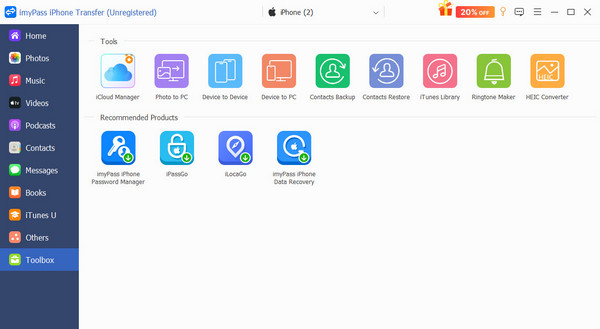
Click on Toolbox in the left menu and choose Device to Device . Set the old and new phones as the source device and the target device, respectively. If you want to back up to your computer first, you can also set the target device as your computer.
The system will scan and load all data from the old phone, with Calendar included under the Others category. Check the corresponding box and click the Start button to begin the transfer.
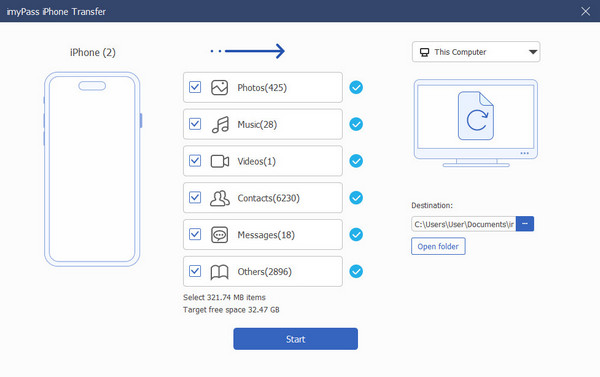
After syncing is complete, you can open the Calendar app on the target device to check if it has been updated. imyPass will automatically ensure data integrity, keeping schedules consistent across different devices.
Part 4. Fix iPhone Calendar Not Syncing Issues
If you have already tried the methods mentioned above but still, but your iPhone calendar is still not syncing, it could be due to system cache, time settings, or permission issues. The following practical methods can help you further troubleshoot and resolve these syncing problems.
Check Date and Time Settings
An incorrect system time may interfere with the synchronization process.
Go to Settings > General > Date & Time .
Enable Set Automatically to let the device update according to the time zone.
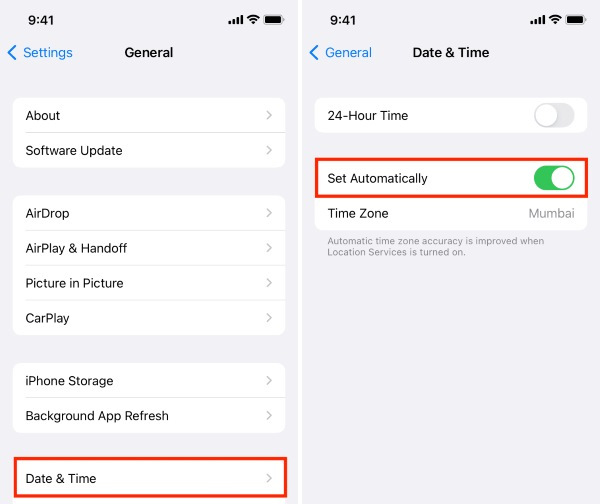
This step can effectively prevent calendar events from displaying incorrectly across different regions.
Restart iPhone
A simple restart can often clear the system cache and restore normal synchronization. If the phone freezes, you can consider factory resetting the iPhone, but be aware that this may easily lead to the loss of important data.
Press and hold the side power button, slide to power off, then restart.
Open the Calendar app to check if the events have refreshed.
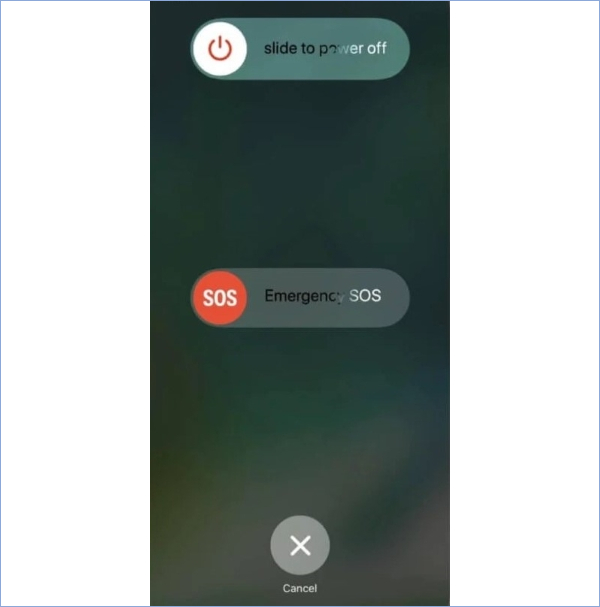
If the Apple Calendar is still not syncing, you can try turning off the Calendar sync option and then enabling it again to force an update.
Check Storage Space and System Updates
When the device is low on space or the system version is outdated, it may also cause the calendar not to sync with the iPhone.
Delete unnecessary apps or files to free up space.
Go to Settings > General > Software Update to ensure you are using the latest iOS version.
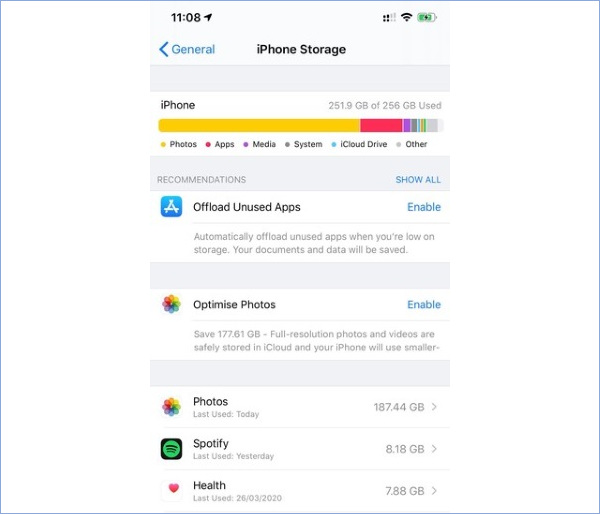
Conclusion
When your iPhone calendar fails to sync, there's no need to rush into resetting your device. By troubleshooting step by step to identify the root cause, you can restore the normal updating of your calendar and resolve problem: how to synchronize the calendar with iPhone. If you want to manage your schedule more efficiently or quickly transfer calendars across multiple devices, imyPass iPhone Transfer is undoubtedly a more flexible option. It allows you to sync across devices without network limitations easily, truly keeping your schedule up-to-date and balancing work and life seamlessly.
Clara is an editor from imyPass. She specializes in data recovery. You can find professional tutorials and solutions for recovering lost data from any device. Many users reported that his tutorial is easy and useful.
Hot Solutions
-
Transfer Data
-
Recover Data
-
Unlock iOS
-
iOS Tips

