



 Solution
 Support Center
 About Us
 Contact
EaseUS MobiSaver Review: Safe & Reliable iPhone Data Recovery Tool
 Clara Prescott Published on February 12, 2026Recover Data3-min reading
Accidentally deleted important files on your iPhone? Struggling with your disabled iPhone? EaseUS MobiSaver provides an easy and reliable solution for iPhone data recovery, but does it really work? In this review, we'll explore its key features and test its recovery performance. We'll also share real user feedback and introduce a top alternative to help you recover your iPhone data safely and effortlessly.

In this article:
Part 1: What EaseUS MobiSaver Can Do for iPhone Data Recovery
EaseUS MobiSaver is a powerful iPhone data recovery tool available for both Windows and Mac. If you're looking for an easy and effective way to recover iOS files, this tool can help you handle multiple recovery scenarios and file types.
Key features of EaseUS MobiSaver:
- Recover lost data in various scenarios
You can retrieve data lost from operation errors, system crashes, accidental deletion, virus attack, failed iOS updates, failed jailbreak, damaged device and more. - Recover a wide variety of file types
This tool can get back a variety of files, including photos, videos, notes, contacts, call history, messages, voice memos, Kik, Safari bookmarks and WhatsApp chat history. - Flexible recovery options
You can recover your files directly from an iOS device or from iTunes/iCloud backups. The recovery process is easy. Just follow the 3-step guide, and your files are back. - User-friendly interface
EaseUS MobiSaver has an intuitive interface that even beginners can navigate it effortlessly. - Compatible with many devices and iOS versions
It supports a wide range of iOS versions and iPhone/iPad/iPod touch models.
Part 2: Is EaseUS MobiSaver Safe & Legit
Many users ask, "Is EaseUS safe?" or "Is EaseUS legit?" The answer is yes! EaseUS MobiSaver is clean and safe. It has no malware and passes all major antivirus tests. This software only access iOS devices or backups with your permission. EaseUS also has clear privacy and refund policies.
Some users worry about signing in with Apple ID to recover data from iCloud backups. EaseUS does not store any Apple ID information. Your credentials stay private. Download EaseUS MobiSaver from the official EaseUS website and avoid unofficial sources - they may carry risks.
Part 3: Is EaseUS MobiSaver Free
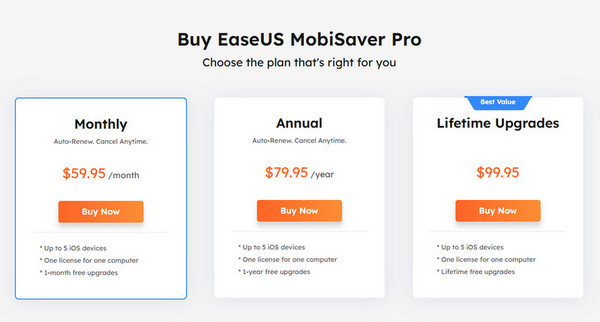
There is a free trial version of EaseUS MobiSaver for iPhone. You can use it to recover only 1 photo or video, or up to 5 contacts. You can scan your iPhone and preview recoverable files, but the premium version is needed to recover the majority of the data.
The monthly price is relatively high and the least economical. The lifetime price is more affordable and comes with lifetime free upgrades.
Part 4: How to Recover Data from iPhone or iTunes/iCloud Backup
EaseUS MobiSaver supports iPhone data recovery with or without a backup. This section will show you how to recover iPhone files from your iPhone or an existing iTunes/iCloud backup.
Recover Data from iPhone
If you've found some files missing on your iPhone, you can recover the lost data directly from your device without a backup. Here is a step-by-step guide:
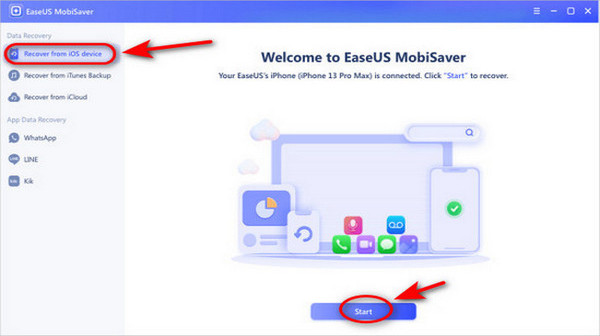
Connect your iPhone to a computer via USB. Launch the software and choose Recover from iOS Device, then tap Start.
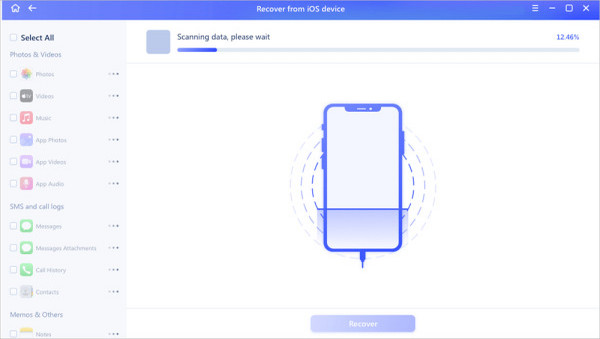
EaseUS MobiSaver will scan your device automatically, just wait patiently.
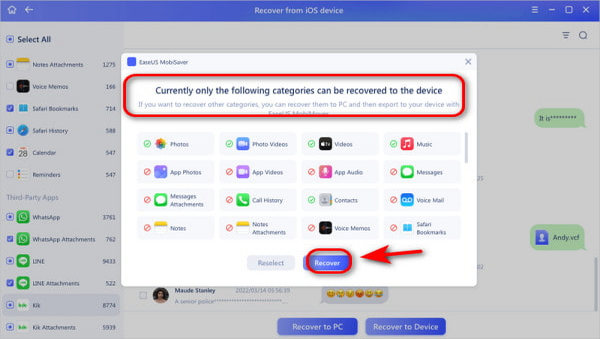
After scanning, you can preview all your lost data now. Select the files you want to recover, click Recover and save them.
Recover Data from iTunes/iCloud Backup
Even with a damaged or lost iPhone, you can still recover iPhone files using EaseUS MobiSaver if your data has been backed up to iTunes or iCloud. Since the recovery process for iTunes backups is very similar to iCloud, this guide will use iCloud as an example for detailed instructions.
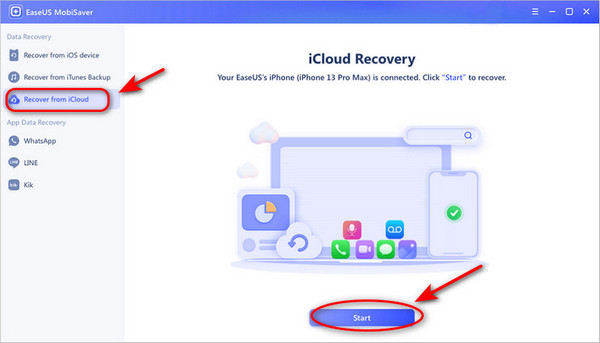
Connect your iPhone to your PC using a USB cable. Launch the software and choose Recover from iCloud, and click Start.
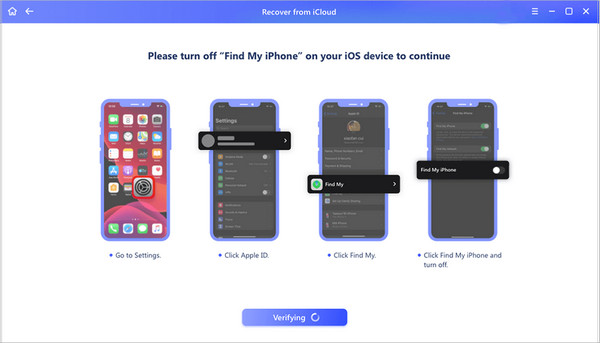
Turn off Find My iPhone on your device to continue.
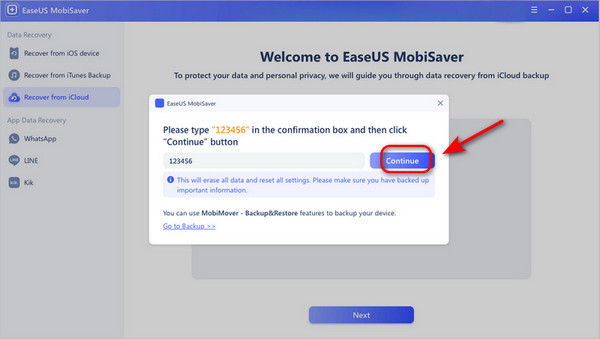
Confirm in the prompt window and then click Continue to reset your iPhone. Note: This step will erase all your data and reset all your settings, so make sure you have a backup!
Follow the prompts, choose Restore from iCloud Backup, and input your Apple ID and password. Then hit the Next button on your PC.
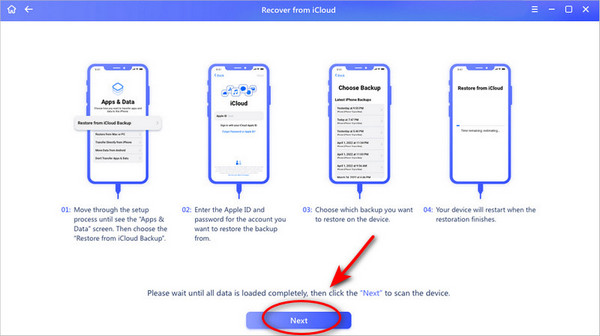
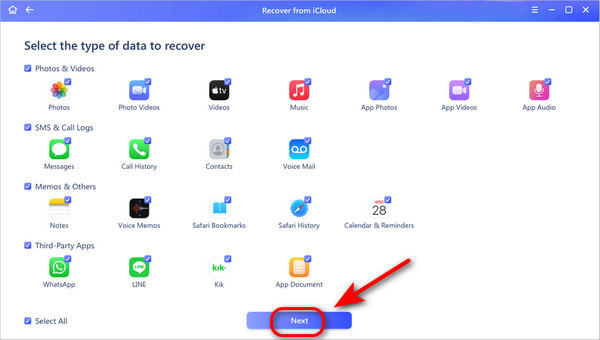
Select the type of data you want to recover, then click Next to start scanning on your phone.
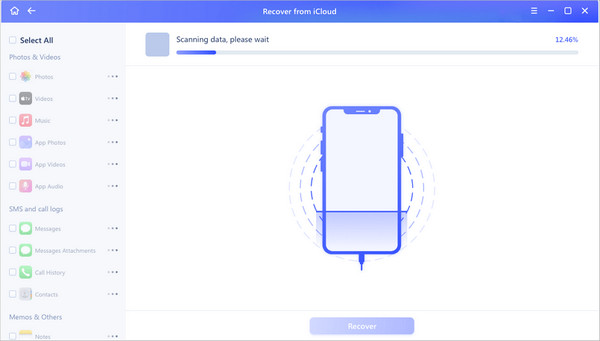
Select the files you want to recover and click the Recover button!
Part 5: Testing Results & Users' Feedback
Testing Results
In our tests, EaseUS MobiSaver performed well in common iPhone data recovery scenarios, particularly for recently deleted files.
- Scanning performance: A deep scan can take a relatively long time. Scanning iCloud/iTunes backups is also affected by network speed. No crashes or interruptions during the scan.
- Recovery success rate: Recently deleted files had a higher recovery success rate, and data that had been deleted a long time ago was harder to recover.
- Preview accuracy: Most recoverable files could be previewed accurately before recovery.
Users'Feedback
What users like:
- The interface is intuitive and very easy to use.
- It can recover iPhone files without a backup.
- The preview before recovery ensures users can recover the data selectively.
- It supports plenty of devices and systems.
Common complaints:
- The free version has many limits, and full recovery requires upgrading to the premium version.
- Some app documents and attachments may fail to recover.
- It's hard to recover old messages on iPhone.
- The scanning process takes too long.
Part 6: Top Alternative to EaseUS MobiSaver for iPhone
If EaseUS MobiSaver cannot meet your needs properly, you can try other alternatives. Here is another useful tool for you - imyPass iPhone Data Recovery. It's also available for both Mac and Windows users and can recover 20+ types of data from iPhone and iCloud/iTunes backup. And it supports a wider range of devices and systems, including the latest iPhone 18 Pro and iOS 27.
Connect your iPhone to a computer via USB.
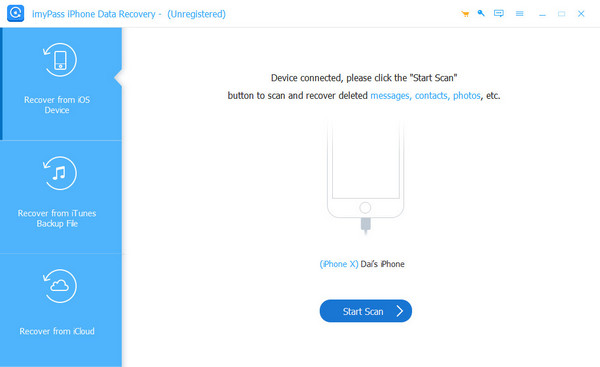
Recover from iOS devices and wait for the scanning process to be done.
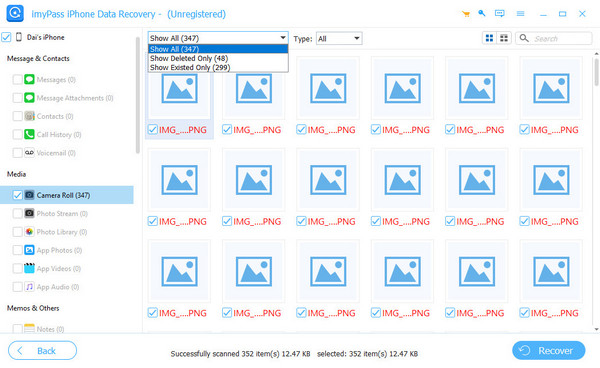
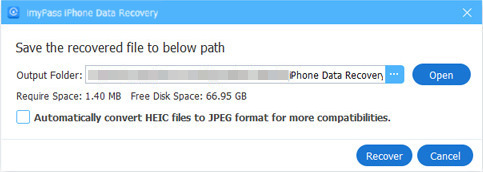
Preview, choose the files you want to recover and click Recover to start.
Conclusion
From this EaseUS review, it's clear that EaseUS MobiSaver is a safe and reliable solution to get back your lost iPhone files. If you've tried it and feel the scanning a bit slow or the price seems high, why not take a look at the alternative mentioned in this review? It might be a better fit for your needs!
Clara has over 8 years of experience helping users recover lost files and transfer data. She previously worked as a data recovery technician for a major IT service company. Certified in Data Recovery and Digital Forensics, her articles focus on simple solutions that make complicated recovery tasks easier for everyday users.
Hot Solutions
-
Recover Data
- AppGeeker iOS Data Recovery Review
- Disk Drill iPhone Data Recovery Review
- How to Get iPhone Out of Recovery Mode
- How to Fix support.apple.com/iphone/restore
- How to Recover Data from DFU Mode
- Gbyte iPhone Data Recovery Review
- How to Recover iPhone Deleted Photos After 30 Days
- How to Recover Deleted Photos on iPad
-
Unlock iOS
-
Transfer Data
-
iOS Tips

