



 Solution
 Support Center
 About Us
 Contact
What You Should Do When iCloud Doesn't Sync Photos
 Clara Prescott Published on December 26, 2025Transfer Data3-min reading
"I have enabled iCloud Photos on my iPhone, but my photos don't go to the cloud storage. How to fix iCloud Photos not syncing?" iCloud Photos is a convenient way to back up your photos and videos, as well as access your photos across digital devices. However, users often encounter synchronization issues that disrupt smooth experiences. Here you can learn the solutions to get rid of the problem and sync photos to iCloud.

In this article:
Part 1: Why iCloud Photos Not Syncing
iCloud Photos is a cloud-based service. It requires a stable internet connection to complete syncing iCloud Photos. The main reasons why photos are not syncing to iCloud on iPhone includes:
1. Your internet connection is poor.
2. Your iCloud storage is insufficient.
3. Something is wrong with iCloud Photos.
4. Your device gets stuck.
5. Apple servers are down.
6. Software glitches.
Part 2: How to Fix iCloud Photos Not Syncing
Solution 1: Force iCloud Photos Sync
If iCloud photos syncing is paused, you can manually sync your new photos to iCloud. That is the first thing you should do when you encounter issues syncing iCloud Photos on your iOS device.

Run the Photos app on your iPhone.
Open the Recents album.
When you see the Optimizing System Performance message at the bottom, tap Sync Now.
Solution 2: Check Your Internet Connection

As mentioned previously, iCloud Photos requires a good internet connection to sync your pictures. If iCloud stopped syncing photos, you'd better check your internet connectivity. Make sure to use a stable Wi-Fi with a strong signal. If it is poor, switch to cellular data.
Solution 3: Turn off iCloud Photos and Turn It Back on
Another solution is re-enabling iCloud Photos when iCloud is not syncing photos on your iPhone or iPad. Of course, you must turn on iCloud Photos on your device to bring your photos to your cloud storage.
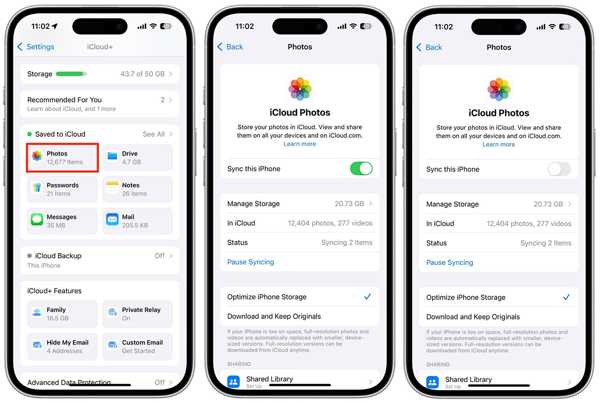
Go to the Settings app on your device.
Tap on your profile and choose iCloud.
Pick Photos on the app list, and toggle off Sync this iPhone.
Wait for a few seconds and turn on Sync this iPhone on the iCloud Photos screen. This may fix the syncing with iCloud paused.
Solution 4: Restart Your iPhone
While restarting the iPhone is simple, that can resolve a wide range of software issues, including iCloud stopped syncing photos. This solution closes all apps in the background and removes caches.
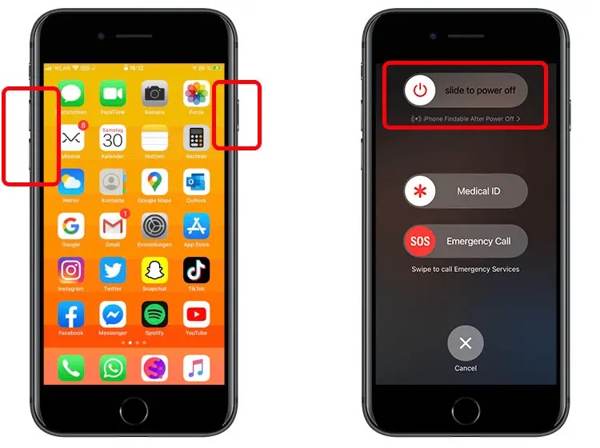
For iPhone X and later
Long-press either Volume button and the Side button.
When the power-off screen appears, release the button combination.
Move the slider to the right side.
After your screen completely becomes black, hold the Side button until you see the Apple logo.
For iPhone 8 or earlier
Press and hold the Side, Top, or Sleep/Wake button to trigger the power-off screen.
Move the slider to shut down your device.
Then, hold the Side, Top, or Sleep/Wake button until the Apple logo appears.
Solution 5: Free up iCloud Storage
iCloud Photos take up your iCloud storage. Apple only gives each account 5GB of free storage. If your storage is insufficient, iCloud Photos syncing will pause. To resolve it, you have to free up your iCloud storage.

Tap on your profile in your Settings app.
Go to iCloud and choose iCloud Backup.
Tap an unwanted backup, and hit Delete Backup.
Solution 6: Check Apple Server Status
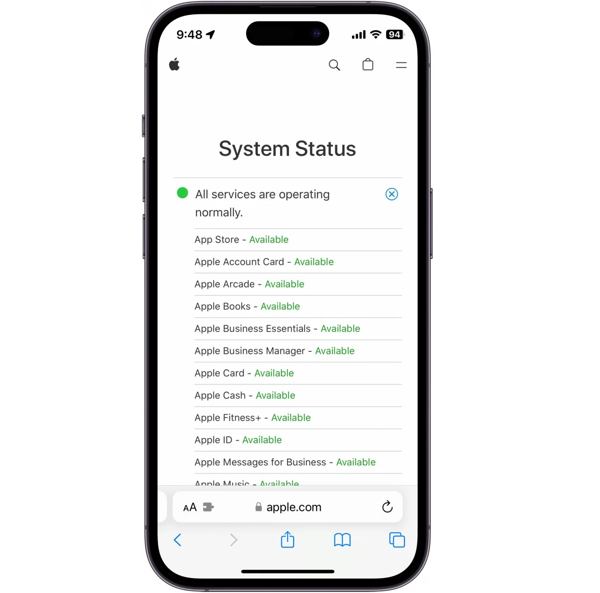
When syncing iCloud Photos, your photos are stored on Apple's servers. If something is wrong on the relevant Apple servers, iCloud Photos doesn't sync to Mac or PC. You can go to https://www.apple.com/support/systemstatus/ in a browser and check the status of Apple servers. If relevant items are marked with yellow or red icons, wait for them to work again and sync your photos.
Solution 7: Update Software
Another common solution to fix photos not syncing to iCloud on your iPhone is updating the software. It is well known that outdated software can lead to various glitches. Therefore, you'd better keep your iOS up to date.
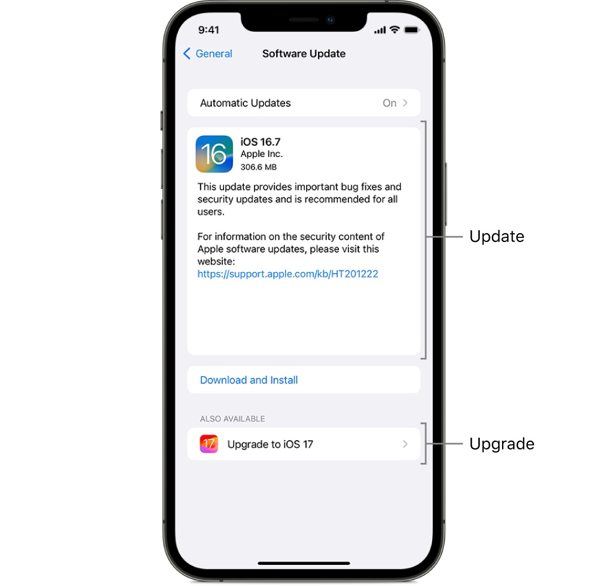
Go to General in your Settings app.
Tap Software Update to search for updates.
If an update is available, tap Download and Install.
Part 3: One-stop Solution to Fix iCloud Photos Not Syncing
If the common solutions cannot fix iCloud photos not syncing to PC or Mac, you'd better look for an alternative tool, like imyPass iPhone Transfer. It allows you to sync photos and other data between your iPhone and computer or between your iPhone and another mobile device.

4,000,000+ Downloads
Sync photos between the iPhone and another device.
Compatible with a wide range of data types.
Available to a variety of target devices, like PC, iPad, etc.
Preview photos on your iPhone.
Support the latest models of iPhone and iPad.
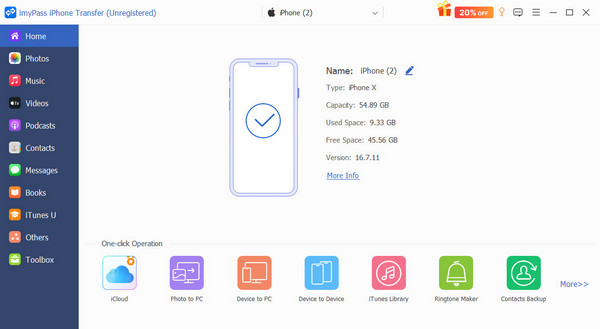
Connect to your iPhone
Launch the best iPhone transferring software once you install it on your PC. There is another version for Mac. Plug your iPhone into your PC with a Lightning cable. For iOS 13 or later, input your iPhone passcode to authorize the connection.
Preview photos
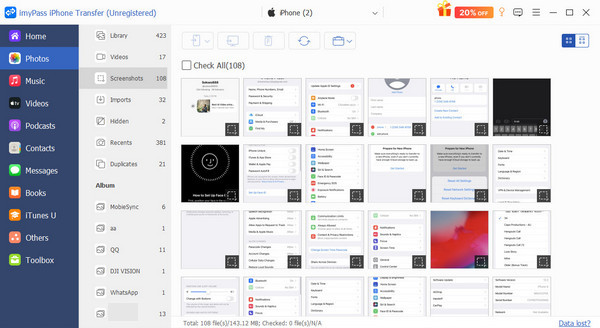
After the software scans your device, all data will be organized by type. Go to the Photos tab and view all photos on your iPhone.
Sync iPhone photos to PC
Select the photos you want to sync, press the PC button on the top ribbon, and choose Export to PC. Set an output folder and confirm it. You can also use this program to transfer data to new iPhone.
Conclusion
This tutorial shared multiple solutions to fix iCloud not syncing photos on your iPhone or iPad. We first discussed the main causes. Plus, you can follow our solutions one by one to let your photos sync to iCloud again. Even if the solutions are unavailable, you can try imyPass iPhone Transfer. It is the alternative solution to sync photos, videos, music, files, documents, and more from your iPhone to a computer or another mobile device.
Clara is an editor from imyPass. She specializes in data recovery. You can find professional tutorials and solutions for recovering lost data from any device. Many users reported that his tutorial is easy and useful.
Hot Solutions
-
Transfer Data
-
Recover Data
-
Unlock iOS
-
iOS Tips

