



 Solution
 Support Center
 About Us
 Contact
How to Extract Data from a Dead iPhone with 3 Methods
 Clara Prescott Published on March 27, 2026Recover Data3-min reading
While iOS devices are advanced, some users reported that their iPhones suddenly crash and won’t power on due to hardware or software damage. It can be stressing and frustrating experience to have a dead iPhone. The causes are complicated. More importantly, you may lose access to your data. Fortunately, there are a few methods you can try to extract data from a dead iPhone. This tutorial shares the proven methods.

In this article:
Part 1: How to Retrieve Data from a Dead iPhone Using iCloud
iCloud is the cloud storage released by Apple for iOS users to expand their memory. If you have set up iCloud backup before your iPhone becomes a brick, you can get data off a dead iPhone from your iCloud backup. This method requires another iOS device with enough storage capability.
Turn on another iOS device.
Go to the Settings app.
Navigate to General, and Transfer or Reset iPhone.
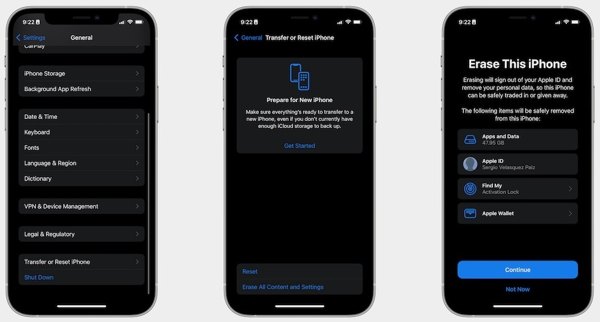
Tap Erase All Content and Settings.
If prompted, enter the associated Apple ID password.
Tap Continue and begin erasing the device.
When the iPhone restarts, follow the onscreen instructions to set it up.
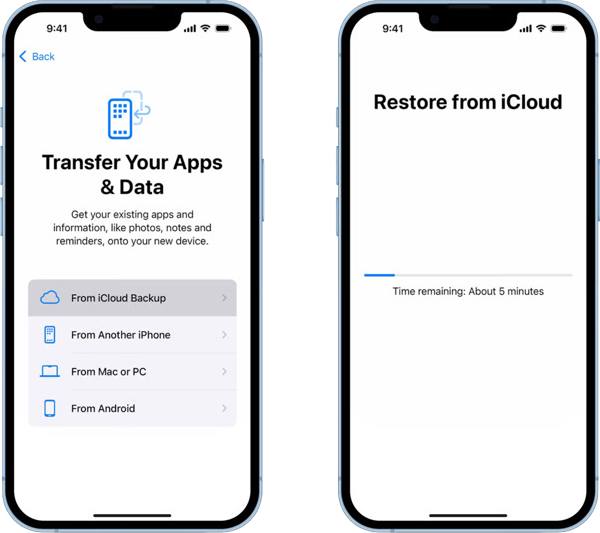
Choose From iCloud Backup when you reach the Apps & Data screen.
Enter your Apple ID and password.
Select the right iCloud backup and get data off a dead iPhone.
Part 2: How to Recover Data from a Dead iPhone with iTunes/Finder Backup
Another way to back up an iOS device is iTunes/Finder. If you prefer to back up your device to your computer, you can retrieve data from a dead iPhone using an iTunes or Finder backup. This way also requires an accessible iOS device.
Connect another iOS device to your computer with a compatible cable.
Open iTunes on Windows and macOS Mojave or earlier. Run Finder on macOS Catalina or later.
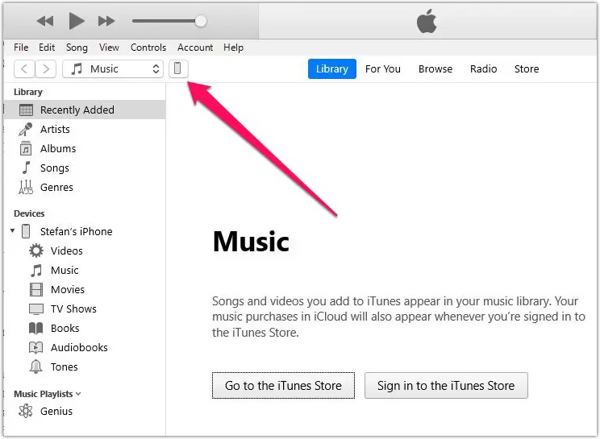
Click the Phone button at the top left side of iTunes and go to the Summary tab. In Finder, click the iPhone name and head to the General tab.
Click the Restore Backup button under the Backups section. You may need to enter the iTunes backup password if you've ever set it.
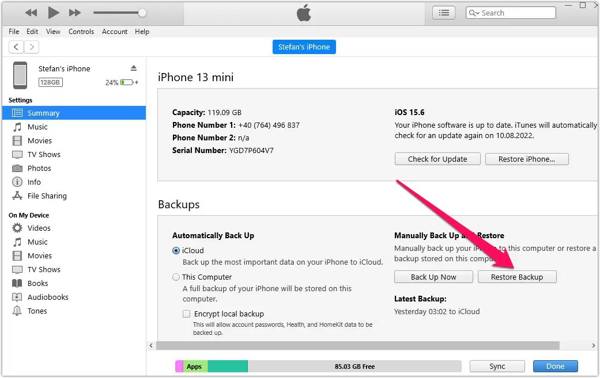
Pick the latest backup from the drop-down list and click Restore.
When the process is complete, disconnect the iOS device.
Part 3: How to Extract Data from Dead iPhone Without Backup
Is it possible to recover data from a dead iPhone if you don’t have a backup? Yes, all you need is a powerful iOS recovery program. imyPass iPhone Data Recovery, for example, can meet your needs. It can scan your iPhone memory and look for lost data even if your device is inaccessible. Plus, the user-friendly interface makes it easy to use, especially for beginners.
4,000,000+ Downloads
Extract data from the iOS device memory without backup.
Open iTunes and iCloud backups for data recovery.
Preview iPhone data for selective recovery.
Support almost all data types and file formats.
Compatible with the latest versions of iOS and iPadOS.
How to Extract Data from a Dead iPhone Without Backup
Scan your iPhone
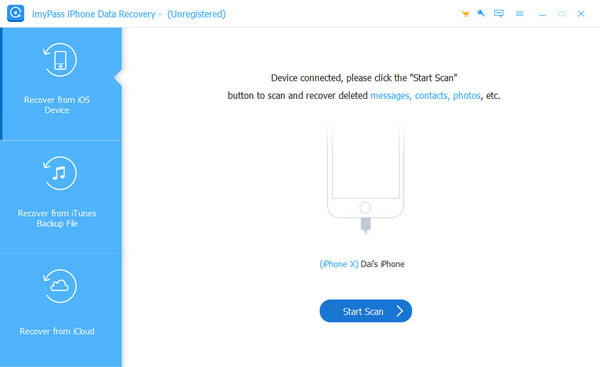
Run the dead iPhone recovery software after you install it on your PC. It is compatible with Windows 11 to 7. There is another version for macOS 10.12 and above. Plug your dead iPhone into your PC with a Lightning cable. Choose the Recover from iOS Device tab on the sidebar, and click the Start Scan button to initiate scanning your device.
If you have a backup, choose Recover from iTunes Backup File or Recover from iCloud Backup File instead.
Preview your data
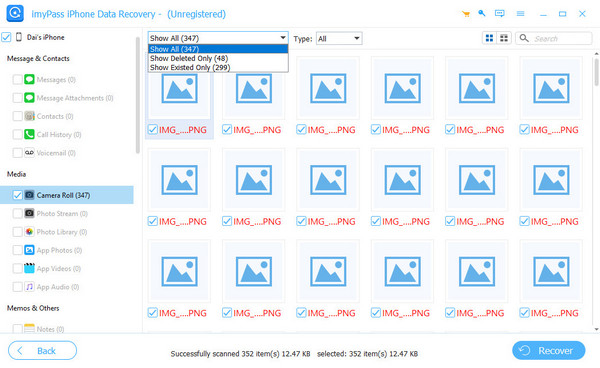
Once data scanning is complete, you will be presented with the main interface. Select the data types on the left side and view the data in your memory. If you want to find specific files, enter the keywords into the Search bar and click the magnifying-glass button.
Recover iPhone data
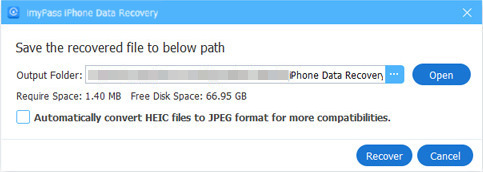
Check the box next to each file and item you want to recover. Next, click the Recover button at the bottom right corner. Click the Open button on the pop-up dialog and set an output folder. Finally, click the Recover button to confirm it. If you extract photos from a dead iPhone, tick the box next to Automatically convert HEIC files to JPEG format for more compatibilities on the pop-up dialog.
Extended Reading:
Conclusion
This guide demonstrated three methods to get data off a dead iPhone with or without a backup. iCloud backup enables you to get back most data on a dead iPhone if you have another iOS device. The iTunes backup is another way to retrieve your data with an accessible iOS device. If you don’t have a backup, imyPass iPhone Data Recovery is able to extract your data even if your device is dead.
Clara has over 8 years of experience helping users recover lost files and transfer data. She previously worked as a data recovery technician for a major IT service company. Certified in Data Recovery and Digital Forensics, her articles focus on simple solutions that make complicated recovery tasks easier for everyday users.
Hot Solutions
-
Recover Data
- AppGeeker iOS Data Recovery Review
- Disk Drill iPhone Data Recovery Review
- How to Get iPhone Out of Recovery Mode
- How to Fix support.apple.com/iphone/restore
- How to Recover Data from DFU Mode
- Gbyte iPhone Data Recovery Review
- How to Recover iPhone Deleted Photos After 30 Days
- How to Recover Deleted Photos on iPad
-
Unlock iOS
-
Transfer Data
-
iOS Tips

