



 Solution
 Support Center
 About Us
 Contact
Can Someone Unlock My iPhone in Lost Mode Without Passcode
 Penny Warren Published on August 20, 2026Unlock iOS3-min reading
Can someone bypass or unlock my iPhone in Lost Mode? In most cases, no. Apple's Lost Mode is a feature in Find My that helps protect your iPhone when it is lost or stolen. It locks your iPhone, displays a custom message, and tracks its location through Find My. In this guide, we'll explain how Lost Mode works and show you how to unlock your iPhone in Lost Mode with or without a passcode after you get it back.

In this article:
Part 1. What Does Lost Mode Do on iPhone
The Lost Mode feature from Apple is a powerful security feature that was designed to protect the user's data. It can even help you recover your iOS device, making it ideal when you have lost your iPhone. If it is enabled on your Find My iPhone, it can track your device, prevent unauthorized access, and lock your iPhone. To know more about what Lost Mode does on iPhone, see the details below.
- Your device will be locked and require your passcode to access it.
- Payment cards and related services will be suspended to prevent unauthorized use.
- The feature lets you display a custom message, like " This phone is lost." This way, the person who found your phone can give it back.
- It can help you track your lost phone.
- Notifications and messages won't appear on your screen to protect your security and privacy.
Part 2. Can Someone Unlock My iPhone Lost Mode
If your iPhone is in Lost Mode, most people cannot unlock your device without your passcode or Apple ID information. Lost Mode is designed to prevent unauthorized access and protect your personal data when your iPhone is lost.
However, Lost Mode does not mean the device can never be unlocked. If someone already knows your passcode or your Apple ID account, or they use additional advanced methods, Lost Mode may not protect your device. This is why using a strong passcode and keeping your Apple ID secure are important for protecting your iPhone.
If you ever find your lost iPhone and want to use it again, you can turn off Lost Mode and unlock your device with the methods in the next section.
Part 3. How to Turn Off Lost Mode on iPhone with Passcode
If you have found your lost iPhone and want to turn off Lost Mode, you can remove it by entering your passcode or disabling Lost Mode through Find My. Follow the methods below to regain access to your iPhone.
Method 1. Turn Off Lost Mode by Entering the Passcode
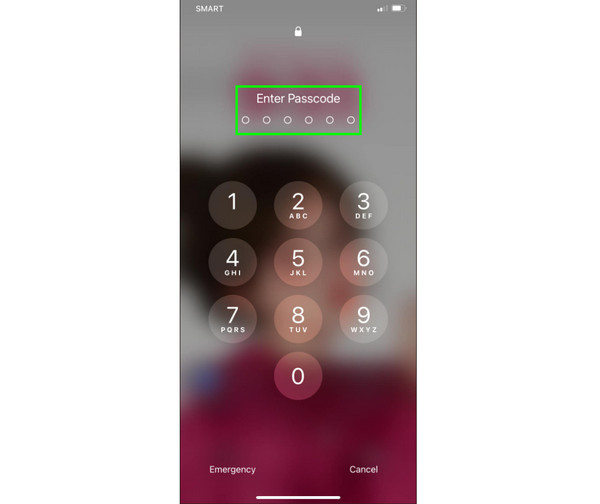
The easiest way to remove Lost Mode from your iPhone is to enter the correct passcode. Once you unlock your device with the passcode, Lost Mode will be turned off, and you can use your iPhone normally again.
Open your iPhone and tap the slider on the Lock Screen.
Enter your iPhone passcode in the Enter Passcode section.
After unlocking your device, you can use your iPhone normally.
Method 2. Turn Off Lost Mode Using Find My
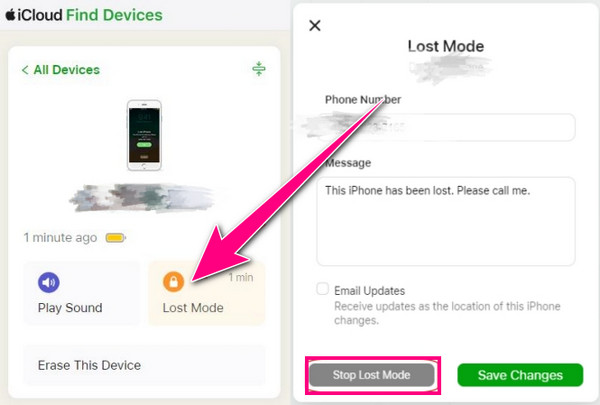
If you remember your Apple ID and password, you can turn off Lost Mode through Find My. Following these steps to unlock your iPhone in Lost Mode:
Sign in to your iCloud account with the same Apple ID used on your iPhone in Lost Mode.
Go to the Find My section and select your iPhone from the device list.
Choose Stop Lost Mode and confirm your choice. Once done, your iPhone will exit Lost Mode.
Part 4. How to Unlock iPhone in Lost Mode Without Passcode
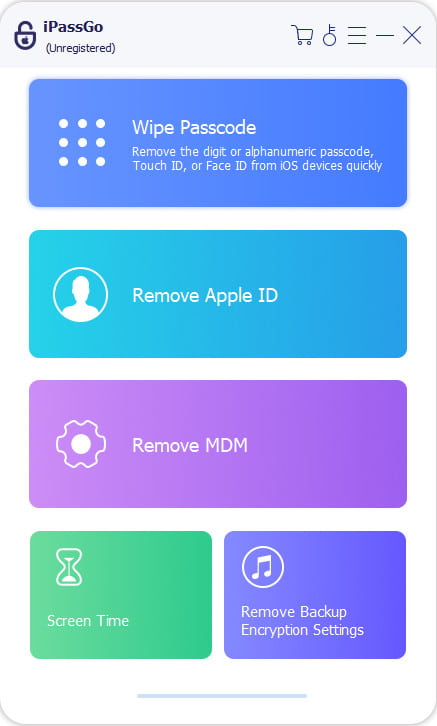
If you have found back your lost iPhone but forgotten the passcode, you may need a dedicated tool to regain access to your device. imyPass iPassGo is a professional iOS unlock tool to help solve various iOS lockout scenarios. With a simple and user-friendly interface, you can unlock your iPhone in Lost Mode without passcode in a few steps. The tool supports various iPhone models and iOS versions. Besides removing iPhone passcodes, it also supports features such as removing Apple ID, bypassing Screen Time restrictions, and removing MDM.

4,000,000+ Downloads
Unlock iPhone in Lost Mode without passcode easily.
Bypass various types of iOS locks, such as Face ID or Touch ID.
Remove MDM profiles and bypass Screen Time limits.
Support the latest iOS models and versions.
Launch the program on your computer. Select the Unlock iOS Screen mode from the interface. Connect your device to a computer using a USB cable, then click Start Now to continue.
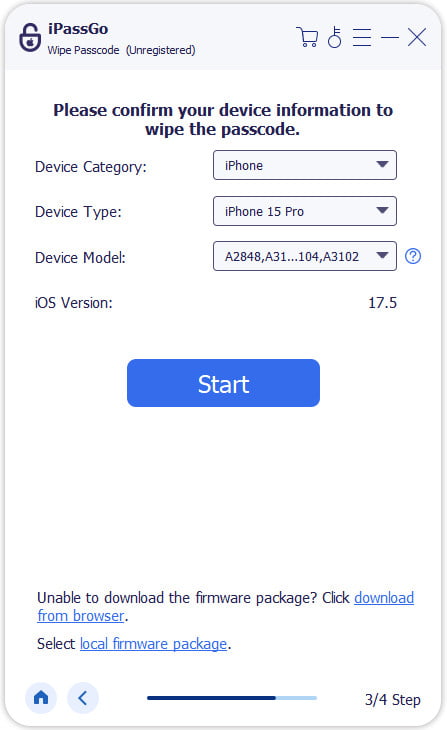
Confirm your device information and hit the Start Now button to download the firmware package. Wait for the download to complete and the firmware to be verified.
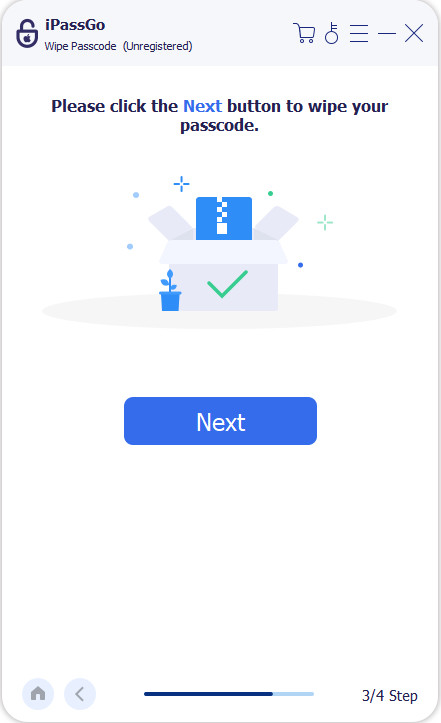
After verification, click the Start Removing button and confirm again. The software will automatically unlock your device.
Conclusion
If you want to unlock an iPhone in Lost Mode, this guide provides practical solutions to help you regain access to your device with or without a passcode. Please note that these methods should only be used on your own device or with owner's authorization. If you forgot your passcode and need to unlock your iPhone, imyPass iPassGo can help remove the screen lock effortlessly.
Penny focuses on GPS troubleshooting and Windows optimization. She formerly worked as a technical support engineer, helping clients solve location-based and system issues efficiently. Backed by IT support experience, she provides practical solutions that really work. In her free time, she likes hiking and geocaching, testing GPS tech in the real world.
Hot Solutions
-
Unlock iOS
-
iOS Tips
-
Unlock Android
-
Password Tips


