



 Solution
 Support Center
 About Us
 Contact
Can You Unlock Face ID with a Picture? Find Out the Truth
 Penny Warren Published on August 20, 2026Unlock iOS3-min reading
More and more iPhone are asking a common question: Can you unlock an iPhone with a picture? With so many photos shared online every day, it is natural to wonder whether someone could use a picture of your face to unlock your device. This concern has made many users curious about how secure Face ID really is. In this article, we will explain how Face ID works, whether a photo can bypass it, and how to improve your iPhone's security.

In this article:
Part 1: Can You Unlock Face ID with a Picture
The quick answer is no. You cannot unlock an iPhone with a picture. Face ID is designed to recognize your actual facial features instead of a simple 2D image. This means selfies, screenshots, printed photos, and regular 2D photos cannot be used to unlock your device.
The reason is that Face ID does not rely on a standard camera image. It uses infrared scanning and depth-sensing technology to create a detailed 3D map of your face for authentication. The ordinary photos do not contain the depth information required by Face ID, so they cannot pass the facial recognition process.
Part 2: How iPhone Face ID Works
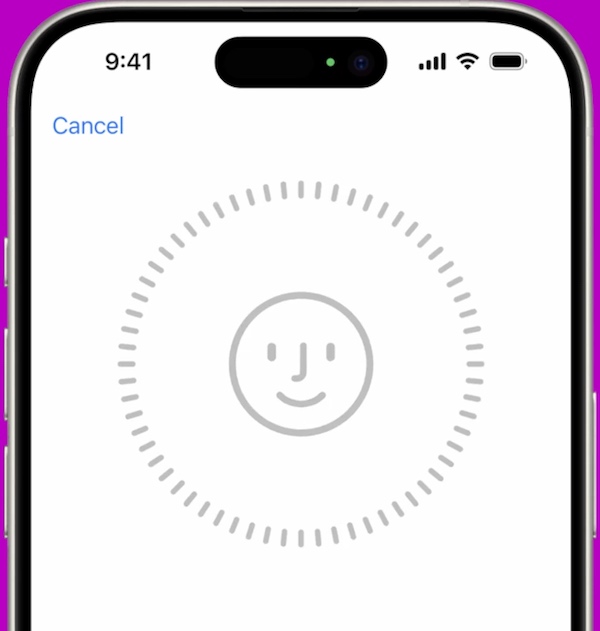
To understand why a picture cannot unlock an iPhone, you first need to know how Face ID recognizes your face. Unlike traditional facial recognition systems, Face ID doesn't rely on a simple camera image. It uses advanced hardware and depth-sensing technology to verify your identity.
Face ID works with the TrueDepth camera system, which projects more than 30,000 invisible infrared dots onto your face to create a detailed 3D depth map. It then uses infrared images and a neural network to analyze your facial features and compare them with the encrypted facial data stored on your device.
Your Face ID data is processed locally and protected by Apple's security system. It won't be uploaded to the cloud, helping keep your personal information private. The technology can also adapt to natural changes in your appearance, such as wearing glasses, growing a beard, or slight changes in your face shape.
Because Face ID relies on 3D facial information, infrared scanning, and depth detection, a flat 2D photo does not provide the data needed for authentication. This is why selfies, screenshots, or printed pictures cannot bypass Face ID.
Part 3: Can Face ID Be Fooled
Some users may still wonder whether more advanced methods, such as AI-generated faces, could fool Face ID.
Can someone unlock your iPhone while you are sleeping? Usually, no. Face ID includes an Attention Aware feature that checks whether you are looking at the device with your eyes open before unlocking. This helps prevent someone from using your face while you are asleep or unaware.
Can twins or someone who looks like you unlock Face ID? For most users, the risk is extremely low because Face ID is designed to distinguish between people with similar appearances using 3D facial data. However, Apple notes that the probability of a false match can be higher for identical twins and siblings who look very similar.
Can AI-generated faces trick Face ID? AI-generated images or deepfake faces cannot normally unlock Face ID. Although AI technology continues to develop, creating a fake face that can pass Face ID's hardware-based verification is extremely difficult.
Part 4: How to Unlock iPhone If Face ID Not Working
Even if Face ID is secure and reliable, there's always the chance that something could go wrong. For example, your iPhone may ask for a passcode after being unused for a long time, or Face ID may fail due to hardware issues. In these cases, how to unlock your iPhone without a passcode or Face ID? A professional iOS unlock tool like imyPass iPassGo can help! It can remove your forgotten screen passcode, Face ID and Touch ID easily. With an intuitive unlocking process, simple steps, and no long wait, you can regain access to your iPhone in seconds.

4,000,000+ Downloads
Unlock iPhone screen locks without passcode.
Bypass iPhone Face ID, Touch ID and passcode easily.
Remove MDM profiles and bypass Screen Time limits.
Support the latest iOS models and versions.
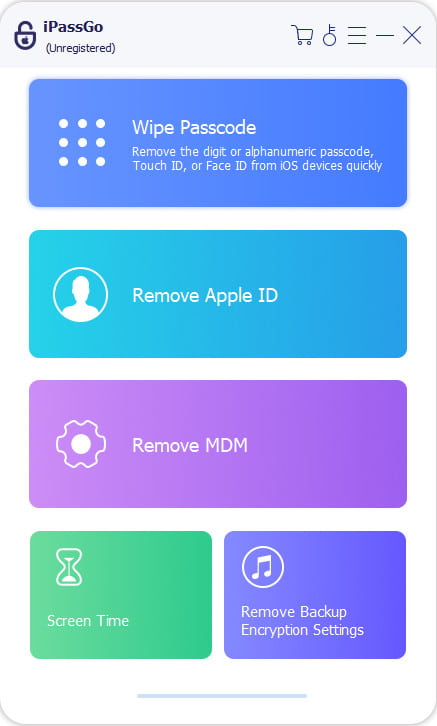
Launch the program on your computer. Select the Unlock iOS Screen mode from the interface. Connect your device to a computer using a USB cable, then click Start Now to continue.
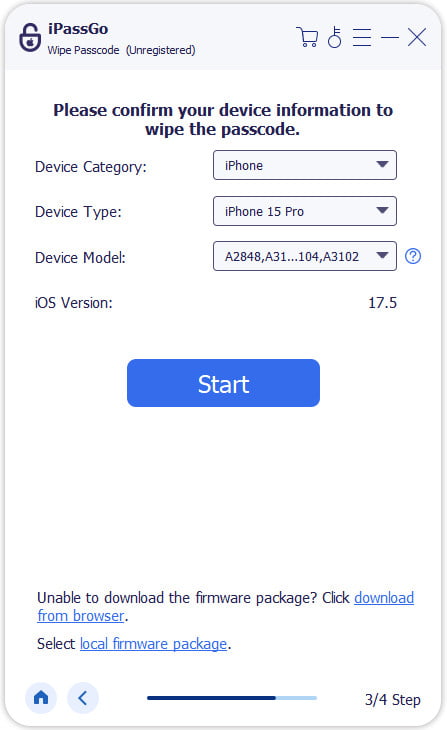
Confirm your device information and hit the Start Now button to download the firmware package. Wait for the download to complete and the firmware to be verified.
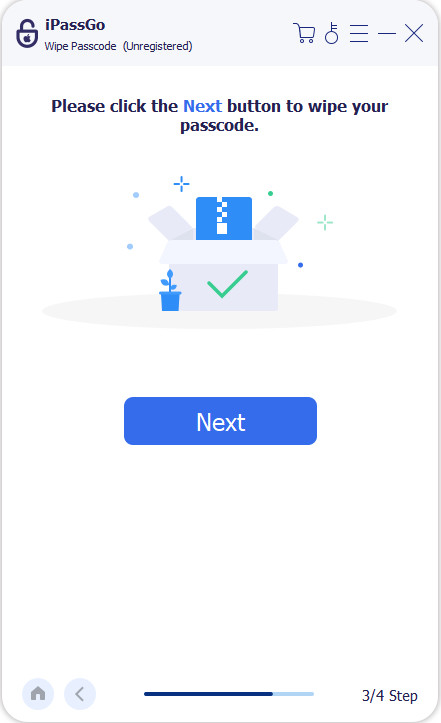
After verification, click the Start Removing button and confirm again. The software will automatically bypass the Face ID, then you can set up your device again.
Note:
This method will erase all your data on your iPhone. Make sure you back up important data before starting the removal.
Part 5: Tips to Prevent Others from Unlocking Your iPhone
After understanding the technical background of the question, can you unlock an iPhone with a picture? You may be more concerned about protecting your iPhone from being easily unlocked by others. Here are some practical tips to help you improve your device's security:
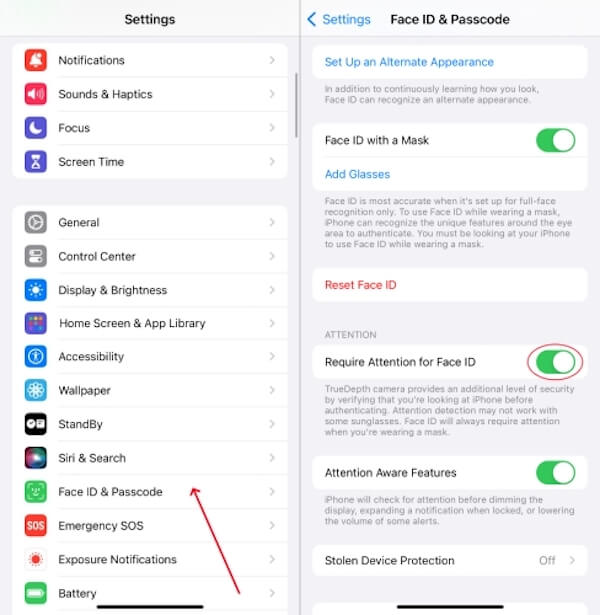
Set up Require Attention for Face ID
By default, Face ID recognizes your facial features to unlock your phone. However, to prevent someone from unlocking the device with your eyes closed or unconscious, it is recommended to turn on the Require Attention feature, which requires you to stare at the screen with your eyes open for Face ID to recognize you successfully.
Open Settings on the home screen. Swipe down and click Face ID & Passcode.
On the next page, enter your unlock password and enable the Require Attention for Face ID option.
Then the Attention awareness function is automatically enabled to enhance the security of the unlocking process. This feature prevents people from using photos, sleeping faces, or even trying to unlock your iPhone with your eyes closed.
Set up Find My
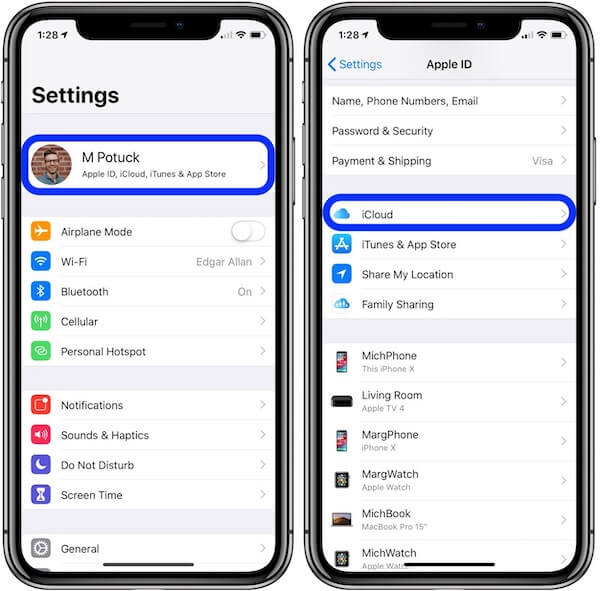
In case your iPhone is lost or stolen, turning on Find My allows you to remotely locate, lock or erase data to prevent it from being unlocked and misused by others.
Open Settings and tap your Apple ID (avatar) at the top of the screen. Slide to the iCloud menu.
Select Find My iPhone to enable the Find My iPhone and Send Last Location option, automatically reporting the location before the device runs out of power.
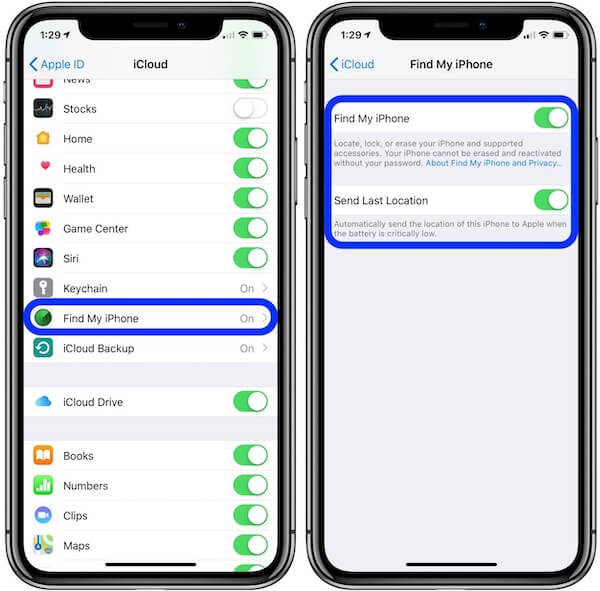
Enabling this feature should be done when setting up your iPhone for the first time. If you lose your device, you can use iCloud or Find My to retrieve it remotely. If you're worried about someone tracking you through this feature, fake location on Find My iPhone.
Disable Apple Pay authentications
In some cases, Apple Pay can evoke a payment page in a locked screen, risking being used by others to verify their faces. You can turn off the channel to prevent others from trying to unlock Face ID.
Open Settings, go to Face ID & Password, and enter the lock screen password to access the Settings options
In the USE FACE ID FOR list, find Wallet & Apple Pay. Turn this option off to disable Face ID payment verification on the lock screen.
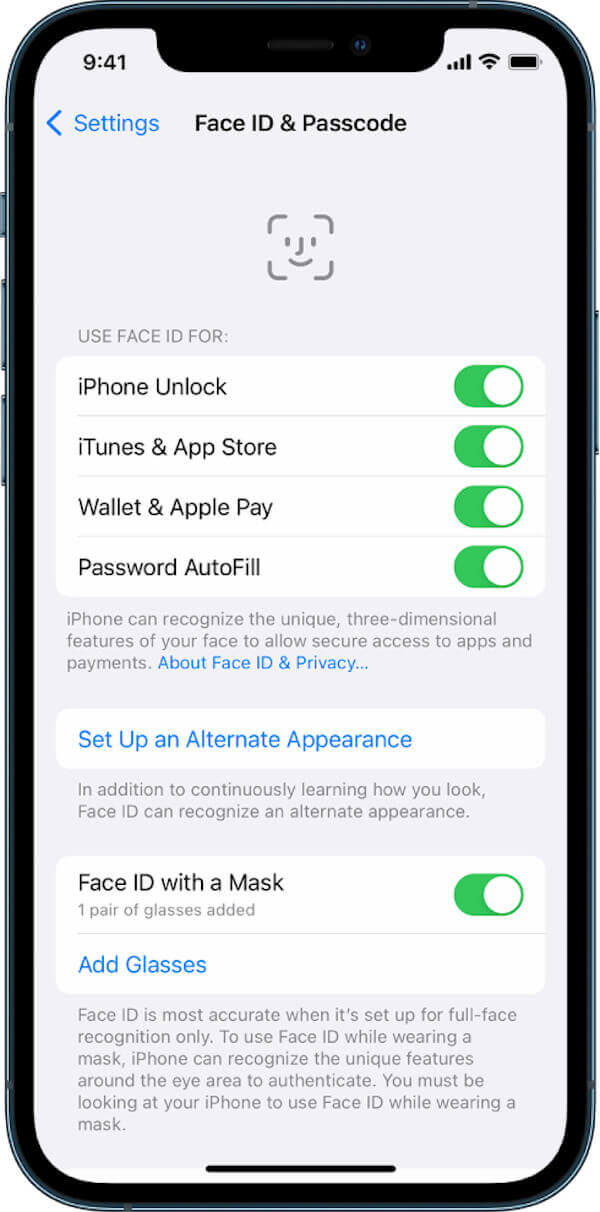
When disabled, Apple Pay will be activated only after the device has been fully unlocked, greatly improving security.
Set up Alternative Appearance
If your Face is different in different scenes, such as when you wear glasses, makeup, hats, etc., you can add an alternative appearance to make Face ID recognition more accurate and effectively reduce the probability of photos or videos being misidentified.
Go to Settings > Face ID & Password, enter the unlock password, and click Set Up an Alternate Appearance.
Click the Get Started button, and slowly rotate your head according to the screen prompts to enter the complete face data at different angles. After completion, the system will automatically save the alternate appearance to improve the unlocking and recognition success rate.
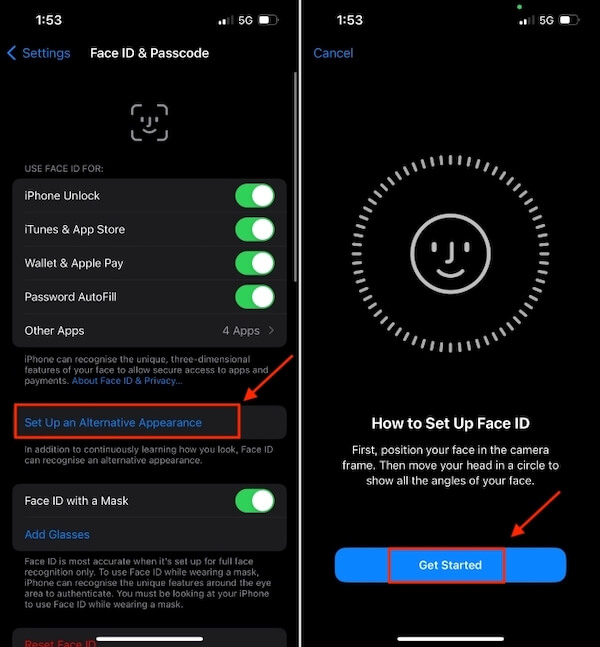
You can also use alternate appearances to enter more natural facial states, enhancing Face ID's ability to judge real faces in motion.
These four methods provide multiple barriers to your iPhone, from device local protection to remote control. If you're worried about the possibility of unlocking an iPhone with a photo, follow the steps above to set it up right away and take charge of your digital security.
Conclusion
Can you unlock Face ID with a picture? No, a regular photo cannot bypass Face ID. Now you understand how Face ID works and know how to better protect your iPhone. If you are locked out of the device because you forgot your passcode or Face ID is not working, imyPass iPassGo serves as a simple solution to help you unlock your iPhone without a Face ID.
Penny focuses on GPS troubleshooting and Windows optimization. She formerly worked as a technical support engineer, helping clients solve location-based and system issues efficiently. Backed by IT support experience, she provides practical solutions that really work. In her free time, she likes hiking and geocaching, testing GPS tech in the real world.
Hot Solutions
-
Unlock iOS
-
iOS Tips
-
Unlock Android
-
Password Tips


