



 Solution
 Support Center
 About Us
 Contact
How to Retrieve Messages from iCloud to Get Back Text and Attachments
 Clara Prescott Published on April 09, 2026Recover Data1-min reading
Your iPhone and iPad can be used to send messages. It can use text messages or iMessages. You can send stickers, text, images, and other attachments. Storing countless messages can take up much of your iPhone or iPad storage. It is the primary reason why other users prefer to delete messages.
However, there are instances wherein the users accidentally delete important messages. How to recover messages from iCloud? In this article, you will discover the three easy methods to do the said process. Additional tips are included, which are related to the topic. Kindly scroll below to know the full details.

In this article:
Part 1. Before You Start: Are Your Messages in iCloud?
Before you recover or restore your messages in iCloud, did you check if they are backed up on the mentioned free service? You can browse this section to check this matter. It is the most important step. If messages were not backed up, you cannot recover from iCloud.
1. How to Check & Enable iCloud Messages
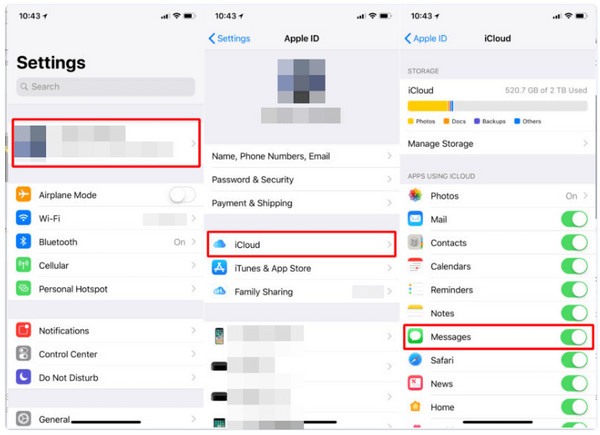
The backup process of your iCloud account on your iPhone or iPad depends on the enabled data types from the Settings app. If you found it turned off, you can turn it on to add the messages to the automatic or manual backup for the mentioned Apple devices. See the steps below to know how.
Open the Settings application on an iPhone or iPad. Then, select your account name at the top of the main interface. Later, select the iCloud button from the list.
Tap the See All button from the next list. Then, toggle on the Messages slider. Alternatively, tap the Messages in iCloud button. Then, toggle on the Use on This iPhone slider on the next screen.
2. How to Check Your iCloud Backup
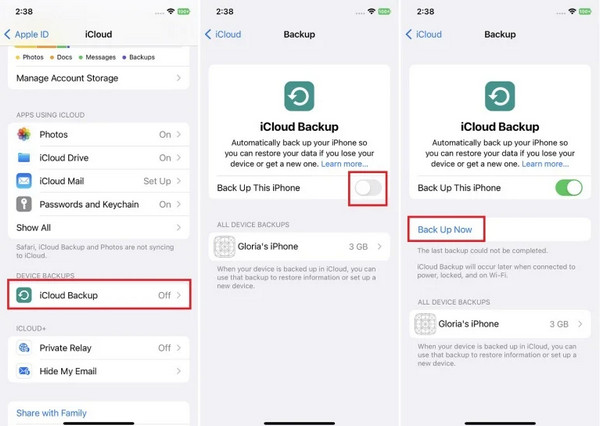
Alternatively, you can directly check if there is an existing backup for your iPhone messages. Same as in the previous method, it can be done with the Settings app. Please use the steps below as your reference.
Open the Settings application on your iPhone. Then, select your Apple account name at the top of the main interface. Then, select the iCloud button from the list. Go to the Device Backups section and tap the iCloud Backup button.
You will see the latest backups from the All Device Backups section. If you want to back up your iPhone or iPad, toggle on the Back Up This iPhone/iPad button. You may tap the Back Up Now button for a manual backup.
Part 2. Restore Your Entire iPhone/iPad from an iCloud Backup
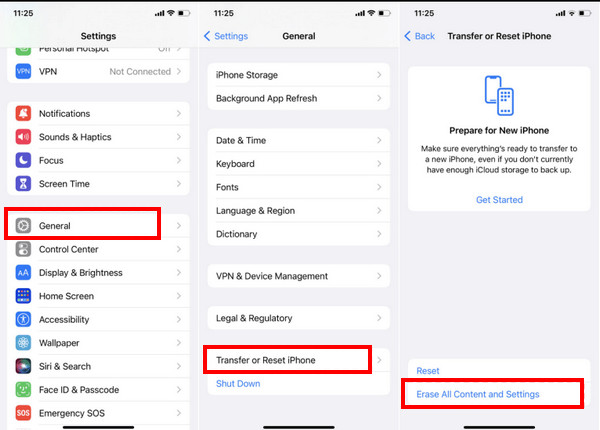
If you have an iCloud backup, you may restore it to recover the deleted messages on your iPhone or iPad. However, you are required to factory reset your iPhone or iPad to restore the entire iCloud backup. It is recommended to create a new backup for your new data.
If you do not have an iCloud backup, you will need the iCloud data recovery software. The best one can be discovered in the next section. How to restore messages from iCloud? You can follow the steps below for a successful procedure.
Open your Settings app on an iPhone or an iPad. Then, select the General button. Choose the Transfer or Reset iPhone/iPad button. Later, choose the Reset button and tap the Erase All Content and Settings button. Enter your iPhone or iPad passcode to confirm.
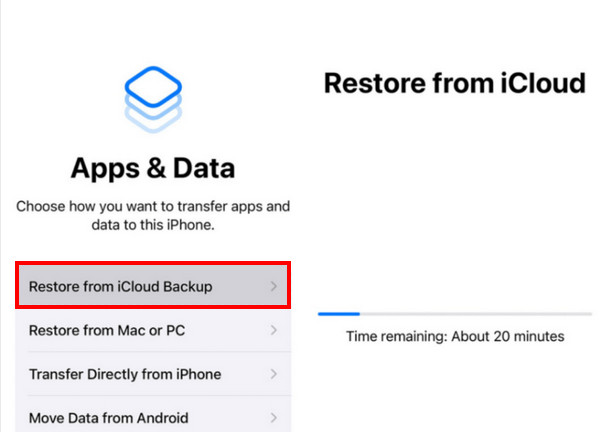
Set up the iPhone or iPad until the Apps & Data or Transfer Your Apps & Data screen is shown. Then, tap the Restore from iCloud Backup button. Enter your Apple ID account and choose a backup. Follow the on-screen steps to complete the process.
Part 3. Use a Third-Party Tool on a Computer (For Selective Recovery)
The restore process of your iCloud backup requires all of the data and settings to be included. imyPass iPhone Data Recovery allows you to recover selective data from your iCloud backup. It means that you can restore the iPhone or iPad messages without additional data. Besides iCloud, it can also recover data directly on your iPhone or iPad and iTunes backup. Besides messages, call history, videos, photos, notes, app data, and other data are also supported. Please use the steps to know how to operate the tool.
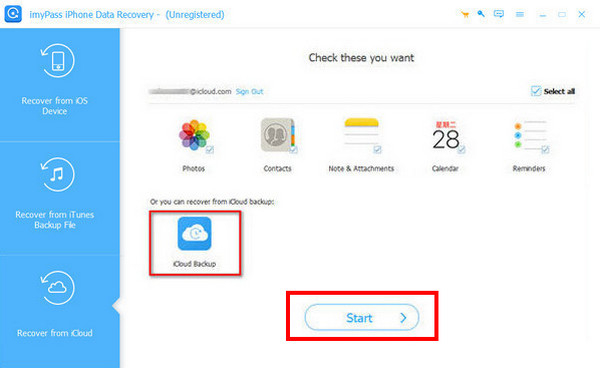
Download, set up, and install imyPass iPhone Data Recovery on your computer. Then, click the Recover from iCloud button.
Enter your Apple ID account, including the authentication process. Please plug your iPhone or iPad into the computer using a USB cable. Later, click the Start option at the bottom center.
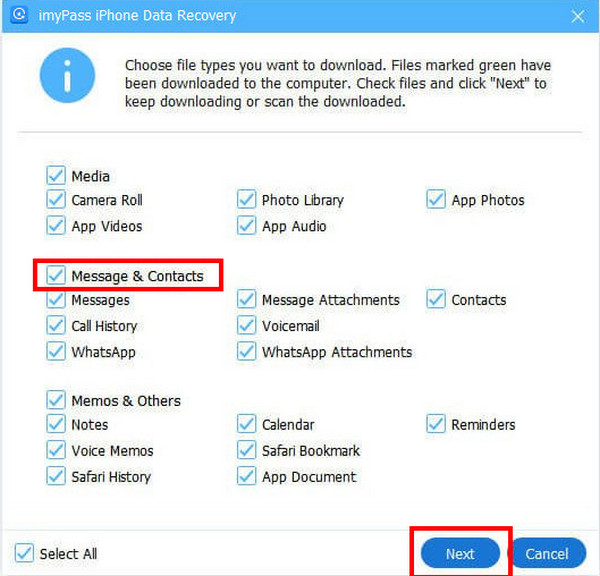
Click the Download button from the backup where your deleted messages are located. Click the Messages & Contacts button. Then, choose the Next button. The tool will start to recover the messages afterward.
Part 4. How to Recover Messages by Accessing a Computer
How to recover deleted text messages from iCloud on a computer? Luckily, this procedure is attainable because you can sync your messages on your Mac. Please ensure that you have the same Apple ID on your iPhone, iPad, and Mac. This way, the messages that you will sync are correct. Please perform the detailed instructions below to sync your iCloud messages to your Mac from your iPhone or iPad.
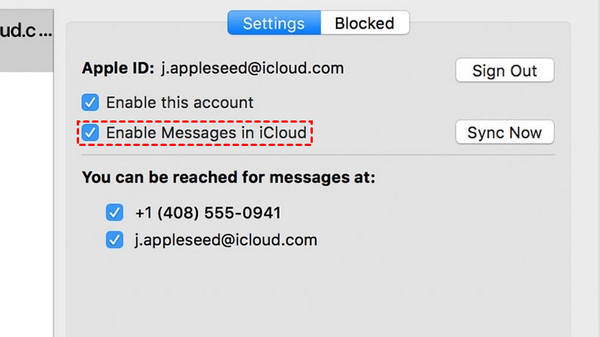
Access your Mac and open the Messages program. Then, click the Messages button at the top left corner. Then, drop-down options will be shown. Please click the Preferences button from the options list.
Click the iMessages button and click the Enable Messages in iCloud box. The messages from your iPhone or iPad will start to sync to your Mac. You can now access the deleted messages on the mentioned device.
Part 5. What If Messages Aren't Backed Up
If the messages are not backed up, they will only be stored in the local storage of your iPhone or iPad. Permanently losing them is possible because you do not have their copy, including backup. Your data will be prone to accidental deletion, damage, and other issues that might cause it to be lost. Without iCloud or other backup services, like Google Drive, you will have difficulty recovering your deleted data. On the other hand, you can still use an iPhone or iPad data recovery program.
You may use the Recover from iOS Device feature of imyPass iPhone Data Recovery. It can directly recover data from your iPhone or iPad.
Conclusion
All in all, this article is all about how to retrieve messages from iCloud. Three proven methods are introduced, including imyPass iPhone Data Recovery. It is a third-party program that allows you to recover selective data from an iCloud backup. Please download the tool if you want to know more about its other features.
Clara has over 8 years of experience helping users recover lost files and transfer data. She previously worked as a data recovery technician for a major IT service company. Certified in Data Recovery and Digital Forensics, her articles focus on simple solutions that make complicated recovery tasks easier for everyday users.
Hot Solutions
-
Recover Data
- AppGeeker iOS Data Recovery Review
- Disk Drill iPhone Data Recovery Review
- How to Get iPhone Out of Recovery Mode
- How to Fix support.apple.com/iphone/restore
- How to Recover Data from DFU Mode
- Gbyte iPhone Data Recovery Review
- How to Recover iPhone Deleted Photos After 30 Days
- How to Recover Deleted Photos on iPad
-
Unlock iOS
-
Transfer Data
-
iOS Tips

