



 Solution
 Support Center
 About Us
 Contact
How to Download All or Specific Photos from iCloud
 Clara Prescott Published on December 26, 2025Transfer Data3-min reading
iCloud Photos is a seamless way to access your photos across all your digital devices through one Apple ID account, including iPhone, iPad, Mac, and PC. According to our research, some users are confused about accessing iCloud Photos on their devices. This guide demonstrates how to download photos from iCloud to PC, Mac, iPhone, iPad, and an external hard drive. Following the right steps, you can download all or specific photos.

In this article:
Part 1: How to Import Photos from iCloud to PC
While there is no Download All option in iCloud for PC, you can download more than 1,000 photos from iCloud to a PC running Windows 11/10/8/7 and earlier. This way requires you to install iCloud for PC.
Download iCloud from the Microsoft Store and install it on your PC.
Open the client, and type your Apple ID and password.
Click the Sign In button to move on.
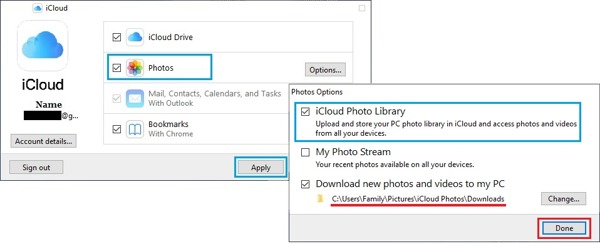
Check the box next to Photos.
Then, click the Options button next to Photos.
Tick the checkboxes next to iCloud Photo Library and Download new photos and videos to my PC.
Remember the path and click Done.
Click the Apply button to begin downloading all photos from iCloud to your Windows PC.
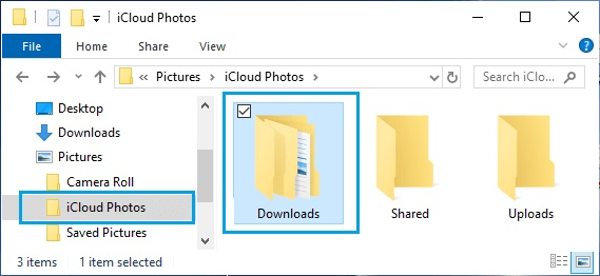
A few minutes later, open a file explorer and navigate to the path.
Part 2: How to Download Photos from iCloud to Mac
On macOS, Apple has combined iCloud Photos and the built-in Photos app. It means that you can download photos from iCloud to a MacBook within the Photos app. All you need is a reliable internet connection.
How to Download Photos from iCloud to MacBook
Run the Photos app on your Mac.
Click the Photos menu and choose Settings.
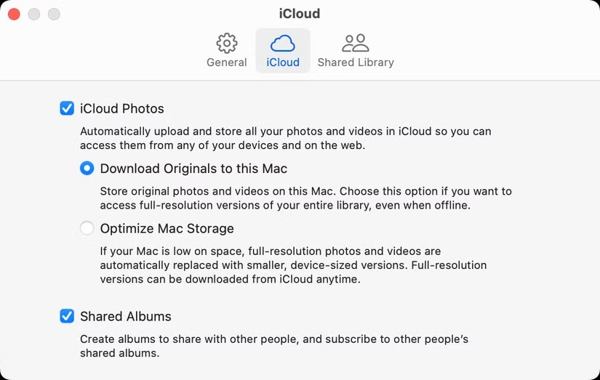
Go to the iCloud tab, and check Download Originals to this Mac.
When it is done, head to the Library tab and select all the pictures you want to move.
Click the File menu, choose Export, and pick Export Unmodified Originals for N Items.
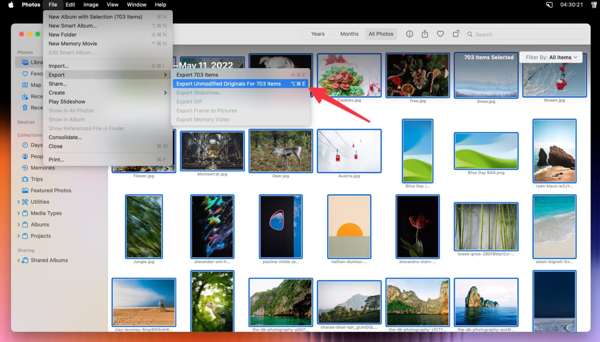
Then, hit the Export button, and select a location.
Finally, click Export Originals to save photos from iCloud.
How to Move iCloud Photos to an External Hard Drive
Enable Download Originals to this Mac in Photos on Mac.
Insert the external hard drive to your computer.
Return to the Settings screen in your Photos app.
Click Show in Finder in the General tab.
Then, you will see a file named Photos Library.photoslibrary. It holds all pictures in iCloud.
Copy this file and save iCloud photos to your external drive in Finder.
Note: When you need to open the file, quit the Photos app. Hold the Option key on your keyboard while clicking Photos. Then, click Other Library on the Choose Library screen, and select the Photos Library.photoslibrary file.
Part 3: How to Transfer Pics from iCloud to iPhone
With iCloud Photos, you can sync photos to your account on your iPhone or iPad. At the same time, you can import iCloud photos to your iPhone. Here are the steps to get your iCloud pictures:
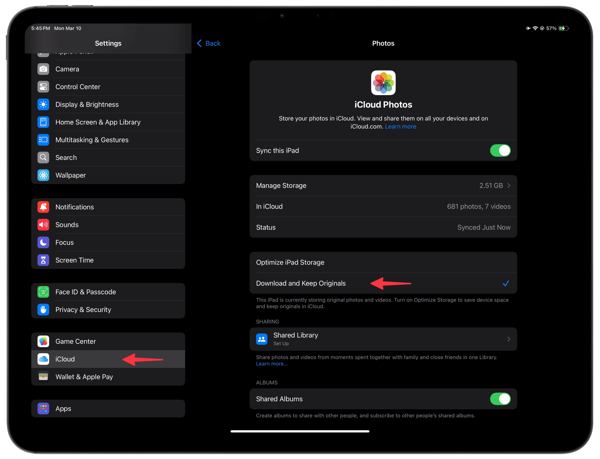
Run the Settings app on your iPhone.
Tap on your profile and choose iCloud.
Hit Photos, and choose Download and Keep Originals.
Once your device connects to a stable internet connection, the photo download will initiate.
Part 4: How to Move Photos from iCloud Online
If it is inconvenient to install iCloud for PC or iCloud Photos is unavailable, you can also move photos from iCloud in a web browser. We explain how to download all photos or specific photos below.
How to Move All Photos from iCloud Online
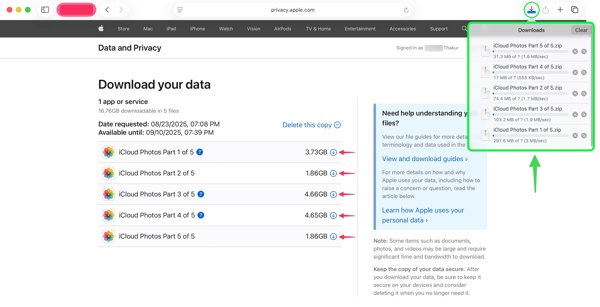
Go to https://privacy.apple.com/ in a browser and sign in with your Apple ID account. If you've forgotten Apple ID password, you need to reset it with the combined email or phone number.
Click Request a copy of your data.
Select iCloud Photos on the list, and click Continue.
Hit File Size and select a maximum file size. Then, Apple will divide your downloads.
Next, click Complete request.
Once Apple receives your request, it will email you.
Click Get your data in the email and hit Download.
How to Download Selected Photos from iCloud Online
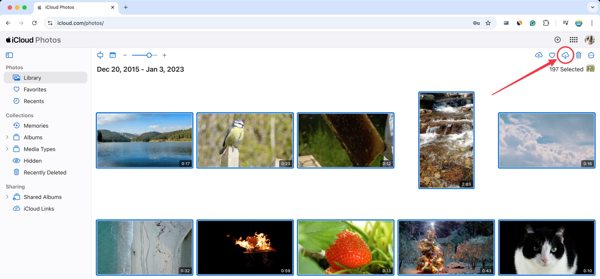
Visit www.icloud.com/photos in your browser and log in to your Apple account.
Go to the Library album and select all the photos you wish to download.
Next, click the Download button to move iCloud photos to your PC.
Part 5: How to Download iCloud Photos to PC and Mac
Another way to download iCloud photos to your computer is imyPass iPhone Transfer. It allows you to move iCloud photos from your iPhone or iPad to your computer without an internet connection. More importantly, it is simple to use without technical skills.

4,000,000+ Downloads
Transfer iCloud photos from iPhone to computer.
Preview photos for selective transferring.
Protect photo quality during the process.
Add photos from your computer to your iPhone.
Compatible with the latest versions of iOS and iPadOS.
How to Download iCloud Photos from iPhone to PC
Detect your device
Open the best photo transfer for iPhone after installing it on your PC. There is another version for Mac. Plug your iPhone into your PC with a Lightning cable. The software will detect your device immediately.
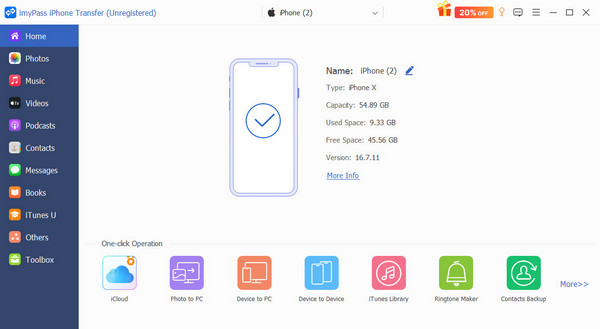
Preview iCloud photos
Go to the Photos tab, and you can see all photos on your iPhone, including iCloud photos synced to your device.
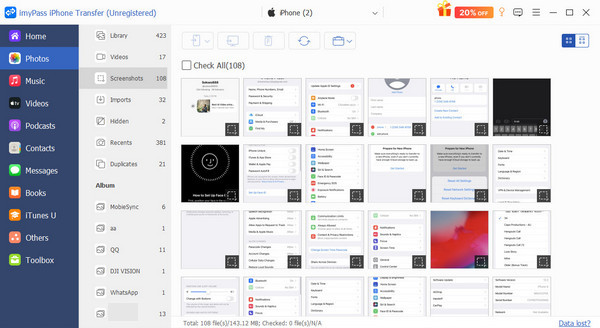
Download iCloud photos
Select the photos you want to download, click the PC button, and choose Export to PC. Set an output folder and download photos. What's more, you can even move music from iTunes to iPhone.
Conclusion
This guide discussed how you can get your pictures from your iCloud account on iPhone, iPad, PC, and Mac computer. You can pick the right method and follow our steps to get your iCloud photos. imyPass iPhone Transfer is the best option to transfer photos between an iPhone and a computer through a USB cable.
Clara is an editor from imyPass. She specializes in data recovery. You can find professional tutorials and solutions for recovering lost data from any device. Many users reported that his tutorial is easy and useful.
Hot Solutions
-
Transfer Data
-
Recover Data
-
Unlock iOS
-
iOS Tips

