



 Solution
 Support Center
 About Us
 Contact
How to Sync or Force Sync Photos from iCloud Quickly
 Clara Prescott Published on December 26, 2025Transfer Data3-min reading
Many Apple customers rely on iCloud for syncing their photos and accessing these photos on different devices. Once you set up iCloud on your device, the images you take on your iPhone or iPad are automatically available in your library on other Apple devices associated with the same Apple ID. This guide explains how to sync from iCloud Photos to your iPhone, iPad, Mac, PC, or online quickly without quality loss.

In this article:
Part 1: Sync iCloud Photos on iPhone/iPad
How to Get Photos from iCloud to iPhone
By default, your photos synced to iCloud on one device will be accessible on other devices. However, Apple only gives 5GB of free storage for each account. Therefore, you’d better get the photos from iCloud to your iPhone in time. So that you can free up your iCloud space without data loss.
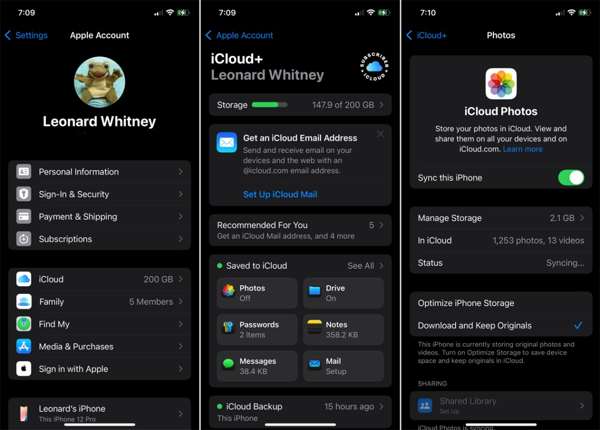
Open the Settings app on your home screen.
Tap on your profile, choose iCloud, and pick Photos.
Select Download and Keep Originals.
Toggle on Sync this iPhone.
Once your iPhone connects to an internet connection, iCloud Photos will begin syncing.
How to Force Sync iCloud Photos
If you have turned on iCloud Photos on your iPhone but you cannot get the new photos, you have to force sync photos on your device. First, you need to connect your iPhone to a stable internet connection.

Run the Photos app on your home screen.
Go to the Recents album.
Then, you will see the Optimizing System Performance message.
Tap Sync Now on the message to manually sync iCloud Photos on your iPhone.
Note: To force sync iCloud Photos on Mac, you need to enter the Library album in your Photos app.
Part 2: Sync iCloud Photos on Mac
If you have both an iPhone and a MacBook, you may want to transfer photos from iCloud to your computer after taking photos on your iPhone. With an internet connection, you can get iCloud photos to your hard drive. It's better to have a fast and stable internet connection, or syncing with iCloud may be paused.
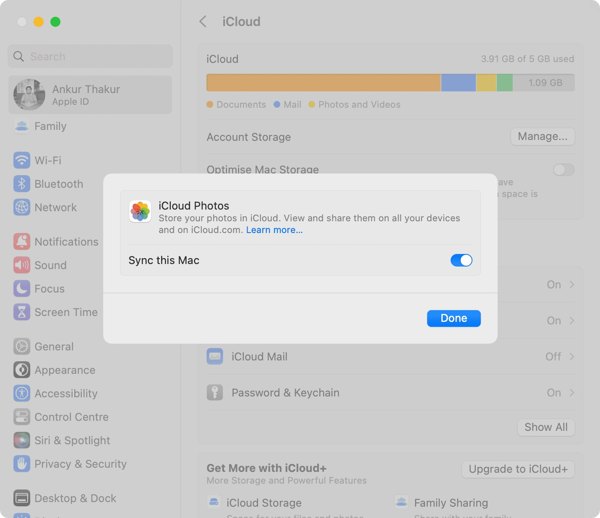
Click the Apple menu on your Mac and choose System Settings or System Preferences.
Go to the iCloud tab and choose Photos.
Check the box next to Photos, enter your Apple ID password if prompted, and hit Done.
Now, wait for all iCloud Photos to sync locally. Check the status at the bottom.
If you want to transfer iCloud photos to another location, go to the Photos app and select them in the Library.
Click the File menu, choose Export, and pick Export Unmodified Originals for N Items.
Hit Export, choose a location folder, and click Export Originals.
Part 3: Sync iCloud Photos on PC
While iCloud Photos is the cloud service released by Apple for its customers, it is available on PCs, too. With iCloud for PC, you can synchronize photos from iCloud to your PC after you upload your photos from an iPhone.
Install iCloud for Windows from the Microsoft Store.
Then, open the app from the Start menu.
Log in with your Apple ID and password.
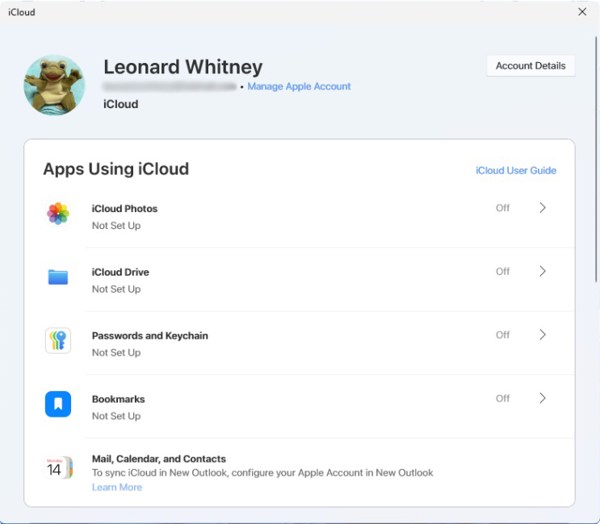
Click iCloud Photos, and toggle on the switches under iCloud Photos and Shared Albums.
Click Done to sync iCloud Photos to your PC.
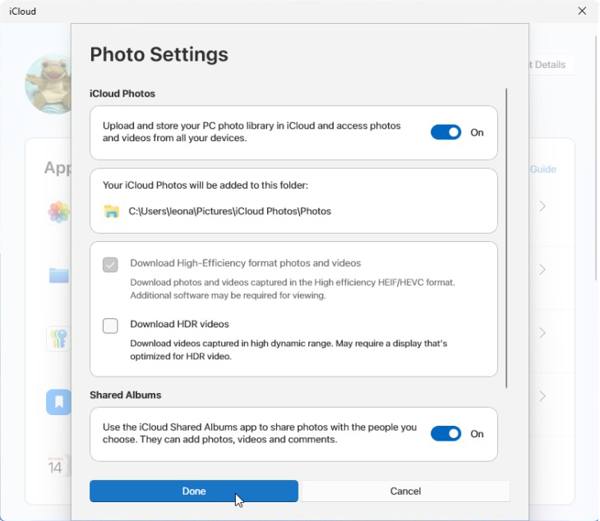
When syncing is complete, you can view iCloud photos in File Explorer by going to PhotosiCloud PhotosPhotos or in the Photos app on Windows 11/10.

Note: To view iCloud photos on Windows 11/10, click the Settings button in the Photos app, move to the Personalization section, and toggle on Show iCloud Photos.
Part 4: Sync Photos on iCloud.com
In addition to the Photos app, your photos and videos are also synced to iCloud online. You can access them with a web browser and transfer desired photos to any device without installing anything.
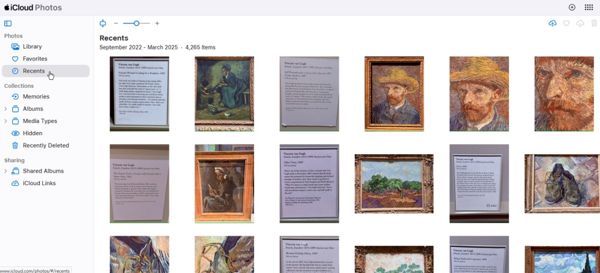
Go to www.icloud.com/photos in a web browser.
Sign in with your Apple ID and password.
Go to the Library album on the sidebar to view all iCloud photos.
To sync iCloud photos to your device, select them and click the Download button.
Part 5: Sync iPhone Photos Without iCloud
iCloud Photos is not a perfect service. It just offers limited storage. Moreover, it works with an internet connection. Thankfully, imyPass iPhone Transfer is an alternative solution for syncing photos between your iPhone or iPad and other devices.

4,000,000+ Downloads
Sync photos from iPhone to computer or another mobile device.
Work through a USB cable quickly.
Support almost all file types on iPhone.
Preview photos, videos, music, and more before syncing.
Compatible with the latest models of iPhone and iPad.
How to Sync Photos from iPhone to PC
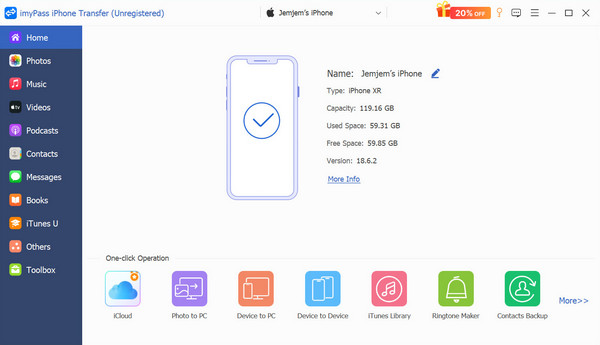
Scan your iPhone
Open the best photo syncing tool once you install it on your PC. There is another version for Mac. Connect your iPhone to your PC with a Lightning cable. If prompted, enter your iPhone passcode. Then, the software will begin scanning your device.
Preview iPhone photos
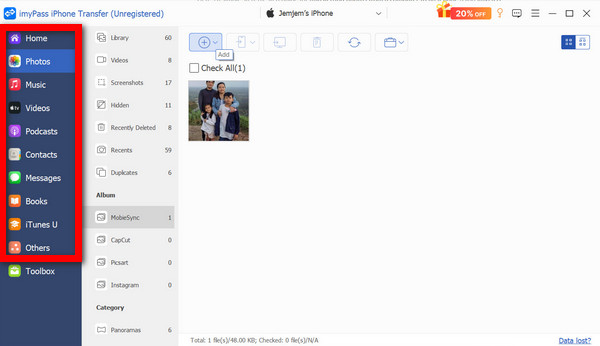
Next, go to the Photos tab on the sidebar, and pick an album to view your photos. You can preview photos in different modes.
Sync iPhone photos
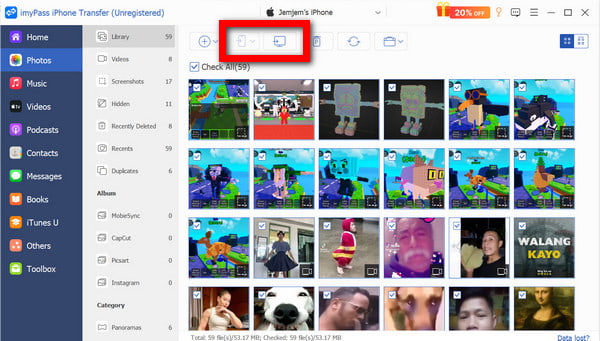
Check the photos you want to transfer to your PC, and click the Monitor button on the top ribbon. Choose Export to PC, set the output folder, and confirm it. You can also use this program to transfer contacts from iPhone to iPhone.
Conclusion
Following our guide, you can learn how to sync photos in iCloud on your iPhone, iPad, MacBook, PC, or online. Once you turn on iCloud Photos, your photos in iCloud will be synced to your iPhone or iPad. You can also sync photos from your account to Mac and PC over Wi-Fi. If it is inconvenient, you can also access iCloud Photos in a web browser. imyPass iPhone Transfer is the best alternative solution for syncing iPhone photos to a computer or another mobile device.
Clara is an editor from imyPass. She specializes in data recovery. You can find professional tutorials and solutions for recovering lost data from any device. Many users reported that his tutorial is easy and useful.
Hot Solutions
-
Transfer Data
-
Recover Data
-
Unlock iOS
-
iOS Tips

