



 Solution
 Support Center
 About Us
 Contact
How to Transfer Data from Your Old iPad to New iPad
 Clara Prescott Published on January 08, 2026Transfer Data3-min reading
If you just purchased a new iPad, the quick way to set it up is to copy from your old iPadOS device. It cannot be denied that upgrading to a new iPad is an exciting experience. Users can get more powerful hardware, better lens technology, and enhanced features. However, getting your data from the old iPad can seem daunting for non-tech-savvy. Therefore, our guide shares proven methods to transfer an iPad to a new iPad quickly.

In this article:
Part 1: The Best Way to Transfer Data from Old iPad to New iPad
Can you transfer data from the old iPad to the new iPad without iCloud? The answer is yes. All you need is imyPass iPhone Transfer. It can link your old and new iPad devices with a computer and transfer all data or specific files directly. Moreover, the intuitive interface makes it easy to navigate.

4,000,000+ Downloads
Transfer data from one iPad to another quickly.
Support photos, music, contacts, and more.
One-click data transfer between iOS devices.
Preview files for selective data transfer.
Compatible with the latest models of iPad.
How to Transfer Data from Old iPad to New One
Connect your iPad devices
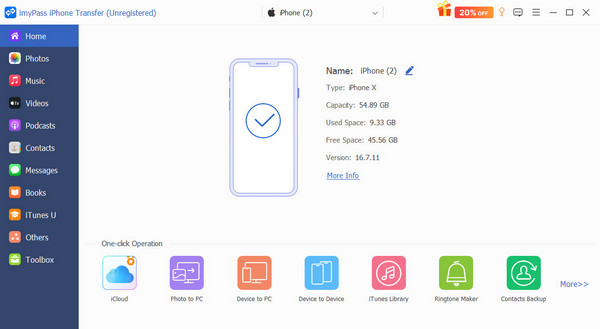
Install the best iPad transferring software and launch it after you set up your new iPad. Connect both your iPad devices to your computer with Lightning cables. The software is available on Windows 11/10/8/7 and Mac OS X 10.12 or above. For iPadOS 13 or above, you need to enter your iPad passcode to authorize the connections.
Transfer data to the iPad (All Data)
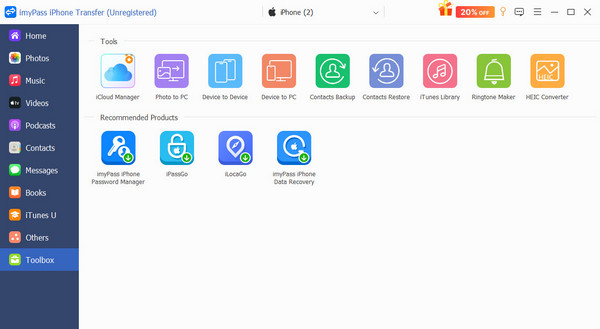
If you want to transfer everything from your old iPad to your new iPad, go to the Toolbox tab and choose Device to Device. Set the devices properly, and check the desired data types. Finally, click the Start button.
Transfer data to the iPad (Specific Stuff)
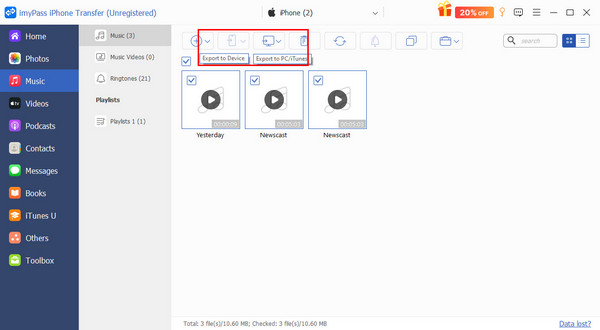
If you wish to transfer specific stuff from your old iPad to your new iPad, select the old device from the top option. Choose a data type on the sidebar, and select the desired items. Make sure to select all files to transfer, click the Phone button, and choose your new iPad.
Part 2: How to Transfer iPad to New iPad by Quick Start
Quick Start is a simple way to set up a new iPad from an old iPad. It is available to iOS 11 and iPadOS 13 or above. This method doesn't require extra software or hardware. All you need is the old iPad. You can also transfer apps on iPad with it.
Charge both your iPad devices.
Turn on the old iPad, connect to Wi-Fi, and turn on Bluetooth.
Power on your new device, and follow onscreen prompts to set it up until you reach the Quick Start screen.
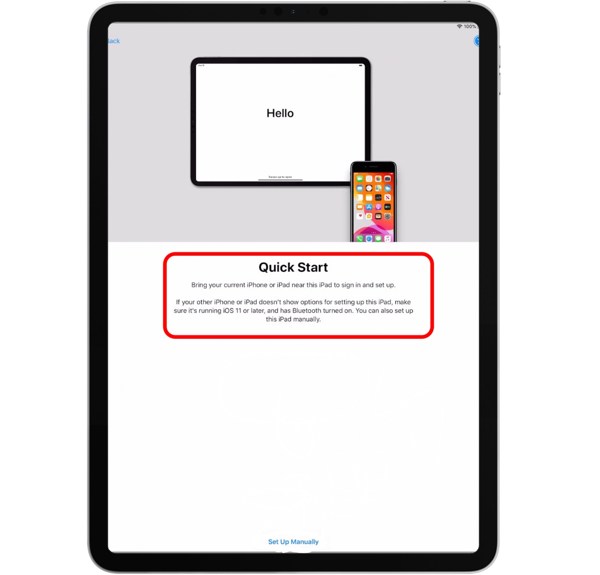
Make sure to connect your iPad to a Wi-Fi network.
Place the old iPad next to the new one. Once it detects Quick Start, tap Continue on the old device to proceed.
Then, a blue circular animation will appear on your new device.
Turn to the old iPad, open the Camera app, and scan the blue circle.
Next, enter the passcode of your old iPad on your new device.
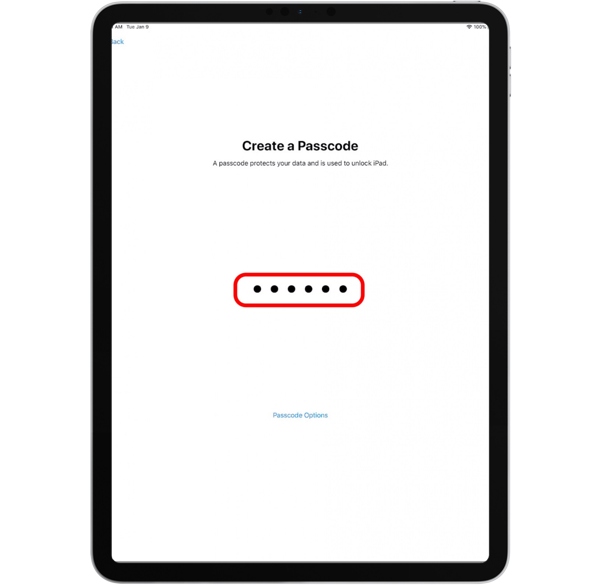
Follow the prompts to set up Face ID or Touch ID on your new iPad.
Choose Transfer from iPad on the Transfer Your Data screen.
Keep both iPad devices close to each other until the data transfer finishes.
Note: It may take dozens of minutes to hours to complete the process, depending on the amount of data.
Part 3: How to Set up a New iPad from an Old iPad Using iCloud Backup
iCloud backup is another way to transfer information from an old iPad to a new iPad wirelessly. This method requires a stable internet connection. If you don't have a computer or cables, this method is available. However, you should ensure that you have ever used iCloud on an iOS device, or you'll get nothing when you restore from iCloud Backup on the new iPad.
Turn on your old iPad and open the Settings app.
Tap on your profile and choose iCloud.
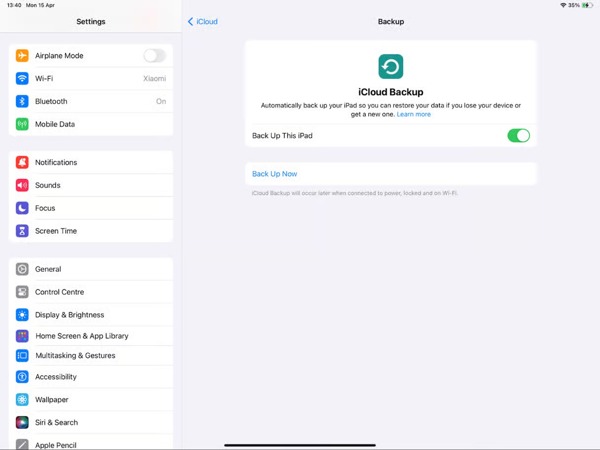
Tap iCloud Backup, and hit Back Up Now.
If your iPad connects to an internet connection, a backup will initiate.
When it is complete, switch to your new iPad.
Power it on and set it up from the Hello screen.
Follow the prompts to set your country, language, and more.
Make sure to connect to a Wi-Fi network.
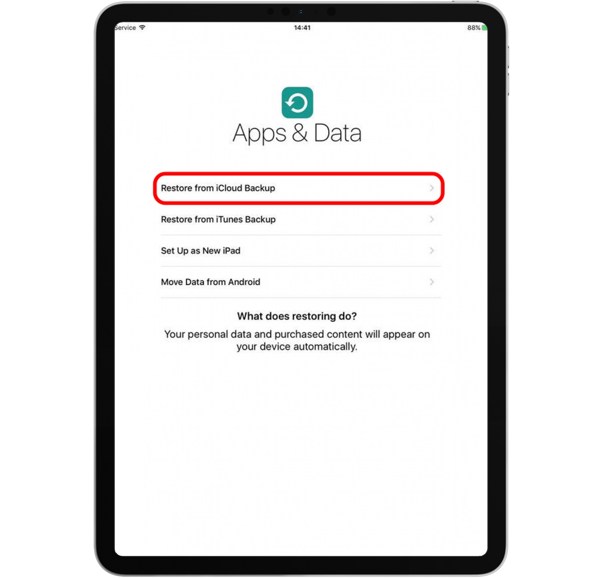
Choose Restore from iCloud Backup on the Apps & Data screen.
Enter the Apple ID account associated with the old iPad.
Pick the latest backup and begin transferring the old iPad to the new iPad.
Part 4: How to Transfer iPad to New iPad with iTunes Backup
If you don't have a stable internet connection, iTunes backup allows you to transfer data from an old iPad to a new iPad without iCloud. This method requires a computer and a compatible USB cable.
Connect the old iPad to your computer with a USB cable.
Open the latest iTunes or Finder, depending on your operating system.
Go to the Summary or General tab.
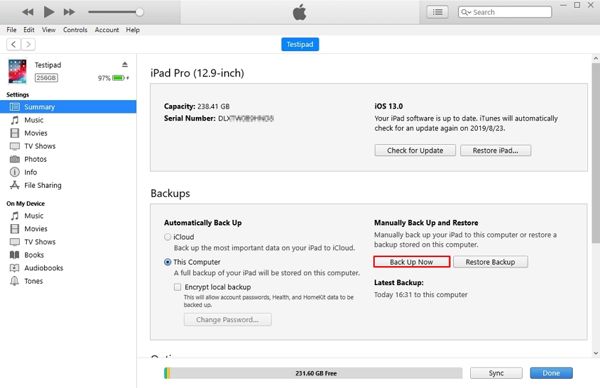
Click the Back Up Now button in the Backups section.
Make sure to select This Computer.
Wait for the process to finish, and then disconnect your iPad.
Plug your new iPad into the same machine with a USB cable.
Now, click the Restore Backup button in the Backups section.
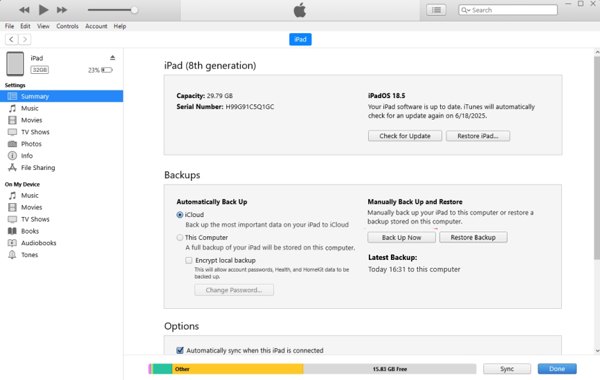
Choose the latest backup and click the Restore button to get iPad migration to the new iPad.
When it finishes, disconnect your new iPad.
Conclusion
This guide demonstrated how to transfer data from an old iPad to a new iPad wirelessly or without iCloud. Apple's Quick Start feature allows you to transfer basic information to your new iPad from an old device. iCloud enables you to migrate data from your old iPad to a new one wirelessly. iTunes lets you complete data migration between iPad devices with cables. imyPass iPhone Transfer is the best option for ordinary iPad users.
Clara is an editor from imyPass. She specializes in data recovery. You can find professional tutorials and solutions for recovering lost data from any device. Many users reported that his tutorial is easy and useful.
Hot Solutions
-
Transfer Data
-
Recover Data
-
Unlock iOS
-
iOS Tips

