



 Solution
 Support Center
 About Us
 Contact
How to Retrieve Airdropped Files: Photos, Documents, and More
 Clara Prescott Published on November 21, 2025Recover Data3-min reading
Airdrop is a convenient method to transfer files between Apple devices. However, just because of its convenience, sometimes we can't find the transferred file by Airdrop if we don't open it right after we transfer them. Therefore, in this article, we will introduce how to retrieve Airdrop files on iPhone and Mac.

In this article:
Part 1. Can I Find Airdrop History on iPhone/Mac
No. Airdrop is an approach to quickly transfer files between Apple devices. All the transferred files will be saved to the corresponding apps used to open them, rather than being listed in a history list.

Airdrop is often used to transfer small files wirelessly between Apple devices. It depends on Bluetooth Low Energy (BLE) technology to discover the nearby devices and build a Wi-Fi direct connection between the two devices without a network. These advanced technologies make Airdrop faster for connecting devices and transferring files.
However, just because Airdrop is designed concisely and for a quick transfer, there is no Airdrop history for the check. People have to open files with an app right after they are transferred; otherwise, it is hard to find certain types of files. This is also why many people ask how to retrieve airdrop history but end with no answer.
But don't worry, this part will show you how do I retrieve something from airdrop.
Part 2. Find Airdrop Files on iPhone
You can transfer many types of files with Airdrop, including photos, videos, and Word documents. Every type of file has an app to open it on an iPhone. Since the Airdropped files on iPhone are not saved in a specified folder or history list, you need to find the Airdropped files in the corresponding apps.
See the steps below:
Receive the file from AirDrop.
Choose the app to open it right after you receive the file.

Now, the next time you want to find the Airdrop files, just go to the app and open them.
Even if you didn't open the Airdropped files right after you received the file, it will automatically go to the corresponding app. See where to find them in this list:
- Photos/Videos: Photo app
- Audio: Music app, Apple Music app, or Voice Memos app
- Messages: Messages app
- Notes: Notes app
- Word files: Pages app or Files app
- Excel files: Numbers app or Files app
- PowerPoint files: Keynote app or Files app
- Other files: Files app
Part 3. Find Airdrop Files on Mac
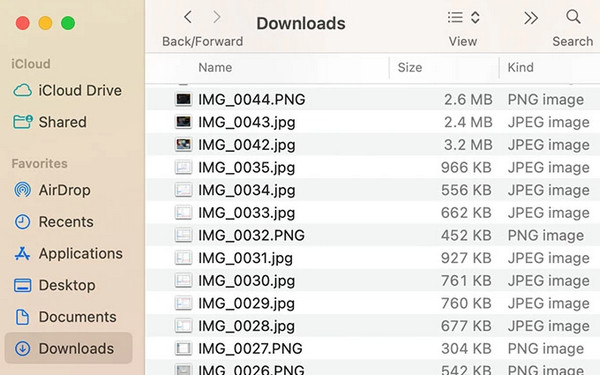
Fortunately, retrieving the transferred files via Airdrop on a Mac is easier than on an iPhone, because all the Airdropped files, including photos, videos, and any other types of files, will be listed in one folder. Here is how to find it:
Double-click to open Finder on your Mac.
On the left sidebar, click the Downloads tab, and all downloaded files (including Airdrop files) are here. Or just click the Airdrop folder at the top.
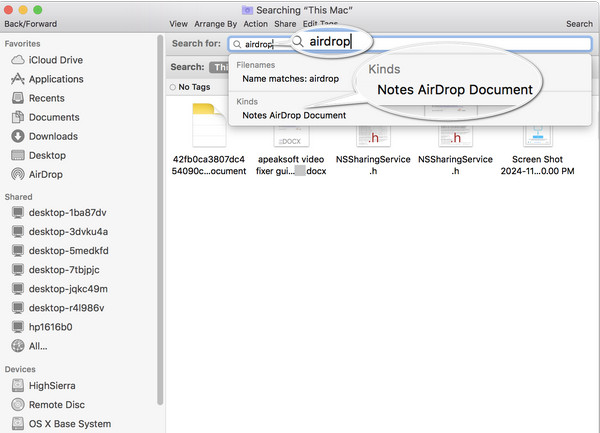
If you have too many files in this folder, search Airdrop indirectly, and it will automatically suggest you open Airdropped files, if any.
Part 4. Retrieve Lost Airdrop Files on iPhone
If you can't find the Airdropped files on your iPhone with the former data, chances are you deleted them, or they are hidden because they are not supported by iPhone default apps. No matter which situation you are in, we suggest using imyPass iPhone Data Recovery to find them back.
This is a professional program that can recover deleted or lost data from iPhones, and also can find all hidden files that are still stored on the iPhone. Recovering data on an iPhone is achievable because deleted files are still somewhere in the storage, but we can't see them. imyPass iPhone Data Recovery deeply scans your iPhone and finds them.

4,000,000+ Downloads
Recover somehow lost data from Airdrop iPhone.
Recover deleted photos, messages, videos, audio, documents, notes, etc.
Intuitive interface and easy to use.
Support nearly all iPhone models.
Let's see how to retrieve Airdrop files on iPhone back.
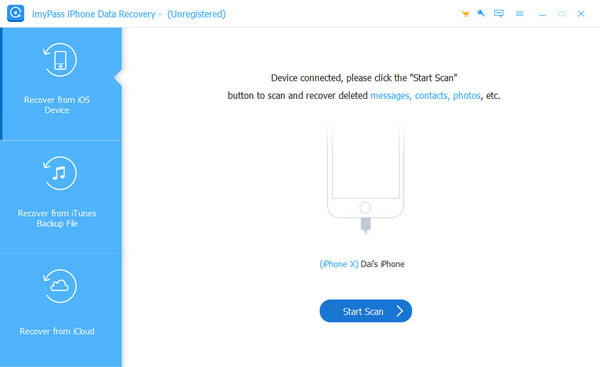
Download this program to your computer, install and launch it. Then, connect your iPhone to this computer via a USB cable. You may need to tap Trust on your iPhone to confirm the connection. Once your iPhone is detected successfully, the interface will be like this picture. Click Start Scan.
The program will automatically start to scan your iPhone. When it is established, you can filter those files by clicking file types on the left.
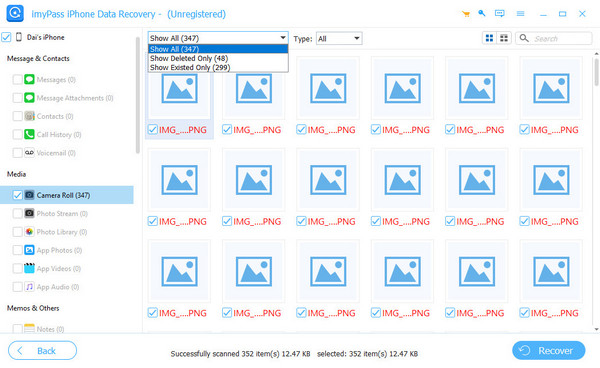
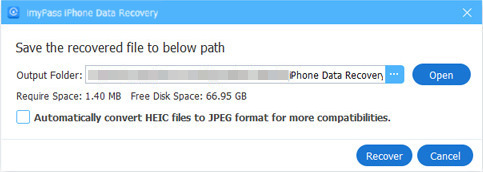
Check the files you want to recover, and click the Recover button at the bottom. Specify an output folder, and the lost Airdrop data will be recovered in a few seconds.
To connect your iPhone and computer successfully, you must install iTunes on your computer.
Conclusion
This article solved this problem: how do I retrieve something from Airdrop? Although there is no Airdrop history, we can find Airdrop files easily on iPhone and Mac. If not, use imyPass iPhone Data Recovery to recover the automatically deleted Airdrop files on your iPhone.
Clara is an editor from imyPass. She specializes in data recovery. You can find professional tutorials and solutions for recovering lost data from any device. Many users reported that his tutorial is easy and useful.
Hot Solutions
-
Recover Data
- Recover WhatsApp View Once Photo
- Recover Deleted TikTok Videos on Mobile
- Recover Deleted Facebook Photo
- Recover Viber Messages, Photos, etc.
- Recover Deleted Snapchat Photos
- 5 Best Contact Recovery Apps
- Recover Deleted Discord Messages
- AppGeeker iOS Data Recovery Review
- Recover Data from DFU Mode
- Cannot Restore iPhone Backup
-
Unlock iOS
-
iOS Tips
-
Password Tips

