



 Solution
 Support Center
 About Us
 Contact
How to Recover Videos from iPhone: Get Back Your Old and New Videos
 Clara Prescott Published on December 29, 2025Recover Data3-min reading
Taking videos on the iPhone is convenient. It is due to the size of the mentioned device, you can bring it everywhere and take videos. Also, the good quality of the videos that were produced with the iPhone is one of the reasons. In this case, iPhone users store multiple videos on their devices.
Unfortunately, there are iPhone users who experience an accidental deletion of their videos. It is a disaster for users who have important videos on their iPhone. How to recover deleted iPhone videos? The good thing is that this article has five ways to recover your deleted iPhone videos. See their full details by scrolling below.

In this article:
Part 1. How to Recover Recently Deleted iPhone Videos?
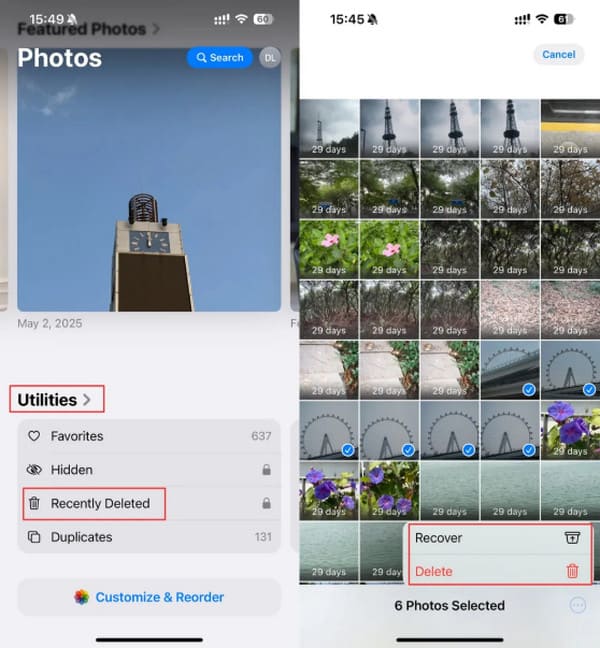
The videos that are captured are stored from the Photos app on your iPhone. Your iPhone is ready when there is an accidental deletion of your videos. It does not permanently delete them from your iPhone. It stores them for 30 days in its Recently Deleted folder. You can also recover Photoshop files with this folder if saved on an iPhone. However, after the mentioned days, the videos will be permanently deleted. Recover your iPhone videos before that happens using the steps below.
Open the Photos app on your iPhone. After that, tap the Albums button at the bottom. Then, go to the Utilities button on the screen. Select the Recently Deleted button from the screen. The recently deleted media files will appear.
Please select the videos you want to recover. Then, tap the More button at the bottom right. Finally, tap the Recover button from the list.
Part 2. How to Recover Permanently Deleted iPhone Videos?
How about the permanently deleted videos from the iPhone? We recommend imyPass iPhone Data Recovery! This third-party tool has a straightforward recovery procedure for your iPhone videos. Besides videos, this tool can also recover your iPhone photos, call history, app data, and more data types. It also allows you to restore backups from your iTunes and iCloud backups. How to recover permanently deleted videos on iPhone? Use the tool with the steps below.
Open the web browser and go to the official website of imyPass iPhone Data Recovery. After that, set up and install the tool on your computer. The computer will be responsible for opening the downloaded tool afterward.
Please plug the iPhone into the computer. You may use a USB cable for the plugging process. Then, please select the Recover from iOS Device button at the top left. Later, click the Start Scan button at the bottom right.
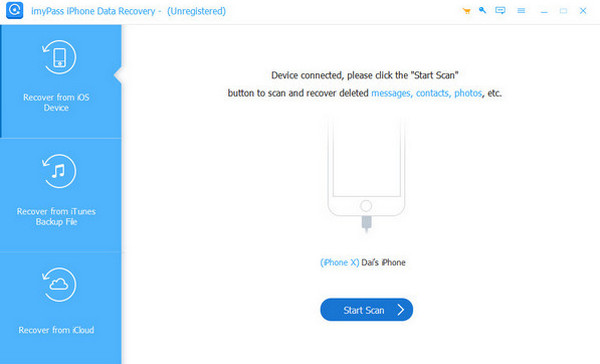
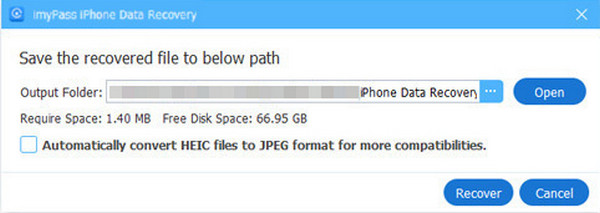
The scanned video files will appear on the screen. Select the videos you want to retrieve and select the Recover option on the right. Select the destination path and click the Recover button from the small window to start recovering the files.
Part 3. Find Deleted iPhone Video from Messages History
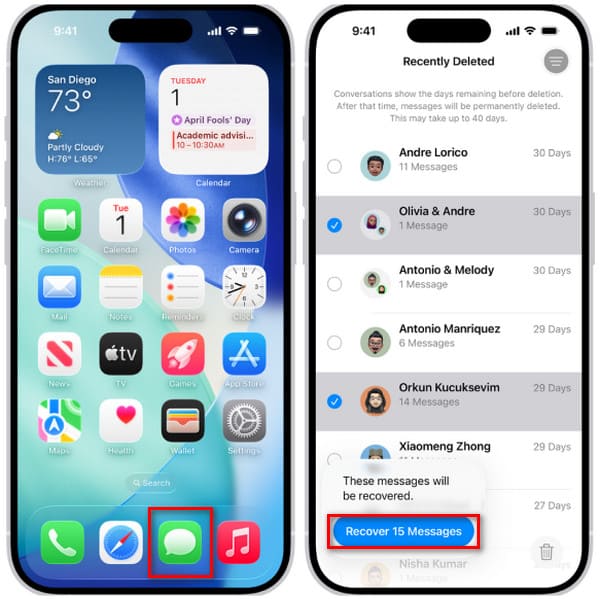
You may also recover deleted videos from the iPhone Messages app. It allows you to show the history information about the data sent from each conversation. However, not all videos can be recovered, especially if the conversion has been deleted from the iPhone Messages app. Use the iPhone Messages app history with the steps below.
Go to the Messages app of your iPhone by tapping the button at the bottom center of the screen. After that, tap the Menu button from the main interface. More options will be prompted. Please select the Recently Deleted button from the list.
The recently deleted messages will appear. Please select the conversation that includes the deleted videos. Then, tap the Recover [Quantity] Messages button at the bottom left.
Part 4. Restore iPhone Video from iCloud Backup
If you are an Apple user, you are familiar with iCloud. It is the required account on your iPhone and other Apple devices. It is commonly used as a backup service that can back up your iPhone data selectively. However, the restore process of iCloud does not allow for selective data. It restores all the content and settings from the backup.
It can also help you recover deleted messages on Messenger and other data types. The restore procedure of your iPhone with iCloud requires it to factory reset if it is not new. The reason is that iCloud restore can only be performed when the iPhone is in its default state. Recover permanently deleted videos on iPhone with iCloud using the steps below.
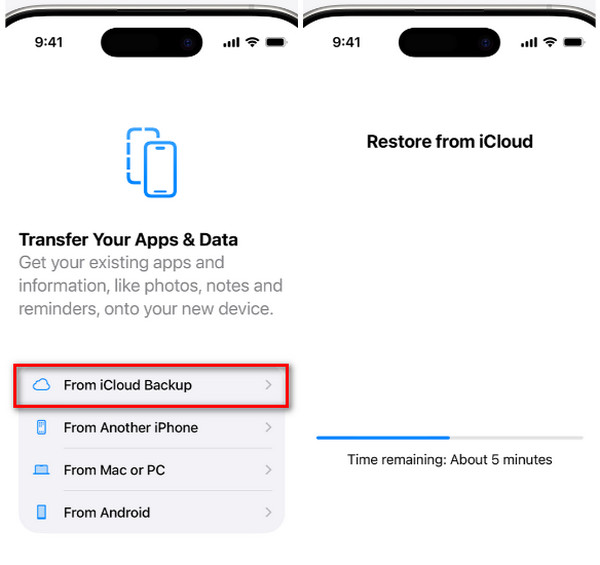
Open your iPhone and set it up until you reach the Transfer Your Apps and Data interface. After that, please select the From iCloud Backup button from the next interface. Please sign in to the iCloud account associated with the backup.
Please select the most relevant backup from the screen. After that, the Restore from iCloud screen will appear. An indication at the bottom will appear. Please wait for the restore backup to be completed.
Part 5. Restore iPhone Video from Finder/iTunes Backup
iTunes and Finder are tools for managing your files from your devices, including your iPhone. These tools can back up your iPhone data, such as videos, and store it for a long time. But ensure that the backups are made before the videos are deleted. Also, iTunes and Finder do not back up selective data on your iPhone. They back up the iPhone data as a whole.
The mentioned tools will overwrite the old backups when a new backup is made. Please note that there are backups that can be restored that contain encryption passwords. You must know the security information to restore the backup. The steps to recover deleted iPhone video with iTunes and Finder are available below.
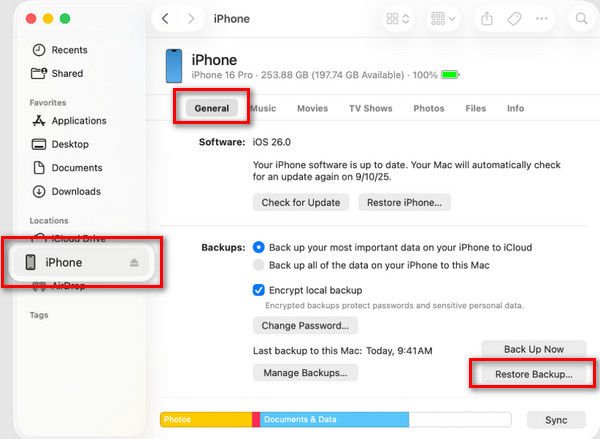
Open iTunes or Finder, since they have the same processes. After that, plug the iPhone into the computer using your USB cable. Then, click the iPhone button at the top if you are using iTunes and at the bottom left if you are using Finder.
Click the General button in Finder and click the Summary button if you are using iTunes. After that, please click the Restore Backup button at the bottom right. Enter the encryption password and choose a backup to restore. Finally, click the Restore button.
Conclusion
In conclusion, you can recover old videos from an iPhone. You can also recover the recently deleted ones with the help of the five easy ways in this post. imyPass iPhone Data Recovery is also here to help you recover permanently deleted videos on your iPhone. You will know more about this tool by downloading it on your computer.
Clara is an editor from imyPass. She specializes in data recovery. You can find professional tutorials and solutions for recovering lost data from any device. Many users reported that his tutorial is easy and useful.
Hot Solutions
-
Recover Data
- Recover WhatsApp View Once Photo
- Recover Deleted TikTok Videos on Mobile
- Recover Deleted Facebook Photo
- Recover Viber Messages, Photos, etc.
- Recover Deleted Snapchat Photos
- 5 Best Contact Recovery Apps
- Recover Deleted Discord Messages
- AppGeeker iOS Data Recovery Review
- Recover Data from DFU Mode
- Cannot Restore iPhone Backup
-
Unlock iOS
-
iOS Tips
-
Password Tips

