



 Solution
 Support Center
 About Us
 Contact
How to Fix the Grindr App Not Working on iPhone and Android
 Penny Warren Published on January 09, 2026GPS Location3-min reading
Currently, Grindr is the largest social media platform serving the LGBTQ community. It allows users to meet new people for making friends, hookups, dates, and anything else they want. However, some users usually encounter the Grindr not working issue on their phones. For example, the app doesn't respond or refresh at all. This article will collect some common Grindr not working issues and show you how to fix them to make your Grindr work properly again.

In this article:
Part 1: Why Grindr is Not Working?
A wide range of factors can lead to the Grindr app not working problem. Understanding why the problem occurs can help you fix the problem easily. Here are some common reasons that will cause the Grindr app not to work well:
1. Network connectivity issues: A poor or unstable internet connection may lead to the Grindr app not loading or refreshing properly. When you want to meet others, the app may fail to load their real-time locations.
2. Outdated version: An outdated Grindr app may accumulate a lot of glitches and unproper settings, which may make Grindr not work.
3. Account issues: If your account is suspended or banned, the Grindr app on your iPhone or Android won't work. Ensure that you don't violate the community guidelines.
4. Software glitches: There are many software glitches in Grindr, like messaging bugs, location errors, and notification issues. You may encounter Grindr notifications not working if the app has software glitches.
5. Server outages and maintenance: Just like many online services, Grindr may have server outages and maintenance. What you can do is just wait for it to finish.
Part 2: How to Fix Grindr Not Working
Problem 1: Grindr Refresh Not Working
Once Grindr is not refreshing, users cannot update content, access the most current information, exchange messages, or receive notifications. That is incredibly inconvenient and may lead to missing important messages.
Solution: Clear App Cache
On Android
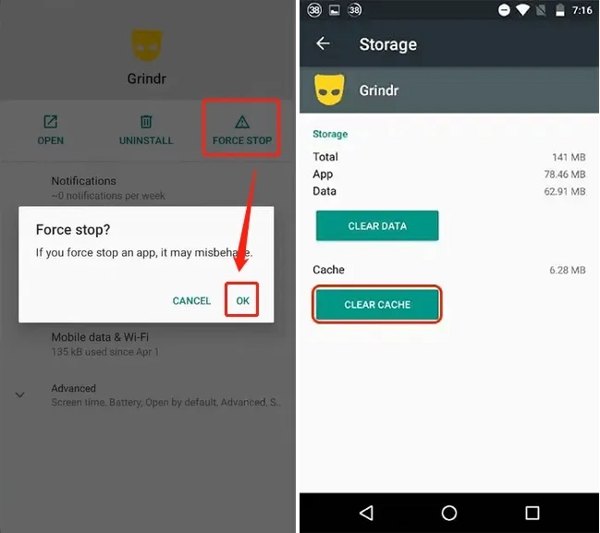
Open the Settings app, go to Apps, and choose Grindr.
Tap Force Stop and tap Clear Cache under the Storage section to fix the Grindr app refresh not working issue.
Restart your Grindr, and it should refresh properly now.
On iPhone
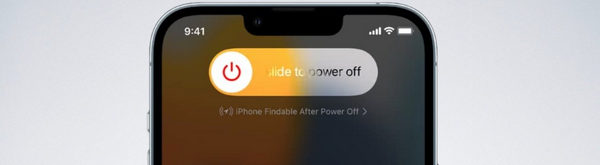
iPhone doesn't have an app cache removal feature. You can shut down the app and restart your iPhone to try fixing the Grindr not working problem. When your iPhone has refreshing and loading issues, like failing to refresh, restarting can easily fix those problems.
Problem 2: Grindr Internet Not Working
Sometimes, users may see the No Internet Connection notification in the Grindr app. That occurs due to a poor internet connection. Moreover, this problem also leads to Grindr messages not sending or Grindr CAPTCHA not working.
Solution: Check Your Internet Connection
Close Grindr and open another internet-reliant app. If it falters too, move to the next step. If not, chances are that Grindr servers are down. You have to wait for them to work again.
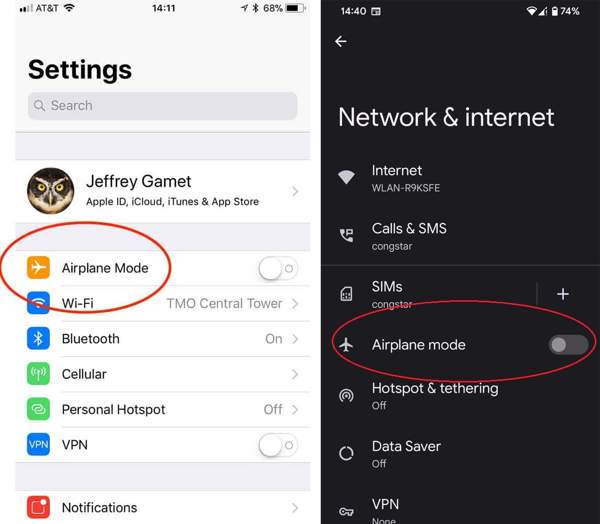
Open the Settings app and make sure to disable Airplane Mode.
If your phone connects to cellular data, switch to a Wi-Fi network or vice versa. Then try your Grindr app again to see if you can fix the network on Grindr not working issue.
Problem 3: Grindr Notifications Not Working
As an online dating platform, Grindr allows users to send and receive messages with other users. The communication and notifications require a reliable internet connection and permission. You may miss important information if Grindr messages are not sent or Grindr notifications are not working.
Solution: Check Grindr Permissions
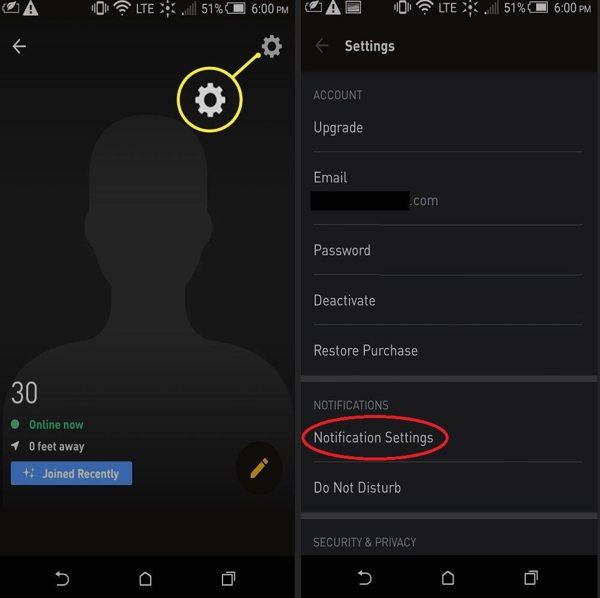
Open your Grindr app.
Tap the Settings button with a gear icon, and hit Notification Settings.
Make sure to permit Grindr to display notifications.
You can also connect your phone to a reliable internet connection to see if you can fix the Grindr notifications not working issue.
Note:
You can also set the permissions in the Settings app on your phone.
Problem 4: Grindr Signup or Login Not Working
Many users encounter the Grindr sign-up not working or cannot log in. If you have checked the internet connection and the Grindr server is in good condition, you can update the Grindr app. After our tests, an Update can easily solve many system glitches and hidden problems.
Solution: Update Grindr
On iPhone
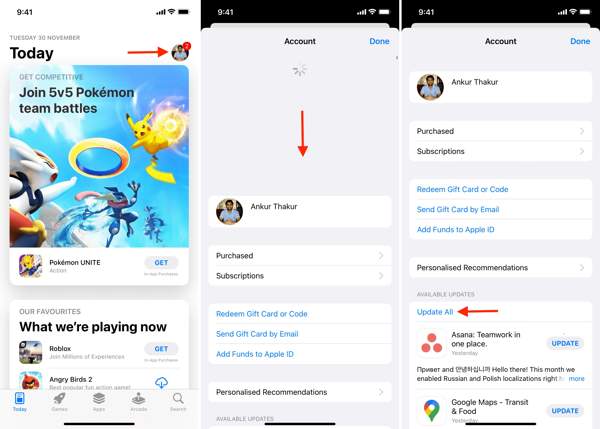
Open the App Store app.
Tap on your profile and swipe downward from the top of the screen.
Then find Grindr and tap the UPDATE button. Launch Grindr to see if you can fix the Grindr app login or sign-up not working issue.
On Android
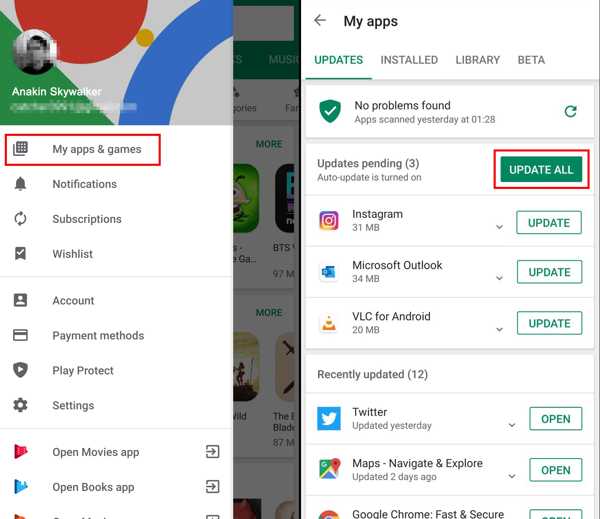
Open the Play Store app.
Tap the Hamburger button and select My apps & games.
Go to the Updates tab and tap Update All or Update next to the Grindr app. Launch the app to see if you've fixed the Grindr sign-up not working problem.
Problem 5: Grindr Is Not Loading
Grindr not loading or Grindr albums not loading is another concern among users. If you have eliminated the poor network connection and cleared the cache, try to reinstall the app and log in to your account.
Solution: Reinstall Grindr
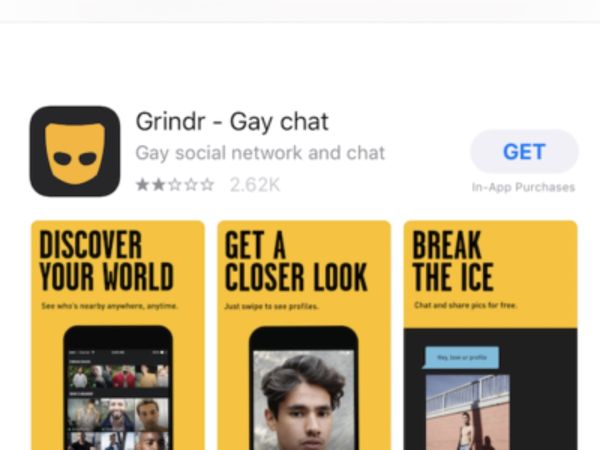
Long-press the Grindr app on your home screen or app tray until you enter the edit mode.
Tap the Delete button. If prompted, confirm your action.
Go to the App Store or Play Store and reinstall Grindr.
Open the app and log in to your account to see if this method can fix the Grindr app not working problem.
Problem 6: Grindr Verification Not Working
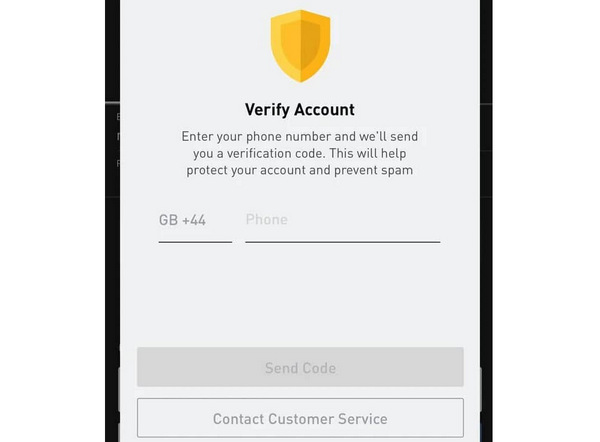
When you verify yourself in Grindr with your phone number, email address, or ID, the verification step may not work. The Grindr verification web shows nothing, and you cannot get the verification code, and even the verify fails. That's mainly because the internet connection is poor, and the VPN or proxy you use affects the Grindr verification.
Solution: Switch to a good internet connection and disable VPN or proxy
It's very easy to switch to another Wi-Fi or cellular data. If you want to turn off VPN or proxy on your phone, you can see the steps below.
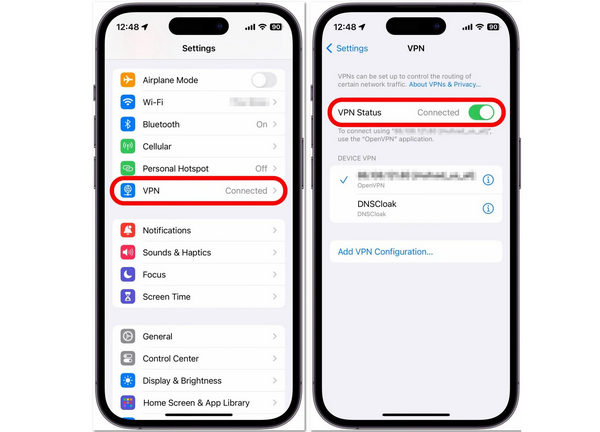
On iPhone
Open the Settings app on your phone. Select VPN. Then, tap VPN Status to turn it off. See if you can fix the Grindr verification step not working issues on the app or web.
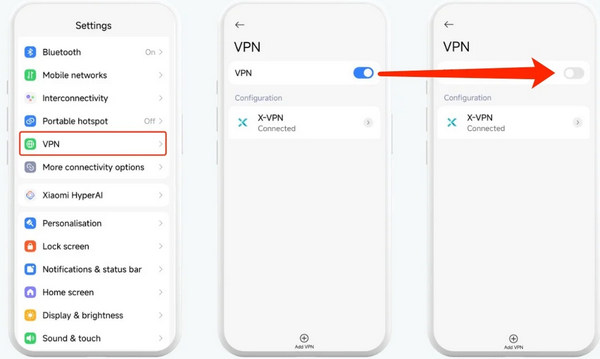
On Android
Open the Settings app. Select VPN. Then, you can tap the VPN button to turn off all VPN or proxy connections or select one to turn it off.
Problem 7: Grindr Explore Not Working
Grindr Explore not working means the Explore feature fails to load or display users, and you can't browse distant or interest-based matches. This is usually caused by internet issues, software problems, or server and backend issues. Also, some countries or regions have blocked this feature. Free accounts may have restricted access to Grindr Explore; unverified or flagged accounts may be limited in using it.
Solution: Complete account verification and appeal a flag
Ensure that your internet connection is stable and your country or region is not blocked by Grindr. Then, do the things below to fix Grindr Explore not working:
1. Verify your account: Open Grindr, go to Profile. Look for any verification notification and follow the on-screen instructions to complete it.
2. Appeal a flag or restriction: Go to the Grindr support webpage – help.grind.com. Submit a support request to explain that your account being flagged should be a mistake. Then, Grindr may restore your account.
Part 3: Bonus Tips: Change Location on Grindr Safely
Grindr matches people based on your location and other information. If you want to expand your connections and get rid of location restrictions, you need to fake Grindr location using iLocaGo. Plus, it can fix the Grindr location not updating.

4,000,000+ Downloads
Change Grindr location on Android and iPhone.
Use accurate addresses or inaccurate locations.
Create virtual locations and routes with multiple modes.
Support a wide range of Android and iOS devices.
How to Change Location on Grindr
Connect to your device
Launch the location spoof software after installing it on your computer. Connect your mobile device to the computer with a compatible cable. Then, the software will recognize your device immediately.

Choose a mode
To update the Grindr location, choose the Modify Location mode. The other three modes are used to make virtual routes.

Modify Grindr location
Then, type an accurate address in the box and click the Sync to device button. If you don’t have an exact address, press a proper position on the map and hit Sync to device. You can also use it to change location for Spotify.

FAQs.
-
How do you know if you're banned from Grindr?
You are banned from Grindr if you cannot log in or if your account is suspended.
-
Why is Grindr always glitching?
There can be many causes, like an outdated app, a poor internet connection, server issue, and more.
-
What does "looking" mean on Grindr?
That means looking for a hookup or relation.
Conclusion
This article offers you 7 ways to fix the Grindr app not working caused by different reasons. When you encounter an issue, you can follow our solutions to get rid of it. iLocaGo can help you manually change the location on Grindr with an accurate address or an inaccurate location, which can also help you fix Grindr location not working.
Penny is a senior editor from imyPass. She has focused on discovering perfect GPS location solutions in all scenarios, and also has experience in fixing computers.
Hot Solutions
-
GPS Location
- Best Pokemon Go Locations with Coordinates
- Turn Your Location Off on Life360
- How to Change Location on iPhone
- Review of iSpoofer Pokemon Go
- Set Virtual Locations on iPhone and Android
- TikTok Track Your Location
- Monster Hunter Now Joystick
- Review of IP Location Finder
- Change Mobile Legends Location
- Change Location on Tiktok
-
Unlock iOS
-
iOS Tips
-
Unlock Android


