Solution
 Support Center
 About Us
 Contact
How to Bypass Pattern Lock on Android Phone or Tablet Easily
 Gideon Byron Published on August 19, 2026Unlock Android3-min reading
Forgot your Android pattern lock and can't use your phone or tablet? Is there any way to unlock your Android phone without losing data? You are right here! This guide covers 5 proven methods to unlock the pattern lock from your Android phone, including official methods, Google services, and professional unlock software.

In this article:
Part 1: The Easiest Way to Unlock Pattern Lock Without Password
No matter you forgot pattern lock, get a second-hand phone, cannot enter passcode due to a broken screen, imyPass AnyPassGo can help you solve all these troubles! It is able to remove any screen lock from your Android phone or tablet, including pattern, passcode, fingerprint, PIN or facial recognition. The powerful tool supports almost all major brands and models running Android 5-16. You can even use it to bypass Google FRP without a password!
4,000,000+ Downloads
Remove the pattern lock on your phone in minutes.
Bypass screen passcode, PIN, fingerprint or face unlock.
Bypass Google FRP lock easily without account password.
Support a wide range of Android brands and versions.
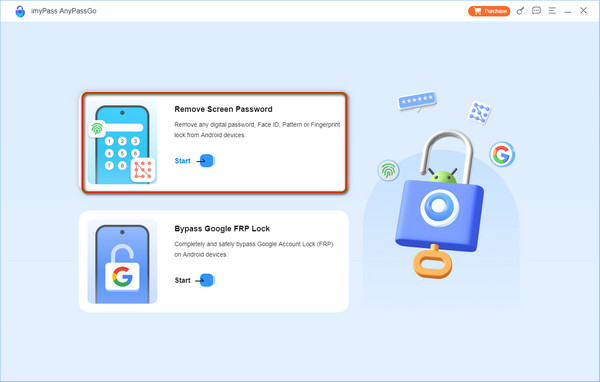
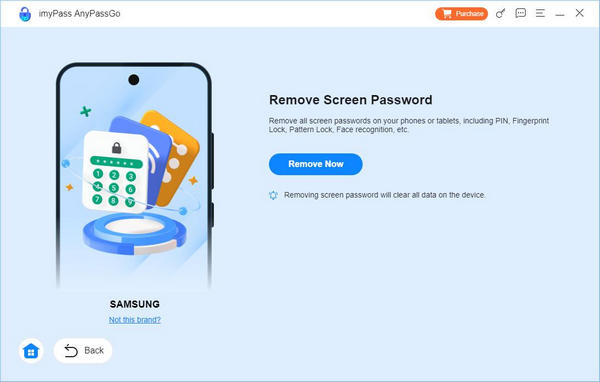
Launch imyPass AnyPassGo on your computer and select the Remove Screen Password feature.
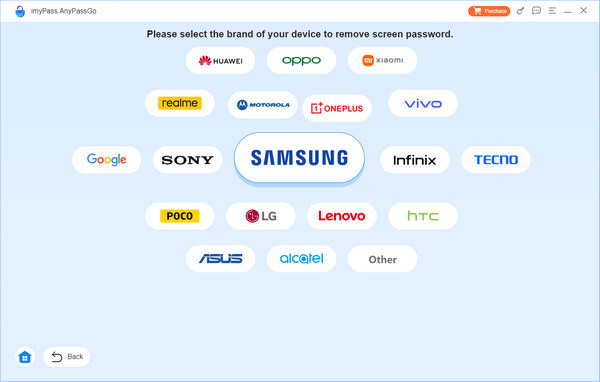
Select the brand of your device. If you cannot find it, click the Other option. Connect your Android phone to your computer.
Once connected, click the Remove Now button to start removing patten lock on your phone.
Note:
This process will erase all your data and settings on your phone, make sure you have a recent backup available!
Part 2: How to Unlock Pattern Lock in Recovery Mode
If you forgot your Android pattern lock, you can remove it by performing a factory reset in Recovery Mode. This method works on most Android phones and tablets, including Samsung, Pixel, and Motorola devices. However, it will erase all data and settings on your device, so make sure you understand the consequences before proceeding.
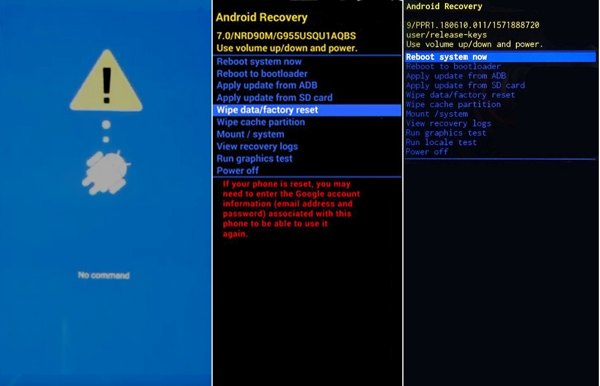
Press and hold the Power button, then select the option to power off your phone or tablet.
Press and hold the correct button combination until the Recovery Mode or bootloader screen appears.
- For Samsung devices, hold the Volume Up + Power buttons until the Samsung logo appears.
- For Pixel phones, hold the Volume Down + Power buttons until you see the bootloader screen.
- For Motorola phones, hold the Volume Down + Power buttons until the bootloader screen appears.
You can check the official website of your device manufacturer to find the correct button combination.
Use the Volume buttons to select Wipe data/factory reset, then press the Power button to confirm. Select Yes to start removing the forgotten pattern lock.
Once the reset is complete, select Reboot system now and press the Power button. After your device restarts, set it up again and create a new screen lock pattern.
Part 3: How to Unlock Pattern Lock with Google Account
One easy way to unlock an Android phone's pattern lock without a factory reset is through the associated Google account. This way is only available on Android 4.4 and earlier. The benefit is that you won't lose your data.
Draw the wrong pattern repeatedly.
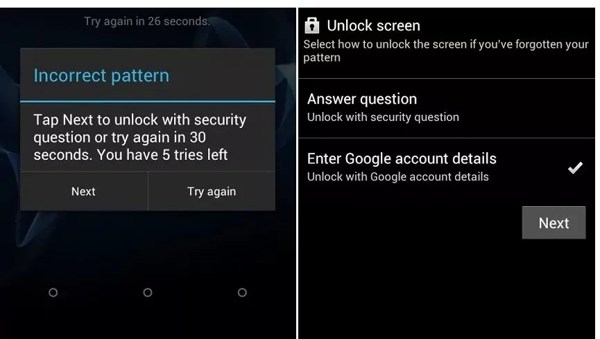
When you see the Forgot pattern option at the bottom, tap it.
Select Enter Google account details or a similar option and tap Next.
Enter your Google account and password.
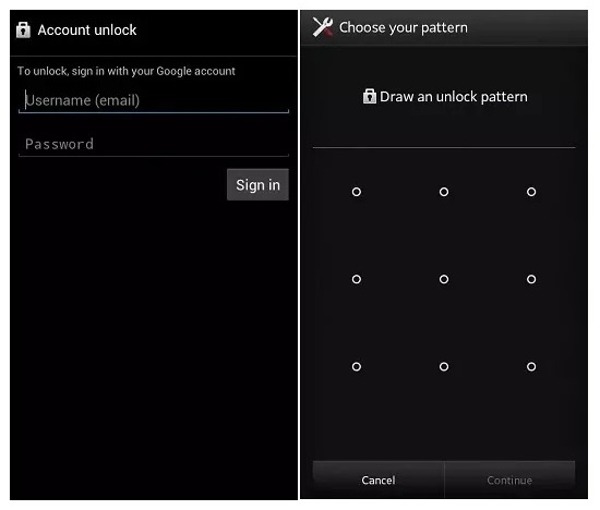
Tap the Sign in button.
Next, draw a new unlock pattern.
Tap the Continue button to confirm it.
Now, unlock your device with the new pattern.
Part 4: How to Unlock Pattern Lock by Google Find My Device
Google Find My Device, now called Google Find Hub, is a built-in service tracking device for Android users. It allows you to unlock the Android pattern lock with a Google account. You can unlock your phone or tablet with a new password. The prerequisite is that you have turned on Find Hub on your phone or tablet and your phone is under a stable internet connection.
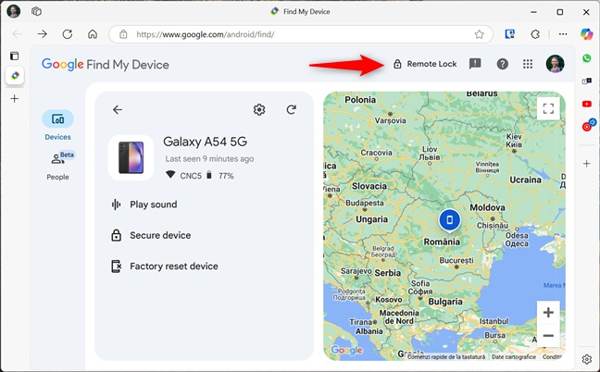
Go to https://www.google.com/android/find/about in a web browser and sign in with the Google account associated with your locked device.
Choose your phone or tablet from the device list.
Click the Remote Lock option and create a new password for your device. Then turn on your device and unlock it with the new password.
Part 5: How to Unlock Samsung Phone Pattern Lock
If you want to unlock the Samsung phone pattern lock without a factory reset, try the Samsung Find My Mobile service (now integrated with SmartThings). It allows users to manage, locate and unlock their device remotely. But the remote unlock feature has been canceled since 2023, so the later models cannot use this method.
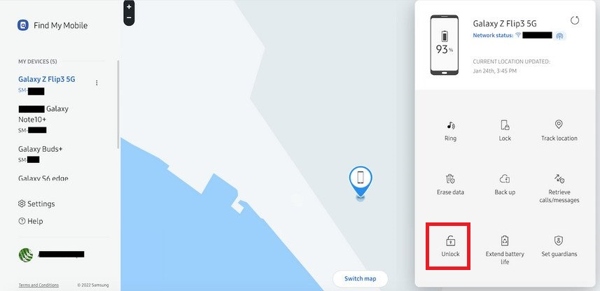
Visit smartthingsfind.samsung.com in a browser and sign in with the Samsung account.
Choose your locked phone from the on the sidebar.
Click the Unlock button on the toolbar.
Next, verify your Samsung account credentials again, then your Samsung phone should be unlocked remotely.
Conclusion
Now, you've learned 5 ways to bypass the pattern lock on your Android phone when you forget it. Recovery Mode can remove the pattern lock through a factory reset, but it will erase your data. If you are using an old Android device, try the Forgot Pattern option. Google Find My Device and Samsung Find My Mobile services are able to unlock your device remotely. If these methods fail, imyPass AnyPassGo is the ultimate option to remove Android screen locks without a password.
Gideon writes about unlocking iOS, Android, and Windows devices. He previously worked as a mobile device specialist in a repair center, assisting customers with locked devices and password recovery. In his spare time, he tests new unlock tools, customizes smart devices and makes complex unlock processes simple and safe.
Hot Solutions
-
Unlock Android
-
Unlock iOS
-
Password Tips
-
iOS Tips