



 Solution
 Support Center
 About Us
 Contact
How to Quickly Transfer Apps and App Data on Your iPhone
 Clara Prescott Published on December 19, 2025Transfer Data3-min reading
Managing apps on an iOS device is a significant skill, but it can feel overwhelming, especially if you have a lot of them. Apple has added the home screen, app library, and folders to display, hide, and arrange the preinstalled and third-party apps on an iPhone or iPad. Moreover, you may want to move your apps to a new device after you upgrade to the latest iPhone model. Anyway, this guide explains how to move apps on an iPhone in various situations.

In this article:
Part 1: How to Move Apps on iPhone
As mentioned previously, moving apps on an iPhone refers to two things: rearranging apps on your device and transferring apps from one iPhone to another. Let's discuss how to move apps on your iPhone first.
Move Apps on Home Screen
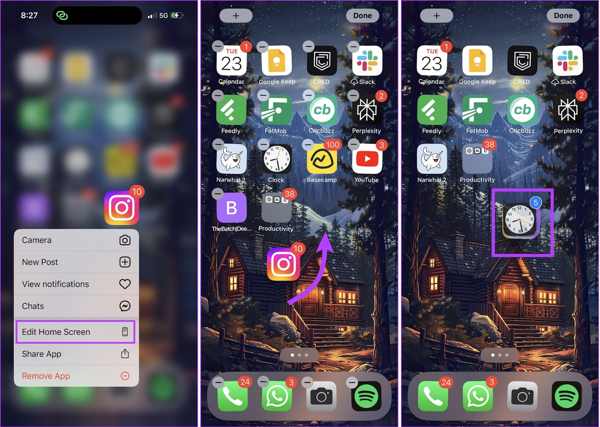
Long-press an app on your home screen.
Tap Edit Home Screen, and your home screen enters edit mode.
Drag an app to the desired location.
Tap Done to save the change.
Move Apps in A Folder
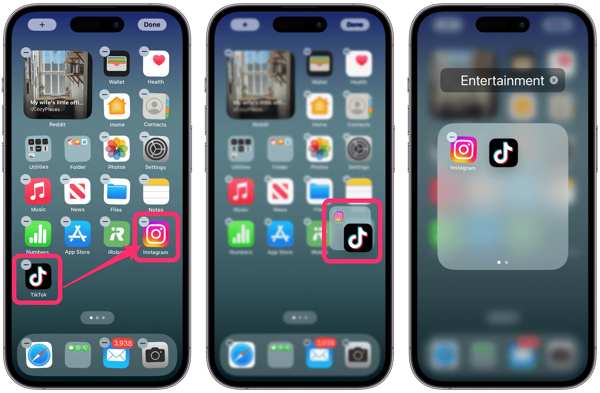
Hold any app on your home screen.
Press Edit Home Screen.
Drag an app onto another to create an app folder.
Name it and add more apps by dragging them.
Move Apps in App Library
Swipe left past all your home screens to access App Library.
Search for the desired app.
Hold it and choose Add to Home Screen to move the iPhone app to your home screen.
Part 2: How to Transfer Apps to a New iPhone
Quick Start is an easy way to pass apps and data to a new iPhone. It works when you set up your device. Therefore, it is not available for a used iPhone. Moreover, you need to follow a few factors.
Prerequisites:
1. Your devices are running iOS 11 and above.
2. Turn on Wi-Fi and Bluetooth on the old iPhone.
3. Connect your new iPhone to the internet connection.
4. Place the two devices together.
Go to the Control Center on the source iPhone.
Turn on Wi-Fi and Bluetooth.
Turn to the new iPhone and power it on.
Set it up following the onscreen instructions.
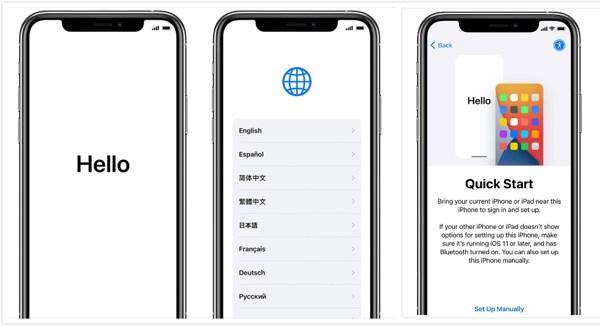
The Quick Start screen appears after setting the appearance.
Put two phones next to each other.
Tap Continue once the Set Up New iPhone notification appears on the old iPhone.
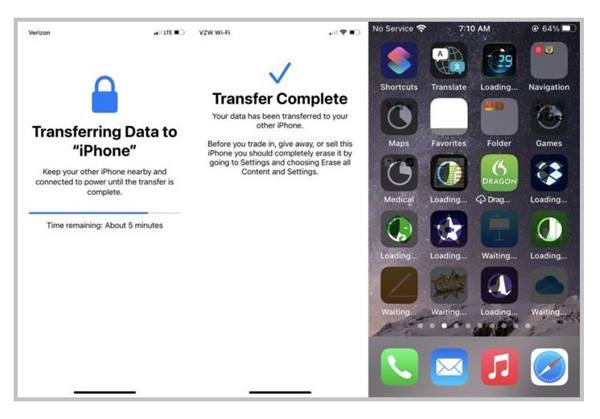
Then, use the Camera on the old phone to scan the blue pattern on the new iPhone.
Enter the old device's passcode into the new iPhone to start transferring apps to the new iPhone without iCloud.
Part 3: How to Share Apps on iPhone with Family
With Family Sharing, you can share apps with family on your iPhone remotely. In addition to downloading apps from the App Store, you can also share subscriptions with your family and friends.
Prerequisites:
1. Set up Family Sharing on the old iPhone.
2. The recipient accepts your sharing.
3. Cannot transfer app data.
To transfer apps to a new iPhone after setup, open the Settings app.
Tap Family under your profile.
Choose Purchase Sharing.
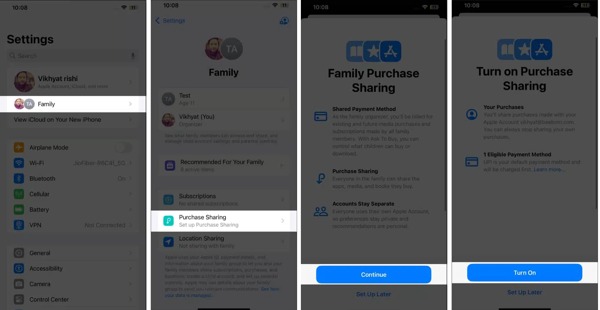
Read the message and tap Continue to proceed.
If you don't have a valid payment method, tap Add Payment Method and fill out the form.
Tap Turn On. Now, the apps on your iPhone will show on the Purchased screen in the App Store on the new device.
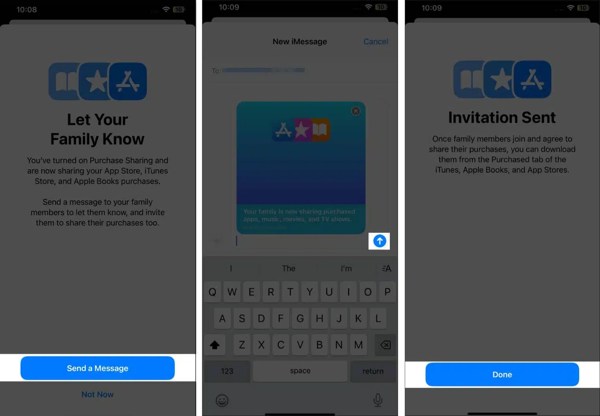
To notify your family, tap the Send a Message button.
Hit Send, and tap Done.
Part 4: How to AirDrop an App on Your iPhone
Can you AirDrop an app from one iPhone to another? The answer is yes. AirDrop is a wireless connection for Apple devices. It allows you to move apps on your iPhone without moving others.
Prerequisites:
1. Turn on Wi-Fi and Bluetooth on both devices.
2. Position the two devices together.
3. Only transfer a part of the app data.

Make sure to turn on Bluetooth, Wi-Fi, and AirDrop on both iOS devices.
Go to the home screen on the source iPhone.
Long-press the app you want to share, and choose Share [app name] on the context menu.
Next, select AirDrop on the pop-up dialog.
Turn to the receiver's iPhone, run the App Store, and you will find the app.
Note: You still need to download and install the app manually.
Part 5: How to Transfer Apps on iPhone to Another via Backup
With a backup, you can migrate apps to a new iPhone or a used iOS device. For iOS users, both iCloud and iTunes backups allow you to transfer apps and app data. The downside is that it erases or overwrites the target device.
How to Copy Apps from iPhone to Another via iCloud
Prerequisites:
1. Move apps to iCloud storage.
2. The Apple ID and password associated with the source device.
3. A stable Wi-Fi network.
Turn on the source iPhone and connect it to a Wi-Fi network.
Run the Settings app, and tap on your profile.
Go to iCloud and iCloud Backup.
Tap Back Up Now.
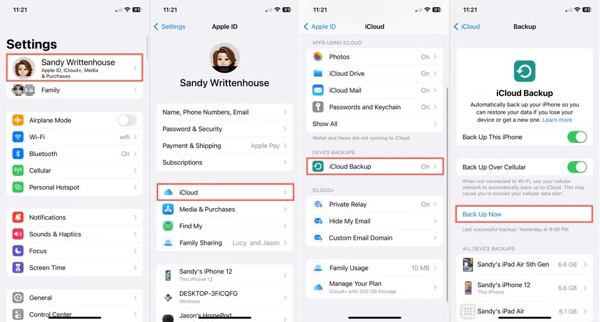
When it is done, you will see the date and time for a successful backup.
Switch to the recipient iPhone. If it is new, skip to step 9.
Step 7: Go to General in the Settings app, and tap Transfer or Reset iPhone.

Choose Erase All Content and Settings, tap Continue, and enter your iPhone passcode or Apple ID password to confirm erasing. This will factory reset your iPhone.
When the iPhone restarts, set it up.
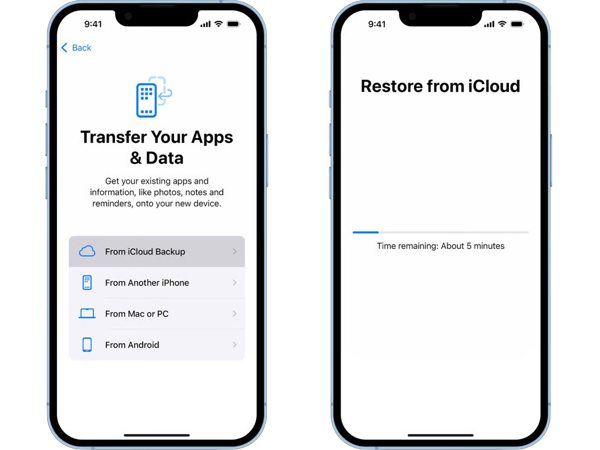
Choose From iCloud Backup from the Apps & Data screen.
Input the Apple ID and password associated with the old device.
Pick the latest iCloud backup and begin copying apps on iPhone.
How to Switch Apps from iPhone to Another via iTunes
Prerequisites:
1. The latest version of iTunes or Finder.
2. A computer.
3. A USB cable.
4. An iTunes backup.
Hook up the source iPhone to a computer with a USB cable.
Run iTunes. If your computer runs macOS Catalina or later, run Finder.
Go to the Summary tab after your device is detected.
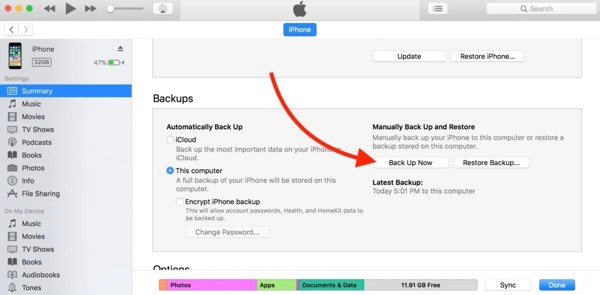
Select This computer, and click the Back Up Now button.
When it finishes, disconnect the source device.
Then, plug another iPhone into your computer with a compatible cable.
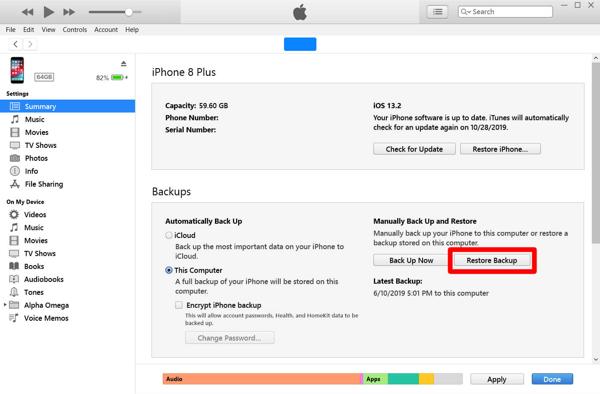
Click the Restore Backup button, and select the backup you just made.
Finally, hit Restore.
Part 6: How to Switch App Data from One iPhone to Another
As mentioned previously, most methods cannot transfer app data to a new iPhone. Fortunately, imyPass iPhone Transfer can help you resolve this problem. Furthermore, it allows you to transfer data between two iOS devices directly.

4,000,000+ Downloads
Transfer app data between iOS devices.
Data transfer using Lightning cables.
Migrate multiple data types with one click.
Support the latest versions of iOS and iPadOS.
How to Switch App Data from One iPhone to Another
Connect your iOS devices
Launch the best app data transferring software after installing it on your computer. Connect the two iOS devices to the computer with Lightning cables.
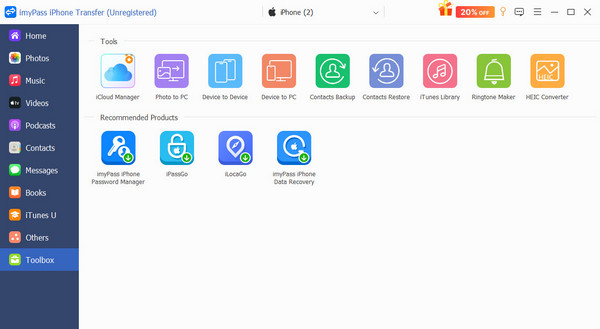
Select data types
Go to Toolbox on the sidebar and choose Device to Device. Then, check the data types you want to migrate, like Photos, Music, and more.
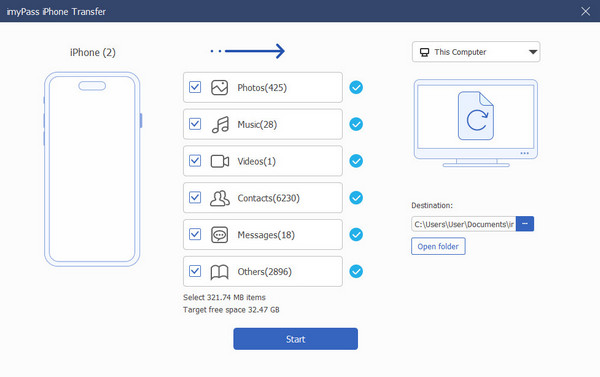
Transfer app data
Next, click the Start button to begin switching app data from one iPhone to another. This program can also help you transfer files from an iPhone to a PC or Mac.
Conclusion
This guide discusses how to transfer apps to a new iPhone and manage apps on your handset quickly. You can read our article, pick an appropriate method, and follow our steps to use apps and app data on the target iOS device. imyPass iPhone Transfer is the best app data transferring software for iOS.
Clara is an editor from imyPass. She specializes in data recovery. You can find professional tutorials and solutions for recovering lost data from any device. Many users reported that his tutorial is easy and useful.
Hot Solutions
-
Transfer Data
-
Recover Data
-
Unlock iOS
-
iOS Tips

