



 Solution
 Support Center
 About Us
 Contact
Does iPoGo Pokemon GO Still Work on Android and iOS
 Penny Warren Published on March 20, 2026GPS Location3-min reading
As an advanced spoofing app for iOS and Android, iPoGo allows Pokémon GO players to spoof their location and access raids, gyms, and rare spawns around the world. More importantly, the app makes it easy to find and catch rare Pokémon. However, some users reported that iPoGo is not working or keeps crashing on their mobile devices. This article helps you fix the problem on your own.

In this article:
Part 1: Why Is iPoGo Not Working
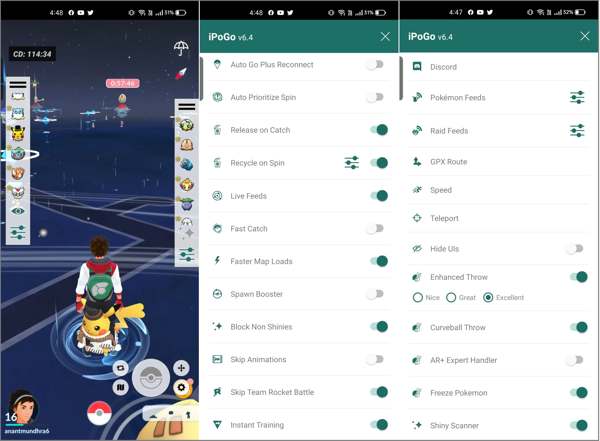
At first, iPoGo is a spoofer app for iOS devices. Later, the developer released a beta version for Android users. Does iPoGo still work in 2025? Yes, it is still working now. Since it works as a modified edition of Pokémon GO, any error will prevent players from catching Pokémon.
The common causes why iPoGo is not working include:
- 1.Overloaded system resources.
- 2.Unstable internet connection.
- 3.Outdated software.
- 4.Detected or banned by Niantic.
- 5.Software glitches.
- 6.Account-related problems.
Part 2: Common Errors and Solutions for iPoGo Not Working
Error 1: iPoGo Keeps Crashing
Solution 1: Restart Your Device
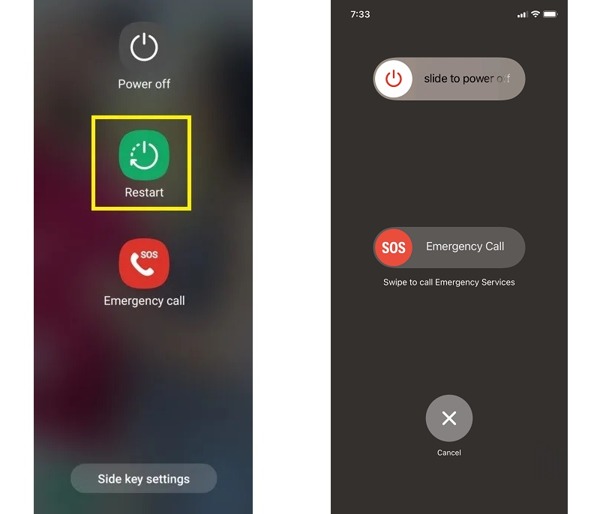
Hold the Power or Side button to trigger the power-off screen.
Choose Restart on Android. For iPhone, move the slider to shut it down, and then hold the Side button until you see the Apple logo.
Solution 2: Update iPoGo
Since you cannot install iPoGo from the App Store or Play Store, you have to update it from the official website. Uninstall iPoGo from your device, and install it from the website.
Solution 3: Free up Space
Delete unwanted photos and videos from your Camera Roll or Gallery. Moreover, uninstall the useless apps to free up space.
Error 2: Unable to Authenticate
Solution 1: Check Your Internet Connection
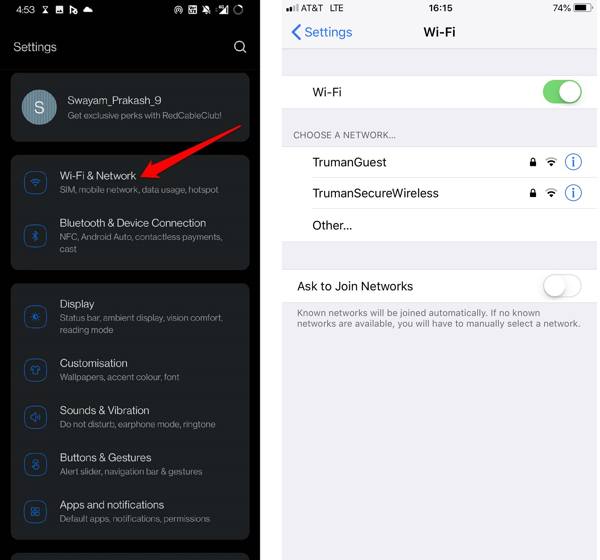
Look at the Wi-Fi signal at the top of your screen.
If it is unstable, go to the Settings app.
Connect to a stable network.
Solution 2: Verify Your Account
Double-check your account and password. If you have changed your account information, update it and log in again. If your account is banned, sign in with a new account to fix the iPoGo Pokémon GO plus not working.
Solution 3: Clear App Cache
If iPoGo is not working on Android, open the Settings app, choose Apps, tap iPoGo, go to Storage, and hit Clear Cache.
Error 3: Unable to Log In
Solution 1: Check Pokémon GO Server
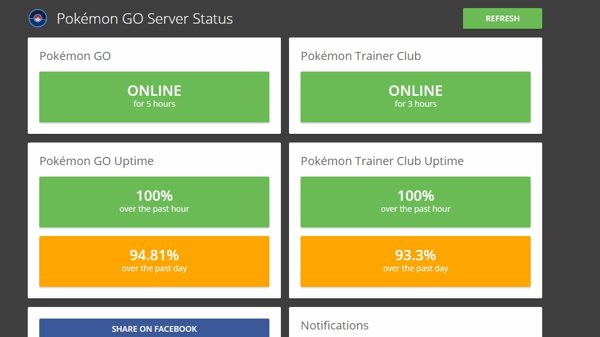
Go to the official Pokémon GO Server Status page in a web browser. If any server is down, iPoGo won't work. You have to wait for all servers to work again.
Solution 2: Try Pokémon GO App
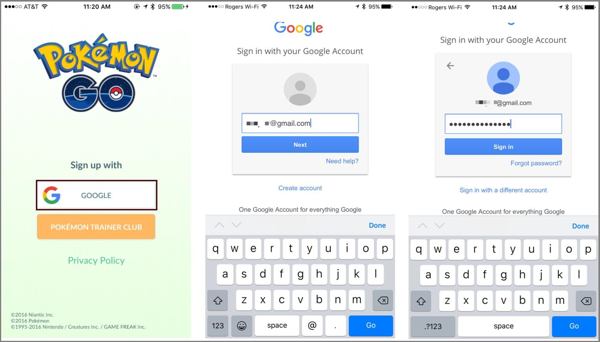
Run the official Pokémon GO app on your handset, and log in with the same account. If it is banned, you cannot log in to iPoGo.
Error 4: Spoofing Error
Solution 1: Enable Location Services on iPhone
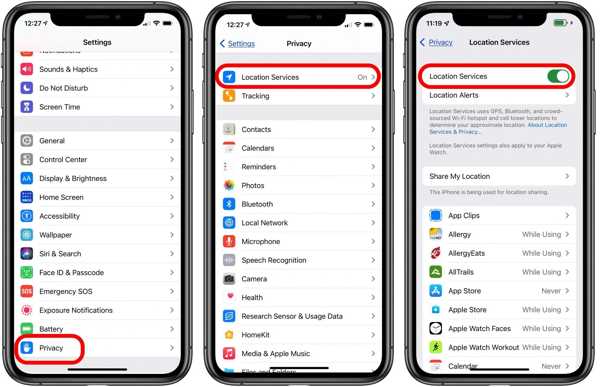
If iPoGo is not working on your iPhone, go to the Settings app.
Navigate to Privacy, Location Services, and toggle on Location Services.
Choose iPoGo on the list, and select Allow.
Solution 2: Enable Mock Locations
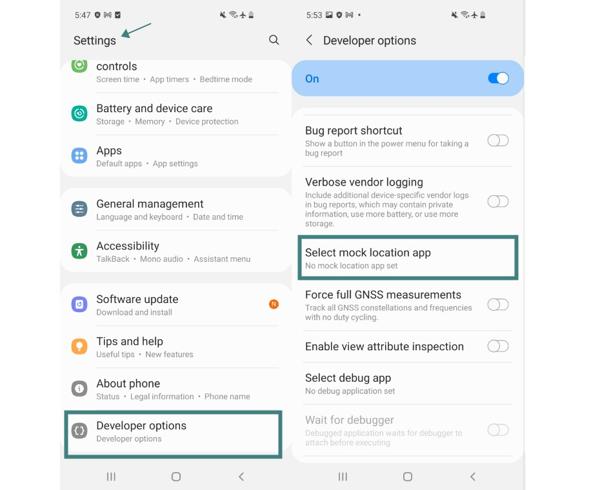
Run the Settings app on your phone.
Scroll down and go to Developer options.
Choose Select mock location app, and select iPoGo.
Now, try iPoGo again to see if it works now.
You May Also Like:
Part 3: Best Alternative to iPoGo
If the solutions above are unavailable and iPoGo is still not working, you'd better look for an alternative. iLocaGo, for example, is a flexible spoofer application for both iOS and Android devices.

4,000,000+ Downloads
Spoof your GPS location by creating virtual locations with one click.
Work for a variety of AR games, streaming apps, and more.
Won't be detected by apps and games.
Support almost all iPhones and Android phones.
What to Do If iPoGo Is Not Working
Connect to your device
Launch the alternative to iPoGo after installing it on your computer. Connect your phone or iPhone to your computer with a compatible USB cable.

Choose a mode
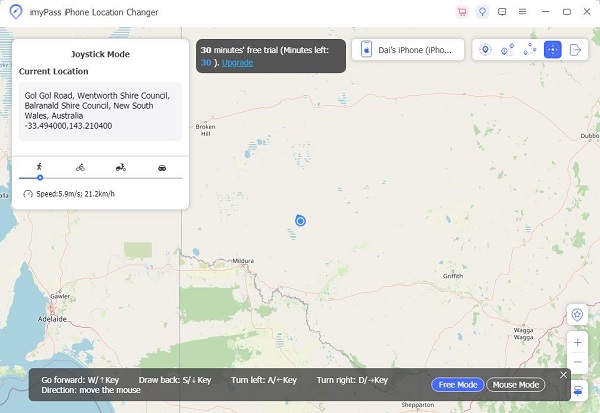
Once your device is detected, choose a mode. The Modify Location is used to fake your GPS location. The other three modes are used for creating virtual routes. For Pokémon GO gameplay, we choose Joystick Mode.

Spoof location
Open Pokémon GO on your mobile device. Then, use your mouse or keyboard to make a virtual route in the software. You can select a traffic way or adjust the custom options for simulation.
Conclusion
Now, you should understand what you can do if iPoGo is not working on your Android phone or iPhone. You can learn the main causes, locate your error, and follow the solutions to make iPoGo work again. iLocaGo is a great alternative option to spoof location when playing AR games or accessing apps.
Penny focuses on GPS troubleshooting and Windows optimization. She formerly worked as a technical support engineer, helping clients solve location-based and system issues efficiently. Backed by IT support experience, she provides practical solutions that really work. In her free time, she likes hiking and geocaching, testing GPS tech in the real world.
Hot Solutions
-
GPS Location
-
Unlock iOS
-
iOS Tips
-
Unlock Android


