



 Solution
 Support Center
 About Us
 Contact
How to Transfer Videos from an iPhone to a Computer
 Clara Prescott Published on December 19, 2025Transfer Data3-min reading
As Apple keeps updating lenses on iPhones, users can take super high-quality videos on their devices. The cost is that the memory will soon be filled up. To avoid data loss, you can transfer videos from your iPhone to a computer before freeing up space. However, iOS is a closed operating system. You need a tool or cable to back up your iPhone videos. This guide identifies four proven methods and demonstrates the workflows.

In this article:
Part 1: How to Transfer iPhone Videos to Computer via iCloud
iCloud is far more than a cloud service for iOS users. iCloud Photos allows you to sync videos across your Apple devices through a single Apple account. Moreover, iCloud Drive allows you to transfer videos from your iPhone to your computer for third-party apps.
How to Transfer iPhone Videos to a Computer via iCloud Photos
Open the Settings app on your iPhone.
Tap on your profile, choose iCloud, and tap Photos.
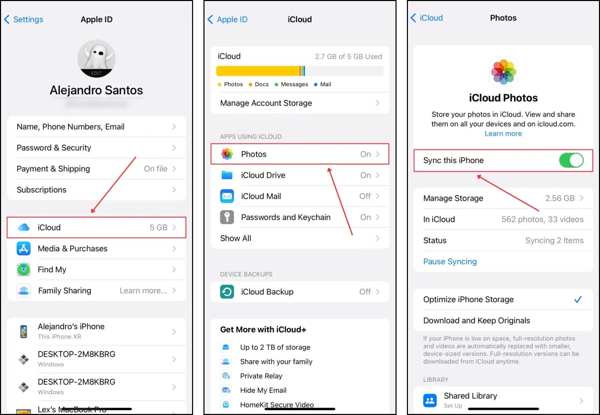
Toggle on Sync this iPhone and connect your iPhone to Wi-Fi.
Run the browser on your computer and go to www.icloud.com/photos.

Sign in with your Apple ID and password. If 2FA is turned on, enter the verification code that appears on your screen.
Select the desired photos and click the Download button.
How to Import Video from iPhone to Computer via iCloud Drive
Find the desired video in Photos or a third-party app.
Tap the Share button, choose Save to Files, and select iCloud Drive.

Go to Settings, tap on your profile, and choose iCloud.
Tap iCloud Drive, and toggle on Sync this iPhone.
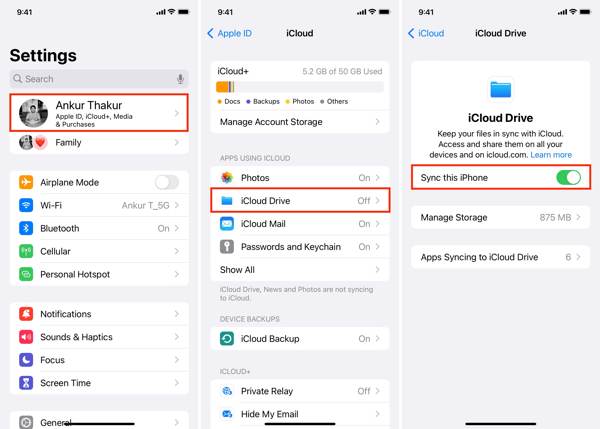
Visit www.icloud.com in a browser and sign in with your Apple ID and password.
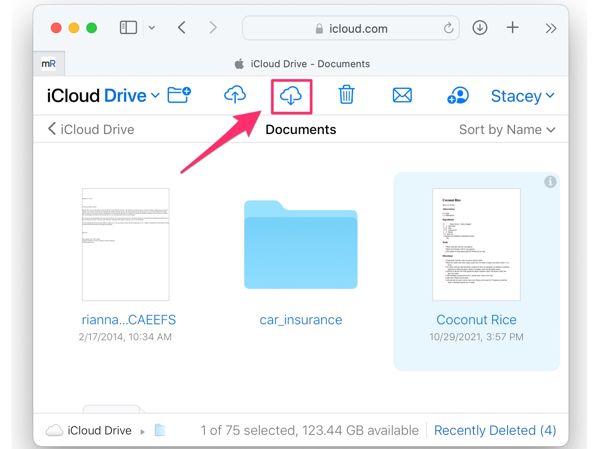
Choose iCloud Drive, select the video, and click the Download button.
Part 2: How to Transfer Videos from iPhone to Computer with A Cable
If you want to move a video from an iPhone to a computer, you can use a USB cable to link the two devices. This method doesn't require extra software, but is only available to recorded videos saved in your Camera Roll.
How to Transfer Videos from iPhone to PC
Plug your iPhone into your PC with a USB cable. If prompted, choose Import photos and videos.
Open the Photos application from the Start menu.
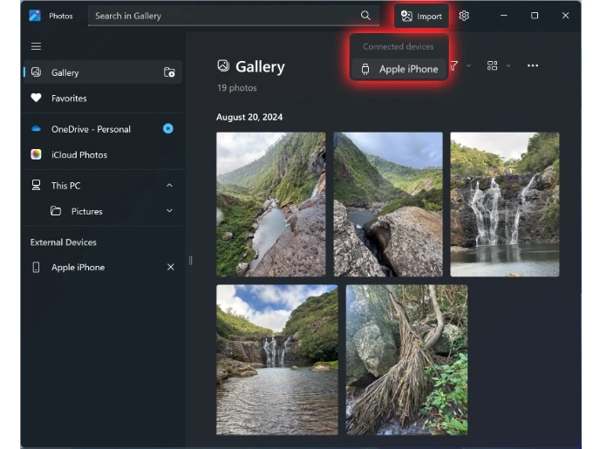
Click the Import button at the top right corner, and pick From a connected device or Apple iPhone.
Your PC will look for photos and videos in iPhone Camera Roll.
Once it is done, press the Ctrl key on your keyboard and click each photo you want to import.
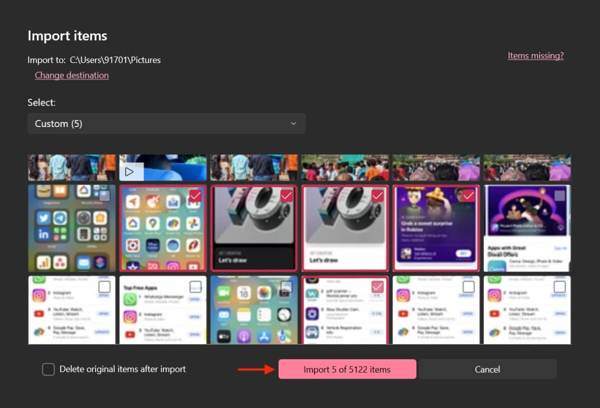
Finally, click the Import N items button to import videos from iPhone to PC.
Note: On Windows 8 and earlier, you can copy videos from iPhone to PC in File Explorer directly.
How to Transfer iPhone Videos to MacBook
If you are using a Mac computer, you can transfer videos from your iPhone to your MacBook using the Photos application. All you need is a USB cable. Moreover, Apple's AI technology can organize videos quickly.

Hook up your iPhone to your Mac computer with a compatible cable.
If prompted, tap Trust on your iPhone to trust this computer.
Run the Photos app on your Mac if it doesn't open automatically.
Click your iPhone name on the sidebar, and you will view all photos and videos in your Camera Roll.
Select the desired videos and click the Import N Selected button to extract the video from iPhone to Mac.
Part 3: How to Extract Videos from iPhone to Mac via AirDrop
AirDrop is the wireless connection for Apple products, so you can also use AirDrop on Mac. It allows you to get a large video from an iPhone to a computer running macOS. This method is suitable for sending specific videos, but not all videos.
Turn on your iPhone, enter the Control Center, and turn on Wi-Fi and Bluetooth.
Enable AirDrop and choose Everyone for 10 Minutes.
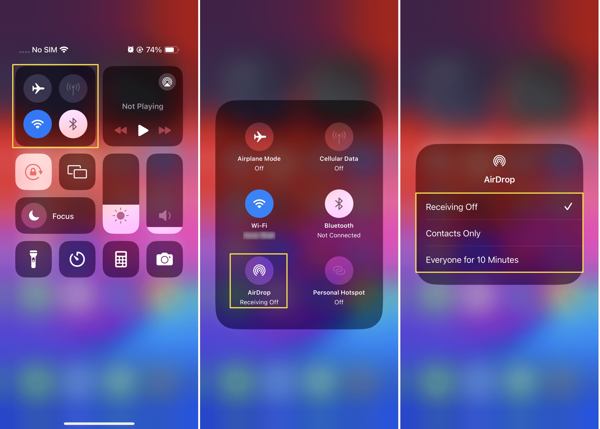
Turn to your computer, and enable Wi-Fi and Bluetooth.
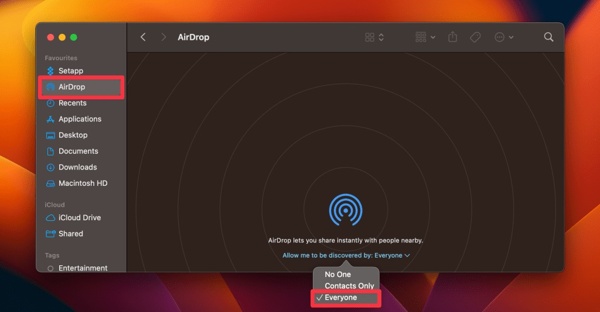
Open Finder, and click the AirDrop tab on the sidebar
Pick Everyone next to Allow me to be discovered by.
Run Photos on your iPhone, and select the desired video.
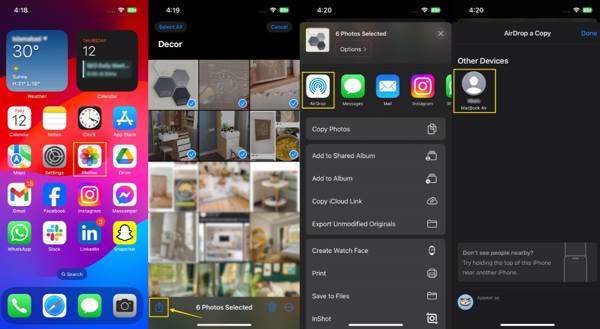
Tap the Share button, choose AirDrop, and select your Mac.
Make sure to accept the video on your computer.
Part 4: How to Transfer Videos between iPhone and PC
Another way to download the videos from iPhone to computer is imyPass iPhone Transfer. It works for all videos on your iPhone, including videos in third-party apps. Moreover, it transcodes your videos based on the target platform.

4,000,000+ Downloads
Add iPhone videos to a computer with one click.
Protect video quality using advanced technology.
Support a wide range of video formats.
Re-encode videos according to the target platform.
Compatible with almost all iPhones and iPad models.
How to Take Videos from iPhone to Computer
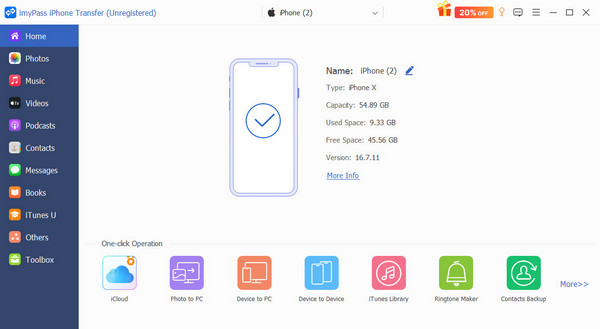
Connect to your iPhone
Launch the best video transferring software after installing it on your computer. Connect your iPhone into your computer with a Lightning cable. The software will detect your device immediately.
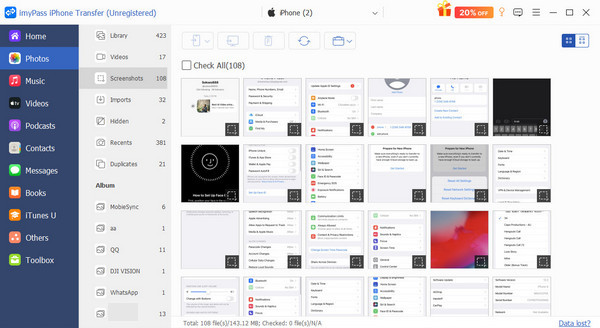
Preview videos
Once data scanning finishes, go to the Videos tab on the sidebar. Here you can view all videos on your iPhone.
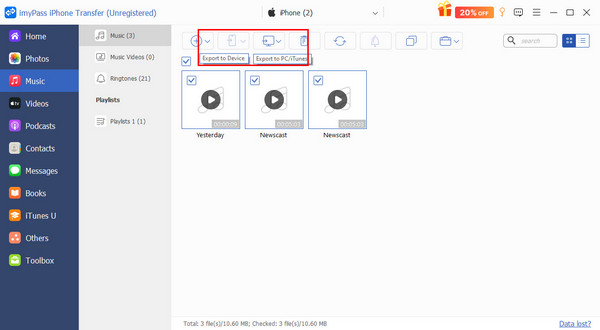
Add videos from iPhone to computer
Check the videos you want to transfer, click the PC button on the top ribbon, and choose Export to PC. Select a location and take videos from iPhone to computer. Moreover, you can also transfer photos from computer to iPhone.
Conclusion
This guide shared multiple ways to send videos from an iPhone to a computer running Windows and macOS. iCloud is the best option for transferring wirelessly. Or you can use a cable to migrate iPhone videos to your computer. imyPass iPhone Transfer is the easiest option for video migration between iPhone and computer.
Clara is an editor from imyPass. She specializes in data recovery. You can find professional tutorials and solutions for recovering lost data from any device. Many users reported that his tutorial is easy and useful.
Hot Solutions
-
Transfer Data
-
Recover Data
-
Unlock iOS
-
iOS Tips

