



 Solution
 Support Center
 About Us
 Contact
How to Quickly Send Long Videos on iPhone to Any Platform
 Clara Prescott Published on December 19, 2025Transfer Data3-min reading
Recording videos is easier than ever before due to the advanced lenses on smartphones, like iPhones. However, if you try to attach a large video directly to a message or email, your iPhone may stop it or compress the video into a blurry mess. In fact, there are methods to send long videos on an iPhone or iPad, such as iCloud, Mail Drop, and more. Our article identifies the proven methods and explains the prerequisites.

In this article:
Part 1: Ultimate Way to Send Videos on iPhone
If you encounter the problem that a video is too long to send on an iPhone, imyPass iPhone Transfer can help you resolve it. It allows you to send any files on your iPhone to a computer, another iPhone or iPad, or an Android device via physical connections. Therefore, you don’t worry about video quality loss.

4,000,000+ Downloads
Send long videos on iOS devices with a single click.
Offer super high speed when sending large videos.
Preview videos on your iPhone or iPad.
Offer bonus features, like sending videos to iTunes.
Support the latest versions of iOS and iPadOS.
How to Send Large Videos on Your iPhone
Connect to your iPhone
Launch the best video transferring software once you install it on your PC. There is another version for Mac. Connect your iPhone to your computer with a Lightning cable. If you are running iOS 13 or above, enter your iPhone passcode to permit the connection.
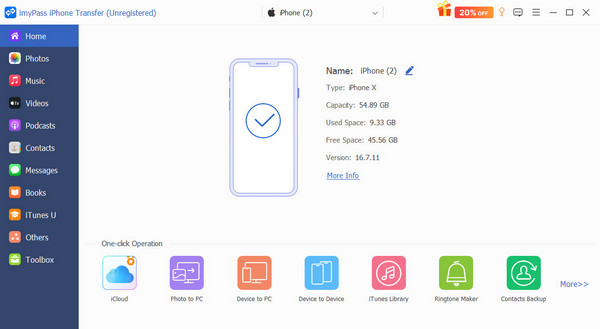
Preview iPhone videos
Once the software detects your device, it will scan all data. Then, you can preview them by type. Choose the Videos tab on the sidebar and view all videos on your iPhone. You can also sync Apple Music library between your iOS devices.
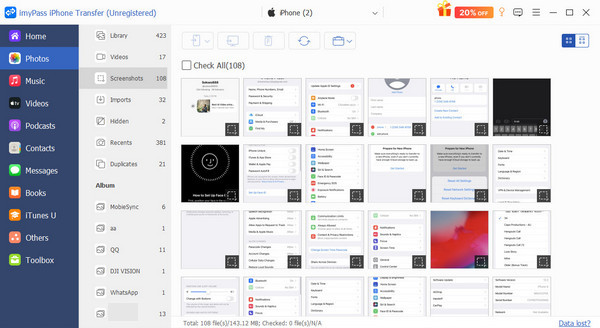
Send long videos on your iPhone
Select the large videos you want to transfer. If you intend to send long videos from iPhone to iPhone, connect the target iPhone to your computer with a Lightning cable as well. Click the Phone button, and pick the target device. To send videos to your computer, click the PC button, choose Export to PC, and select the destination folder.
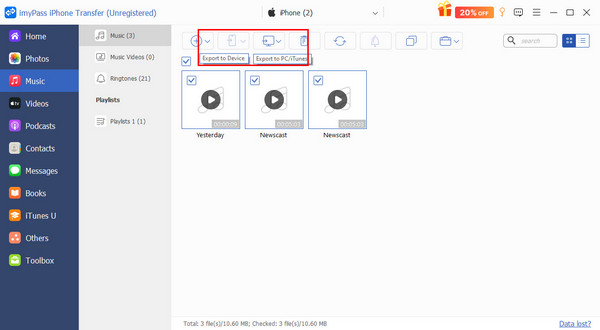
Part 2: How to Share Video on iPhone via iCloud
As the official cloud service for iOS devices, iCloud enables you to send big videos from your iPhone to any platform via a stable internet connection. Every account can get 5GB of free storage. Plus, you can purchase more space.
How to Send a 10 Minute Video on iPhone via iCloud Link
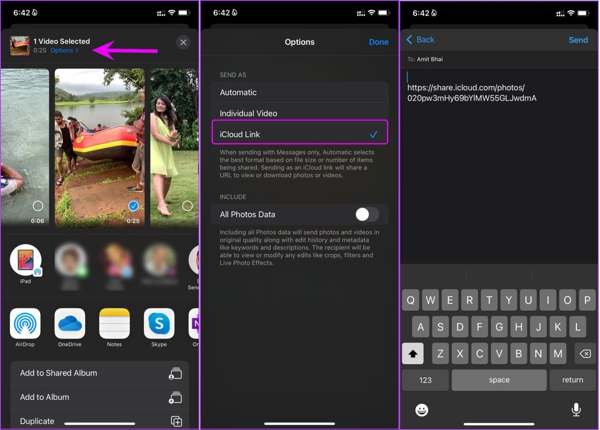
Run the Photos app on your iPhone.
Go to the Library tab or the album that stores the video you want to transfer.
Tap it, press the Share button, and hit the Options menu beside the video duration.
Select iCloud Link under the Send As section.
Then, choose the desired channel to send the 10-minute video on your iPhone.
Note: Photos will upload the video to iCloud, and you can share the iCloud link.
How to Share a Long Video on iPhone via iCloud Drive
Find and tap the desired video in your Photos app.
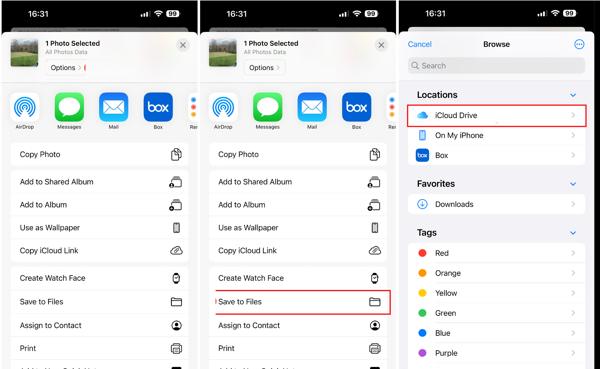
Press the Share button, choose Save to Files, and pick iCloud Drive.
Then, select a folder and tap Save.
On the target device, open a browser, and access www.icloud.com.
Sign in with your Apple ID and password.
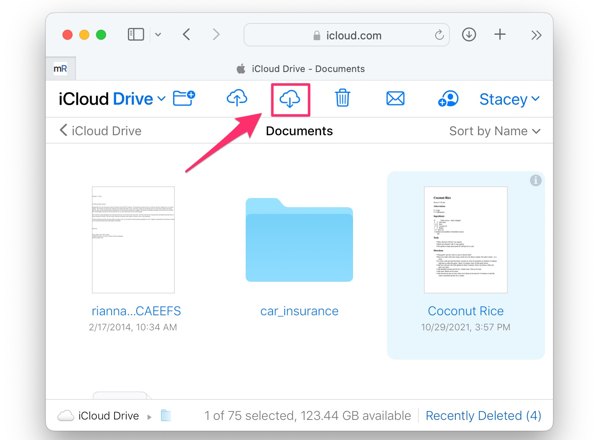
Choose iCloud Drive, select the video file, and click the Download button.
Then, select the location folder to share a long video on your iPhone.
Part 3: How to Send Video from iPhone by AirDrop
One simple way to transfer videos to iPhone among Apple ecosystem is AirDrop, which is the wireless connection for iOS, iPadOS, and macOS. So you can also use AirDrop on Mac to send or receive files. Here are the steps to AirDrop a video on your iPhone or iPad:
Turn on Bluetooth and Wi-Fi on your iPhone and another Apple device.
Set up AirDrop on both devices:
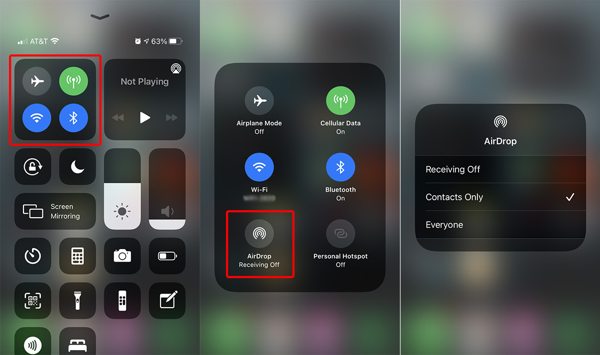
On iPhone or iPad, enter the Control Center, long-press the connection panel, and tap AirDrop. Then, choose Everyone.
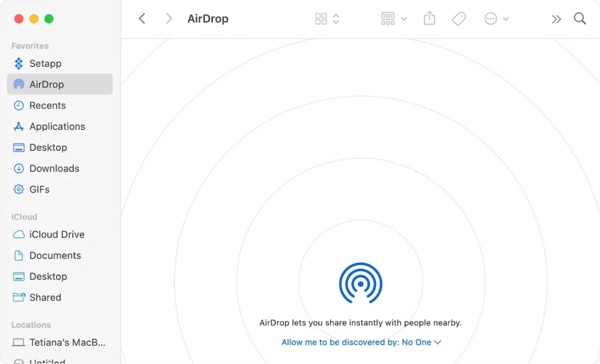
On macOS, open Finder and click AirDrop on the sidebar. Choose Everyone next to Allow me to be discovered by.
Open the video you want to share in the Photos app.
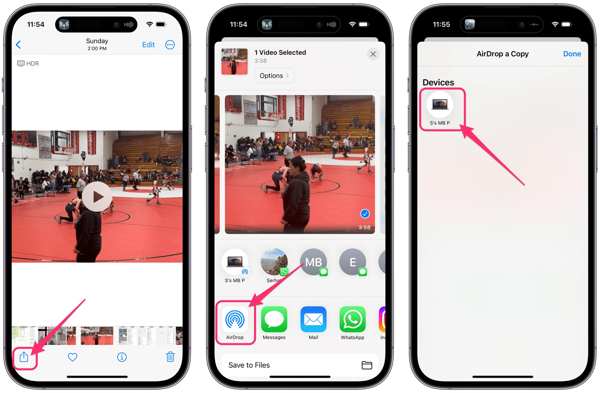
Tap the Share button, choose AirDrop, and tap the recipient device.
On the other device, tap Accept when you get the notification.
Note: Where do AirDrop videos go? Unlike on the iPhone, videos sent via AirDrop automatically go to the Downloads folder.
Part 4: How to Send Video from iPhone Using Mail Drop
If you send longer videos on iPhone via email, you will be refused. Alternatively, the built-in Mail Drop feature lets you email a video up to 5GB. The recipient can download the video within 30 days.
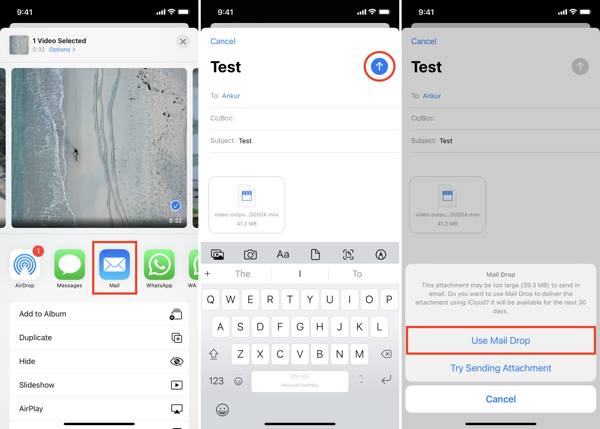
Run the Photos app on your iPhone.
Find and tap a long video you want to share.
Tap the Share button and choose Mail from the toolbox.
Enter the recipient’s email address, and type a subject in the new email screen.
Tap the Send button.
Since the video is too long to send on an iPhone, you will be asked to use Mail Drop.
Tap Use Mail Drop and send the video.
Note: If you email a long video using Gmail, you can upload it to Google Drive and email the video as an attachment.
Conclusion
This guide discussed how do you send a long video from an iPhone to a computer, another iOS device, or an Android phone. With the Mail Drop feature, you can email a long video directly. AirDrop is the wireless connection for sending videos between Apple devices. Plus, you can use iCloud link or iCloud Drive to share your video files. imyPass iPhone Transfer is the best option for sending iPhone videos to any device, like a computer or another mobile device.
Clara is an editor from imyPass. She specializes in data recovery. You can find professional tutorials and solutions for recovering lost data from any device. Many users reported that his tutorial is easy and useful.
Hot Solutions
-
Transfer Data
-
Recover Data
-
Unlock iOS
-
iOS Tips

