



 Solution
 Support Center
 About Us
 Contact
How to Change Location on BlueStacks Android Simulator
 Penny Warren Published on March 06, 2026GPS Location3-min reading
Want to access region-locked apps or test location-based services on BlueStacks? Whether you're a developer or a gamer, changing your BlueStacks location (also known as Mock Location) is simpler than it looks.
While BlueStacks comes with a built-in GPS tool, it doesn't always bypass the strict detection of apps like Pokémon GO or Tinder. In this guide, we'll show you how to master the built-in location provider and recommend professional GPS spoofers for more stable virtual coordinates. Let’s dive into the step-by-step setup to unlock a global experience from your PC.

In this article:
Part 1. What Is BlueStacks
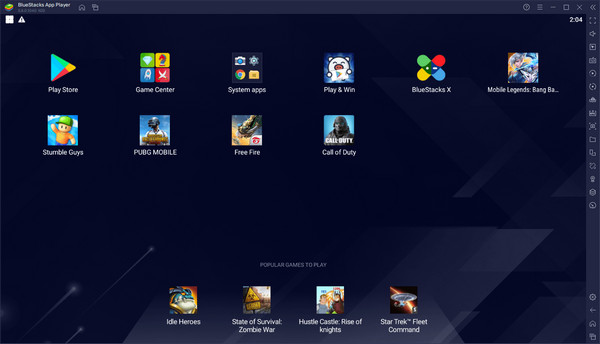
BlueStacks is a powerful Android emulator that bridges the gap between mobile and desktop by running Android apps and games on Windows or macOS. It can create a stable virtualized Android environment and allows users to leverage high-end PC hardware for a superior mobile gaming experience. Beyond simple emulation, its core features include:
Cross-Platform Compatibility: It bridges the gap between mobile and desktop by allowing users to run Android applications and games seamlessly on Windows or macOS.
Virtualized Android Environment: BlueStacks creates a stable, virtualized space on your computer that replicates the Android experience on a much larger screen.
High-Performance Emulation: It is designed to leverage high-end PC hardware (CPU and GPU) to deliver smoother frame rates and superior performance compared to many flagship mobile devices.
Location Manipulation (Mock Location): BlueStacks includes built-in tools for adjusting your virtual coordinates, a feature technically known as Mock Location, which is essential for accessing region-locked content or testing location-based apps.
Multi-Instance Manager: Users can run multiple apps or different game accounts simultaneously without significant system slowdown, which is ideal for multitasking.
Advanced Control Customization: It supports professional-grade keymapping, allowing users to play mobile games using a keyboard, mouse, or gamepad with high precision.
Part 2. Can BlueStacks Use Mock Location?
BlueStacks can mock location and then let you spoof those location-based apps. This feature is totally free to use. It is a core system tool available in the standard Free version of BlueStacks. You do not need a Prime subscription or any paid license to change your coordinates.
Part 3. How to Change Location on BlueStacks
Open the BlueStacks Location Provider
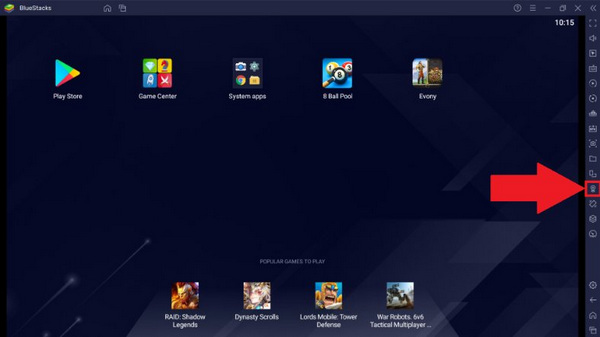
Launch BlueStacks and look at the side toolbar on the right. Click on the Location Provider button (which looks like a map pin).
Pro Shortcut: Simply press Ctrl + Shift + K on your keyboard to open the map overlay instantly.
Search for Your Virtual Destination
Once the map window appears, you will see a search bar in the top-left corner.
- 1.Type in the Address, City, or specific Coordinates (Latitude and Longitude) of the place you want to visit.
- 2.Press Enter or click the magnifying glass icon. The map will automatically center on that location.
Set and Activate the Fake Location
After finding the spot on the map, you need to lock it in.
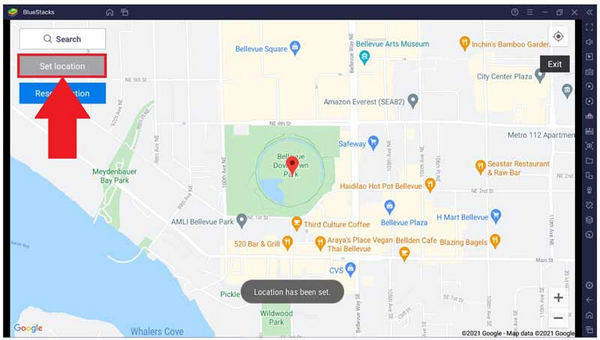
Click the Set Location button (usually a bright button at the top-left or bottom of the map window).
Your BlueStacks system now believes it is physically at those coordinates. You can verify this by opening the Weather or Maps app inside the emulator.
Adjust Android Mock Location Settings (If Needed)
If the app you are using (like a dating app or a game) isn't picking up the change, you may need to enable the developer-level permission:
- 1.Go to System Apps > Settings inside BlueStacks.
- 2.Navigate to About Tablet/Phone and click Build Number 7 times to unlock Developer Options.
- 3.Go back to the main Settings menu, enter Developer Options, and find Select mock location app.
- 4.Choose BlueStacks (or the system provider) as the active mock location app.
Common Troubleshooting
Why is my location still jumping back?
This usually happens if the Android system is trying to use Wi-Fi or Cellular positioning instead of just GPS. Go to Settings > Location > Mode and select Device only (GPS only). This prevents the app from seeing your real IP address and overriding the mock coordinates.
Related Readings:
Part 4. BlueStacks Alternative to Change Location on Android
Although BlueStacks is a powerful and free Android Simulator, it takes much CPU resources on your computer. If you just want to spoof location on an Android app, imyPass iLocaGo is a more lightweight choice. It can quickly and easily spoof GPS location on all types of Android devices so that those location-based apps will use your virtual locations. It can help you unlock apps, services, benefits, and more from different regions.

4,000,000+ Downloads
Connect your Android phone to computer to modify location.
Create virtual locations or fake routes for your phone.
Provide an easy-to-use and convenient joystick mode.
Support Android and iOS devices seamlessly and precisely.
Install imyPass iLocaGo on your computer after downloading it. After the installation is finished, run the utility.
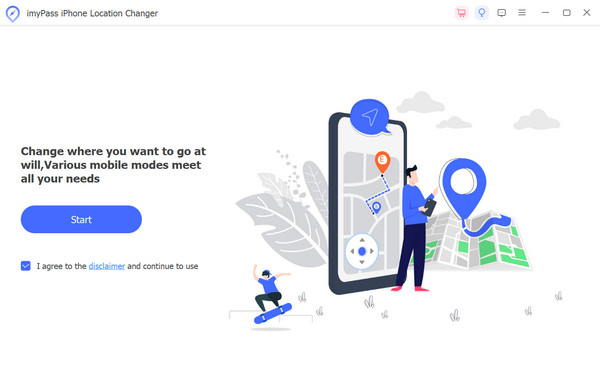
Click the Start button to proceed with altering or faking the position of your smartphone so that you can appear to be in a different place.
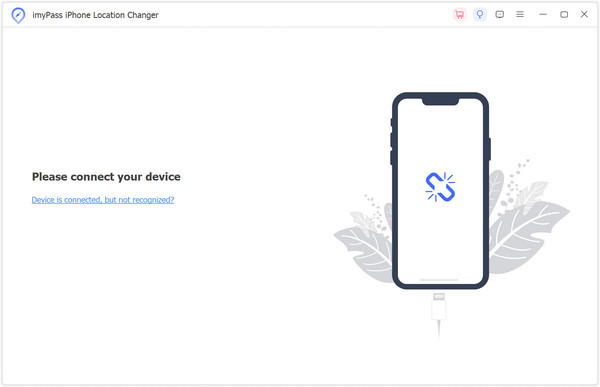
After that, a request to connect your iPhone to the computer will appear. To make this connection, use a lightning cord.
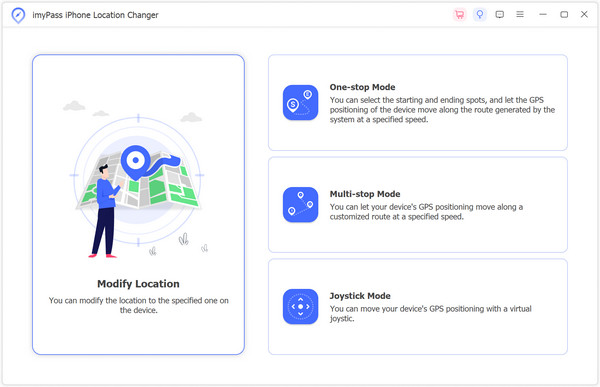
Then, to alter your device's location, navigate to the main interface and pick Modify Location from the menu on the left.
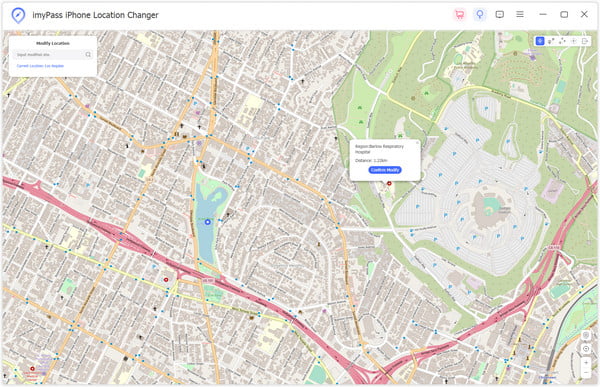
In the end, select a place on the map or type the address directly. Click Start Move to initiate an immediate transfer to the location of your choice.
FAQs.
-
Can I use a VPN on BlueStacks?
You can use a VPN on BlueStacks without restrictions, just like on an Android phone.
-
Why does BlueStacks ask for location?
BlueStacks requests location permission to provide location-based services in certain apps or games. Some apps may require location data for features like location-based ads in-game events, or to enhance user experience based on geographical information.
-
Is BlueStacks shady?
No, it isn't. BlueStacks is a legitimate, safe, and clean program on Windows and macOS.
Conclusion
This article offers a detailed guide on how to change location on BlueStacks. It is a free and powerful program that offers many wonderful features. However, it's too heavy to run for low-end programs. The large CPU consumption will also burden a high-end computer. If you only need to change location on your Android or iPhone, you can use imyPass iLocaGo. It is very lightweight and can help you precisely and quickly modify locations on mobile.
Penny is a senior editor from imyPass. She has focused on discovering perfect GPS location solutions in all scenarios, and also has experience in fixing computers.
Hot Solutions
-
GPS Location
- Best Pokemon Go Locations with Coordinates
- Turn Your Location Off on Life360
- How to Change Location on iPhone
- Review of iSpoofer Pokemon Go
- Set Virtual Locations on iPhone and Android
- TikTok Track Your Location
- Monster Hunter Now Joystick
- Review of IP Location Finder
- Change Mobile Legends Location
- Change Location on Tiktok
-
Unlock iOS
-
iOS Tips
-
Unlock Android


