



 Solution
 Support Center
 About Us
 Contact
GPS Not Working on iPhone - Causes, Fixes, & Troubleshooting
 Penny Warren Published on February 11, 2026GPS Location3-min reading
When location tracking fails, even simple navigation becomes unreliable. iPhone GPS not working often points to software settings, signal interference, or calibration errors rather than hardware failure. Knowing the way iOS treats location information will assist in eliminating the cause as soon as possible. This guide is divided into easy and hard-to-fix solutions, such as the basic setting checks and in-depth system diagnostics, in order to get the correct positioning back without any doubt. We will begin with the fast fix solutions, proceed to the specifics of the use cases and finally the advanced troubleshooting solutions.

In this article:
Part 1. Quick Fixes to iPhone GPS Not Working (Try These First)
Fix 1: Toggle Location Services
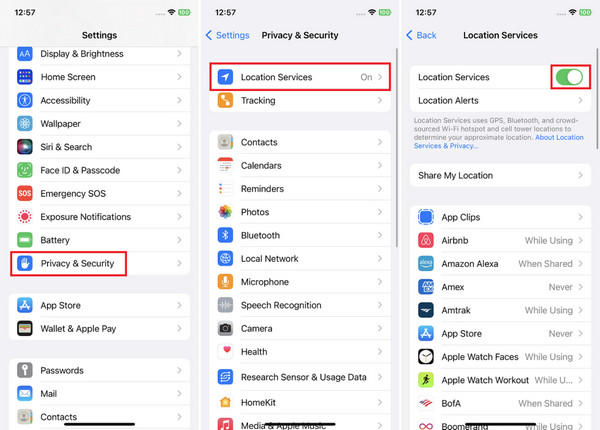
When the iPhone GPS is not working, the first thing to check is Location Services. This aspect enables iOS to utilize GPS, Wi-Fi and cellular data to identify position. You can simply go to Settings > Privacy and Security > Location Services and ensure that it is on. Switch it off and leave it for ten seconds, and switch it on. This reinvigorates the system location process and usually corrects the short-term tracking problems.
Fix 2: Airplane Mode
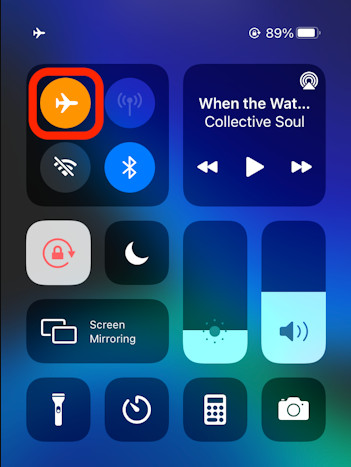
If GPS is not working on the iPhone, network signals tend to get stuck or unstable. Airplane Mode is a mode that restarts all wireless connections. Open Control Center, turn on Airplane Mode and wait approximately half a minute. Switch it off, and then the phone will rejoin cellular and GPS signals. This is particularly efficient following a travel or network change.
Fix 3: Force Close & Reopen Your Maps App
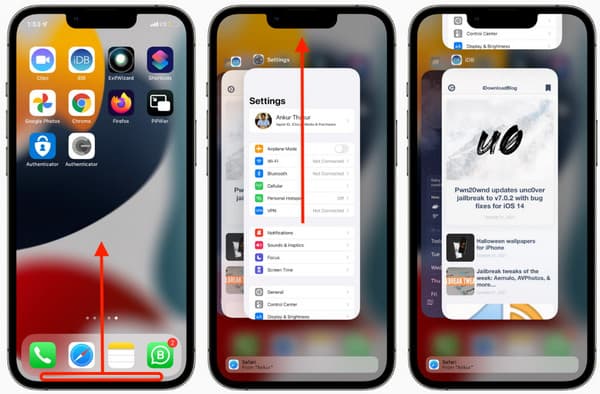
When GPS does not work on an iPhone inside a specific app, the issue may be app-level. Swipe up from the bottom of the screen, pause, and close the Maps app completely. Turn it back on and make location access on demand. This erases temporary application information that is capable of disrupting real-time positioning information.
Fix 4: Check for iOS Updates
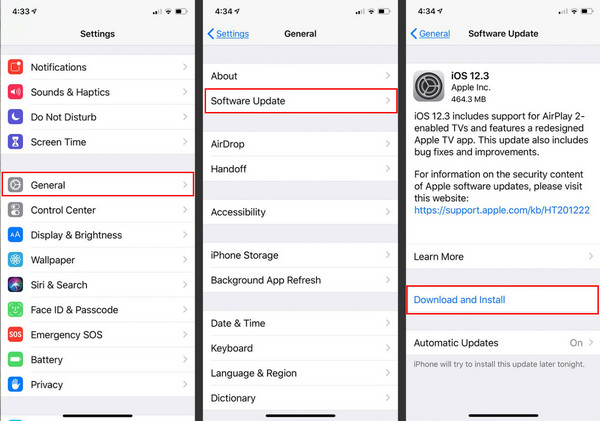
An outdated system can cause the iPhone GPS not accurate behavior due to unresolved software bugs. Go to Settings, open General, then Software Update. Install any available update. The GPS, connectivity, and sensor enhancements are often found in the iOS updates by Apple and can directly enhance the location quality and stability.
Fix 5: Verify App Permissions
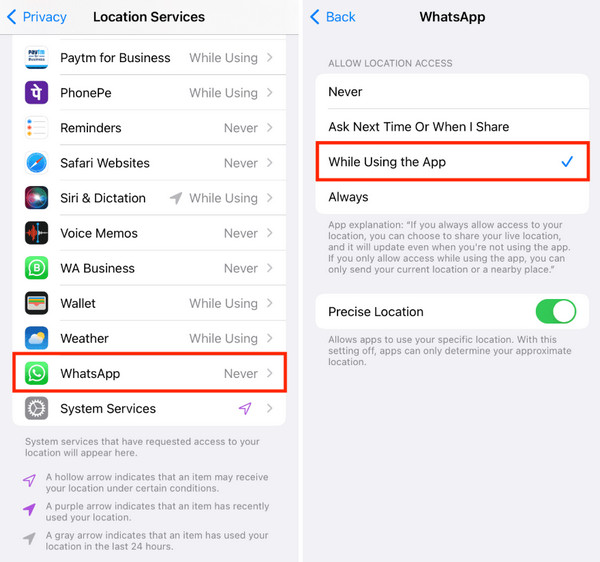
If you are asking why my GPS is not working on my iPhone, app permissions are a common cause. Open Settings, scroll to the affected app, and tap Location. Set it to While Using the App or Always, depending on the app function. Also, enable Precise Location if available.
Fix 6: Reset Location & Network Settings
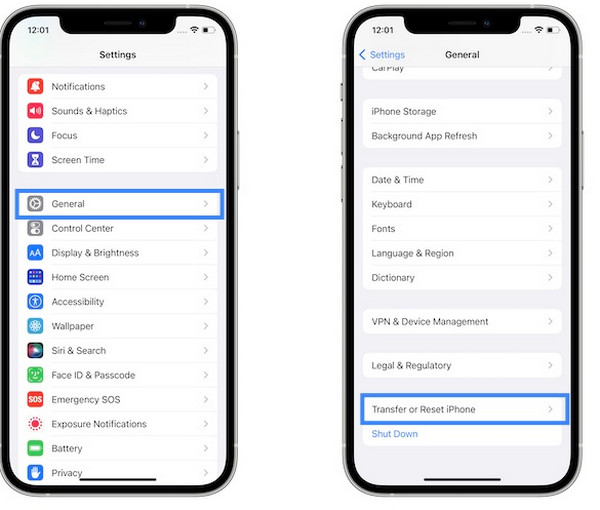
When the iPhone GPS is not working while driving, corrupted network or location data may be the problem. Go to Settings, open General, then Transfer or Reset iPhone, tap Reset, and choose Reset Location and Privacy or Reset Network Settings. It will not erase any personal information but will revert it to default GPS and network settings, which usually solve endemic navigation problems.
Part 2. Fixes for Specific Scenarios
1. GPS Not Working in the Car
When GPS does not work on an iPhone during driving, the issue is often related to signal obstruction or car connectivity settings. Cars are able to interfere with GPS communication because of metal frames, colored windshields, or dashboard position. One can start by setting the iPhone somewhere close to the windshield where the signal is stronger.
In case you have a car play or Bluetooth, unplug and make sure that you are only using the cellular data to test the GPS. Furthermore, verify that Location Services are turned on to always be on with navigation apps, as background limitations disrupt real-time tracking during movement.
2. GPS Inaccurate or "Jumping"
When the iPhone GPS is not accurate, issues are typically related to calibration or network interference, a location pin may be randomly moving, or it may be slow to update. The first steps include disabling Wi-Fi and using GPS only with cellular connectivity, as due to weak Wi-Fi signals, GPS positioning becomes inaccurate. Ensure that Precise Location is on in mapping applications. The re-reboot of the phone and recalibration of the compass can also be used by moving the phone in a figure of eight shape to stabilize the location tracking and eliminate the sudden jumps.
Part 3. Advanced Hardware & Software Checks
1. Check for Physical Damage
When the iPhone GPS is not working after all basic fixes, physical damage becomes a real possibility. Internal antennas that receive GPS signals can be affected by drops, pressure, or even water. Check for cracks, dents, or any damage on the device, especially around the back panel and SIM tray, where the antenna parts are situated. The pick up of satellite signals can be hampered even when it is affected by a slight impact. Apple and carriers validate that wireless performance, such as GPS, can be affected by hardware damage.
2. Use the Field Test Mode to Diagnose
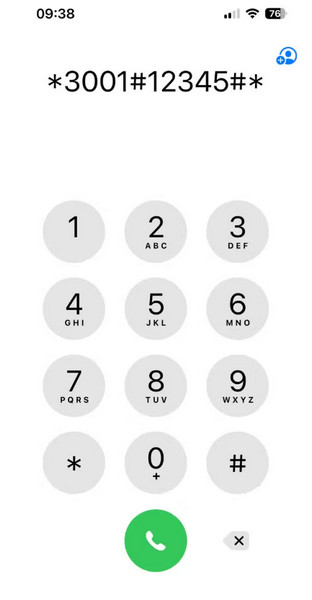
If the GPS is not working on the iPhone, continues across multiple apps, Field Test Mode can help confirm whether the device is receiving signal correctly. This diagnostic tool is hidden and shows raw cellular and signal data, which can be used to rule out software settings as the cause. Open the Phone app, dial 3001#12345#, and tap Call. Signal metrics, exhaustive review, and connectivity. Constant low or absent signal information can be a sign of a broken or faulty antenna or reception issues, and not malfunctioning apps.
3. DFU Restore via Computer
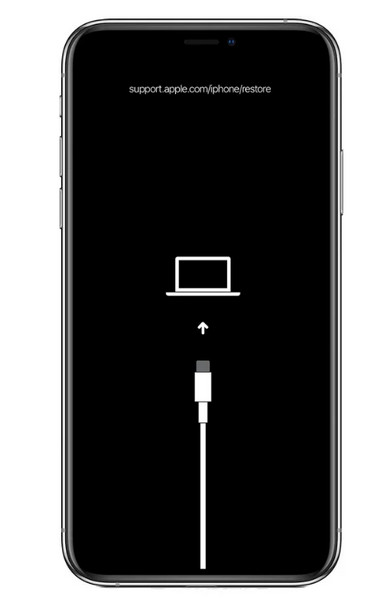
When GPS does not work on an iPhone, even after resets and updates, a DFU restore is the final software level check. DFU mode remakes both the firmware and iOS, removing deep system corruption that normal restores are incapable of repairing. Connect the iPhone to a computer and get into DFU mode by pressing the right set of buttons, and then restore with the help of Finder or iTunes. This process will delete the device, and therefore, it will need a complete backup, or you can use tools to recover data from DFU mode. The problem in case the GPS fails post-DFU is almost always a hardware problem.
Bonus: Manually Change the iPhone Location
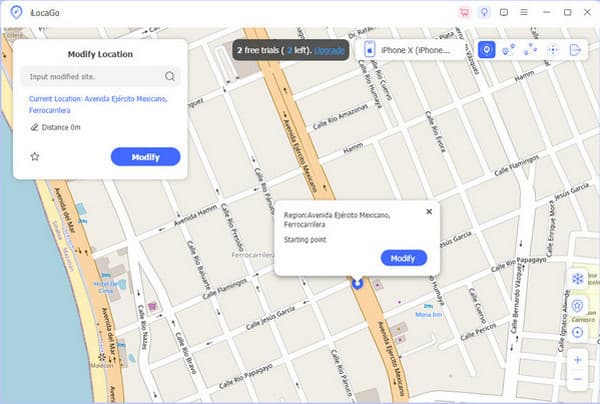
If your GPS shows errors or the iPhone GPS is not accurate in certain apps or tests, manually changing the phone’s location can help for testing or development purposes, such as checking how an app behaves in different regions. One reliable solution is imyPass iLocaGo, a desktop-based location changer that lets you set a virtual GPS position without jailbreaking your iPhone.
With iLocaGo, you can select any point on a map, sync that position to your device, and even simulate movement between locations with adjustable routes and speeds, which makes it useful for app testing, like changing location on Snapchat, and location-based behavior checks.
Conclusion
When GPS does not work on an iPhone, the problem is rarely random. In the majority of cases, it can be the conflict of the settings, the temporary signal, or the outdated software, which could be corrected with the help of the correct steps. When all the options fail, then the last step is professional assistance to make sure that the hardware-related malfunctions are corrected and the location performance can be recovered.
Penny is a senior editor from imyPass. She has focused on discovering perfect GPS location solutions in all scenarios, and also has experience in fixing computers.
Hot Solutions
-
GPS Location
- Best Pokemon Go Locations with Coordinates
- Turn Your Location Off on Life360
- How to Change Location on iPhone
- Review of iSpoofer Pokemon Go
- Set Virtual Locations on iPhone and Android
- TikTok Track Your Location
- Monster Hunter Now Joystick
- Review of IP Location Finder
- Change Mobile Legends Location
- Change Location on Tiktok
-
Unlock iOS
-
iOS Tips
-
Unlock Android


