Solution
 Support Center
 About Us
 Contact
How to Drop a Pin on iPhone: Easy Ways to Mark a Location
 Penny Warren Published on September 24, 2026GPS Location3-min reading
When you are in unfamiliar areas or just trying to remember where your best spots are, knowing how to drop a pin on an iPhone with Apple Maps or Google Maps can be very useful. This guide takes you through important steps for easily and quickly locating places, such as when saving a parking spot or planning for meetups.

In this article:
Part 1: How to Drop a Pin on iPhone with Google Maps
Google Maps also lets you drop a pin on your iPhone to mark a specific location. You can then save the location, share it with others, or get directions to it. Whether you're planning a trip, keeping track of important places, or want to set home in Google Maps, Google Maps makes it easy to manage locations. Here's how to drop a pin in Google Maps using your iPhone.
On your iPhone, launch Google Maps, then tap and hold the spot where you would like to place the pin.
There will be a red pin at this chosen point and also an information panel at the bottom of the screen.
Swipe up on the panel to view more details about the location. If the pin isn't placed exactly where you want it, zoom in on the map and touch and hold the desired spot again to drop a new pin.
To save the location for later, tap Save on the location information panel. Choose a list, such as Favorites, Want to go, or a custom list, to organize the pinned location.
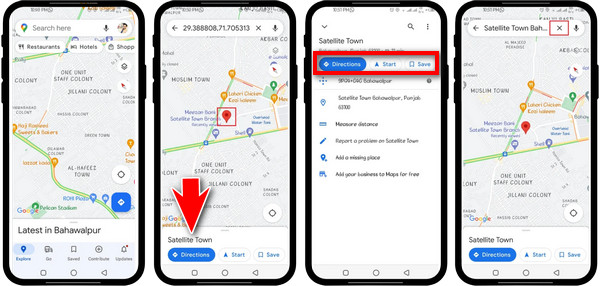
To send the pinned location to someone, tap Share in the location information panel. Choose an app or contact to share the location through Messages, Mail, or another available option.
To navigate to the pinned location, tap the Directions button and start your journey.
Additional Tips:
1. How to share your real-time location on Google Maps via iPhone:
Learn how to use these steps to let other people know where you are using Google Maps on your iPhone.
Open the Google Maps application found on your iPhone.
Touch the blue point, indicating where you exactly are at present.
Then, press the Location Sharing button under Your Location.
Select New Share and for how long you want to keep sharing your location, e.g., one hour, day or forever.
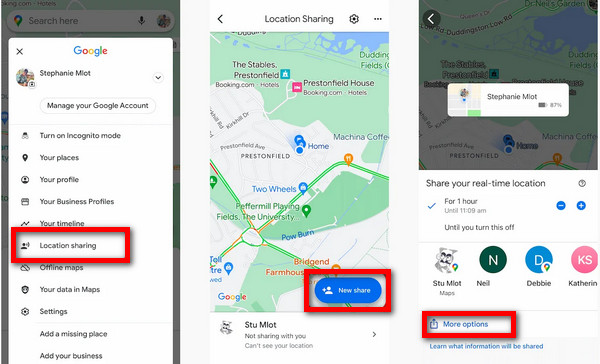
Select a contact from your address book, press More Options, and use other apps to share your position if necessary.
2. How to save parking locations on Google Maps on iPhone:
Discover how to save parking lot details in Google Maps on the iPhone with this guide.
Navigate to the Google Maps app on the iPhone and open it.
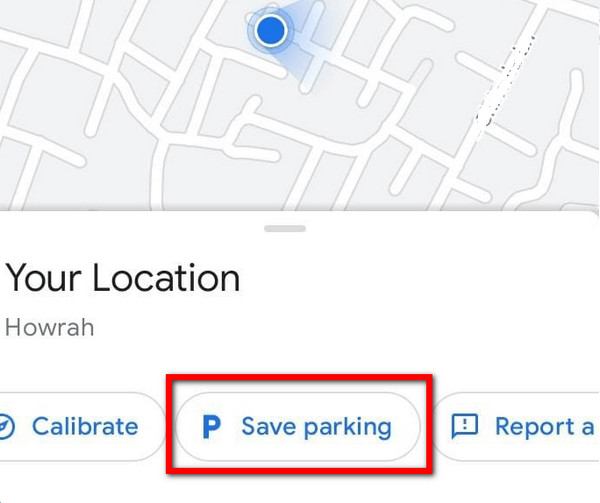
Click on a blue spot showing your current position.
Tap Save Parking so that it can be saved as a parking area on Google Maps.
To find your saved parking spot, open up Google Maps and click the P icon on the map.
Part 2: How to Drop a Pin on iPhone with Apple Maps
Apple Maps is a navigation app for iPhone that lets you drop a pin at a specific location. This feature is useful for bookmarking places, sharing locations with your contacts, or remembering where you parked. This guide shows you how to drop, move, and share a pin in Apple Maps.
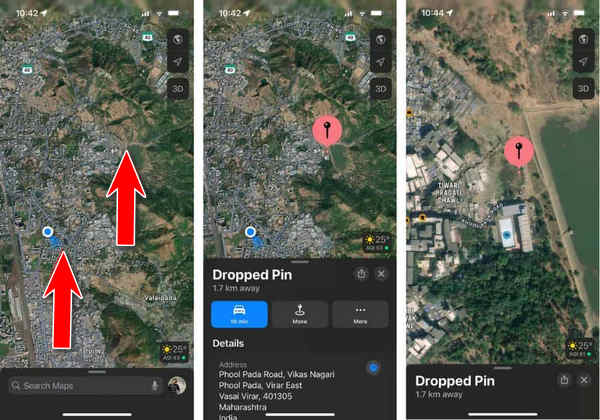
Open the Apple Maps app on your iPhone. Press and hold the spot where you'd like to place a pin.
A pin will appear at the selected location; zoom in on the map if it isn't accurate.
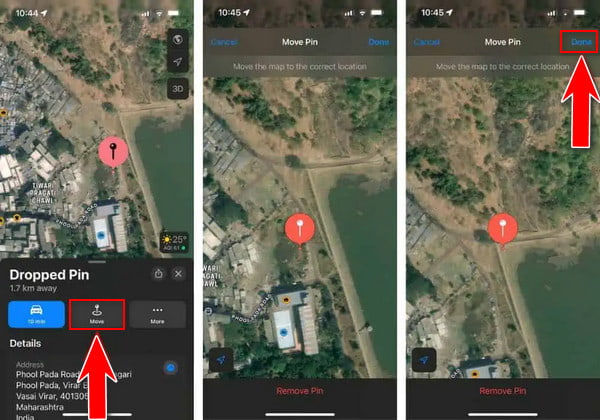
Swipe up and open the Dropped Pin menu, choose Move, then swipe across the screen until the pin moves.
Click the Done button at the top-right corner to save the pin's new position.
Additional Tips:
1. How Can You Share Locations That Have Been Pinned in Apple Maps:
Launch your Apple Maps App on the iPhone.
Press where you want to drop a pin or view earlier pins.
Then, hit the Share button located at the top right corner of the Dropped Pin pane.
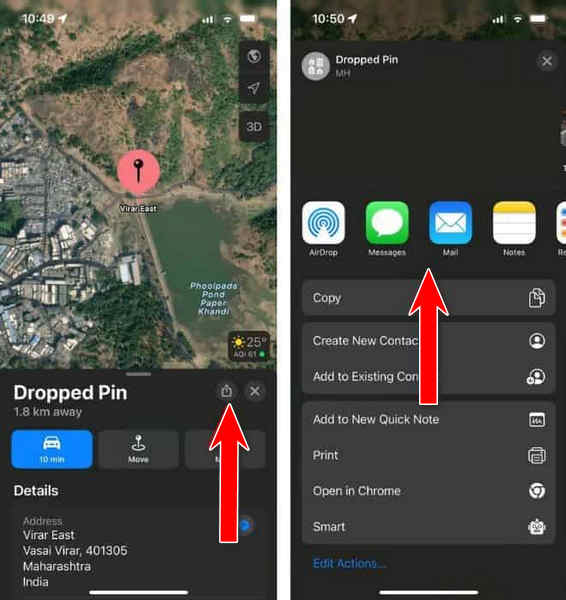
Choose from a list of those in your contacts or any app on your device to share predetermined places with them.
2. How to Move Pinned Places To Favorites In Apple Maps:
Launch your Apple Maps App on the iPhone.
Long press that place where you want to drop a pin or access your present pin.
Click the More button in the Dropped Pin menu and choose Add to Favorites.
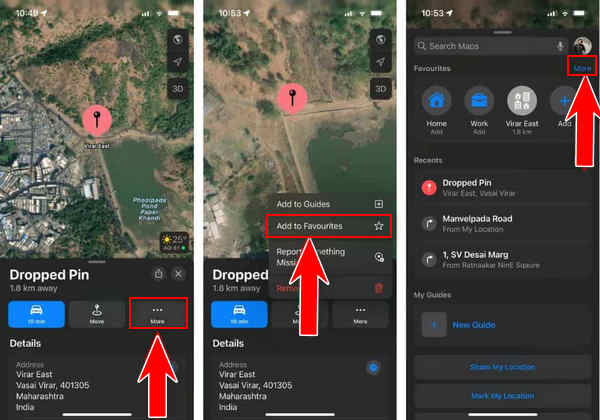
Touch the × button to close the Dropped Pin menu.
Swipe up from the bottom, open the Apple Maps app menu, tap More over Favorite, and tap information (i) next to the pinned location.
Change Location Label(title) and Type(Address/Home/Work etc.) Tap Done at the top right corner to save changes made here
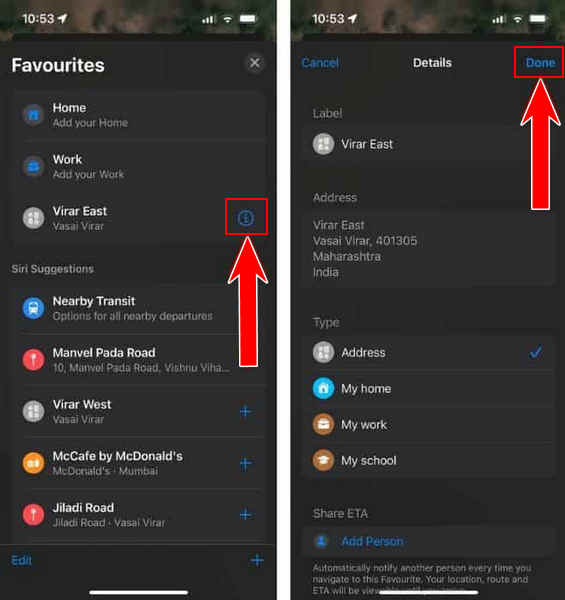
3. How to Remove a Pin from Apple Maps
Launch the Apple Maps app on your iPhone.
Go to your pinned location.
Tap More in the Dropped Pin menu and select Remove to unpin the location.
Part 3: Why You Can't Drop a Pin on iPhone? Try These Fixes
If you can't drop a pin on your iPhone, the problem may be related to the Maps app, location services, or system issues. Try the following fixes.
Fix 1: Check Your Internet Connection
Make sure your iPhone has a stable Wi-Fi or cellular connection.
Fix 2: Turn On Location Services
Go to Settings > Privacy & Security > Location Services and make sure Location Services is turned on. Also check that Maps has permission to access your location.
Fix 3: Restart the Maps App
Close Apple Maps or Google Maps and open it again. Then try touching and holding the map to drop a pin.
Fix 4: Update the Maps App and iOS
Make sure your Maps app and iPhone are running the latest versions.
Fix 5: Restart Your iPhone
If you still can't drop a pin, restart your iPhone and try again. This can resolve temporary system or app glitches.
Part 4: How to Change Your iPhone Location When Dropping a Pin
Dropping a pin lets you mark a specific location on your iPhone, but it doesn't change your actual GPS location. If you want to change the location shown on your iPhone, imyPass iLocaGo is a GPS spoofing tool designed for iOS users. It lets you change your iPhone's location to anywhere with just a few clicks. It is useful for protecting your privacy or unlocking location-based apps and games.
4,000,000+ Downloads
Modify your iPhone's location to any place on the globe.
Create customized routes and simulate movement flexibly.
Best Pokemon coordinates without physically traveling.
Compatible with the latest iPhone and iPad models.
Start by downloading and installing imyPass iLocaGo on your PC.
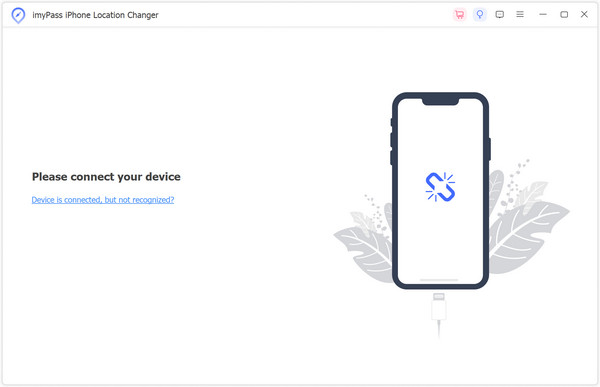
Afterward, open it on your personal computer. Plug in the lightning cable to connect the computer to the mobile device.
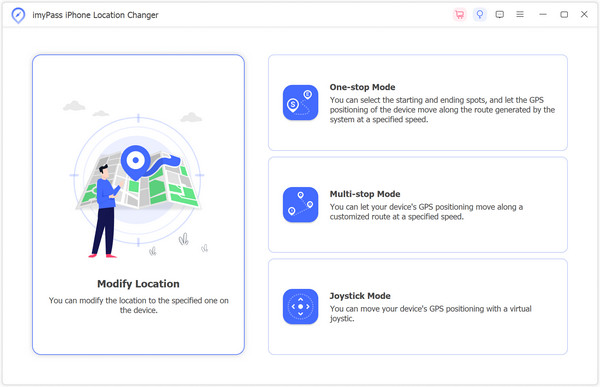
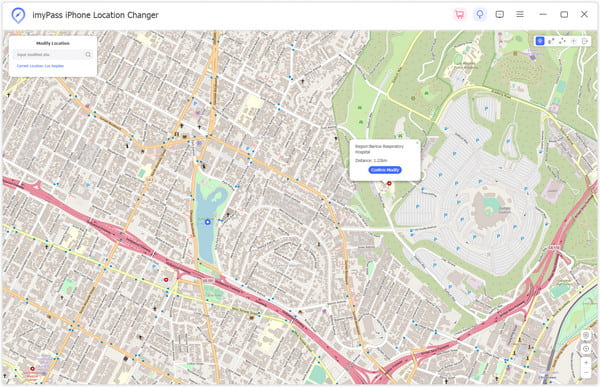
On the main interface, select Modify Location on the left side of this screen.
Choose any point on the map or insert it directly into its address stipulated. Start Move will immediately replace your current place with your desired destination.
Conclusion
Knowing how to drop a pin using Apple Maps or Google Maps can improve your navigation experience. Whether you want to bookmark a location, share it with friends, or protect your privacy with a tool like imyPass iLocaGo, the tips in this guide can help you manage locations more effectively.
Penny focuses on GPS troubleshooting and Windows optimization. She formerly worked as a technical support engineer, helping clients solve location-based and system issues efficiently. Backed by IT support experience, she provides practical solutions that really work. In her free time, she likes hiking and geocaching, testing GPS tech in the real world.
Hot Solutions
-
GPS Location
-
Unlock iOS
-
iOS Tips
-
Unlock Android