



 Solution
 Support Center
 About Us
 Contact
How to Change Country on Google Play on PC and Mobile
 Penny Warren Published on January 09, 2026GPS Location3-min reading
Android devices are prevalent partly because of oceans of apps in Google’s Play Store. Users can download utilities, games, social media, marketplace, and other types of apps from the Play Store. However, before that, you must set up your Play Store with your personal information. In fact, some apps are exclusive to specific regions. If you want to download apps unavailable in your region, you can change your country in the Google Play Store following our guide.

In this article:
Part 1: Before Changing Google Play Country
It is well known that VPNs cannot unlock location restrictions in Google Play. Thankfully, Google allows users to change their country in the Play Store. However, there are things you should learn before the operation.
1. You can change your Google Play country once a year.
2. You must have a payment method in the new country, and the old payment method won’t work anymore.
3. The exclusive downloads and content unavailable in the new country are inaccessible.
4. Your Google Play balance and Google Pay Points from the old country cannot be used in the new country.
5. Your Google Play Pass subscription won’t transfer to the new country.
6. Country-specific regulations may affect your use of apps in the new country.
7. Check whether the new country supports Family Library if you are part of a Family Library.
Part 2: How to Change Google Play Country on Mobile
How to Change Google Play Country Without Changing Account
If you decide to change your country in the Google Play Store, you can complete the job on your mobile phone. Make sure that your phone is connected to a Wi-Fi network or cellular data during the process.
Open the Play Store app on your phone.
Tap on your profile picture at the top right corner.
Go to Settings and choose General.
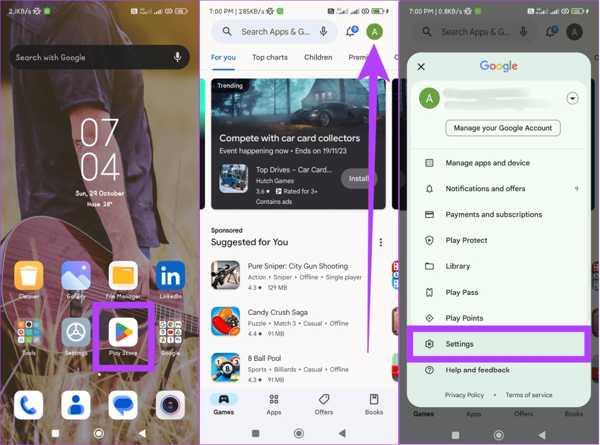
Tap Account and device preferences.
Locate the Country and profiles section.
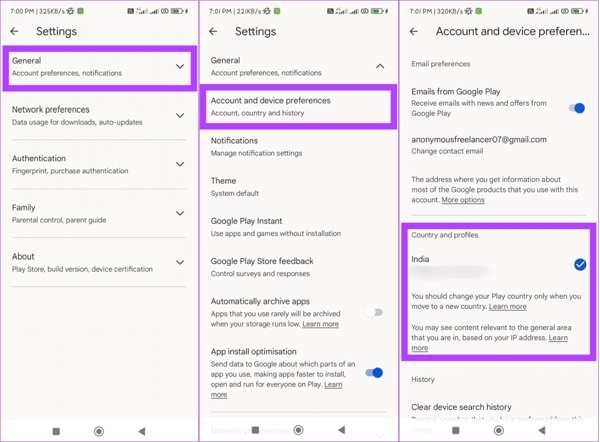
Now, the Google Play Store will detect it if you are in a new country.
Next, add a payment method available in the new country when prompted.
Tap Continue on the alert dialog and confirm the change.
Note: It takes up to 48 hours for your change to actually work.
How to Change Google Play Country with a New Account
If your Google account is less than 12 months old, you have to change your Google Play account using a new account or a VPN service. Before that, you must remove the current account and clear your data.
Run your Settings app.
Go to Accounts & Sync and tap your Google account.
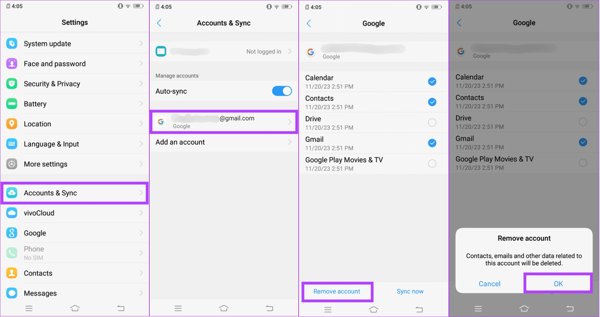
Tap Remove Account, and choose OK on the alert message.
Next, back to the previous screen, find and choose More Settings.
Go to App manager, and choose Google Play Store.
Tap Force stop and hit OK.
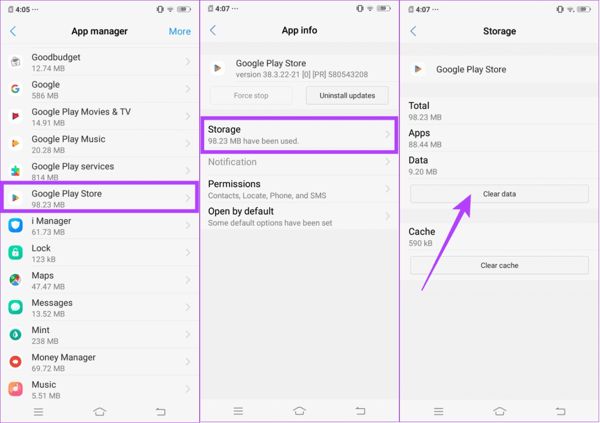
Hit Storage, tap Clear data, and press Clear data if prompted.
Now, you can run a VPN app and connect to the desired country.
Then, open your Google Play Store and tap Create account.
Follow onscreen prompts to sign in with a new account and change your country in the Google Play Store.
Part 3: How to Change Google Play Country on Desktop
In addition to your mobile phone, you can also change the country of the Google Play Store in a web browser on your computer. Of course, to complete the process, you must update the changes in the Play Store app on your phone.
Visit https://play.google.com/store/paymentmethods in a browser on your desktop.
Switch to the Settings tab, and click Country/Region under Payments profile on the sidebar.
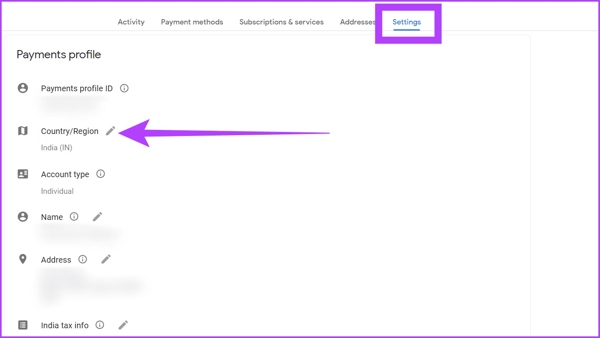
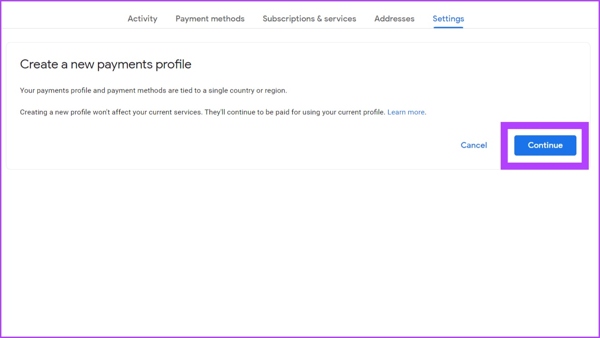
Click the Create new profile link and hit Continue to create a new profile.
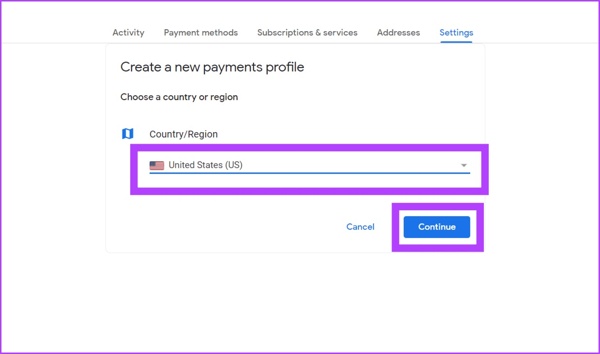
Next, select the desired country from the drop-down list and click the Continue button.
Fill out your payment address, and click Submit.
Turn to your phone and open the Play Store app.
Go to Settings, choose Account, and tap Country and profiles.
Then, tap Update to confirm changing the Play Store country.
Part 4: How to Change Google Play Country Without Notifying Others
When changing the Google Play country, your Play Store uses the GPS data on your device. If you want to switch to any country, iLocaGo can meet your needs. It is able to change your phone location to any address with one click.

4,000,000+ Downloads
Change Google Play country without traveling.
Support accurate addresses and any position.
Offer a variety of modes to change location on Android for different purposes.
Work for almost all Android brands and models.
How to Change Google Play Country
Connect to your phone
Launch the best country changer for Google Play after installing it on your computer. It is compatible with both Windows and macOS. Connect your phone to your computer with a USB cable.

Choose Modify Location
Once the software detects your device, you will be presented with the mode screen. Choose Modify Location when changing your country in the Google Play Store. The other three modes are used to create virtual routes.

Change Google Play country
Next, type an address into the field or click any position on the map. Finally, click the Modify button. Now, turn to your phone, open the Play Store app, and change to any desired country. You can also use this program to achange location on Spotify.

Note: After changing the country, disconnect your phone and close the software.
Conclusion
Now, you should learn multiple ways to change the Google Play country on your Android phone or desktop. First of all, you should learn the rules about country changing. If you are sure, pick an appropriate method, and follow our steps to switch to a new country in your Play Store. iLocaGo allows you to change the Play country without moving. The user-friendly interface makes it easy to use for ordinary people.
Penny is a senior editor from imyPass. She has focused on discovering perfect GPS location solutions in all scenarios, and also has experience in fixing computers.
Hot Solutions
-
GPS Location
- Best Pokemon Go Locations with Coordinates
- Turn Your Location Off on Life360
- How to Change Location on iPhone
- Review of iSpoofer Pokemon Go
- Set Virtual Locations on iPhone and Android
- TikTok Track Your Location
- Monster Hunter Now Joystick
- Review of IP Location Finder
- Change Mobile Legends Location
- Change Location on Tiktok
-
Unlock iOS
-
iOS Tips
-
Unlock Android


