



 Solution
 Support Center
 About Us
 Contact
Share Location from WhatsApp to Show Exactly Where You Are
 Penny Warren Published on April 02, 2026GPS Location3-min reading
There are various messaging applications nowadays. Each has its own special or beneficial features for its users. WhatsApp is one of them. You can use it for making calls, video chats, and more. You can also use it to send text, images, videos, and other attachments without incurring traditional SMS charges.
Can you share the location on WhatsApp? It is one of the most asked questions of WhatsApp users. Fortunately, yes! Sending your WhatsApp location is possible. In this article, we will show you how to do that. Keep in touch and continue scrolling to know the entire information about the topic.

In this article:
Part 1. How to Share Your Current Location (A Static PIN)
WhatsApp can share your static and moving location. In this section, you will learn how to share location in WhatsApp on Android and iPhone by dropping a PIN. It is commonly used to share location ideas for their next travel with friends or family. This method is also used to fake a location on WhatsApp. Users send a PIN to their contacts when they are not even at the place.
Please use the steps below to send a static PIN to your WhatsApp contacts to share your location.
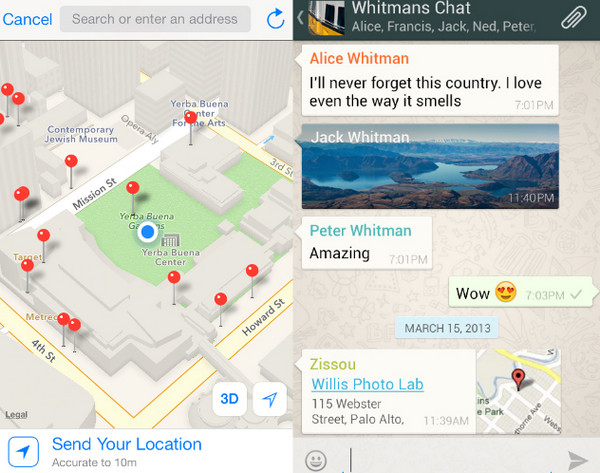
Open your WhatsApp on an iPhone or Android phone. After that, the current conversations your account has will appear. Please tap the Search Bar button at the top of the main interface. Search for the location you prefer to send to your contacts.
Then, tap the PIN button, and select the Share button at the bottom. Later, choose the name of the contact to whom you want to share your current location.
Part 2. How to Share Your Live Location (Real-Time Tracking)
Can WhatsApp location be tracked? Yes! Some WhatsApp users need to share their real-time location. You can let someone track your location by sharing your live location. In this case, the WhatsApp contact will know your real-time location by updating it every minute or even second. How to share a live location in WhatsApp? Please refer to the steps below for a successful process.
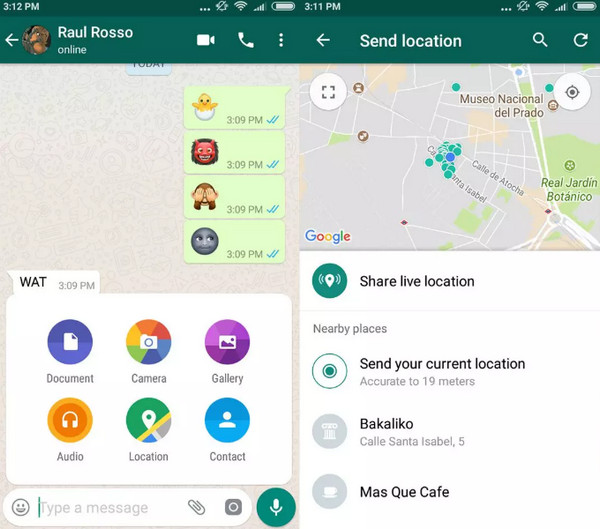
Grab your iPhone or Android phone and open WhatsApp. After that, the conversations of your account will appear. Please choose the contact to whom you want to share your live location. Then, tap the Clip button from the prompted menu.
A small window will be prompted. Please select the Location button from the list. Then, a new set of options will appear. Please tap the Share Live Location button at the top of the small window. Your live location will be sent to the contact.
Part 3. How to Share a Location from Google Maps to WhatsApp
A Google account is helpful for both an iPhone and an Android phone. It provides additional applications or features that users find beneficial. Google Maps is one of them. It allows you to track and locate locations from different individuals. The best thing about it is that you can use it to share your WhatsApp location. If you want to know how, proceed with the detailed steps below.
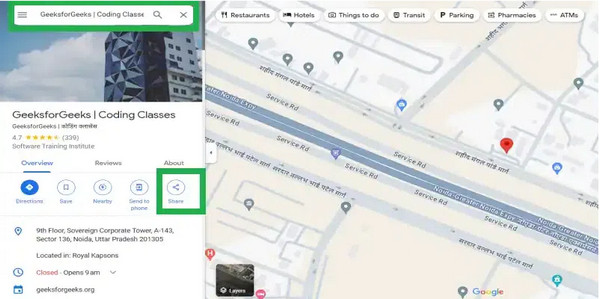
Open the Google Maps application on an iPhone or Android phone. Then, tap the Search Bar at the top of the main interface. Please search for your location using your digital keyboard. Later, a small window will appear. Tap the Share button from the options list afterward.
More options will appear at the bottom. Please select the WhatsApp button from the list. Then, you are required to choose the contacts to whom you want to share your current location. Finally, follow the on-screen instructions to complete the process.
Part 4. Platform-Specific Notes & Permissions
If you encounter issues sharing your location from your WhatsApp account, there might be issues with the permissions of the mentioned app. An iPhone and an Android phone have different required permissions to allow the procedure. You can refer to the list below to fix the issue.
Android Phone
- The application must be allowed to access the location of your WhatsApp app when it is open.
- Ensure that the application is enabled to access and update your location even when minimized.
- The Location Services feature must be turned on.
- Enhance the location services that are offered by Google.
- Ensure that Wi-Fi or cellular data is turned on for sharing your location more accurately.
iPhone
- Ensure that you allow WhatsApp to keep updating the live location for your account and device.
- The Wi-Fi must be turned on and stable.
- It is recommended to use motion data to help your iPhone have refined movement tracking when sharing your location.
- The iPhone must allow WhatsApp without any privacy restrictions.
- The built-in location frameworks must be used to integrate with Apple Maps for a more accurate location sharing process.
Part 5. How to Share a Custom Location on WhatsApp
There are also other users who prefer to customize their location on WhatsApp. In this case, their real-time location cannot be tracked. imyPass iLocaGo can help you with this procedure. It is a third-party tool used for changing your iPhone and Android phone location.
The best thing about it is that it does not use an internet connection because it is an offline tool. Most importantly, it does not impact the network speed of your Android phone or iPhone. Furthermore, it supports the latest iOS 27 and Android OS 17. Learn how to use the tool using the steps below.
Kindly visit the main website of imyPass iLocaGo. In this case, you can download the tool safely. Later, set up, install, and access it on your computer to start the procedure.
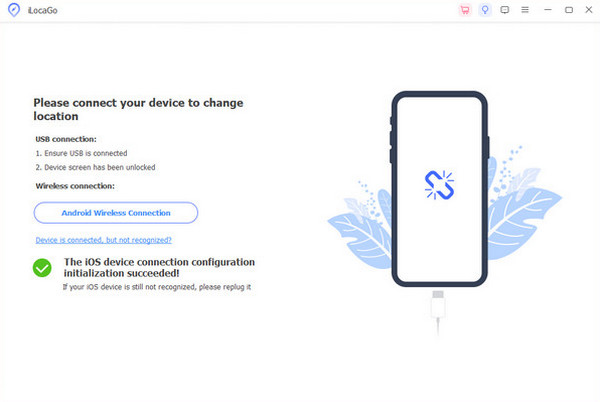
Please grab your USB cable. Then, use it for plugging the iPhone or Android phone into the computer. If you do not know how, you can follow the on-screen instructions that are prompted on the main interface.
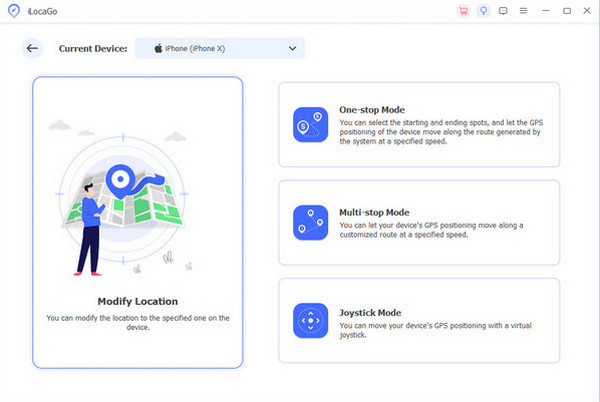
The four features of the tool will appear. Please click the Modify Location button on the left. Later, please search for your preferred location from the Modify Location section at the top left. Click the Modify button afterward. The map will move to the location. It only means that changing the location on your iPhone or Android phone is successful.
Conclusion
To summarize, you can share a location from WhatsApp in four easy ways with the help of this post. imyPass iLocaGo is included to help you change your iPhone and Android phone location. It can be a static or moving location. Download the tool now if you want to use or explore it.
Penny focuses on GPS troubleshooting and Windows optimization. She formerly worked as a technical support engineer, helping clients solve location-based and system issues efficiently. Backed by IT support experience, she provides practical solutions that really work. In her free time, she likes hiking and geocaching, testing GPS tech in the real world.
Hot Solutions
-
GPS Location
-
Unlock iOS
-
iOS Tips
-
Unlock Android


