



 Solution
 Support Center
 About Us
 Contact
How to Turn Off Snapchat Location and Control Who Sees You
 Penny Warren Published on January 16, 2026GPS Location3-min reading
Have you ever suddenly realized while browsing Snap Map that your location had already been shared? Many users start searching for how to turn location off on Snapchat at that very moment, only to find that the relevant settings are not easy to spot. Location tracking should be a controllable feature, but once it becomes the default update, privacy can easily be overlooked. Next, we will break down Snapchat's location logic step by step and tell you how to handle it in different scenarios.

In this article:
- Part 1. How Snapchat Shows Your Location
- Part 2. Why You May Want to Turn Off Snapchat Location
- Part 3. How to Pause Your Snapchat Location Without Turning It Off
- Part 4. Turn Off Snapchat Location with Ghost Mode
- Part 5. Disable Live Location to Stop Snapchat from Updating Your Location
- Part 6. Keep Snapchat Running in the Background to Avoid Location Updates
Part 1. How Snapchat Shows Your Location
The first time you notice your location on Snapchat, it might just be when you casually open the map and realize your location is already marked there. This makes many people start thinking about how do you turn location off on Snapchat to regain control over their privacy.
People also often wonder, does Snapchat location turn off after inactivity? In fact, Snapchat does not track your movements around the clock. It records your location based on the permissions at the time you use the app and displays that location on Snap Map. After you close the app, what you usually see on the map is just your last active location, not a real-time movement track.
What you really need to be cautious about is the Live Location feature. Once enabled for specific friends, Snapchat will continuously update your location for a set period of time. If you are unaware of this, it's easy to share too much of your whereabouts unintentionally.
Part 2. Why You May Want to Turn Off Snapchat Location
Once you understand how Snapchat records and displays location, whether to keep it on often depends on your comfort level with privacy and usage scenarios. Many users choose to turn off targeting only to discover that it doesn't always fit their actual needs.
Privacy exposure
Snap Map may allow others to judge your range and pace of life, which is at the heart of why many people are paying attention to how to turn off location on snapchat.
Positioning errors
In order to further confirm that does your snapchat location turns off when your phone dies, many users find that the location on the map does not disappear immediately when the phone runs out of power or suddenly shuts down, which can easily lead to inaccurate positioning.
Actual usage scenarios do not match
Not everyone wants to share location continuously while out and about, commuting, or transient activities. More and more users prefer to reduce the frequency of updates at certain times rather than being visible all the time, rather than shutting them down completely.
It is these differentiated requirements that make how to turn off Snapchat location no longer a simple setting problem, but a more appropriate control method to choose according to the use scenario.
Part 3. How to Pause Your Snapchat Location Without Turning It Off
If your need is not to turn off location completely, but to pause location updates without affecting the normal use of Snapchat, then a third-party location management tool may be a better choice. Rather than jumping in and out of system Settings repeatedly, imyPass iLocaGo provides a more controllable solution that directly manages the device's location behavior without modifying Snapchat's internal Settings.

4,000,000+ Downloads
Freeze or modify your current location to avoid frequent exposure of your real whereabouts.
Does not require jailbreaking and does not affect other application functions.
Support to restore the real location at any time, suitable for temporary going out or short-term privacy needs.
Open the app and connect your iPhone to your computer. After the software identifies the device, complete the authorization operation as prompted, enter the main interface, and select the Modify Location function

The map will show you your current anchor point. You can manually select a fixed location on the map, or enter the address and confirm it, so that the system positioning does not change.

After the Settings take effect, keep the app running and open Snapchat to view the Snap Map. The location will stay at the set point and will not update with your real movement.
This approach is often more flexible and easier to use in the long run for users who do not want to switch positioning frequently, but want to preserve the functional integrity of their application. If you want to learn more about how to pause Snapchat location in different scenarios, you can also refer to the detailed instructions for further settings.
Part 4. Turn Off Snapchat Location with Ghost Mode
Ghost Mode is the most intuitive and often used way to turn off location displays directly inside Snapchat. When turned on, your Bitmoji won't show up on Snap Map, which is exactly the feature many people reach for first when looking for how to turn off Snapchat location.
However, it should be noted that this approach is more inclined to shut down as a whole, rather than controlling for a specific scenario.
Open Snapchat and click the bottom left corner to enter the Snap Map page.
Click the Settings button in the upper-right corner to enter the map-related settings.
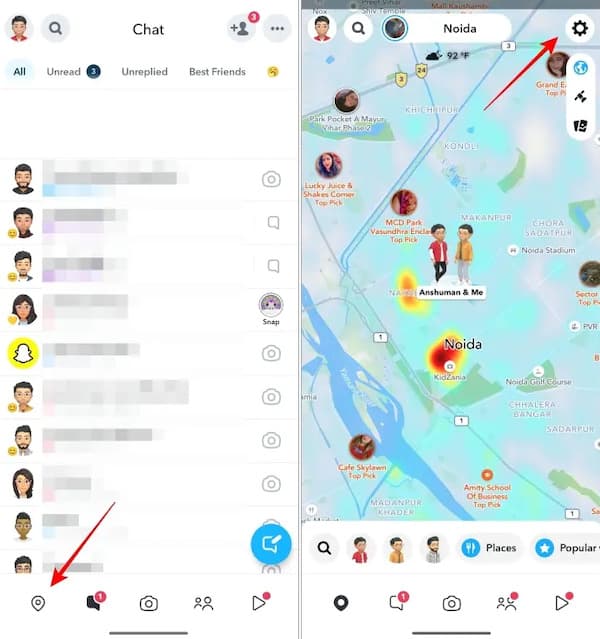
Find the Ghost Mode option and enable it. You can choose the duration as required.
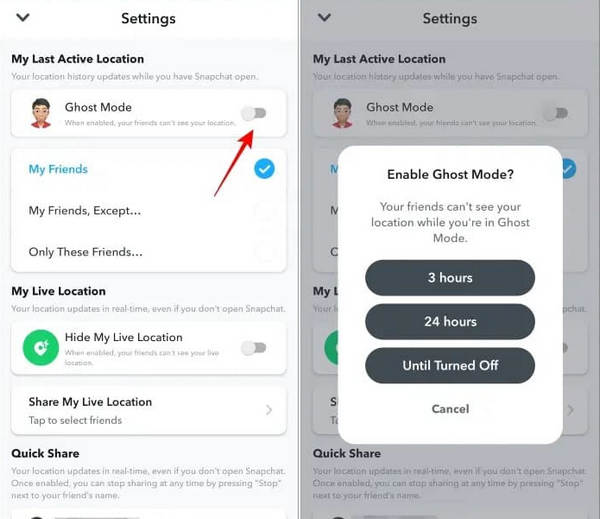
After setting, your location will no longer be shown to any of your friends.
With Ghost Mode enabled, Snapchat will stop showing your location on maps, but that doesn't mean the app can't access location permissions at all. As long as system-level location remains on, Snapchat may still record the location of the most recent activity in the background, just not showing it to the public.
Part 5. Disable Live Location to Stop Snapchat from Updating Your Location
Some users still find that the Location seems to be updated after Ghost Mode is turned on, often because of the Live Location function. Snapchat Live Location is an official, separate location option for sharing a location in real time to a specific friend for a limited time.
Open Snapchat, click the Map logo in the bottom left corner, and then click the Settings button in the top right corner to access Snap Map Settings.
Swipe down to find the My Live Location section, turn on the Hide My Live Location toggle, and select the length of time you want to hide.
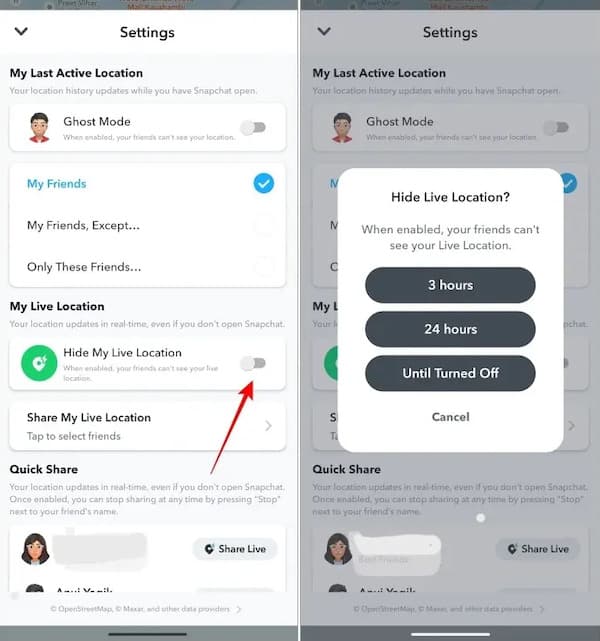
If your goal is to reduce frequent Location access on Snapchat, rather than just hiding map displays, then confirming that Live Location is enabled is an easily overlooked but crucial step.
Part 6. Keep Snapchat Running in the Background to Avoid Location Updates
If you don't want to tweak internal Snapchat Settings and don't plan to use additional tools, changing usage itself can also reduce location updates somewhat. This method reduces Snap Map refresh by reducing the frequency with which apps retrieve location information.
Return to the home screen and let Snapchat run in the background instead of forcing the app to close.
Avoid re-opening Snapchat frequently, as the location could be recorded again each time you re-enter the app.
Check your location permissions in your phone's system Settings to avoid setting Snapchat always to allow location access.
In this state, Snapchat typically only keeps the most recent active location, rather than continuously updating it. This is why many users find that locations stop on the map in actual use.
Conclusion
Turning off Snapchat targeting depends on how you want to balance the experience with your privacy controls. Understanding how to turn off Snapchat location is just the first step; it's more important to choose a way to manage location updates that works for your scenario. If you want the flexibility to pause your location without interrupting normal use, tools like imyPass iLocaGo offer a more controlled and hassle-free solution that keeps you in control of your location while using Snapchat.
Penny focuses on GPS troubleshooting and Windows optimization. She formerly worked as a technical support engineer, helping clients solve location-based and system issues efficiently. Backed by IT support experience, she provides practical solutions that really work. In her free time, she likes hiking and geocaching, testing GPS tech in the real world.
Hot Solutions
-
GPS Location
-
Unlock iOS
-
iOS Tips
-
Unlock Android


