



 Solution
 Support Center
 About Us
 Contact
How to View and Manage iPhone Location History: 4 Effective Ways
 Penny Warren Published on June 04, 2026GPS Location3-min reading
Your iPhone automatically tracks the locations where you have visited. The built-in system of iPhone Location History records essential spots you see without any user notification, provides functionality to view previous trips, and enables improved location feature functionality. This feature operates through iOS devices with Apple’s latest operating system versions to enhance security and personalization of your experience. This guide explains the process of viewing and controlling iPhone location history data alongside methods for effective location tracking.

In this article:
Part 1. How to Check iPhone Location History with Built-in Features
The iPhone provides users with built-in features that enable them to review their previous travel history. The Photos application combined with Significant Locations features on your iPhone serve as basic yet efficient tools for monitoring your previous movements, allowing you to look back both professionally and for nostalgic purposes. These two features deliver different methods for location tracking because one maintains a recorded list, while the other functions via memory-based visual presentation.
1. Checking Significant Locations
The Significant Locations feature records your most frequented locations on your iPhone without making any noise. This secure digital journal tracks your daily movements through locations to boost services that maintain your data privacy. Users can find the log within Settings > Privacy & Security > Location Services > System Services > Significant Locations.
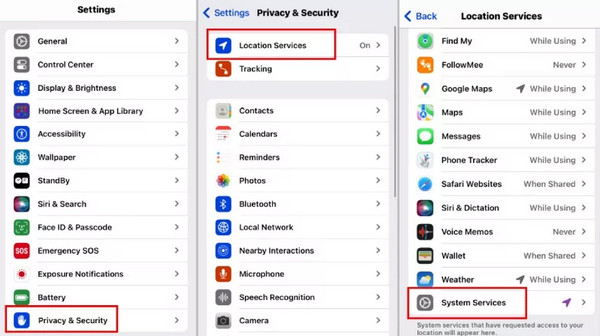
In this storage area, you will discover appropriately organized historical data about your visits, containing timestamp information, location clusters, and travel information. Users who need step-by-step route retrieval may find value in this feature, but Google Maps Timeline provides more information so you can activate or deactivate the service as required.
2. The iPhone Photos
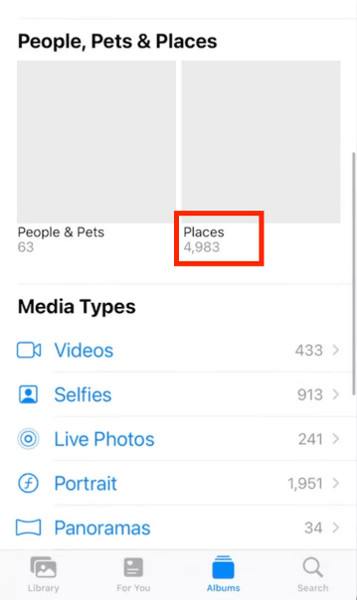
If Location Services are enabled for the Camera app, your photos will automatically include location information. Each photo is tagged with GPS coordinates, making it easy to review where it was taken. Although this method does not provide a detailed location history, it's a convenient way to check your iPhone location history for traveling photography.
To view iPhone photo location history, open the Photos app, tap Albums, and then select Places. You can browse your photos on an interactive map and quickly see where they were taken.
Part 2. Check iPhone Location History Using Google Maps Timeline
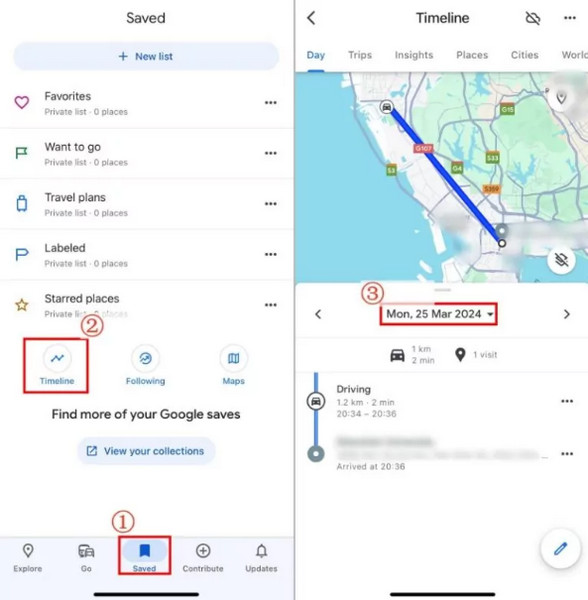
Google Maps stores your location history on your Google account. You can view your iPhone's past locations in detail using Google Maps Timeline. It logs specific routes along with all stops you make, types of transport, and travel duration, creating a complete timeline of your movements. Google Maps Timeline is no longer accessible on desktop browsers, so you can only view your location history on mobile.
How to Enable Google Maps Timeline tracking:
Install and open Google Maps on your iPhone, and tap your profile photo.
Select Your data in Maps > Timeline, then toggle on the Timeline.
Once set up, you can check your location history through the Timeline.
Note:
Make sure Google Maps has permission to run in the background. Without this, Timeline may not record all your movements.
Part 3. Check iPhone Location History Using Parent Control Apps
1. Life360
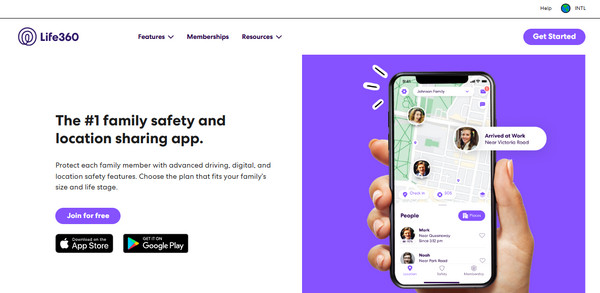
Life360 is a family tracking application that provides real-time location tracking, which helps users search for ways to monitor their iPhone position history. How do you check your iPhone's location history? With its internal features, this app includes location history access, showing arrival times and departure notices, and geofenced areas for tracking people are enabled. You can track iPhone locations as long as they are part of the Circle. Users who value safety will find this device particularly beneficial because it detects car crashes and employs an emergency SOS feature.
2. FamiSafe
How do you track iPhone location history? Users who require parents to control functions beyond basic location analytics should consider FamiSafe. Parents who install this app can receive precise GPS tracking, geofence notifications, and driving performance reports to monitor speed and driving conduct. The application gives complete past location history visibility to iPhone users who seek parental monitoring capabilities.

3. mSpy
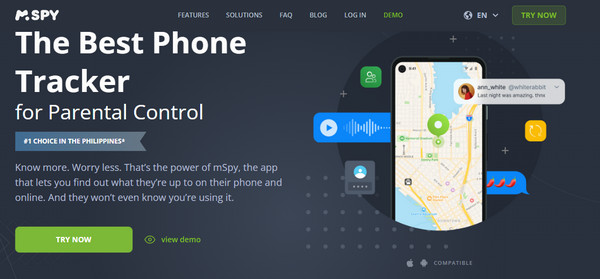
Advanced monitoring users need this tool to track locations precisely and monitor phone activities simultaneously. The system presents real-time GPS position tracking and complete records of explored locations, enabling geofencing warning functionality. How to view location history on iPhone? The most detailed solutions for viewing iPhone location history exist within mSpy but require subscribing to the software.
4. Qustodio
Through its GPS tracking and location history logging features alongside screen time limitations, this app is a multi-functional control system for parents. The application enables parents to set notifications for specified areas and examine complete tracking records from day to day. Users can benefit from this application due to its ability to track children's locations and control device usage simultaneously. With this, you can quickly learn how to see an iPhone's location history whenever needed.

Part 4. How to Prevent Someone from Checking Your Location History
It's important to control who can access your location history on your iPhone to protect your privacy. One practical solution is to use imyPass iLocaGo, which can block both Significant Locations and Google Maps Timeline from tracking your real movements on iOS and Android. This tool can help you fake your GPS location on iPhone, simulate a route using provided modes, and control your movement with a joystick.
Firstly, you must download the app on your computer by clicking the button we have added here. Then, install the app and do the setup it requires.
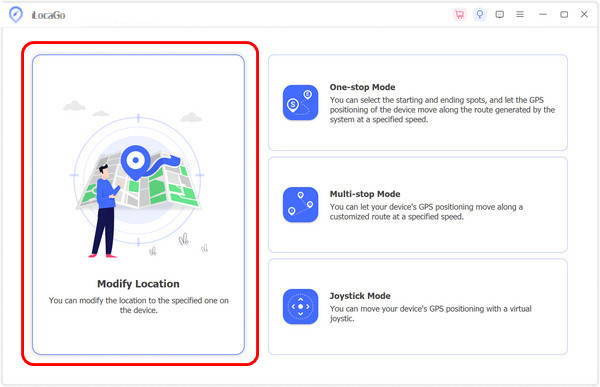
After that, connect your device via USB or wirelessly. When that is done, click the Modify Location to change the location of your virtual appearance in any area you prefer.
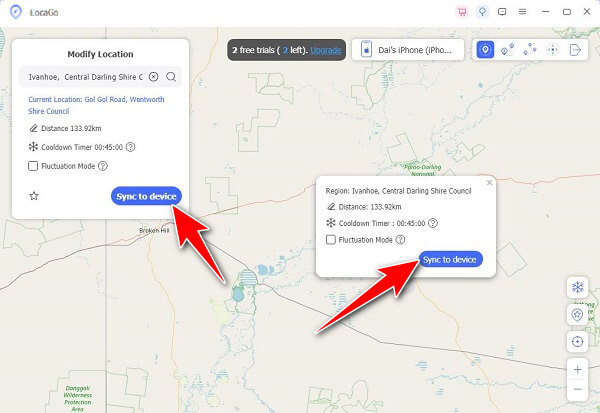
Once that is done, search the area you want on the map and click Sync to the device. After processing, your location will appear in your chosen pinned location. With that, you have faked your GPS location on iOS.
Conclusion
Many users ask, "Can you see someone's location history on Find My iPhone?" The answer is no, Find My only shows a person's current location if they share a live location with you. It does not provide past location history. To check your iPhone location history, you can use the methods we've explored in this guide.
Penny focuses on GPS troubleshooting and Windows optimization. She formerly worked as a technical support engineer, helping clients solve location-based and system issues efficiently. Backed by IT support experience, she provides practical solutions that really work. In her free time, she likes hiking and geocaching, testing GPS tech in the real world.
Hot Solutions
-
GPS Location
-
Unlock iOS
-
iOS Tips
-
Unlock Android


