



 Solution
 Support Center
 About Us
 Contact
Why and How to Fix No Location Found on My Find Friends
 Penny Warren Published on December 17, 2025GPS Location-min reading
It is frustrating to see the message that No Location Found on Find My Friends when you try to check the location of your friends or family members in the Find My app. What does No Location Found mean on Find My Friends? Why is No Location Found on Find My Friends? How to fix No Location Found on My Find Friends? This article provides detailed explanations and solutions. Read more.

In this article:
Part 1. What Does No Location Found Mean on Find My Friends
Before marching into how to fix the issue, let’s first figure out what does No Location Found on Find My Friends mean.
No Location Found on Find My Friends is an error message on Apple devices. When you have set up Family Sharing and enabled Location Sharing, your family members and friends will automatically show in the Find My app.
To access the live location of the members, all Apple devices should run:
◆ watchOS 6 or later
◆ iOS 15 or later
When you or your members turn on Share My Location, all of you can share and see the live location.
However, if you see the error, No Location Found, on Find My Friends, that means some objective factors affect the location sharing process.
Some users may confuse No Location Found with Location Not Available. The main difference is that No Location Found is caused by objective factors, such as the device being offline or location services being turned off, while Location Not Available is caused by subjective reasons, such as the user intentionally stopping location sharing.
Part 2. 6 Causes and Fixes to No Location Found on Find My Friends
There could be various reasons for this message: No Location Found on Find My Friends:
Of course, if your friends want to know your current location, you can share it directly with them.
| Cause | Solution |
| Location Services Are Disabled | Turn on Location Services and Share My Location |
| Poor GPS Signal or Internet | Move to an open area or improve network/GPS connection |
| Offline Apple Device | Power on the device and reconnect to network |
| Technical Issues | Restart the device or contact Apple Support |
| Wrong Date and Time Settings | Set correct date/time and enable Set Automatically |
| Outdated iOS Version | Update iOS to the latest version |
1. Location Services Are Disabled
Reason: Since Find My Friends needs location services to update your friend's real-time location. So, if your friend has accidentally disabled location services on her/his iPhone, you may suffer the No Location Found on Find My Friends issue.
Solution: To solve that, you need to inform your friend to check his/her location status.
Go to Settings and click Privacy - Location Services.
Toggle on Location Services.
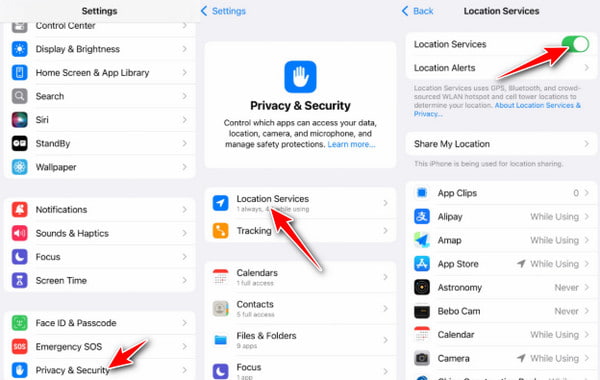
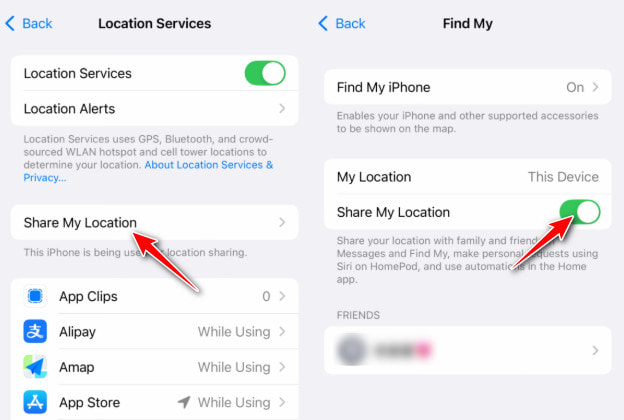
Click Share My Location on the same page.
Toggle on Share My Location.
2. Poor GPS Signal or Internet
Reason: Most Find My features rely on cellular data or Wi-Fi connection. But sharing location can also be available with the satellite. So, when you cannot find the location or find my friends not updating location on My Find Friends, it may be led by the poor Internet connection to the GPS signal.
Solution: Just move outside with a clear vision of the sky and horizon.
To use Share My Location with satellite, turn it on before disconnecting from Wi-Fi or cellular data. Open the Find My App, hit Me, then toggle on Share My Location to enable it.
3. Offline Apple Device
Reason: Once the device of your friend is powered off or in airplane mode, then this app will not work to share the real-time location.
Solution: Just turn it on and use the device normally.
4. Technical Issues
Reason: Sometimes, technical issues with the app or the person's device can prevent it from reporting their location accurately. Or, you can only get an approximate location from my friends updated last time.
Solution: To solve that, you need to contact the Apple support team or restart the device to check this problem is fixed.
The above explains why and how to fix the error, No Location Found on Find My Friends. It is easy to follow the solutions. However, it is important to respect the privacy and preferences of the person you are trying to locate.
5. Wrong Date and Time Settings
Reason: If your friend uses wrong data and time settings on her/his iPhone, the location details in Find My Friends may fail to be synced.
Solution: To fix the wrong date and time settings on your friend's iPhone, please remind your friend to go to Settings > General > Date & Time. Then, check and set the correct Time Zone and enable Set Automatically.
6. Outdated iOS Version
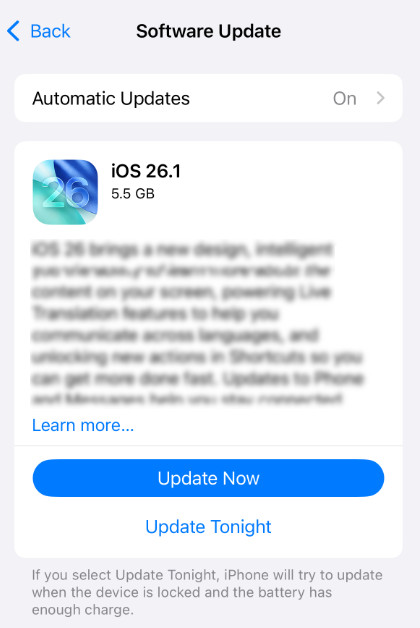
Reason: If your friend uses the outdated iOS version while you keep updated to the latest iOS version, the Find My Friends may suffer a glitchy connection between you two.
Solution: To solve this glitch, you can inform your friend to update iOS version to the latest. Open Settings > General > Software Update > Download and Install.
Bonus Tip: How to Spoof Your Real Location on My Find App
As mentioned above, your friend may not want to share their location to protect their privacy. Just the opposite. You may be unwilling to share your location with the others. To safely keep your location private, you can fake your location. That is why imyPass iLocaGo appears. It is an easy GPS spoofer for iOS users. It can change and fake your location on Find My iPhone and iPad.

4,000,000+ Downloads
Easily change and fake your location on Find My.
It allows you to fake GPS location to anywhere in the world.
It can plan your routes in 3 modes and customize the speed to pretend you are moving.
It can be the best mate in playing location-based games like Pokemon Go.
Plug Your iPhone to computer
Free download this location faker on your computer. Get the USB light cable to plug your iPhone or iPad into your computer.
Change Location
To change your location and fake yourself, just click on the Modify Location option.

Fake Location on Find My
After, a map will appear with your current location. Just drag the map to any location that you want to spoof. Alternatively, you can also use the Search option to input a place.
Once you decide on the location, click the Confirm Modify button to change and fake your location.

After that, you can turn on the Find My app and share the fake location.
Easy, right? You can also select the other 3 modes, One-stop Mode, Multi-stop Mode, and Joystick Mode, to start a movement plan.
Conclusion
Accessing your friend's location can help you arrive at a place correctly or know their safety. However, the message, No Location Found on My Friends App, may be concerning. This article explains the reasons and provides four solutions to fix this error. It is also essential to respect their privacy if they do not want to share the location. So, we also recommend a GPS location changer tool to spoof your location and keep you safe. Free download this tool to have a try when you want to fake your location.
Penny is a senior editor from imyPass. She has focused on discovering perfect GPS location solutions in all scenarios, and also has experience in fixing computers.
Hot Solutions
-
GPS Location
- Best Pokemon Go Locations with Coordinates
- Turn Your Location Off on Life360
- How to Change Location on iPhone
- Review of iSpoofer Pokemon Go
- Set Virtual Locations on iPhone and Android
- TikTok Track Your Location
- Monster Hunter Now Joystick
- Review of IP Location Finder
- Change Mobile Legends Location
- Change Location on Tiktok
-
Unlock iOS
-
iOS Tips
-
Unlock Android


