



 Solution
 Support Center
 About Us
 Contact
How to Pin Location on iPhone, Android, Windows, and Mac
 Penny Warren Published on March 27, 2026GPS Location3-min reading
Pinning locations is a useful feature. It helps users to remember where they parked their cars in a huge parking lot, save the new restaurant they discovered, and some important locations. This simple feature can save users' time and share specific spots with someone else. In this guide, you will learn everything about dropping pins on your maps on iPhone, Android, Windows, and macOS, so you won't lose track of important positions again.

In this article:
Part 1: What Pin Location Means
When you pin a location on Google Maps or other map services, you are basically putting a virtual marker on the map. It works as a pushpin on a paper map, so that you won't miss the location.
With a pin, you can mark places without addresses, your parking spots, meeting locations, hidden gems you wish to remember, and locations your map doesn't recognize. In addition to marking locations, you can also share pins with friends and family.
Benefits of Dropped Pins on Maps
1. Save important locations, like parking spots.
2. Mark meeting points.
3. Plan trips and map out attractions or restaurants.
4. Measure distances between pins.
5. Share pins with someone else.
Part 2: How to Pin Location on iPhone
Now, you should understand what pin location means. Apple Maps is built on most iOS devices. Dropping a pin on Apple Maps is a convenient way to save and manage important locations.
How to Pin a Location on iPhone
Open the Apple Maps app on your iPhone.
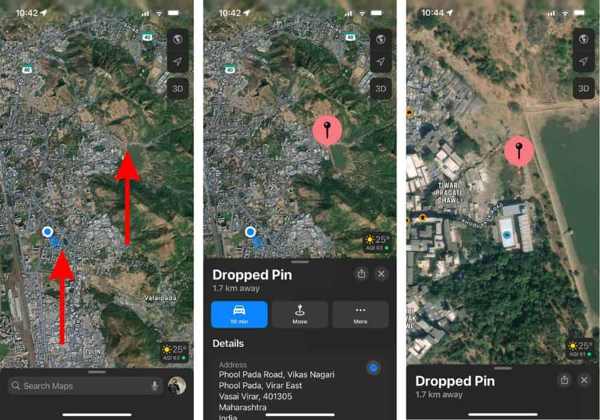
Move the map until you see the desired location.
If the location is not accurate, zoom in on the map.
Long-press the location where you want to drop a pin.
Then, swipe upward the Dropped Pin bar to expand it.
Tap Move and adjust the location until you are satisfied.
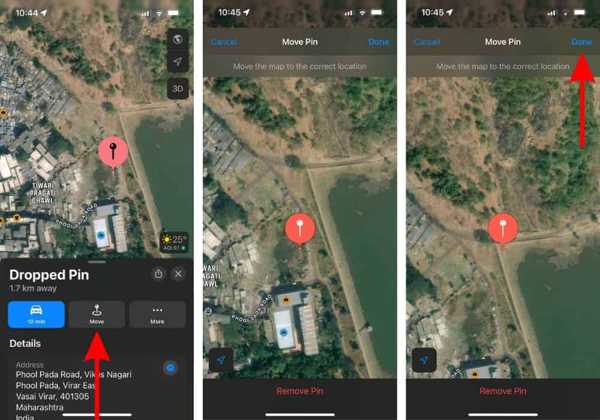
Finally, tap the Done button to pin a location on your iPhone.
How to Pin Multiple Locations on iPhone
You can only pin one location at a time on an iPhone. To pin multiple locations, you need to save the pinned locations to the Favorites folder for easy access at any time. Here are the steps:
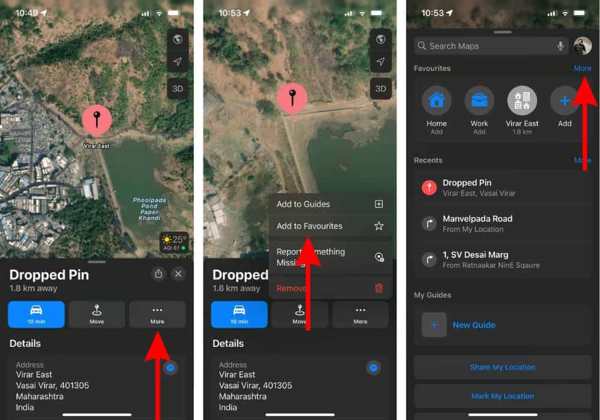
Run Apple Maps from your home screen.
Press and hold a desired location.
Swipe upward the Dropped Pin bar to expand it.
Tap the More button and select Add to Favorites.
Next, tap X to close the Dropped Pin bar.
Swipe upward from the bottom to enter the Apple Maps menu.
Tap More above the Favorites menu.
Press the Info button on the pinned location.
Set the Label and select a proper option under the Type area.
Finally, tap Done.
Now, you can pin another location on Apple Maps.
If you want to view pinned locations, swipe up the search bar, tap More next to Favorites.
Part 3: How to Pin Location on Google Maps
If you prefer Google Maps, it delivers more options when pinning locations. It allows you to pin locations in Google Maps on both mobile devices and desktops. We demonstrate the workflows respectively.
How to Drop a Pin in the Google Maps App
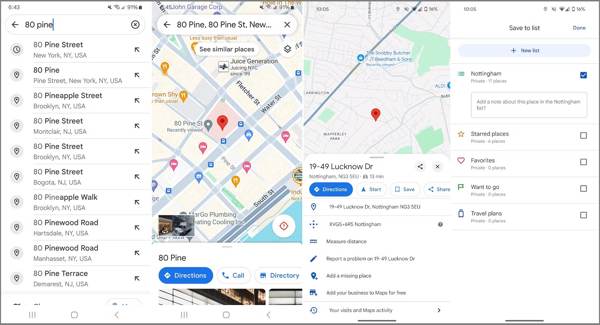
Run the Google Maps app.
Search for the location you want to pin.
Tap and hold the desired spot to pin the location.
Then, you will see a toolbar at the bottom.
If you want to save the location, tap the Save button. You can also set your Home in Google Maps.
Check the box next to the pinned location and tap Done.
You cannot pin multiple locations on Google Maps at the same time. Alternatively, you can save pinned locations.
How to Pin a Location in Google Maps on Desktop
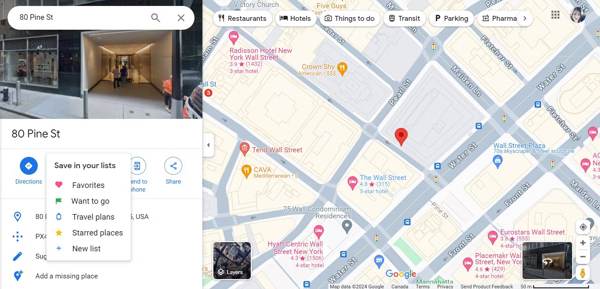
Go to the Google Maps website in a browser.
Click on the location you wish to pin on the map.
Once you see the grey pin, it means you successfully pinned a location on Google Maps.
Click the Information panel to turn the pin into a red one.
Next, click Save and choose where you want to save the location.
Extended Reading:
Part 4: Bonus Tip: How to Fake Your Location
Almost all map services track your GPS location on a mobile device. Plus, they might put your location information to third-party organizations. iLocaGo, on the other hand, enables you to fake your phone's location easily.

4,000,000+ Downloads
Change your geolocation with one click.
Use an accurate address or any position.
Offer multiple modes for different purposes.
Support a wide range of iPhones and Android devices.
How to Fake Your Location on a Mobile Phone
Connect to your device
Open the ideal location spoofing tool after you install it on your PC. There is another version for Mac. Connect your iPhone or Android device to your PC with a compatible cable.

Choose a mode
Once your device is recognized, you will be presented with the mode window. Here, we choose Modify Location. If you need to make a virtual route, choose One-stop Mode, Multi-stop Mode, or Joystick Mode, according to your needs.

Change location
Next, input an accurate address into the field or click a desired position on the map. At last, click on the Modify button to confirm it. Now, you can open the map app and more on your mobile device.

Conclusion
This guide shared how to pin your location on iPhone, Android, Windows, or macOS. We explained how to save important locations on Apple Maps on your iOS devices. If you are using Google Maps on your mobile device or desktop, you can learn how to use it from our tutorial, too. We also recommended an ideal tool to protect your location information, iLocaGo. It is very easy to use.
Penny focuses on GPS troubleshooting and Windows optimization. She formerly worked as a technical support engineer, helping clients solve location-based and system issues efficiently. Backed by IT support experience, she provides practical solutions that really work. In her free time, she likes hiking and geocaching, testing GPS tech in the real world.
Hot Solutions
-
GPS Location
-
Unlock iOS
-
iOS Tips
-
Unlock Android


