



 Solution
 Support Center
 About Us
 Contact
Step-by-Step Guide on How to Check Deleted History on iPhone
 Clara Prescott Published on January 23, 2026Recover Data3-min reading
Clearing search history on an iPhone can be frustrating. Knowing how to see deleted history on iPhone lets you recover lost links fast. This guide outlines the best ways to recover your history. You will learn four easy methods and tips to stop future loss. Follow these steps to keep your iPhone history safe and under control.

In this article:
Part 1. Comparison of Ways to Recover Deleted Search History on iPhone
| Methods | imyPass iPhone Data Recovery | Settings | iCloud.com | Time Machine Backup on Mac | iTunes |
| Speed | Fast | Medium | Medium | Slow | Slow |
| Reliability | Very High | Low | Medium | High | High |
| Satifactory Rate | Satisfied | Average | Average | Average | Average |
| Best Used for | Recover deleted history safely | Quick check for cached history | Retrieve important bookmarks | Restore detailed browsing history | Full device restore if backup is available |
Part 2. How to Find Deleted Search History on iPhone [4 Ways]
1. Recover Deleted History Using iPhone Data Recovery
The most comfortable and most reliable way to recover deleted history on an iPhone is with a dedicated iPhone data recovery tool. Software like imyPass iPhone Data Recovery can scan your device and locate deleted Safari history, even if it was cleared long ago. It is fast, safe, and simple to use, making it ideal for anyone who wants a complete recovery without overwriting existing data.
Download imyPass iPhone Data Recovery on your computer. Follow the instructions to install and open the program.
Select Recover from iOS Device. Link up your iPhone with a USB cable and click Start Scan. The program will look for recoverable data, including deleted Safari history.
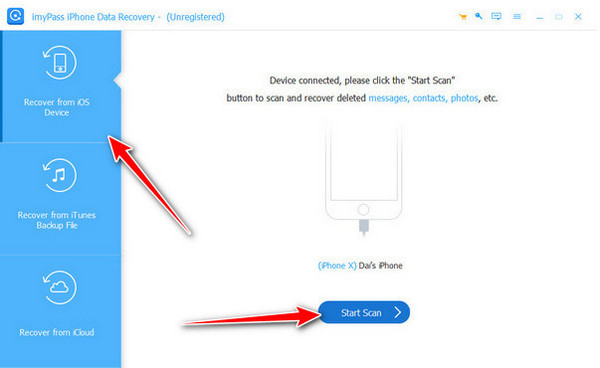
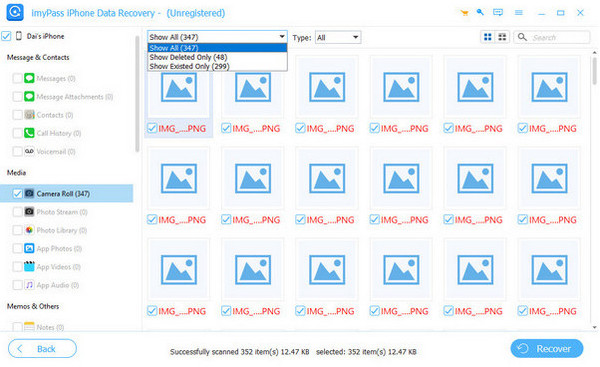
Go to Memo & Others and select Safari. Preview your deleted history, then click Recover to save it to your computer. This method is highly recommended for a full and hassle-free recovery.
2. See Deleted History from Settings
You can also check the deleted history on iPhone directly through the device settings. This method is quick and does not require a computer, making it ideal for on-the-go checks. It allows you to view website data stored in Safari, which may include recently visited pages, cookies, and cached items.
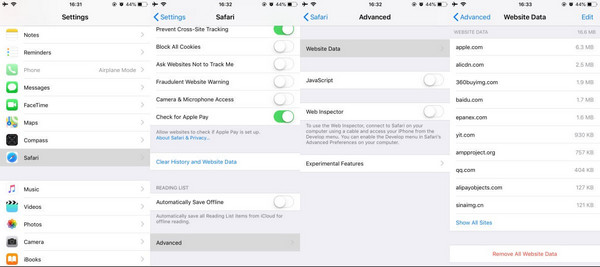
Open Settings > Safari on your iPhone.
Tap Advanced. Select Website Data to view browsing history and website storage. You cannot restore deleted history using this method. It only shows data that is still stored on your device, so fully cleared items will not appear.
3. Restore Deleted Search History from iCloud.com
If iCloud synchronization is enabled, you can get the deleted history back on your iPhone by restoring bookmarks from iCloud. This method is helpful if you rely on bookmarks for important sites or research links. It works from any browser on a computer and does not require access to your iPhone.
Open a browser on your computer and visit iCloud.com.
Log in with your Apple ID and password.
Go to the Advanced section and click Restore Bookmarks.
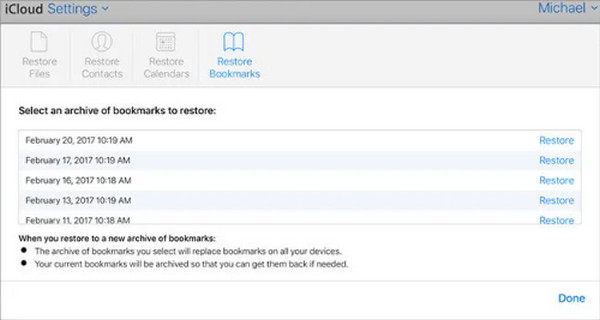
Choose the bookmarks you want to restore and click Restore. This method only restores bookmarks, not all browsing history. It is best for recovering specific important links that were saved in Safari.
4. Restore Deleted History from Mac
If your iPhone shares the same iCloud account as a Mac, synced data can help you see deleted Safari history on the iPhone. Using Time Machine, you can restore the Safari database, which contains detailed browsing records. This method is useful if you regularly back up your Mac and want to recover history that is no longer available on the iPhone.
Open Finder on your Mac and ensure Safari is closed.
Click Go > Go to Folder and enter ~/Library/Safari. Click Go.
Locate the History.db file, which stores your browsing history.
Open Time Machine to browse previous versions of the file.
Choose the version you want and tick Restore.
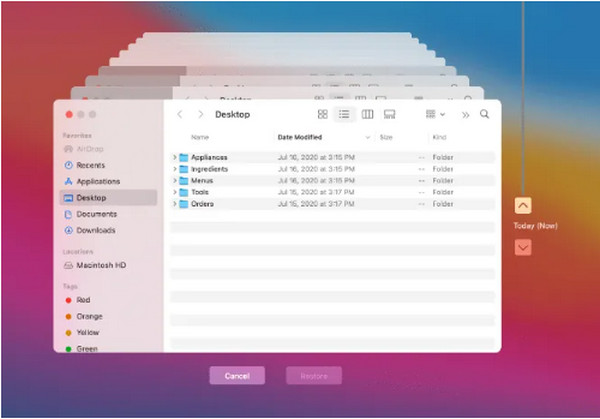
This method works best if your devices are synced via iCloud and you have Time Machine backups.
Bonus: Can You Restore Deleted History from iTunes?
If you have an iTunes backup, you can also recover deleted history on iPhone by restoring it from a previous backup. This method is helpful when other recovery options fail, but keep in mind that restoring a backup will overwrite all current data that is not included in that backup. Make sure you have saved any new information before proceeding.
Open iTunes on your computer and connect your iPhone.
Click your device in the iTunes sidebar.
Under the General section, click Restore Backup.
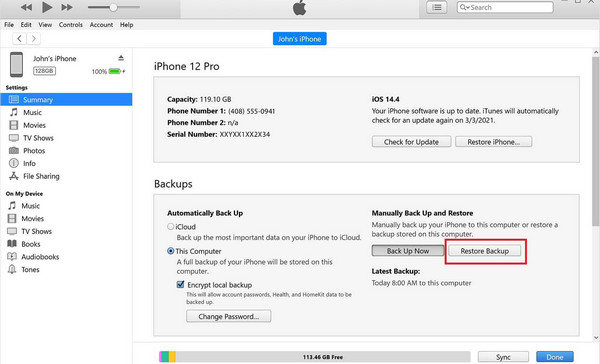
Select the backup you want to use and tick Restore. Wait for the process to finish, then complete your setup.
Using iTunes backup is a reliable way to recover the deleted history of Safari on iPhone, but always back up your current data first to avoid losing new information. It is better when iTunes backup is encrypted, but in case you forget the iTunes backup password, there are still ways to recover it.
Part 3. Tips to Avoid Losing iPhone History Again
Losing your browsing history can be frustrating. The good news is that with a few smart habits, you can prevent data loss and make recovery easier. Here are simple tips to keep your history safe. Each tip uses one keyword naturally.
1. Back Up Your iPhone Often
Regular backups protect your data if history is deleted. Use iCloud or iTunes to save a copy of your iPhone. This helps prevent deleted iPhone history from being lost permanently.
2. Turn on Safari iCloud Sync
iCloud sync keeps your Safari history and bookmarks updated across devices, so you can retrieve the iCloud backup when needed. Even if you delete something on one device, you can still access it on another. This makes it easy to check history on iPhone after it’s been deleted.
3. Use an iPhone Data Recovery Tool
Sometimes data is deleted by accident. Tools like imyPass iPhone Data Recovery help you safely recover deleted internet history on iPhone. This adds an extra layer of protection.
4. Enable Automatic Safari Backups
Automatic backups of Safari ensure your history is saved regularly. If you need it later, you can recover deleted history on Safari on iPhone without restoring the whole device.
5. Bookmark Important Sites
Saving key links in bookmarks, notes, or reading lists keeps them safe. Even if browsing history is cleared, you will not lose essential pages, avoiding issues with deleted search history on iPhone.
Conclusion
Losing your browsing history is not the end. You can recover it using recovery tools, iCloud, or iTunes backups. Checking device settings can also help. Knowing how to see deleted search history on iPhone lets you get back important links and bookmarks. Regular backups and Safari syncing keep your history safe. Follow these steps, and your iPhone history will stay under control and easy to access.
Clara has over 8 years of experience helping users recover lost files and transfer data. She previously worked as a data recovery technician for a major IT service company. Certified in Data Recovery and Digital Forensics, her articles focus on simple solutions that make complicated recovery tasks easier for everyday users.
Hot Solutions
-
Recover Data
- AppGeeker iOS Data Recovery Review
- Disk Drill iPhone Data Recovery Review
- How to Get iPhone Out of Recovery Mode
- How to Fix support.apple.com/iphone/restore
- How to Recover Data from DFU Mode
- Gbyte iPhone Data Recovery Review
- How to Recover iPhone Deleted Photos After 30 Days
- How to Recover Deleted Photos on iPad
-
Unlock iOS
-
Transfer Data
-
iOS Tips

