



 Solution
 Support Center
 About Us
 Contact
What to Do When Contacts are Missing from Your iPhone [Solutions]
 Clara Prescott Published on January 23, 2026Recover Data3-min reading
Nothing is more frustrating than opening your iPhone and seeing your contacts missing. The sudden loss can make you worry if important numbers are gone forever. Troubles with the iCloud sync, concealed account settings, or new updates to the software are most likely to be its source most of the time. The first thing to do to safely restore your contacts is to understand the causes of it. This tutorial steps you through all the steps, such as the quick fixes, iCloud examination, account verification, and complete restoration. Solving iPhone contacts missing is simpler than you think.

In this article:
Part 1. Immediate Checks (The 5-Minute Fixes)
If you are unsure what to do when the contacts are suddenly gone, then try these fixes to solve the issue.
1. Check Your Contact Groups & View Settings
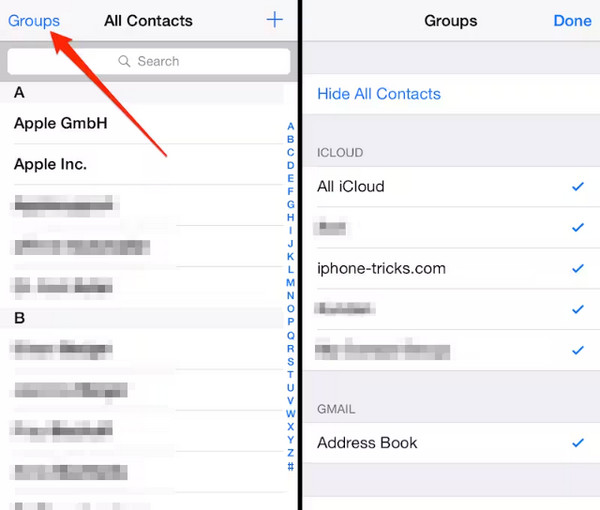
If contacts are missing from your iPhone, the first step is to check your contact groups and view settings. Open the Contacts app, tap Groups in the top-left corner, and ensure all accounts are selected. Occasionally, they have some contacts that are not visible when a group or account is not monitored. Checking these settings is a fast and easy test, and it can re-add lost entries without any additional troubleshooting.
2. Restart Your iPhone
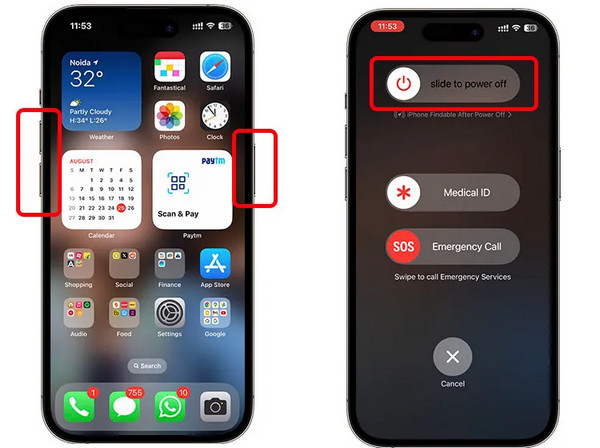
A restart often fixes minor system glitches. If contacts went missing on your iPhone, turning your device off and on again can reinitialize iCloud syncing and refresh system processes. Press and hold the power button, slide to turn off, wait a few seconds, and turn it back on. This step is effective for many common contact display issues.
3. Check Your Network Connection
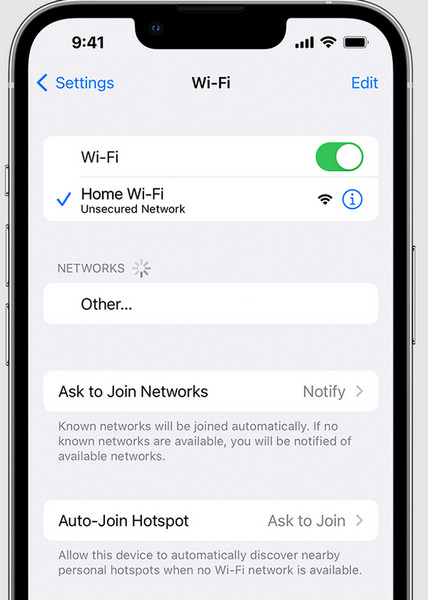
Contacts missing from the iPhone can also result from connectivity issues. Make sure that your iPhone is connected to the Wi-Fi or cellular network in order to synchronize iCloud and other accounts. Contacts will not be presented even in iCloud or other accounts without a stable network. It can take a fast network scan and save time before further troubleshooting.
Part 2. Dive into iCloud Settings (The Core Solution)
Did the first part not work as planned? Then, dive into the core solution that we have in here to solve the problem.
1. Verify iCloud Contacts Sync is ON
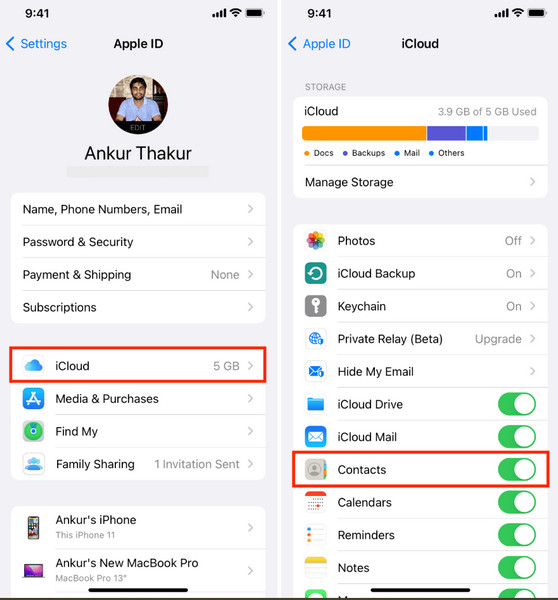
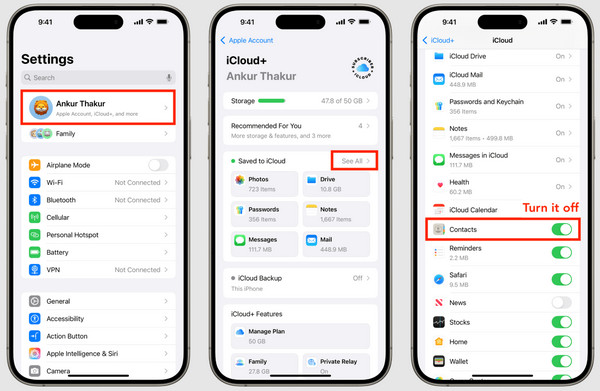
If contact names are missing on the iPhone, the issue often stems from iCloud sync being disabled. Go to Settings > Your Name > iCloud > Contacts and ensure the toggle is ON. This ensures your device is properly syncing contacts stored in iCloud. Without this enabled, contacts may not appear even if they exist in your account. Verifying this setting is a critical step in restoring missing entries reliably. If the syncing on iCloud is paused, you need to check what is the reason to solve the problem.
2. Toggle iCloud Contacts OFF and ON
If you are asking, why are some of my contacts missing iPhone, re-syncing iCloud can often fix the problem. Turn the Contacts toggle OFF, choose to keep contacts on your iPhone, and then turn it back ON. When prompted, select Merge to combine local contacts with iCloud. This is a vital step in verifying the missing entries with a view to restoring them.
Part 3. Check Other Contact Accounts
If some contacts are missing from your iPhone, the problem may be related to other accounts linked to your device, such as Gmail, Yahoo, or Exchange. Go to Settings > Contacts > Accounts and verify each account is active and syncing contacts.
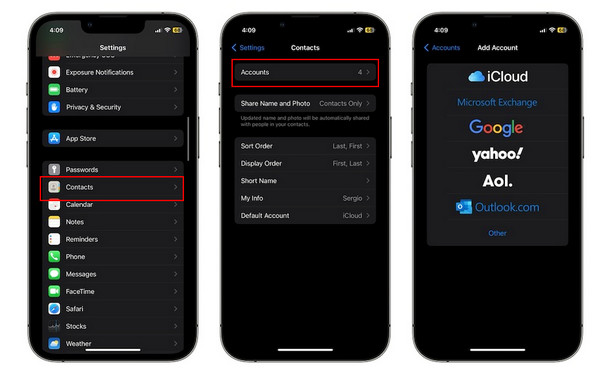
Make sure that the option of Contacts syncing is on all of the accounts. In some cases, the contacts may be obscured in case the account is disabled or has not been connected appropriately. It is possible to check and re-enable these accounts, which are used to restore missing entries without interfering with your contacts in iCloud.
Part 4. Restore Missing Contacts
1. From iCloud Backup
If iPhone contacts are missing, you can recover them from an iCloud backup. This comes in handy where contacts are lost during syncing problems or in the process of unintentional deletions. Follow these steps:
Go to Settings > Your Name > iCloud > iCloud Backup. To be sure that your contacts are included in a backup, check the date of the last backup.
Go to Settings > General > Reset > Erase All Content and Settings. This clears your device for restoring the backup. Save any new data that is not in iCloud.
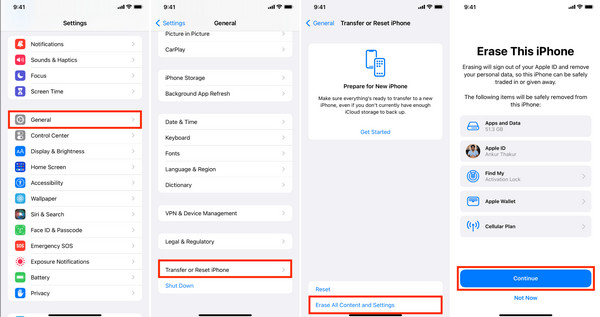
After your iPhone restarts, follow the setup instructions and select Restore from iCloud Backup. Pick the backup you checked in Step 1. Your contacts will be restored along with the other data in that backup.
2. Use imyPass iPhone Data Recovery
Losing your contacts can be stressful, but imyPass iPhone Data Recovery makes getting them back surprisingly easy. If contacts are missing from your iPhone, this tool scans your device, iCloud, or iTunes backup to find lost entries quickly. It has a preview feature that allows you to know exactly what can be restored before restoring, thus there are no surprises. The process is simple, even for non-technical users, and it does not overwrite your existing data.
Firstly, download the data recovery app on your Windows or Mac by clicking the download button that we have included below. Follow the setup and process it requires, then click Start Now to proceed.
Next, connect your iOS device via a charging cable to the PC and choose the Recover from iOS Device on the apps interface. Then, click Start Scan.
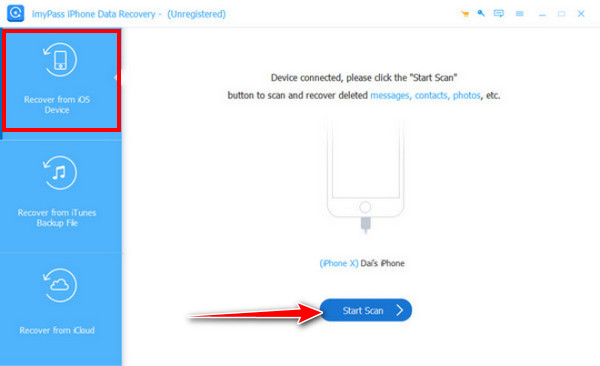
Once it is done scanning all the recoverable data on your iPhone, go to the Messages & Contacts, to tick the box on Contacts. Here, you can find all the missing contacts that were previously saved on your iPhone that you can actually recover.
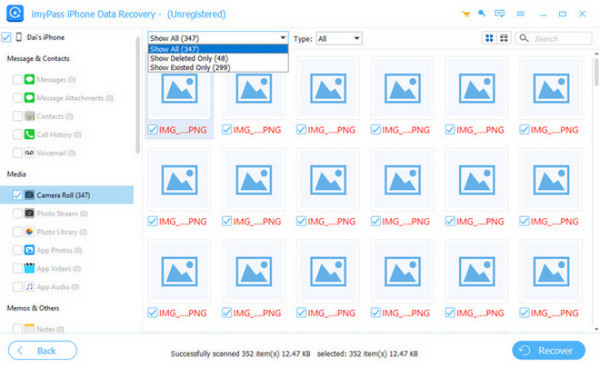
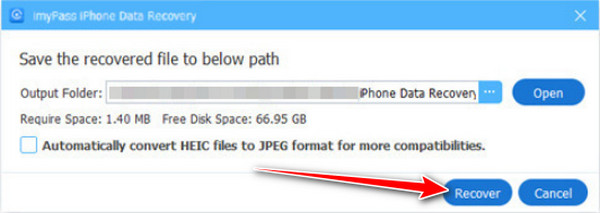
After selecting, click Recover, set the output folder, and click Recover again to export the missing contacts.
Part 5. How to Prevent Contacts from Going Missing Again
1. Enable iCloud Contacts Sync
Always keep Contacts sync in iCloud. This ensures all changes and additions are backed up in real time. Consistently syncing prevents future issues with contacts missing from the iPhone.
2. Regularly Back Up Your iPhone
Create routine iCloud or iTunes backups. In case of software glitches or accidental deletions, you can restore your contacts quickly. This is a key step to avoid situations where contacts went missing on an iPhone.
3. Check Account Settings Frequently
Make sure that every email or cloud account containing any contact information is up and running. Contact names may be missing on an iPhone without giving any warning.
4. Avoid Unstable iOS Updates
Before updating your iPhone, check for stable releases and read user reports. Some updates may trigger syncing errors. Following this helps reduce the question, why some of my contacts are missing iPhone.
5. Use Reliable Data Recovery Tools When Needed
If contacts are accidentally deleted, use trustworthy recovery software to restore missing entries without overwriting other data. This ensures that some contacts missing from iPhone scenarios can be resolved safely.
Conclusion
When contacts went missing on an iPhone, it can feel alarming. The majority of the problems are due to syncing errors, account settings or backups. Checking settings, iCloud restoring, and taking preventive measures will help get your contacts and protect them. The following are some easy measures that can ensure that your valuable numbers are always readily available and that you do not lose them in the future.
Clara is an editor from imyPass. She specializes in data recovery. You can find professional tutorials and solutions for recovering lost data from any device. Many users reported that his tutorial is easy and useful.
Hot Solutions
-
Recover Data
- Recover WhatsApp View Once Photo
- Recover Deleted TikTok Videos on Mobile
- Recover Deleted Facebook Photo
- Recover Viber Messages, Photos, etc.
- Recover Deleted Snapchat Photos
- 5 Best Contact Recovery Apps
- Recover Deleted Discord Messages
- AppGeeker iOS Data Recovery Review
- Recover Data from DFU Mode
- Cannot Restore iPhone Backup
-
Unlock iOS
-
iOS Tips
-
Password Tips

