



 Solution
 Support Center
 About Us
 Contact
6 Ways to Recover Deleted Photos from iPhone - Complete Guide
 Clara Prescott Published on February 06, 2026Recover Data3-min reading
Our goal today is to explain how to recover deleted photos from an iPhone using tested options with clear steps to follow. Occasionally, photos vanish after a slip, a sync issue, or a system update. We examined actual recovery paths on devices that were in action to identify what or what does not restore photos. You will know when constructed tools are useful, when accessing the cloud is beneficial, and when there is a recovery application that would be worth using. Both alternatives have restrictions and outcomes.

In this article:
- Method 1. Check the Recently Deleted Folder in the Photos App
- Method 2. Use iCloud.com Recovery Feature
- Method 3. Recover Permanently iPhone Photo via a Recovery Tool
- Method 4. Recover Photos from iPhone with iCloud Backup
- Method 5. Recover Photos from iPhone with Google Drive Backup
- Method 6. Recover Photos from iPhone with Finder/iTunes Backup
- Which of the Method Is the Best Choice to Start With?
Method 1. Check the Recently Deleted Folder in the Photos App
Before trying backups or tools, start with the built-in safety net on your iPhone. Apple keeps removing images from a temporary album, which is often the fastest way to recover deleted photos of an iPhone without extra steps. Photos stay here for up to 30 days before final removal, so timing matters.
Open the Photos app and scroll down to the Utilities section.
Tap Recently Deleted and choose View Album if prompted.
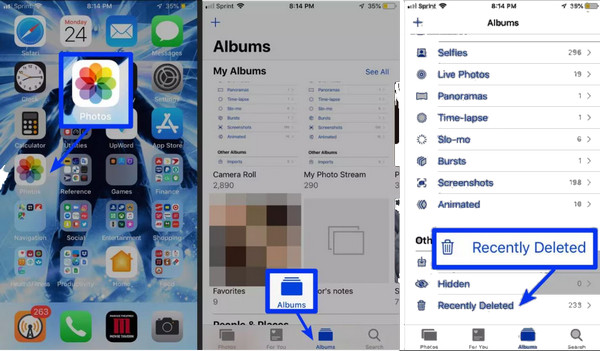
Unlock the album using Face ID, Touch ID, or your device passcode.
Select the photo or photos you want, then tap Recover to retrieve them to your library.
The Recently Deleted folder is the quickest way to restore photos deleted within the last 30 days. If your missing photos are older or not in this album, the next step is checking iCloud for recovery options.
Method 2. Use iCloud.com Recovery Feature
If the photos were deleted recently and synced with iCloud, you may still restore them online without touching your iPhone. This method is useful when learning how to recover deleted photos on an iPhone through its built-in cloud controls. iCloud keeps removed items for a limited time before permanent deletion.
Open a browser and sign in to iCloud.com with the same Apple ID used on your iPhone.

Click Photos, then open the Recently Deleted album from the sidebar.
Select the photo or photos you want to restore by clicking them.
Click Recover. The photos will reappear in your iCloud Photos and sync back to your iPhone automatically. If the syncing with iCloud is paused, doing this is impossible, and you need to fix the issue first to determine why it is paused.
iCloud.com is useful when photos are deleted but still stored in its cloud. If your photos are no longer in iCloud, the next method explores using a dedicated recovery tool to retrieve permanently deleted images.
Method 3. Recover Permanently iPhone Photo via a Recovery Tool
When photos are no longer available on your iPhone or in iCloud, a recovery tool may still help, like imyPass iPhone Data Recovery. These tools scan your device storage to recover permanently deleted photos on iPhone that standard options miss. Based on testing, this method works best when the phone is used as little as possible after deletion.
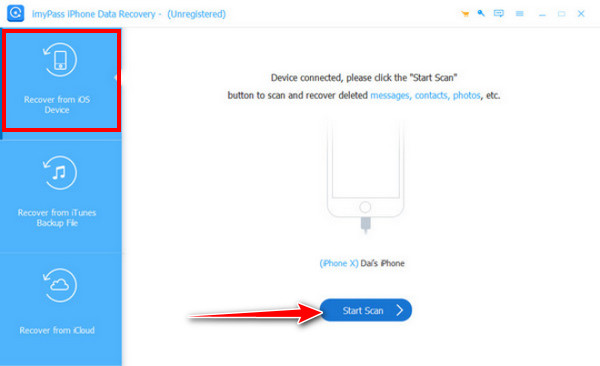
Download the iPhone data recovery software on your Mac or Windows PC. After the installation, connect your iPhone with the help of a USB or Lightning cable.
Launch the app and pick Recover from iOS Device. Click Start Scan to proceed with getting all the data that is retrievable in here.
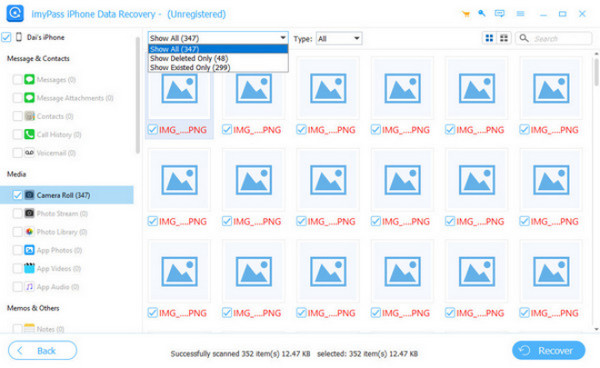
After the scan completes, browse the photo results. Use filters like Show Deleted Only to narrow the list. Preview photos and select the ones you want to restore by ticking the boxes on them.
Click Recover, choose a folder on your computer, and let the tool save the selected photos safely.
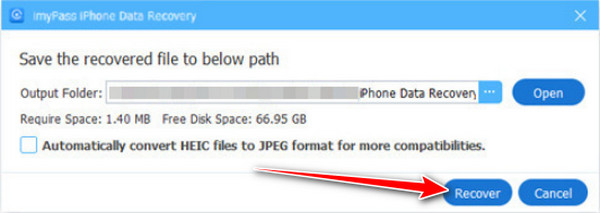
Recovery tools are ideal when photos are permanently deleted or missing from iCloud. For those who prefer using its native backup system, the next method covers restoring photos from an iCloud backup.
Method 4. Recover Photos from iPhone with iCloud Backup
If photos no longer appear on your iPhone, iCloud may still hold a copy tied to an earlier backup. This option works best if your device synced before the photos were erased, and helps explain how to recover erased photos on iPhone when local options fail. The process restores your phone from a past state, so it takes more time and care.
Open Settings, tap your Apple ID, then go to iCloud > Photos and turn off iCloud Photos if it is enabled.
Go to Settings > iCloud > iCloud Backup and tap Back Up Now to save your current data.
Navigate to Settings > General > Transfer or Reset iPhone, then choose Erase All Content and Settings.
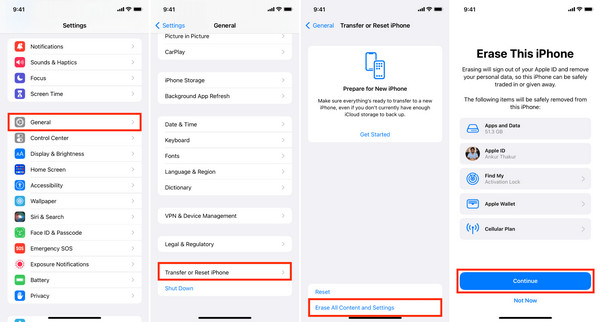
Set up your iPhone again and select Restore from iCloud Backup. Choose a backup created before the photos were deleted and finish the setup.
Restoring from an iCloud backup brings back photos that were on your device during the backup. If you prefer using third-party cloud services, the next method shows how Google Photos can help recover deleted images.
Method 5. Recover Photos from iPhone with Google Drive Backup
If Google Photos is set to back up your images, deleted photos may still be saved in its Trash folder for a limited time. This method is a practical way to learn how to recover deleted photos on an iPhone using a cloud backup, even if the images are no longer on your device.
Open the Google Photos app on your iPhone and sign in with the Google account used for backup.
Tap Collections at the bottom, then open the Trash folder to view deleted items.
Press and hold each photo you want to recover, or select multiple images at once.
Tap Restore. The photos will be returned to your Google Photos library and synced back to your albums when possible.
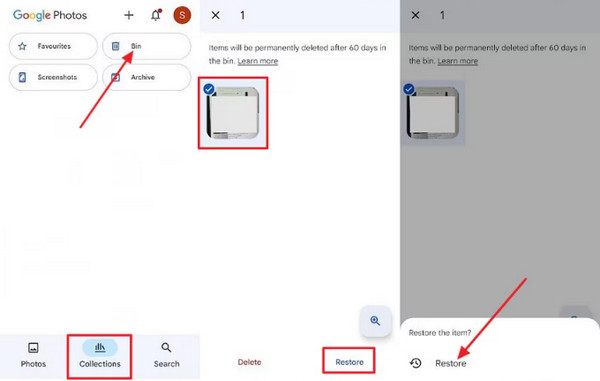
Google Photos provides a convenient backup recovery option if your images were synced before deletion. If no cloud backup exists, your computer backups can still help, as explained in the next method.
Method 6. Recover Photos from iPhone with Finder/iTunes Backup
If your deleted photos are not in Recently Deleted or cloud services, a backup on your computer could be the solution. This method shows how you can recover deleted photos on an iPhone using Finder or iTunes, even when they seem permanently lost. Keep in mind, restoring a backup will replace the current data on your device, so proceed carefully.
Establish a connection on your iPhone to the computer where you previously backed it up. Use a USB or Lightning cable and open Finder on macOS Catalina or later, or iTunes on Windows or older macOS.
Locate your iPhone in the Finder sidebar or iTunes device menu and select it.
Click Restore Backup and pick a backup that predates the deletion of your photos.
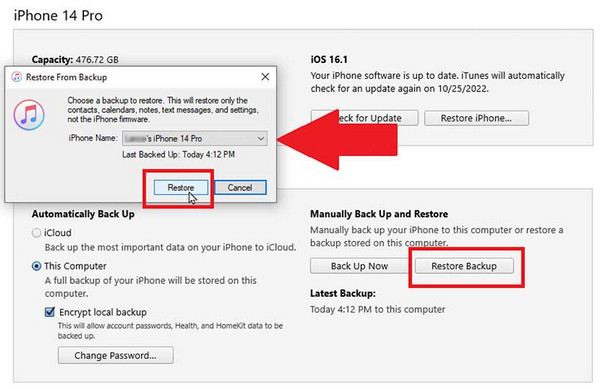
Confirm the restore and wait while your iPhone returns to the backup state. Once it restarts, open the Photos app to find your recovered images.
Finder and iTunes backups are the last reliable option if all other methods fail. Yet, there are times when iTunes cannot restore an iPhone due to an unknown error. When this issue still persists, then we suggest that you choose the other methods here.
Which of the Method Is the Best Choice to Start With?
The easiest place to start is the Recently Deleted folder in the Photos app. It is fast, safe, and does not risk losing any current data. If your photos are not there, the next step is to check cloud backups like iCloud or Google Photos. These methods are still simple and secure.
It is more exclusive in the usage of a computer backup or a recovery tool. Recovery of Finder or iTunes can be time-consuming and can overwrite existing information. This may be facilitated by the help of a special recover deleted photos iPhone Finder that helps you through the process stepwise, leaving your data intact.
Conclusion
The fact that you accidentally lost photos on your iPhone may be stressful, but you can generally retrieve them. To begin with, Recently Deleted or check the cloud backups, such as iCloud and Google Photos, so that you will have a quick recovery. If the photos are gone for good, recovery tools or Finder/iTunes backups offer reliable ways to recover photos from the iPhone. Following these methods step by step helps you choose the right approach, protect your current data, and bring back your important memories with confidence.
Clara has over 8 years of experience helping users recover lost files and transfer data. She previously worked as a data recovery technician for a major IT service company. Certified in Data Recovery and Digital Forensics, her articles focus on simple solutions that make complicated recovery tasks easier for everyday users.
Hot Solutions
-
Recover Data
- AppGeeker iOS Data Recovery Review
- Disk Drill iPhone Data Recovery Review
- How to Get iPhone Out of Recovery Mode
- How to Fix support.apple.com/iphone/restore
- How to Recover Data from DFU Mode
- Gbyte iPhone Data Recovery Review
- How to Recover iPhone Deleted Photos After 30 Days
- How to Recover Deleted Photos on iPad
-
Unlock iOS
-
Transfer Data
-
iOS Tips

