



 Solution
 Support Center
 About Us
 Contact
A Simple Guide to Recover Deleted Voicemail on iPhone
 Clara Prescott Published on December 29, 2025Recover Data3-min reading
On an iPhone, we can send different types of messages to communicate with others. You can send videos and photos in the conversation. Besides text messages, the iPhone also allows you to create voicemails. These messages are made after calling a contact, and they did not answer.
Some iPhone users do not notice some of the voicemails sent to them. It is one of the main reasons why they tend to delete the mentioned type of message accidentally. Can you recover deleted voicemails on an iPhone? Luckily, yes! Four of the most proven ways are posted in this article. See them by scrolling below.

In this article:
Part 1. Recover Deleted Voicemails from the Recently Deleted Folder
Apple is ready for the unheard voicemails from your iPhone that are accidentally deleted. It stores them first from the Recently Deleted or Deleted Messages folder. The name of the folder depends on the version of your iPhone.
You can recover the deleted voicemails from this folder for 30 days. After the mentioned time interval, they will be permanently deleted from your iPhone. If so, you cannot use the folder for the recovery. You can skip this method if you experience the issue. Other apps on your iPhone have another Recently Deleted folder, like the Photos app, that can help you recover deleted photos. Recover voicemail on iPhone with the Recently Deleted folder using the steps below.
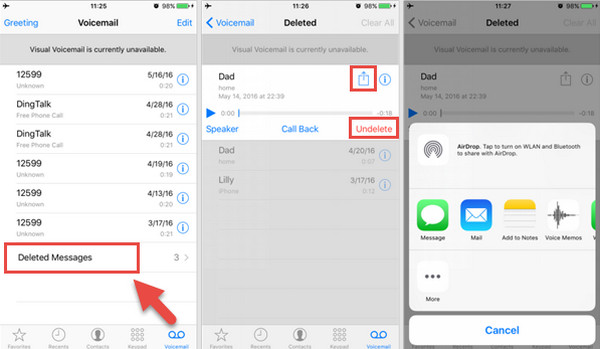
Tap the Phone application on the Home Screen of your iPhone. After that, the recent calls will appear on the screen. Please tap the Voicemail button at the bottom right corner. Then, tap the Deleted Messages button at the bottom list. The recently deleted voicemails will appear.
Select the voicemail you want to retrieve. Then, more options will be prompted. Please tap the Undelete button at the bottom right. You may also choose the Share button and send it to different platforms or apps.
Part 2. When Deleted Voicemails Can't Be Found in Recently Deleted
You might wonder: Can I recover a deleted voicemail on iPhone after 30 days? imyPass iPhone Data Recovery is the solution. This third-party tool does not need a backup to recover your iPhone voicemails. It can directly recover them from your iPhone. You also have the option to restore the voicemails from your iPhone backups, including iCloud and iTunes. That is how convenient the tool is.
This tool supports other data types besides voicemails. It includes call history, photos, videos, and more. Additionally, the tool supports the latest and earlier versions of iOS. Do you want to know how the tool works to recover cleared voicemail on an iPhone? The steps are presented below.
Download the software on your computer. To do this, please visit the webpage of the tool by opening your trusted web browser. Then, set up the file of the downloaded software, and install it afterward.
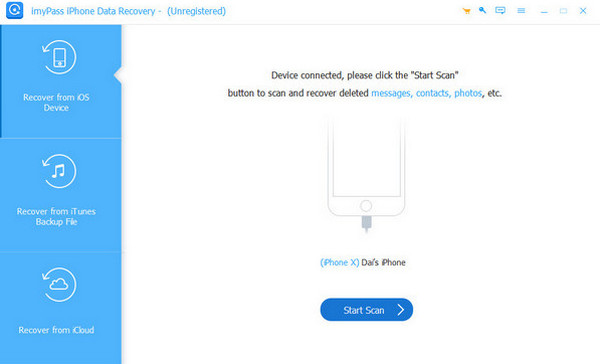
Please plug your iPhone into the computer. You may use a USB cable for this plugging procedure. Later, please click the Recover from iOS Device button at the top left. This will show you the iPhone information from the main interface. Click the Start Scan button.
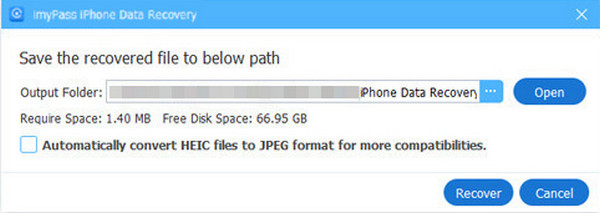
The result of the scanning process will appear. Please locate the voicemails you want to retrieve and click the Recover button. Select the destination folder of the voicemails you will recover and click the Recover button at the bottom right of the small window.
Part 3. Find Deleted iPhone Voicemails with iCloud Recovery Feature
The iCloud Data Recovery feature from the website cannot recover deleted iPhone voicemail. Luckily, imyPass iPhone Data Recovery has a feature for restoring voicemails from iCloud called Restore from iCloud. This feature only requires your iCloud account with your authentication information. The steps on how to use this tool are posted below as your reference.
Suppose that you have downloaded the software on your computer. Please plug the iPhone into the computer using the compatible USB cable. After that, click the Restore from iCloud button at the bottom left.
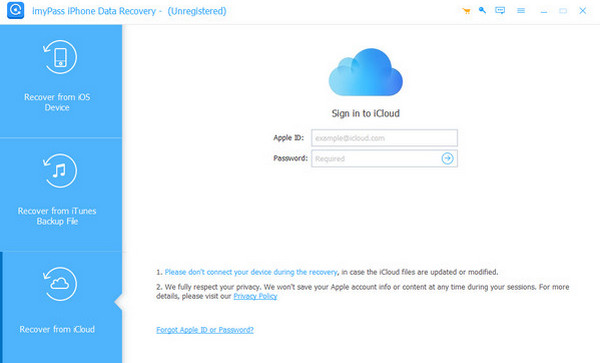
The iCloud interface will appear on the right. Please enter the iCloud account information or credentials that are associated with the backup that contains the deleted voicemails. Click the Arrow button to sign in. Wait for a few seconds for the sign-in process to be completed.
Select the iCloud Backup button on the right. After that, the tool will scan for the available backups from the iCloud account. Please select the backup you want to restore. Then, click the Voicemail button from the list. Click the Next selection and follow the on-screen instructions to restore them.
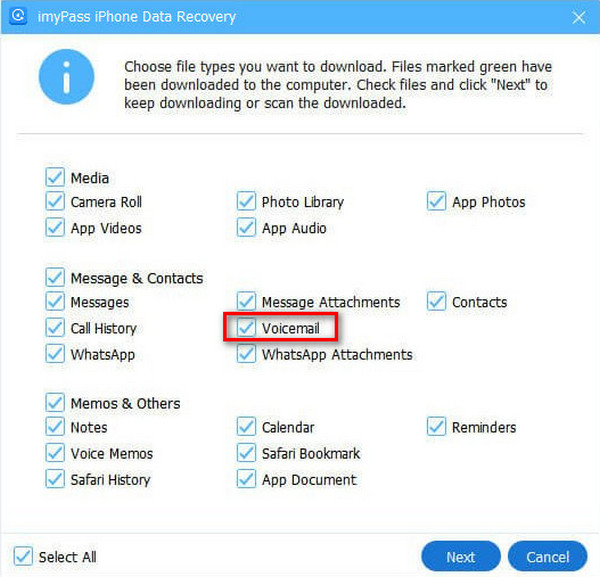
Part 4. Find Deleted iPhone Voicemails from Local Backups
The previous tool is the best iPhone data recovery software. Alternatively, you can also use local backups to restore your iPhone voicemails. iTunes and Finder are one of the best. These tools are commonly used for managing Mac and PC media files. The good thing about them is that they can back up and restore your data from your iPhone, such as voicemails. iTunes and Finder have the same procedure for restoring your iPhone backup.
However, these recovery tools do not allow a selective iPhone data recovery, including voicemails. You are required to restore the entire backup to get back your voicemails. Please recover deleted voicemail from iPhone with iTunes and Finder using the steps below.
If you have an earlier macOS or Windows, please open iTunes on your computer. On the other hand, open Finder on your Mac if you have its latest version. After that, please plug the iPhone into the computer where the tool is launched using a USB cable.
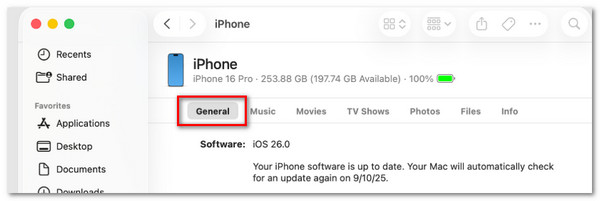
Please click the iPhone button at the bottom left of Finder. On the other hand, click the iPhone button at the top if iTunes is used. Then, click the Summary button if you are using iTunes. Click the General button for users who are using Finder.
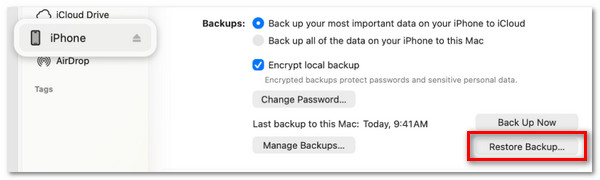
Please click the Restore Backup button at the bottom right. After that, you will be required to choose the recent backup where the deleted voicemails are included. Please wait for the backups to load and enter the authentication information when needed.
Please click the Restore button from the small window that will appear on the screen. Then, do not unplug the iPhone from the computer. You need to complete the restore process before that to complete the process.
Conclusion
In conclusion, iPhone recovers deleted voicemail in different ways. In this post, you will encounter the four easy ones. imyPass iPhone Data Recovery is a third-party tool that can retrieve your iPhone voicemails in three modes. Do you want to know more about the software? Download and test it on your computer.
Clara has over 8 years of experience helping users recover lost files and transfer data. She previously worked as a data recovery technician for a major IT service company. Certified in Data Recovery and Digital Forensics, her articles focus on simple solutions that make complicated recovery tasks easier for everyday users.
Hot Solutions
-
Recover Data
- AppGeeker iOS Data Recovery Review
- Disk Drill iPhone Data Recovery Review
- How to Get iPhone Out of Recovery Mode
- How to Fix support.apple.com/iphone/restore
- How to Recover Data from DFU Mode
- Gbyte iPhone Data Recovery Review
- How to Recover iPhone Deleted Photos After 30 Days
- How to Recover Deleted Photos on iPad
-
Unlock iOS
-
Transfer Data
-
iOS Tips

