



 Solution
 Support Center
 About Us
 Contact
Restore from iCloud WhatsApp to Retrieve Messages and Attachments
 Clara Prescott Published on January 30, 2026Recover Data3-min reading
The built-in cloud service of Apple devices, which is iCloud, plays a big role in your data, settings, and information. It helps you make a copy of them by backing up, and retrieve them when they are lost or deleted. WhatsApp messages and attachments can be included in the said backup. The backups can be restored anytime you prefer on your iPhone.
The WhatsApp iCloud restore can be done with or without erasing your iPhone. In this post, we guarantee you successful methods for restoring your iCloud backup for WhatsApp. Kindly scroll below to know the full details about this topic.

In this article:
Part 1. How to Restore WhatsApp Chat History on iCloud
WhatsApp is one of the messaging platforms that is mostly used. The reason is that WhatsApp cannot be tracked easily, uses end-to-end encryption, group chat capabilities, and more. Another best thing about it is that it has built-in features that allow you to back up and restore your messages and attachments with iCloud. However, you are required to uninstall your WhatsApp app before the process. Restore WhatsApp backup from iCloud with the steps below.
If you have not backed up your WhatsApp messages, you can perform the following steps. Open the WhatsApp app and select the Settings button at the bottom right. Then, select the Chat Backup button on the next screen.
You will see more options in the next section. You will see the last backup for the WhatsApp messages and attachments. Later, tap the Back Up Now button on the next interface. Now, it is time to restore your WhatsApp backup with iCloud.
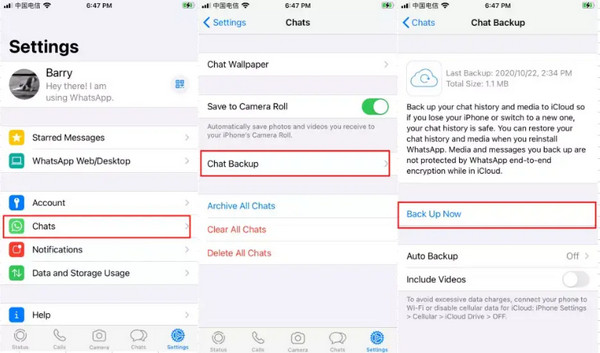
o back to your iPhone Home Screen and delete the WhatsApp application. To do this, please long-press the app and tap the Delete App button from the small window that will appear. Confirm the action afterward. Next, reinstall the app and open it. Verify your phone number afterward.
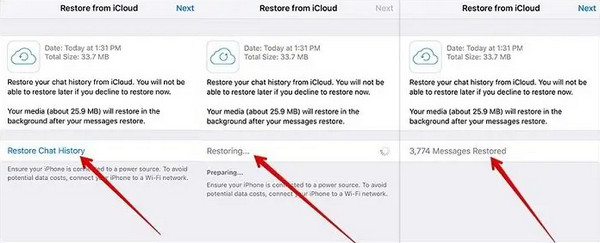
The Restore from iCloud screen will appear. Tap the Restore Chat History button under the backup information. Your WhatsApp messages and attachments will be retrieved afterward.
Part 2. Restore WhatsApp from iCloud Backup
The built-in WhatsApp iCloud backup is helpful, but not all knows about it. In this case, they use their iCloud accounts instead. However, you are required to factory reset your iPhone first. It is recommended to sign out of the Apple ID from the iPhone. If not, your iPhone will undergo Activation Lock. If your Apple ID credentials are forgotten, you need to bypass iCloud Activation Lock with IMEI, third-party tools, etc. Restore WhatsApp from iCloud backup with the steps below.
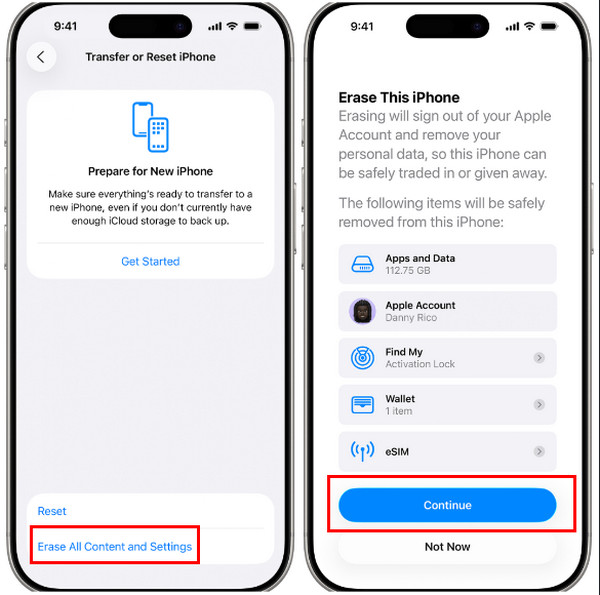
Factory reset your iPhone. Open the Settings app and select the General button from the list. After that, tap the Transfer or Reset iPhone button. Then, tap the Erase All Content and Settings button. Enter your iPhone passcode or Apple ID password. Tap the Continue button to start the factory reset.
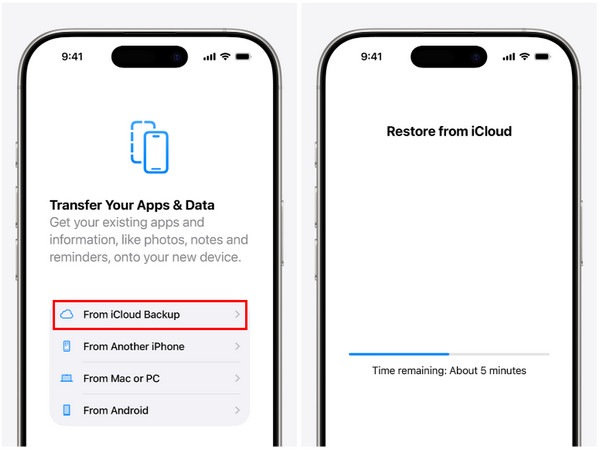
Set up your iPhone after turning it on. Keep entering the needed information until the Transfer Your Apps & Data is reached. Tap the From iCloud Backup button and sign in to your Apple ID account. Choose the backup where your WhatsApp messages are stored.
Follow the on-screen instructions. Finally, you will see the Restore from iCloud screen, showing the current time remaining of the restore process.
Part 3. Restore WhatsApp from iCloud Without Erasing
However, not all users prefer to factory reset the iPhone just to restore WhatsApp messages. They find it inconvenient because they might lose some of their files. imyPass iPhone Data Recovery is a great tool that can help you with this matter. This tool can restore WhatsApp backups from iCloud without erasing. You can restore selective data without restoring the entire iCloud backup.
Additionally, it allows you to preview the data from the iCloud backup. This way, you are certain about the data you will recover from the backup. Most importantly, it will not delete even a single data from your iPhone before and after restoring. How do I restore WhatsApp from iCloud without erasing my iPhone? The steps of this tool are posted below.
Download the tool on your computer. You can do this by visiting the website of imyPass iPhone Data Recovery. After that, set up the file from the tool and install it. Then, the tool will automatically be accessed by your computer.
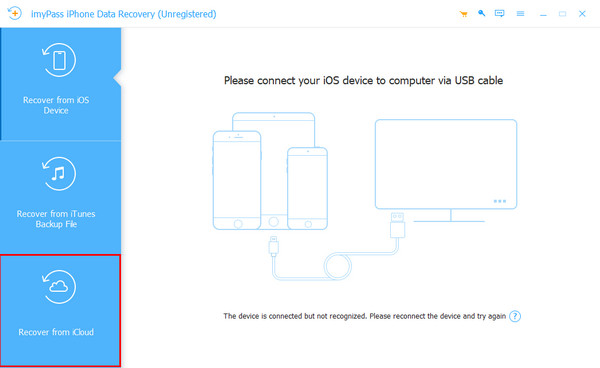
The tool will show you the connecting interface. Get a USB cable and plug the iPhone into the computer using it. Then, you must see the iPhone information on the screen. Later, click the Restore from iCloud button at the bottom left of the screen.
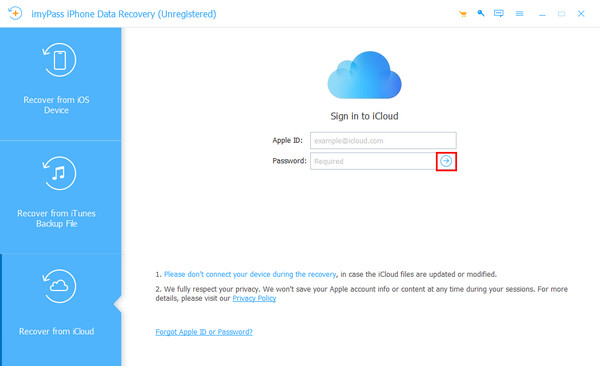
The screen will ask for your iCloud account. Please enter your Apple ID, including its password. Enter the information correctly and click the Arrow button on the right to sign in to the account.
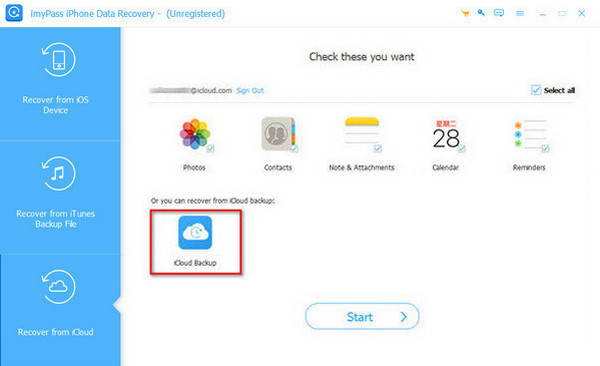
The supported data will be displayed on the screen. Please click the iCloud Backup button at the bottom left. Then, the tool will scan the available iCloud backups from your iPhone. The results will appear on the next interface. Please click the backups where WhatsApp messages are included.
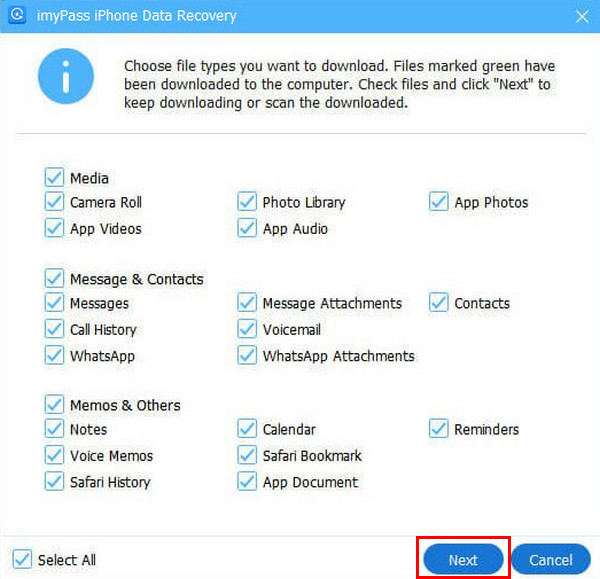
On the following screen, the included data types from the iCloud backup will appear. Please click the WhatsApp and WhatsApp Attachments from the list. Click the Next button at the bottom right. The tool will start to restore the mentioned data afterward.
Part 4. Can You Restore WhatsApp Without Backup?
Unfortunately, some iPhone users do not have iCloud backups to restore their WhatsApp messages. imyPass iPhone Data Recovery can help you! Besides restoring iCloud backups without erasing, this tool can also restore your WhatsApp messages and attachments directly from your iPhone. How helpful, right? Please continue reading to see the steps of the tool to restore your WhatsApp messages from your iPhone directly.
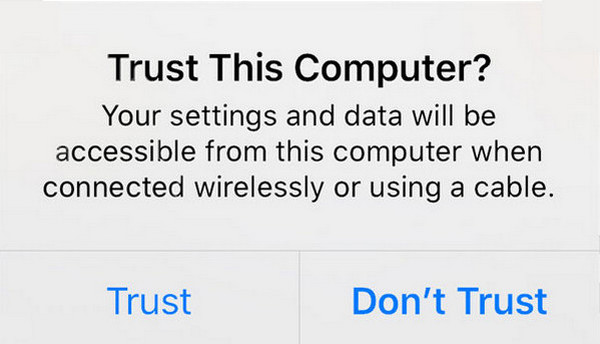
Download, set up, and install the tool. After that, get your USB cable and use it to plug your iPhone into the computer. Then, tap the Trust button on the iPhone to allow the needed permission. This way, it can be scanned to your computer.
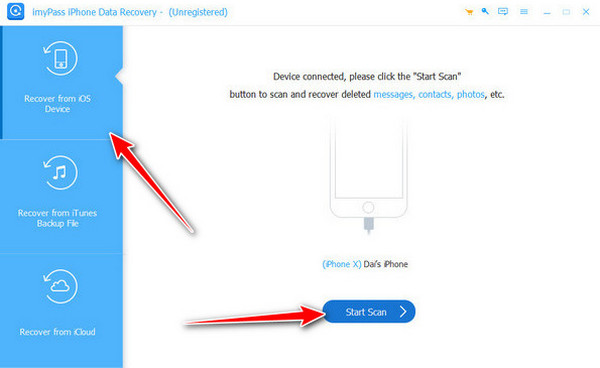
Select the Recover from iOS Device button at the top left. Then, click Start Scan at the bottom of the screen. In this case, the tool will scan the deleted data from your iPhone, including the WhatsApp messages.
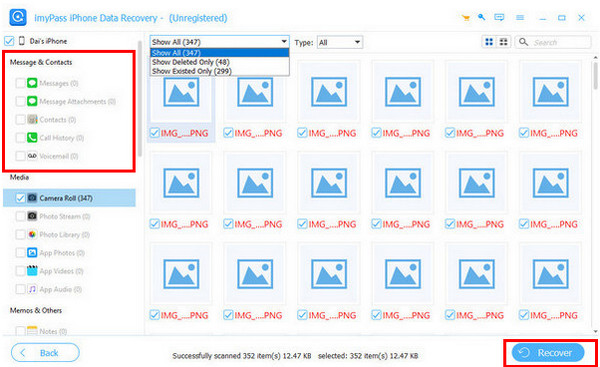
Go to the Messages & Contacts section. After that, please click the Messages or Messages Attachments button from the drop-down list. Later, locate and select the WhatsApp messages. Finally, click Recover at the bottom right.
Conclusion
All in all, you will easily learn how to restore WhatsApp iCloud backup with or without erasing in this post. Also, you can restore the WhatsApp messages and attachments with or without a backup. imyPass iPhone Data Recovery is here to help you retrieve the WhatsApp messages without erasing the iPhone or the backup. Do you want to know more convenient features of the tool? Download it on your computers.
Clara has over 8 years of experience helping users recover lost files and transfer data. She previously worked as a data recovery technician for a major IT service company. Certified in Data Recovery and Digital Forensics, her articles focus on simple solutions that make complicated recovery tasks easier for everyday users.
Hot Solutions
-
Recover Data
- AppGeeker iOS Data Recovery Review
- Disk Drill iPhone Data Recovery Review
- How to Get iPhone Out of Recovery Mode
- How to Fix support.apple.com/iphone/restore
- How to Recover Data from DFU Mode
- Gbyte iPhone Data Recovery Review
- How to Recover iPhone Deleted Photos After 30 Days
- How to Recover Deleted Photos on iPad
-
Unlock iOS
-
Transfer Data
-
iOS Tips

