



 Solution
 Support Center
 About Us
 Contact
How to Turn On AirDrop on iPhone, iPad, and Mac for Sharing
 Clara Prescott Published on January 08, 2026Transfer Data3-min reading
In daily work or life, we often need to transfer files between different Apple devices, but the data cable is not around, and the email attachment is too slow; it is always a headache. In fact, AirDrop has already prepared the fastest solution for you; it can realize wireless second transfer between iPhone, iPad, and Mac, no network, no tedious setup, just a click to complete.

In this article:
Part 1. What Is AirDrop on iPhone
AirDrop is Apple's short-range wireless delivery method. It allows files to be "airdropped" to a target device in an instant. That's the heart of AirDrop: simple, fast, and safe.
People often ask: Does AirDrop need Wi-Fi? Contrary to what many users think, AirDrop does not rely on an external network. To transfer files directly over a point-to-point encrypted channel, you just have to switch on Bluetooth and Wi-Fi, and AirDrop.
Looking back at AirDrop's history, it was first born on the Mac and is now standard on all Apple devices. Although it is not yet possible to view the full record, the notification and confirmation pop-up during transmission are sufficient to ensure security and privacy.
Once you understand the basic concept of what is AirDrop on iPhone, you'll have a better idea of how does AirDrop work, and learn how to turn it on and use it in the following sections to make every file transfer smoother and more efficient.
Part 2. How Does AirDrop Work
The way AirDrop works is very smart. When you enable this feature, the iPhone uses Bluetooth to locate nearby devices that have AirDrop enabled and automatically establishes a secure point-to-point connection once it finds an available object. The system generates a temporary encrypted channel to protect the privacy and integrity of files during transmission. This is also why AirDrop is superior to traditional Bluetooth transmissions in terms of both speed and security.
To understand how AirDrop works, you also need to know that its transmission is bidirectional—it can be sent as well as received. Whenever a device tries to share a file with you, the system will pop up an AirDrop notification and let you choose whether to accept it or not. The whole process requires no complex setup, and the data is not uploaded to the cloud or third-party servers.
Part 3. How to Turn on AirDrop
To use AirDrop, the first step is to understand how to turn on AirDrop. While it turns on slightly differently on different devices, the overall process is pretty simple.
On iPhone/iPad
To quickly switch AirDrop on a mobile device, you can follow these steps:
Open the Control Center. On models with Face ID, slide from the top right corner; On models with a Home button, slide from the bottom.
Long-press the network module icon in the upper left corner, expand it, and click AirDrop .
To complete the setting, select Contacts Only or Everyone for 10 Minutes .
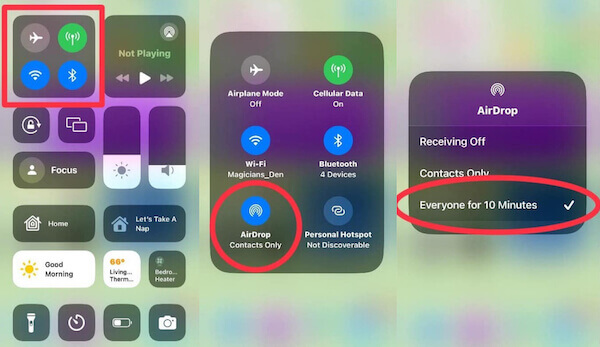
You can also switch off AirDrop later and turn it off when you don't need it to avoid frequent requests from strangers.
On Mac
Opening AirDrop on a Mac is just as easy:
Open Finder and select AirDrop in the sidebar.
If it is not automatically activated, click on Turn on Bluetooth or Turn on Wi-Fi to enable the feature.
At the bottom of the window, select a discoverable range, such as Contacts Only or All .
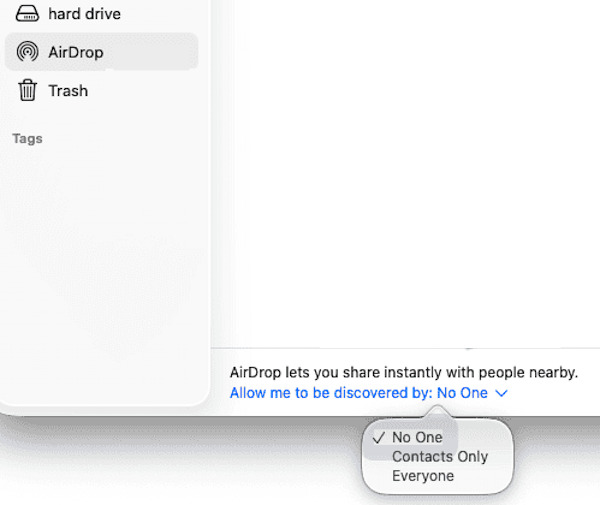
Once you've done that, you can easily transfer contacts from iPhone to iPhone, or any other types of data.
When you successfully turn on AirDrop, the system will automatically search for nearby devices and display available contacts on the interface. Once you've mastered these steps, you'll be able to start using AirDrop's sharing features right away, without installing any additional apps or setting up complicated parameters.
Part 4. How to Use AirDrop
Once enabled, you can learn how to use AirDrop to share and receive files efficiently. AirDrop supports a variety of formats, from photos to documents, eliminating the need for cables or apps to transfer between Apple devices.
Send
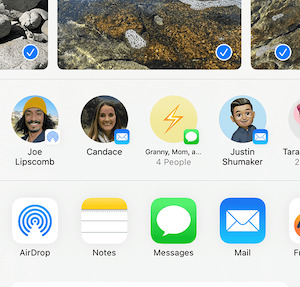
Open the content you want to share. You can transfer photos, videos, or web links to an iPad.
Click the Share button and select AirDrop .
Select the name of the target device and wait for confirmation.
After the file transfer is completed, it will automatically prompt for success.
Receive
If you're on the receiving end, it's also important to know how to receive an AirDrop.
AirDrop notification will pop up when someone sends you a file.
Click Accept to allow receiving.
The system will automatically save the file to the corresponding location, such as photos to the Album and documents to the File App.
If you do not want to receive the notification for the time being, you can reject or simply ignore it.

During use, if you want to end the current transmission, just click Cancel to complete how to cancel AirDrop. These steps give you a quick grasp of the right way to use AirDrop and experience truly seamless file transfer.
Part 5. Where Do AirDrop Files Go
Many users will wonder where AirDrop files go after a successful transfer. In fact, AirDrop will automatically save the content according to the type of file, so you don't need to look for it manually.
- Photos or Videos: If you receive photos or videos through AirDrop, they will automatically appear in Photos > Recent items. In addition, the photos sent by AirDrop will retain the iPhone’sPhoto location to ensure the integrity of the information.
- Documents or compressed packages: PDF, Word, ZIP, and other files will be saved to the File > Download Project folder.
- Web link or contact information: The link opens directly in Safari, and the contact information is imported into the Address Book.
This classification and storage mechanism is not only convenient to view, but also ensures security and consistency. If you receive multiple files, the system will automatically name and sort them to avoid confusion. If you don't see the content immediately after the transfer, you can quickly locate it by searching for the file name or going to Recent Projects.
Part 6. How to Fix AirDrop Not Working Issue
Sometimes, users may experience unrecognized devices, interrupted transmissions, or never be able to connect while using AirDrop. This condition does not mean that the function is damaged. By following the methods, you can quickly restore normal use.
Check the AirDrop settings
First, go to Settings or Control Center to make sure you have switched AirDrop on correctly. If Contact Only mode is selected, the recipient must be signed in with an Apple ID and in the address book; otherwise, the device may not be displayed. You can try switching to Everyone mode and testing again.
Restart the wireless function
If the AirDrop cannot be connected, you can turn off and then restart Bluetooth and Wi-Fi. AirDrop relies on the two to work together to establish a connection, and re-enabling often solves temporary signal conflicts.
Check equipment distance and compatibility
Make sure that the two devices are not too far apart and that both are running versions of the system that support AirDrop. Failure can also occur if the signal is blocked or another device occupies the Bluetooth.
Log in to your Apple ID again
If there is no response to multiple transmissions, you can sign out of Apple ID and log in again, and let the system refresh the device recognition status.
Reset network settings
On your iPhone, go to Settings > General > Transfer or Restore iPhone > Restore Network Settings , which can fix potential connection exceptions.
With the above methods, you can usually solve the AirDrop not working problem.
Part 7. Best AirDrop Alternative Tool
A stable alternative can help you share files more efficiently when AirDrop has unstable connections or limited transfer across systems. In this case, imyPass iPhone Transfer is a trusted AirDrop alternative. It not only supports transfer between iPhone, iPad, and Mac, but also seamlessly moves files between iOS and Windows computers.

4,000,000+ Downloads
Support not only Apple devices, but also Windows for cross-system file transfer.
Direct connection through data cable, stable and undropped.
Supports photos, videos, music, contacts, SMS, and other data types.
You can customize the storage path and export files directly to any folder.
Install and start the program, and connect the device. Wait for the software to automatically recognize it before proceeding to the next step.
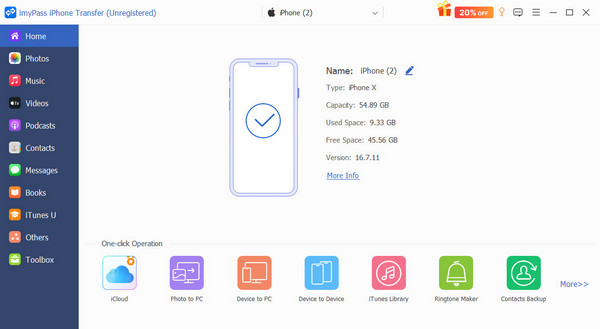
In the left panel, select what you want to transfer, such as photos or contacts.
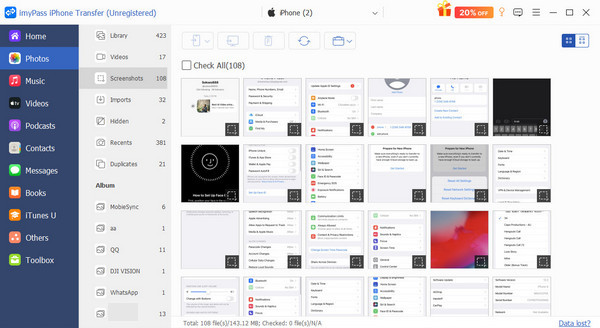
After selecting the destination device or computer folder, click Export to start the transfer.
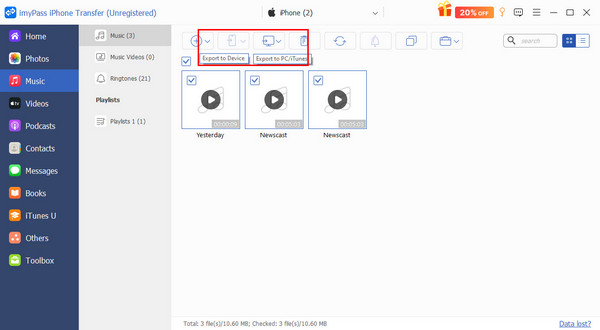
It can be completed in a few seconds, and the speed is much faster than wireless sharing when transmitting a large amount of data at one time.
Compared with AirDrop, imyPass iPhone Transfer is not limited by the network environment and system, and there is no need to worry about AirDrop notification failing to pop up or transmission interruption. It is the more efficient and professional choice for users who need to manage or back up files in bulk.
Part 8. Tips for Using AirDrop
Once you know how to use AirDrop, there are a few tricks you can use to make your file transfer more efficient and secure. Here are some practical tips to help you make the most of AirDrop in your daily work and life:
Turn off Everyone in public
When you are in a crowded place, change the AirDrop receiving permission to Contacts Only to prevent strangers from sending files or photos and protect your privacy.
Give the device a recognizable name
If you use multiple Apple devices, it is recommended to change the name of each device in the Settings, such as "Kevin's iPhone" or "My MacBook Air", for quick identification in the AirDrop list.
Clean up downloads regularly
Files received by AirDrop are usually saved directly to a specific app, such as the Photos or Downloads folder. Regular organizing helps avoid file accumulation and helps you find what you need faster. Do not worry about accidentally deleting data; you can easily retrieve AirDrop files.
Check the network environment before enabling
When sharing sensitive or large files, ensure that the Wi-Fi connection is stable to avoid transmission failure or interruption due to network interference.
Try for cross-device operation
If you're logged in to multiple devices with the same Apple ID, you can use AirDrop and Handoff to seamlessly transfer the document, web page, or email you're editing to another device.
Conclusion
So AirDrop is a convenient and efficient wireless transmission feature. If you turn on AirDrop correctly and use it wisely, it will make data exchange between your iPhone and other devices smoother and more secure. If you need more comprehensive Transfer capabilities, such as exporting data across systems or in bulk, imyPass iPhone Transfer is the more flexible option.
Clara is an editor from imyPass. She specializes in data recovery. You can find professional tutorials and solutions for recovering lost data from any device. Many users reported that his tutorial is easy and useful.
Hot Solutions
-
Transfer Data
-
Recover Data
-
Unlock iOS
-
iOS Tips

