



 Solution
 Support Center
 About Us
 Contact
Step-by-Step Guide on How to Sync iTunes to iPhone Easily
 Clara Prescott Published on January 16, 2026Transfer Data3-min reading
Many iPhone users have encountered the problem of connecting to iTunes only to find that their backup has not been updated. This "out of sync" situation not only affects the user experience but also can lead to the loss of important data. Next, we'll take a closer look at the common causes of sync failures and give you step-by-step instructions on how to sync iTunes to iPhone so that data flows smoothly and your devices work together again.

In this article:
Part 1. Why iTunes and iPhone Won't Sync
When you find that your iPhone does not sync with iTunes, it's often hard to tell what the problem is. In fact, the synchronization between iTunes and iPhone involves multiple factors. If one of the links is wrong, the iPhone iTunes not syncing may occur. Here are some of the most common reasons:
Old version of iTunes
Some users report that iTunes keeps crashing during sync on Reddit, often because the iTunes version is incompatible with the latest iOS. Older versions are more likely to crash or lag when transferring large files or backing up data.
Abnormal connection
A damaged cable, a loose port, or an abnormal driver on the computer may cause your iPhone not to sync with iTunes. If Wi-Fi synchronization is used, frequent interruptions may occur due to unstable networks.
Apple ID not authorized
Sometimes users are confused about if my iTunes account and iPhone sync, which is actually related to the authorization status of the computer. You can't sync purchased music, movies, or apps without an Apple iTunes login and authorizing your Apple ID.
Database conflicts or corruption
When you sync devices from different computers, or when iTunes Library files are damaged, the system may reject the sync request. This conflict directly causes the iPhone not to sync with iTunes.
Considering these potential problems, the next step is to find a suitable solution to restore the synchronization process to a smooth and stable state.
Part 2. How to Sync iPhone to iTunes
Learn how to sync your iPhone with iTunes and avoid duplicate files or data loss. Whether you want to sync music, movies, or back up data, here's how to do it safely and efficiently.
Method 1: Via USB cable
Insert the iPhone into the computer using the original data cable. Once iTunes is open, click the device logo in the top left corner.
On the Summary page, check This computer.
Select the type of content you want to sync (music, videos, photos, etc.) and click Apply.
Disconnect the device after waiting for the synchronization to complete.
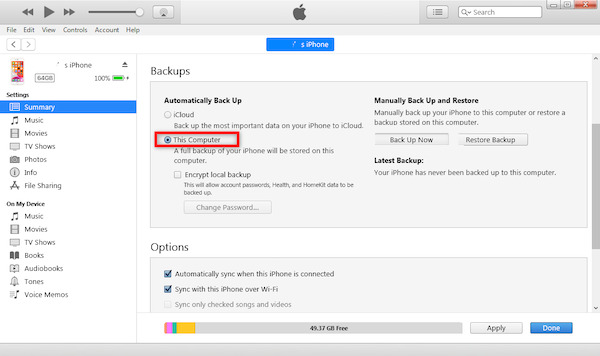
This method is the most stable. It can directly transfer content between the computer and the device, making the process of syncing computer iTunes to iPhone more secure and reliable.
Method 2: Via Wi-Fi
On the iTunes Device management page, check Sync with this iPhone over Wi-FiMusic .
Make sure your computer is connected to the same Wi-Fi network as your iPhone.
When the iPhone is connected to the power supply and to the network, the system will automatically start the wireless synchronization of how to sync iPhone and iTunes.
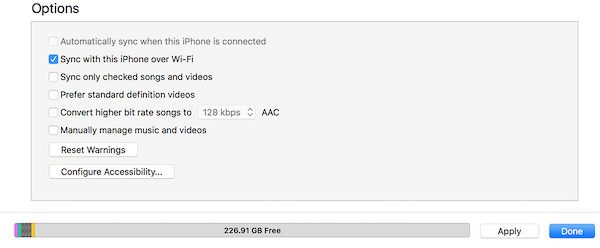
Wireless mode is more suitable for users who frequently need to update data, and can keep data consistent without every connection to the data line.
Part 3. How to Sync iTunes to iPhone
After learning how to sync iPhone content to the computer, many users will also be concerned about the reverse operation: How to sync iTunes to iPhone? If you're having trouble trying to sync iTunes from your computer to your iPhone, the following steps will help you do it quickly.
Open iTunes on your computer and connect your iPhone.
Click the device button in the upper left corner to enter the Music or Movies column.
Check Sync Music or Sync Movie and select the playlist or album you want to transfer.
Click Apply in the bottom right corner to sync the computer's iTunes to the iPhone.
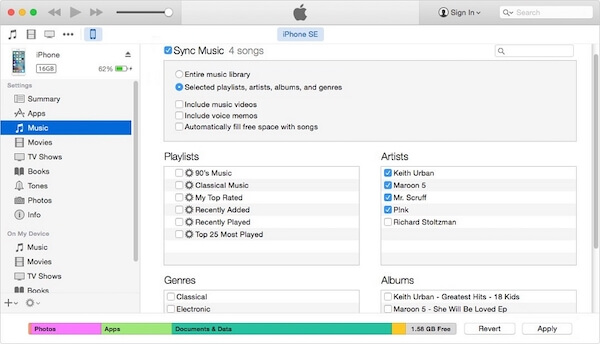
If the sync does not work, you can re-check the desired content type in the Summary and make sure that Manually manage music and videos is not selected. This can avoid the situation of iPhone and iTunes not syncing. After you complete these steps, your computer data will be smoothly transferred to your iPhone, achieving two-way synchronization.
Part 4. How to Fix iPhone Not Syncing with iTunes
If the iPhone does not sync with iTunes after following the steps above, the problem may come from a compatibility error in the system version, authorization Settings, or iTunes itself. Rather than repeatedly trying invalid connections, it is better to solve the synchronization barrier fundamentally. Here are a few ways to effectively deal with iPhone iTunes not syncing.
Best Third-Party Tool - imyPass iPhone Transfer
If you're tired of iTunes making mistakes, imyPass iPhone Transfer is a more efficient and stable alternative. The tool allows you to transfer data freely between your computer and your iPhone, without relying on iTunes.

4,000,000+ Downloads
Support two-way synchronization of music, photos, contacts, and other types of files.
Backup and transfer without using iTunes.
Retain existing data without overwriting or loss.
Perfect compatibility with the latest iOS and macOS versions, simple and smooth operation.
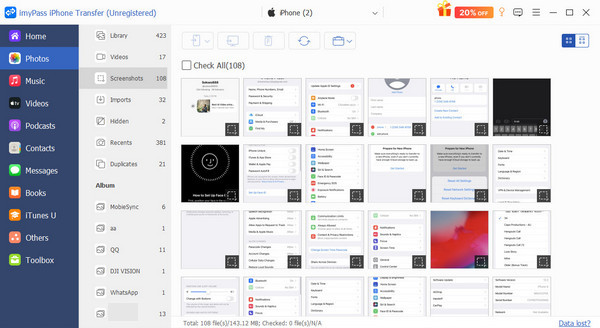
Download and install the software on your computer and run it. Once the iPhone is connected, wait for the software to detect the device automatically.
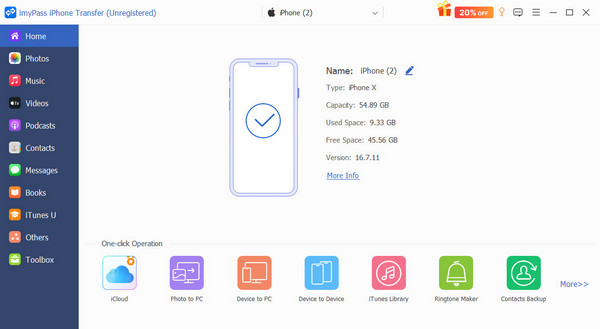
On the main screen, select the type of content you want to sync, such as music, photos, and videos.
Click Export to PC or Export to Device to quickly transfer the synced computer iTunes to the iPhone.
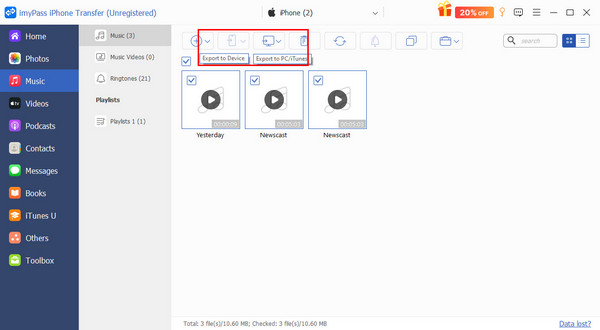
The whole process is an efficient alternative to how to sync an iPhone and iTunes without opening iTunes. It also avoids the potential risk of iTunes could not restore the iPhone later.
iTunes Update
An expired version of iTunes may not be compatible with the latest iOS system, causing sync failure.
Open iTunes and click Help > Check for Updates in the top menu.
Follow the prompts to download and install the latest version and restart your computer.
Connect your iPhone again and rerun sync iPhone on iTunes.
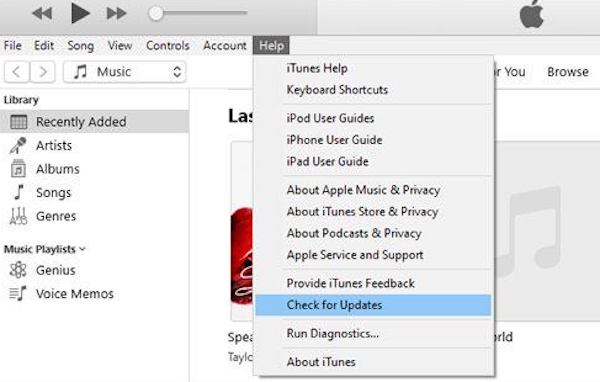
Keeping iTunes up-to-date reduces flashbacks and connection exceptions.
iTunes Authorization
Unauthorized computers cannot access purchases made under an Apple ID, often causing the iPhone does not sync with iTunes.
From the top menu of iTunes, click Account > Authorizations > Authorize This Computer.
Log in to your Apple ID, authorize, and reconnect to your device.
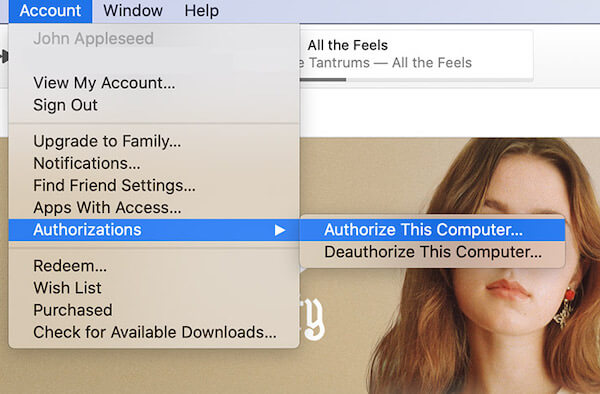
After licensing, all purchased music, movies and apps can be synchronized smoothly.
Make New iTunes Library
When the iTunes library is corrupted, the iPhone iTunes not syncing message frequently appears.
Close iTunes completely.
To restart the program, hold down the Shift (Windows) or Option (Mac) key.
Select Create Library and set a new storage location.
Import media content and then try to sync devices.
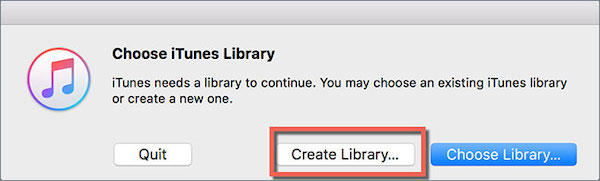
The new database can clear old data conflicts and restore the normal synchronization mechanism.
Conclusion
So, by following the right steps or using more flexible tools, it's easy to sync iTunes to iPhone and keep the transfer between devices running smoothly. If you want to get rid of iTunes' limitations, imyPass iPhone Transfer is the solution you can trust—faster, more stable, and freer. It allows you to sync your iPhone with your computer in one step.
Clara is an editor from imyPass. She specializes in data recovery. You can find professional tutorials and solutions for recovering lost data from any device. Many users reported that his tutorial is easy and useful.
Hot Solutions
-
Transfer Data
-
Recover Data
-
Unlock iOS
-
iOS Tips

