Solution
 Support Center
 About Us
 Contact
How to Unlock Android Home Screen Layout: Step-by-Step Guide
 Penny Warren Published on May 25, 2026Unlock Android3-min reading
If you try to customize your Android home screen by long-pressing a blank area but see the message "Home screen layout locked", don't worry. In this guide, you'll learn how to unlock the home screen layout on Samsung, Huawei, Redmi, and Infinix devices.

In this article:
Part 1. Home Screen vs. Lock Screen
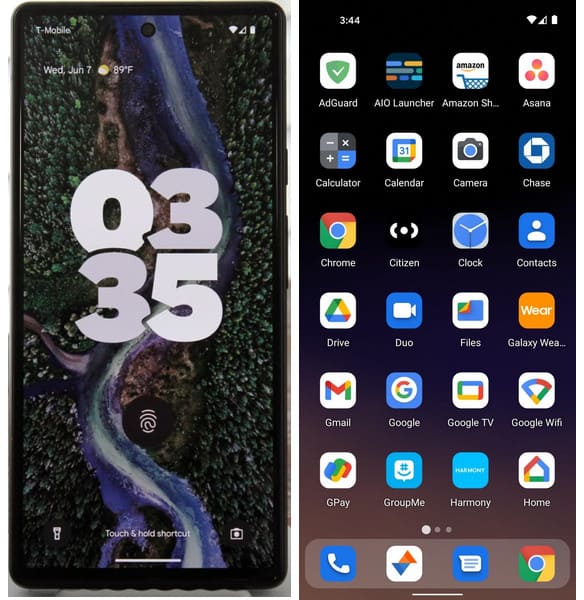
Before we start unlocking your Android home screen, it's important to know the difference between the home screen and the lock screen.
- Home Screen: This is your main screen, where you can access apps, widgets, and shortcuts. It gives you full control of your phone.
- Lock Screen: This screen appears when you wake up your phone. It only shows limited information, such as date, time, weather, and notifications, and helps protect your device from unauthorized access.
In short, the home screen is for using your phone and accessing private data, while the lock screen acts as a security barrier. To fully manage your device, you need to unlock the lock screen to access the home screen.
Part 2. How to Unlock Home Screen Layout for Most Android Brands
Most Android phones follow a similar process to unlock the home screen layout. Below is a quick reference table for popular brands.
| Brand | Method |
| Samsung | Long-press blank area |
| Huawei | Pinch home screen |
| Redmi/Xiaomi | Open Settings app |
| Infinix | Long-press blank area |
1. How to Unlock Home Screen on Samsung
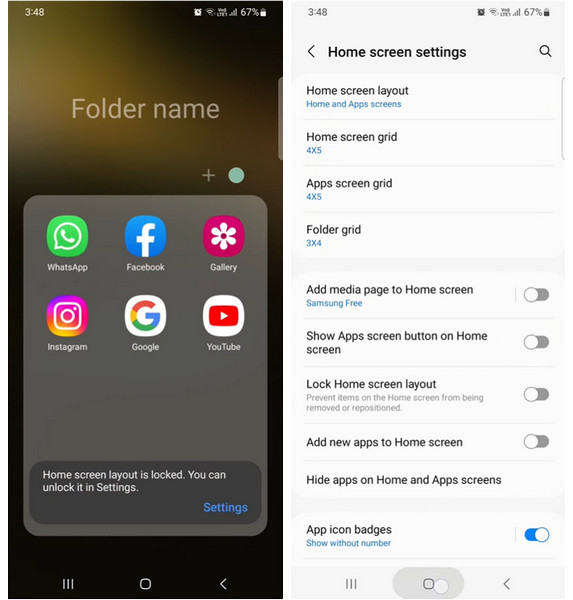
Keep pressing a blank space on your Samsung home screen until you see the notification with a blue Settings word. Tap it to continue.
If you don't see the notification, open Settings > Home Screen > Lock Home Screen Layout and toggle it off to unlock the home screen on your Samsung phone.
2. How to Unlock Home Screen on Huawei
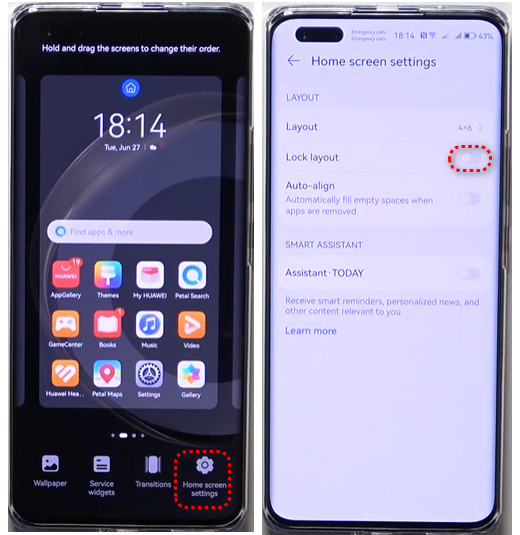
Pinch your Huawei home screen using two fingers.
You can see the Home screen settings option at the right bottom. Tap it and toggle the Lock layout off.
3. How to Unlock Home Screen on Redmi
Open the Settings app on your Redmi phone.
Tap Home Screen and turn off Lock Home screen layout.
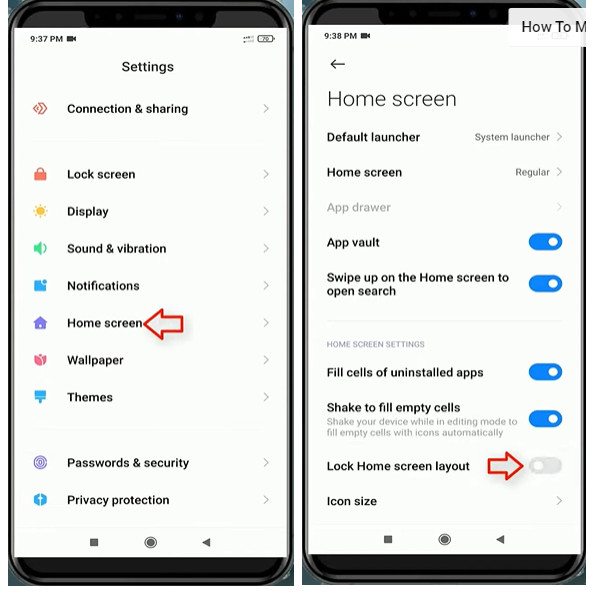
4. How to Unlock Home Screen on Infinix
Long-press a blank area on your Infinix home screen until you can see the Settings option at the right bottom. Tap it to enter the Desktop Settings menu.
Tap Others and turn off Pin Icons to Screen.
Part 3. How to Unlock Android Lock Screen Without Password
As we mentioned above, the home screen and lock screen are different. You can manually lock the home screen. But if you forget the password, you will be locked out of the lock screen. In these cases, you'll need a specialized tool. imyPass AnyPassGo can help you unlock your Android device without a password. It supports most Android devices running Android 6.0 to Android 16, including Samsung, Xiaomi, Huawei, and more. If the Google account verification is not removed on a second-hand phone, it can also bypass FRP lock easily.
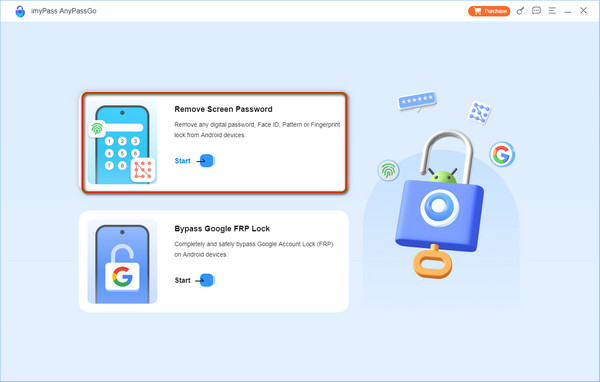
Download imyPass AnyPassGo to your laptop from the download link. Launch the program and click Remove Screen Password. Connect your Android device using a USB cable.
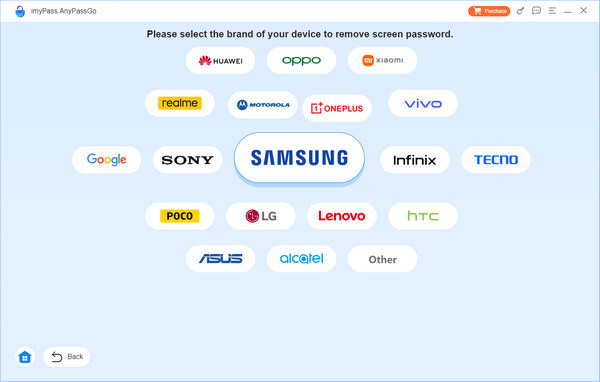
Choose your phone brand here.
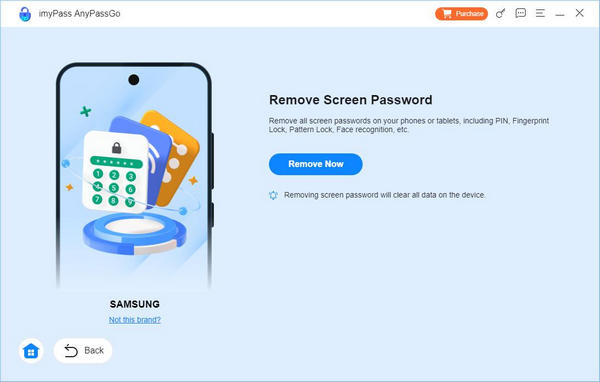
Click Remove Now and wait for the program to remove the password. Click OK to exit the program when the process finishes.
Note:
The unlock process will erase all data on your device. Make sure you have created a backup before starting.
FAQs.
-
Why would you prefer your Android home screen layout locked?
The main reason and advantage of a locked home screen layout is that it can prevent accidental icon movement, which can maintain the personalized arrangement of apps, widgets, and shortcuts on the home screen.
-
How to add widgets on the Android home screen?
Touch and hold an empty area on a home screen until you see a Widgets option. Tap it to find and check the available widgets for an app. Touch and hold a desired widget and slide it to where you want. Then, lift your finger to add it to your home screen.
-
How to add an app shortcut on the Android home screen?
App shortcuts can quickly perform specific actions. To add an app shortcut to your home screen, touch and hold the app you want to add a shortcut of until you see the shortcut list if it has. Select the shortcut and add it to a home screen.
Conclusion
In this guide, you have learned how to unlock the home screen on Android, including Samsung, Huawei, Redmi, and Infinix. By following the steps in this post, you can easily manage and customize your home screen. If you are unable to access the home screen due to a forgotten password, you can use a third-party tool to bypass FRP lock such as imyPass AnyPassGo.
Penny focuses on GPS troubleshooting and Windows optimization. She formerly worked as a technical support engineer, helping clients solve location-based and system issues efficiently. Backed by IT support experience, she provides practical solutions that really work. In her free time, she likes hiking and geocaching, testing GPS tech in the real world.
Hot Solutions
-
Unlock Android
-
Unlock iOS
-
Password Tips
-
iOS Tips