



 Solution
 Support Center
 About Us
 Contact
How to Recover Notes on iPhone: Complete with 5 Easy Solutions
 Clara Prescott Published on February 06, 2026Recover Data3-min reading
Losing notes can be stressful, especially when they contain work, plans, or important details. This guide on how to recover deleted notes on an iPhone explains the most reliable ways to restore them without confusion. You will learn when the Recently Deleted folder helps, when iCloud access is enough, and when backups matter. We also cover trusted recovery tools and their limits. By the end, you will know the safest option for your case. Next, we walk through each solution step by step.

In this article:
Pick the Best Solution to Recover Notes on iPhone
Before picking a method, it helps to see all options in one place. This quick overview explains how to recover notes on an iPhone in common situations, from recent deletions to full data loss. Each solution differs in ease, speed, and risk. The table below helps you choose the safest option before moving on to the steps.
| Solutions | Best Use Case | Requirements | Main Limitation | Ease of Use | Expected Time Needed to Recover Deleted Notes Successfully |
| Recently Deleted Folder | Notes deleted less than 30 days ago | iPhone access only | After 30 days, all files will be permanently deleted | Easy | 1 to 2 minutes |
| iCloud Web | Notes synced but missing on the device | iCloud account and browser | iCloud sync must be enabled | Average | 3 to 5 minutes |
| imyPass iPhone Data Recovery | Permanently deleted notes without backup | Computer and USB charging cable for the iPhone | Requires a computer and a paid license to export notes | Easiest | 3 to 5 minutes |
| iCloud Backup | Notes included in a recent backup | Apple ID and Internet | Overwrites current iPhone data | Average | 30 to 60 minutes |
| Finder or iTunes Backup | Notes stored in the local computer backup | Mac or PC with a charging cable | Restore the entire device data, not a single note you are looking for | Average | 30 to 60 minutes |
Now that you have the overview of each solution, proceed to reading how to recover a deleted Note on an iPhone, you chose from the selection above.
Solution 1. Check the Recently Deleted Folder
To recover deleted notes on the iPhone, start with the Recently Deleted folder in the Notes app. It also stores notes temporarily for 30 days so that it is easy to recover whatever was deleted accidentally. It is fast, safe, and does not need additional equipment. Follow these steps:
Open the Notes app and go to the Folders menu by tapping the back arrow in the top left corner.
Tap on Recently Deleted to see notes removed within the last 30 days.
Tap Edit in the top right corner, then pick the notes you want to retrieve by tapping the circle next to each one.
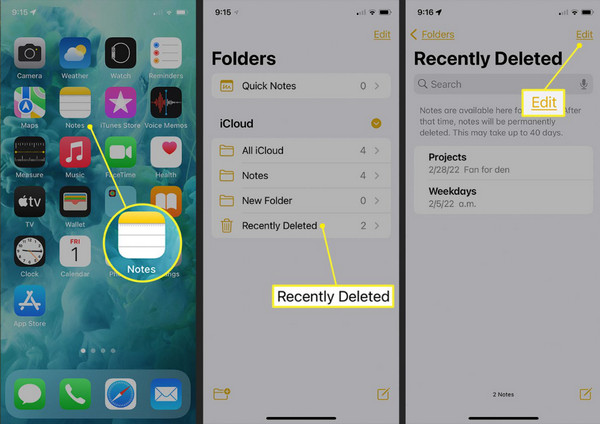
Tap Move To… at the bottom left and choose Notes to restore them to your main notes list.
This method is the fastest and safest way to restore recently deleted notes, but it only works for notes deleted within the last 30 days. Notes removed earlier or permanently deleted cannot be recovered using this method.
Solution 2. Check the iCloud Web
If you cannot find your note in the Recently Deleted folder, you can try to recover notes on iPhone using iCloud Web. This works for notes that were synced with iCloud before deletion. It is a safe method that does not affect other data on your device. Follow these steps:
Open a web browser on your computer or iPhone and go to iCloud.com.
Log in using the Apple ID with which you are associated with your iPhone.
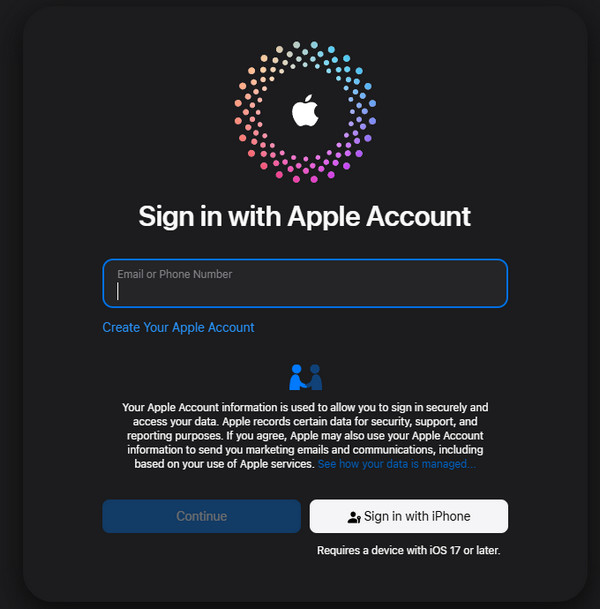
Click on the Notes app within iCloud Web to see all synced notes.
Select the notes you want to restore, then copy or move them back to your iPhone Notes app.
Using iCloud Web allows you to restore synced notes without affecting other data on your iPhone. The drawback is that only notes that were synced to iCloud before deletion can be recovered; notes never synced will not appear.
Solution 3. Recover iPhone Notes with a Pro Tool
Sometimes deleted notes are gone for good, and the Recently Deleted folder or iCloud cannot help. In case you want to recover permanently deleted iPhone notes, then imyPass iPhone Data Recovery is a simple and sure way of retrieving them. It will scan your device in depth, allow you to preview items that can be restored and only read notes that you require without any overwriting of other files. This ensures that it is a safe one in regard to important work or personal memos, as well as any note you can not afford to lose. These are the steps to follow in order to recover your lost notes.
Install imyPass iPhone Data Recovery on your PC or Mac and then install the program. Plug your phones into the computer through a USB or Lightning cable.
Launch the program and pick Recover from iOS Device. Unlock your iPhone and tap Trust when prompted. Click Next on the computer. For older devices like iPhone 4/3GS, iPad 1, or iPod Touch 4, follow the on-screen steps to download the plug-in and enter scanning mode.
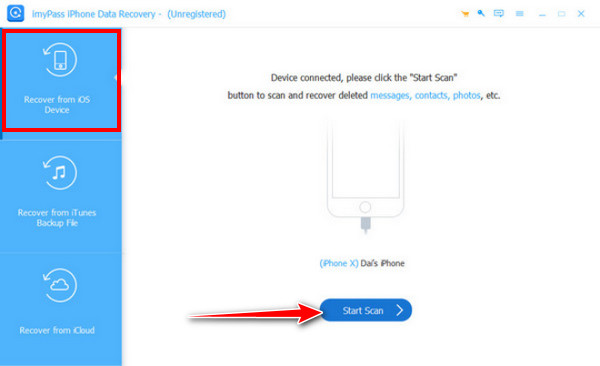
After scanning, all data types appear in the left sidebar. Switch between Show All and Show Deleted Only to locate your notes. Preview the notes and check the box next to each note you want to recover.
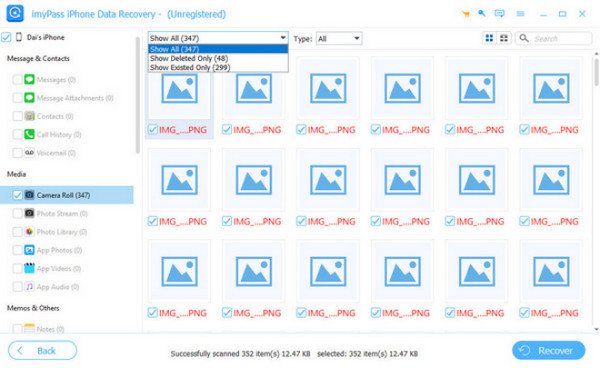
Click Recover in the bottom-right corner. Pick a save location on your PC to store the recovered notes. The program will complete the process in a few seconds, safely restoring your lost notes.
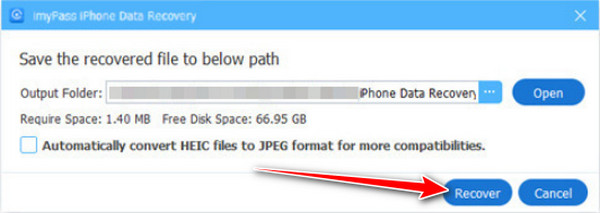
Pro tools like imyPass iPhone Data Recovery can restore permanently deleted notes even without backups. If you have a computer and you want to do a deep scan on your device, then this is the one for you.
Solution 4. Restore from iCloud Backup
If other methods fail, you can restore your iPhone from an iCloud backup. This is useful when you need to recover notes that were permanently deleted or lost due to device issues. If you are wondering how do I recover a deleted note on my iPhone, restoring from iCloud is a reliable option, just keep in mind it will replace the current data on your device with the backup.
Go to Settings > Account Name > iCloud > Manage Storage > Backups to confirm a backup exists that includes your Notes.
Press the Settings > General > Reset > Erase All Content and Settings to prepare for the restore.
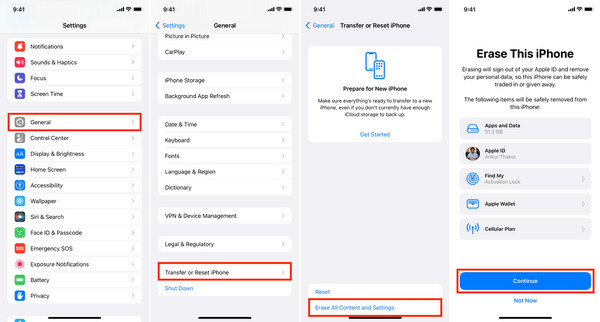
During the setup process, pick Restore from iCloud Backup and sign in. Choose the backup that contains your lost notes.
Wait for the restore to finish. Once completed, open the Notes app to confirm your deleted notes have been recovered.
Restoring from iCloud Backup can recover notes that other methods cannot reach. The main drawback is that it replaces all current data on your iPhone with the backup version, potentially causing loss of new data added after the backup.
Solution 5. Restore from Finder/iTunes Backup
If you have formerly backed up your iPhone to a computer, you can restore from a Finder or iTunes backup to recover lost notes. This method is helpful when other options fail, and you are wondering how to recover deleted Notes on iPhone. Keep in mind that restoring a backup will overwrite current data, so any changes made after the backup will be lost.
Use a USB or Lightning cable to connect your iPhone to your Mac or PC. Open Finder on macOS Catalina or later, or iTunes on older macOS and Windows.
Click your iPhone button in the Finder sidebar or iTunes window to open the summary page.
In the Backups section, click Restore Backup…. Select the backup made before your notes were deleted. Enter your password if the backup is encrypted.
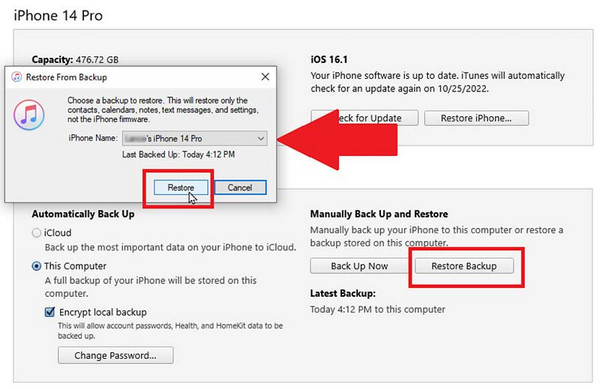
Wait until the restore is over. iPhone will restart and connect with the computer. After that, open the Notes app and see whether you have recovered your deleted notes.
This method restores notes from a full computer backup, making it useful when other options fail. The drawback is similar to iCloud Backup; it overwrites all current data on your iPhone, so anything added after the backup will be lost. Plus, if the backup is encrypted, and you forgot the iTunes backup password then you need to find a new way to find the password before recovering it.
Conclusion
Now that you know how to recover iPhone Notes, you can choose the method that works best for your situation. From the Recently Deleted folder to iCloud, backups, or recovery tools, each option has its benefits and limits. Share this guide with others who need it, and remember: picking the right method makes restoring your lost notes easier and safer.
Clara is an editor from imyPass. She specializes in data recovery. You can find professional tutorials and solutions for recovering lost data from any device. Many users reported that his tutorial is easy and useful.
Hot Solutions
-
Recover Data
- Recover WhatsApp View Once Photo
- Recover Deleted TikTok Videos on Mobile
- Recover Deleted Facebook Photo
- Recover Viber Messages, Photos, etc.
- Recover Deleted Snapchat Photos
- 5 Best Contact Recovery Apps
- Recover Deleted Discord Messages
- AppGeeker iOS Data Recovery Review
- Recover Data from DFU Mode
- Cannot Restore iPhone Backup
-
Unlock iOS
-
iOS Tips
-
Password Tips

