



 Solution
 Support Center
 About Us
 Contact
How to Unlock HP Laptop Without Password [Full Methods]
 Penny Warren Published on January 16, 2026Fix Windows3-min reading
Forgetting your computer password or being locked out of your HP laptop often makes people anxious and unsure of what to do. In fact, unlocking a computer doesn't necessarily require complex skills, nor do you need to rely on reinstalling the system or a recovery disk. This article will share several simple and safe methods to help you learn how to unlock an HP laptop when forgetting the password without a disk, allowing you to regain access to your laptop without losing data and quickly solve the lockout issue.

In this article:
Part 1. Easiest Way to Unlock Computer Without Logging In
When you want to know "how to unlock my computer if I forgot the password" or are unable to log into your computer, the most direct and reliable method is to use a professional password reset tool. imyPass Windows Password Reset is an efficient tool designed for Windows systems, which can quickly restore access to your computer even if you don't have the password or installation disk.
4,000,000+ Downloads
Supports multiple types of user accounts, including local accounts and administrator accounts.
Simple and clear interface, with easy-to-follow steps, allowing anyone to complete the process even without technical knowledge.
Fast and only takes a few minutes to reset or remove a password.
Secure and reliable, does not delete existing files and programs.
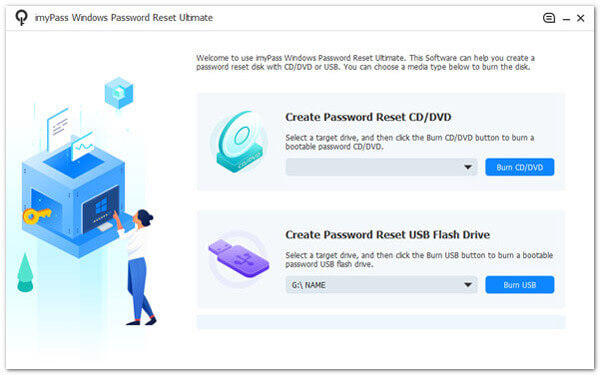
Download and install imyPass Windows Password Reset on another available computer, then write the program to an empty USB drive or disc.
Insert the USB drive or disc into the locked computer, and press the HP laptop's boot menu key when starting up (usually Esc or F9; refer to the startup screen for your specific model). This step is crucial to ensure the computer boots from the USB drive instead of the hard drive.
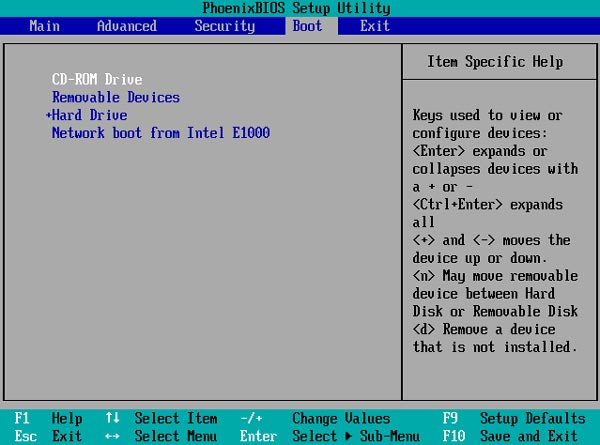
In the Boot Menu, use the up and down keys to select the USB drive or disc to boot from, and enter the main interface of imyPass.
In the program interface, select the target account and click Reset Password to clear or reset the password. If you want to bypass the administrator password, you can also restore access using the same steps.
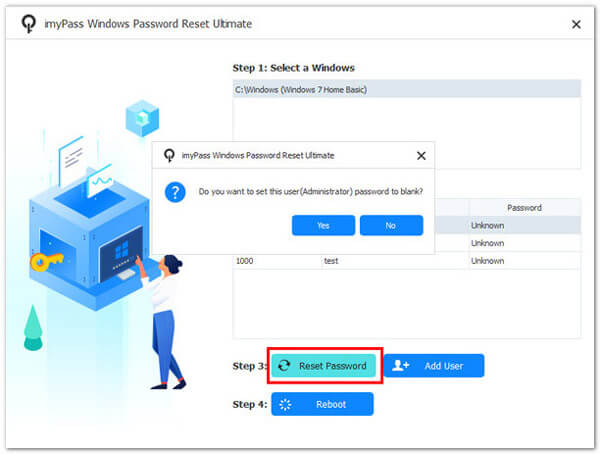
Remove the USB drive or disc and restart the computer. At this point, you can log in directly without a password or set a new password.
Part 2. Common Methods on How to Unlock Computer Without Password
Besides using professional tools, Windows itself or common operating methods can also help you figure out how to unlock a computer without a password. Although these methods may require some technical skills or prior preparation, they can solve the problem in many cases.
Method 1. Command Prompt
If you can access Windows 10 Safe Mode or have another administrator account, you can use the Command Prompt to reset the password:
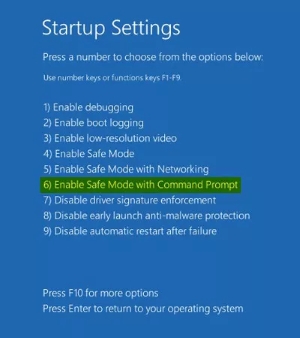
Restart your computer and enter Safe Mode, then select Enable Safe Mode with Command Prompt in Startup Settings. Open the Run window and choose Run as administrator.
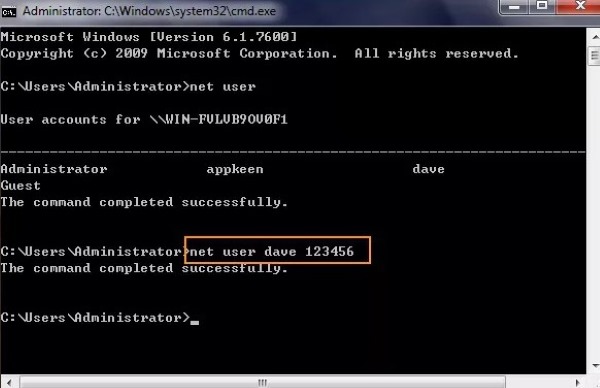
Enter the command net user [username] [new password] and press Enter to change the target account's password.
After that, restart your computer and log in with the new password.
This method is suitable for users with some technical experience, especially when dealing with situations like how to unlock a computer when the password is forgotten. However, if you cannot log in at all, the Command Prompt method will not work.
Method 2. Microsoft Account
Many Windows 10/11 users log into the system using a Microsoft account. If you forget your password, you can reset it online:
Open the official Microsoft password reset page and follow the prompts to enter your email, phone number, or security information.
After setting a new password, please return to the computer login screen and enter the new password to access it.
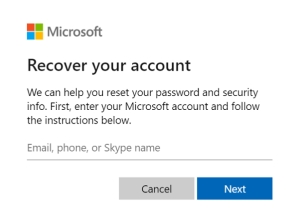
This method is safe and reliable, suitable for users who want to know how to unlock a laptop without the password but don't want to download additional software.
Method 3. Password Reset Disk
If a password reset disk was created beforehand, using it will be the simplest solution:
Plug the reset disk into your PC and choose Reset Password when you're on the sign-in screen.
Follow the wizard prompts to complete the password reset. Finally, click Next to finish, and you can use the new password to log into the device.
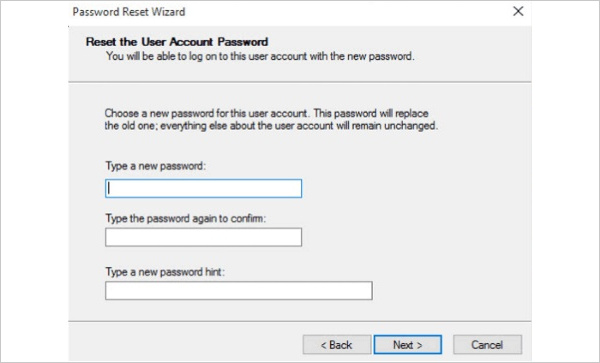
This is one of the officially recommended methods, but the downside is that it must be prepared in advance; otherwise, it cannot be used. If you are looking for ways to unlock an HP laptop when you forgot the password without a disk, this method does not apply.
Method 4. Reset This PC
If none of the above methods work, Windows offers the Reset this PC option, which can be used as a last resort:
Hold Shift + Restart to enter Recovery Mode, then choose Troubleshoot > Reset this PC.
You can choose to Keep my files or Remove everything, and the system will reconfigure account access.
Once the reset is complete, you can log back into the system even if you forgot the original password.

This method is only suitable for emergencies and can be considered the ultimate way to unlock a laptop without the password, but be sure to back up important data beforehand to prevent any loss.
Part 3. Bonus Tips: Prevent Getting Locked Out Again
To avoid encountering situations where you cannot log in to your computer again, you can take some simple and effective preventive measures in advance, which can also make your Windows experience smoother.
Set a password hint or security questions
Add a password hint or set security questions for your account. When you forget your password, you can quickly recall it or retrieve it through the hint, reducing the risk of being locked out again.
Use a Microsoft account to log in
Switch your local account to a Microsoft account login. This not only makes remote password resets more convenient but also allows you to restore access through your email or phone number quickly. If you forget your password, you won't need any extra tools to solve the how do you unlock a computer without the password issue.
Create a backup administrator account
Keep a backup administrator account in the system. When the main account cannot log in, you can restore access or manage account settings through the backup account.
Regularly back up important data
Whatever unlock method you use, backing up your data in advance is the safest approach. Even if you forget your password or need to reset the system, you won't lose important files, making the whole process safer and worry-free.
Conclusion
Through the above methods, you can all learn how to unlock an HP laptop without a password. Each method has its applicable scenarios and limitations. If you want a more worry-free, safe, and fast solution, imyPass Windows Password Reset is still the most direct and reliable choice. It not only solves the problem of forgotten passwords but also avoids the risks caused by operational errors.
Penny is a senior editor from imyPass. She has focused on discovering perfect GPS location solutions in all scenarios, and also has experience in fixing computers.
Hot Solutions
-
Fix Windows
-
Windows Tips
-
Windows Password


