



 Solution
 Support Center
 About Us
 Contact
How to Change Your iPhone Location Without Jailbreaking
 Penny Warren Published on January 14, 2026GPS Location3-min reading
One of the things that make an iPhone so powerful is the ability to know where you are in the world through the built-in location services. It enables you to see your current location on a map, receive real-time weather forecasts based on geolocation, and help apps know your information related to location, such as currency. However, this ability is a two-edged sword. Therefore, this guide intends to talk about how to change location on iPhone.

In this article:
Part 1. Why Should You Change Your Location on iPhone
Although location services make your iPhone a much more versatile device, it brings disadvantages too. Apps, for example, frequently request access to your geolocation data even when you don’t open them.
Location data is highly sensitive personal information, and even anonymized geolocation can reveal users’ movements and habits. Recently, a popular iOS GPS app had accidentally disclosed the location information of approximately 320,000 users due to a database configuration error. The NSA and other authorities warn users to manage location tracking carefully to protect their personal information.
The main reasons why you should change your location on your iPhone include:
1. Access the content that is not available in your country. Most streaming services provide exclusive content for specific countries. To watch or listen to the exclusive content, you have to fake the location on your iPhone.
2. Download apps that are not available in your region. While the App Store provides oceans of apps, some are only downloadable in specific regions. The only way to get these apps is by changing your location.
3. Prevent from being tracked. Both websites and apps always track your location and send location-based ads. Changing location prevents organizations from tracking your iPhone location.
4. Get specific items and benefits in mobile games. If you want to get the specific content in your mobile game, you can change your location.
5. Save money. Although prices are generally the same across regions, some merchants use dynamic pricing or location-based pricing, which means changing your iPhone location may occasionally help you find better deals.
Things to Note Before Spoofing the Location on iPhone:
- Some app features may be limited after changing your iPhone location, such as bank, payment, and shopping apps that are based on your location.
- Frequent location changes in a short time may trigger the risk control mechanism.
- Changing the GPS location doesn’t equal changing the Apple ID region. App Store, subscriptions, and iCloud services are still determined by your Apple ID region settings.
- Changing the iPhone location itself is not illegal, but it may violate some terms of service of certain apps or platforms if used to bypass regional restrictions or policies.
Part 2. How to Change Location on iPhone - 2 Ways
By default, Apple does not allow people to spoof locations on iPhones due to security concerns. Nevertheless, you still have methods to change your geolocation to another region without moving using reliable fake GPS apps without jailbreak.
Way 1: How to Spoof Location on iPhone When Sharing Location
Some users try to hide their location by turning off Location Services or using network-based location masking. However, disabling location entirely can break location sharing and many app features, while network-based location masking only change IP addresses and do not affect real GPS data.
If you want to spoof your iPhone location while sharing it with others, using a professional location changer is the most reliable solution. imyPass iLocaGo spoof your iPhone’s GPS location accurately, making it ideal for location-sharing scenarios.

4,000,000+ Downloads
Spoof iPhone location with fake positions easily.
Change the iPhone location to an accurate address.
Create virtual routes with several clicks.
3 modes to make iPhone location real.
Support the latest versions of iOS and iPhones.
Here are the steps to spoof location on your iPhone:
Connect your iPhone
Start the best iPhone location changer software after you install it on your computer. Hook up your iPhone to the computer with a Lightning cable.

Choose Modify Location
Once your iPhone is recognized, you will be presented with the menu window. Here you can get four modes. To spoof your iPhone location, select Modify Location to move on.

Change iPhone location
Next, type in the desired address in the box at the Modify Location dialog, and click on the Modify button. If you do not have an exact address, click a proper position on the map, and hit Modify. Now, you access apps, mobile games, and browsers without concern of being tracked. Moreover, you can change your location on Tinder to get more fun!

Way 2: How to Fake Location on iPhone with a Tunneling Service
There are a few tunneling apps available in the Apple App Store, such as Surfshark, CyberGhost, and more. Any popular tunneling app can be used as an example to show you how to fake your iPhone location.
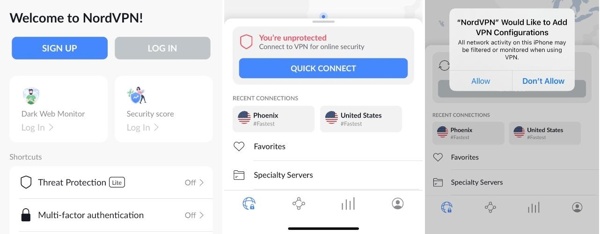
Install a reputable tunneling service on your iPhone, and open it.
Tap LOG IN, and log in to your account. If you do not have an account, tap SIGN UP instead, and subscribe to a plan. Most tunneling services are not free.
Once you are logged in, tap the QUICK CONNECT button to connect to the tunneling service. The first time you connect to a tunneling provider, it will add tunneling configurations. Tap Allow to confirm it.
Note:
If you want to connect to a specific country, scroll down to the BROWSE COUNTRIES and select it, or tap Search and search the country.
A tunneling service may change your IP address, but many apps still rely on GPS data or Apple ID region settings to identify your real location.
Part 3: How to Change iPhone Location for App Store
As mentioned previously, changing your iPhone location for the App Store lets you access apps and mobile games in another country. Apple allows you to modify App Store country without extra software. In addition to canceling active subscriptions, pre-orders, rentals, and refunds, and spend Apple ID balance, you also need to leave the Family Group and turn off Family Sharing.
In Settings
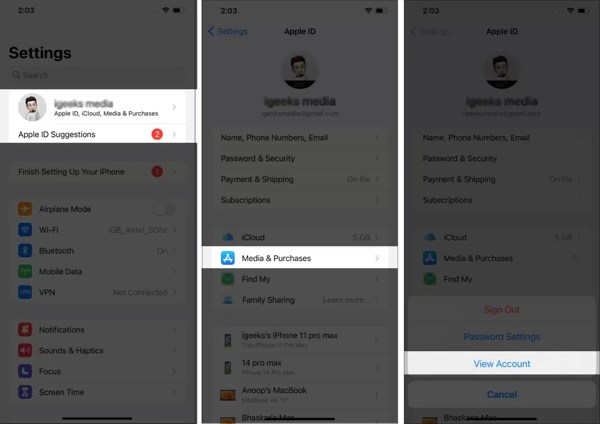
Run the Settings app, tap on your profile, and choose Media & Purchases.
Tap View Account to check the location on your iPhone. Then press Country/Region, and hit Change Country or Region.
Next, select the desired country. Then the terms and conditions screen will pop up. Read them, and tap Agree.
Then add the payment information and billing address. Tap Next to confirm the changes.
In App Store
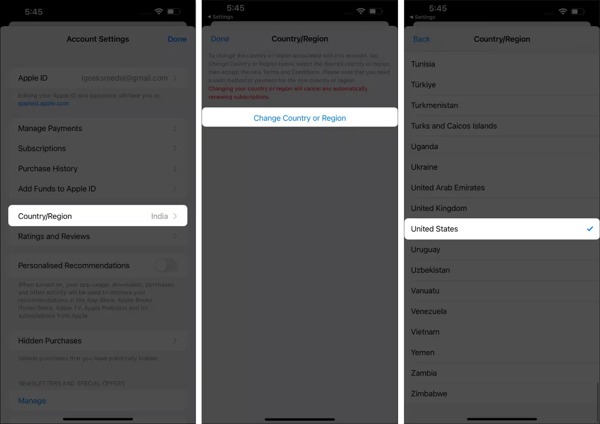
Open your App Store app, tap on your profile picture at the top right corner, and tap on your Apple ID. If prompted, sign in with your Apple ID and password.
Choose Country/Region, tap Change Country or Region, and select a proper country.
Next, tap Agree on the Terms and Conditions screen. Add your payment information and billing address. Finally, press Next to complete the process.
Note:
1. If there is any balance in your Apple ID, spend it before changing your GPS.
2. Cancel your subscriptions and wait till the end of the current subscription period.
3. Make sure that you have an available payment method for the new location.
4. If you have any pre-orders, memberships, or rentals, cancel them or wait until their end.
Part 4: How to Hide GPS Location on iPhone
Although Apple does not provide the feature to change your GPS location, you can hide your location on your iPhone. Once you turn off the location services, any services and apps cannot detect your geolocation.
Open the Settings app, go to the Privacy & Security entry, and tap Location Services.
If you want to completely hide your location on your iPhone, toggle off the Location Services option.
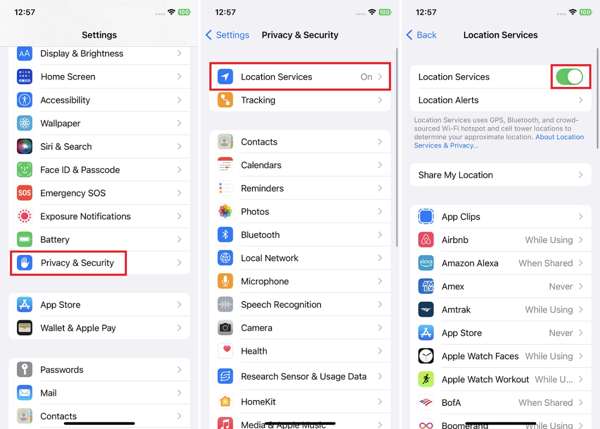
If you just want to hide the location for a specific app, choose it on the list, and choose Never under the ALLOW LOCATION ACCESS section.
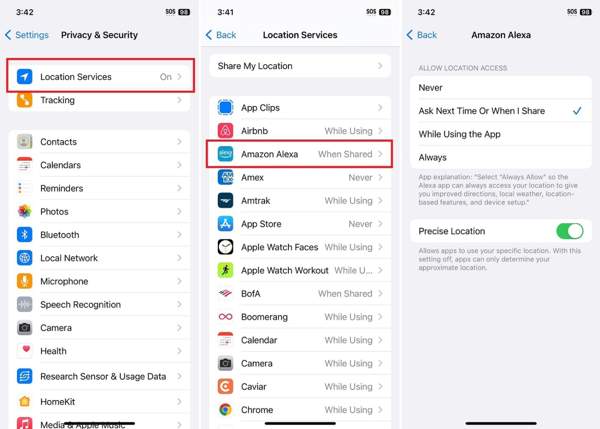
To hide location for iOS, scroll down to tap System Services at the bottom of the list, and toggle off the unwanted services.
Note:
Websites can still track your location via your IP address even if you disable location services.
Conclusion
This guide has demonstrated how to change the location on your iPhone. You are allowed to adjust your App Store’s country so that you can download the apps that are not available in your region. To hide your GPS location, you can completely disable location services. A tunneling app is a simple way to modify your iPhone location. imyPass iPhone Location Changer is an effective option to get the job done.
Penny is a senior editor from imyPass. She has focused on discovering perfect GPS location solutions in all scenarios, and also has experience in fixing computers.
Hot Solutions
-
GPS Location
- Best Pokemon Go Locations with Coordinates
- Turn Your Location Off on Life360
- How to Change Location on iPhone
- Review of iSpoofer Pokemon Go
- Set Virtual Locations on iPhone and Android
- TikTok Track Your Location
- Monster Hunter Now Joystick
- Review of IP Location Finder
- Change Mobile Legends Location
- Change Location on Tiktok
-
Unlock iOS
-
iOS Tips
-
Unlock Android


