



 Solution
 Support Center
 About Us
 Contact
Fix Find My Not Updating Location When Sending Current Location
 Penny Warren Published on April 02, 2026GPS Location3-min reading
Find My is one of the most helpful free services of Apple for its devices, like an iPhone. This service is bound to track your lost, misplaced, and stolen iPhone, including other Apple devices. It uses GPS, cellular data, Wi-Fi, and Bluetooth to keep your location identified.
However, there are instances in which Find My does not update your current location. If so, sending your real-time location to your friends and family is impossible. How to resolve the Find My iPhone location not updating issue? This article suggests the five easy methods to fix the said issue. Continue below to know their complete details.

In this article:
Part 1. Why Find My iPhone Location Might Not Update
Determining the cause of the Find My iPhone issue is better. This way, you know which method you will be using to fix it. In this section, we will list the six common reasons why Find My does not update your location. See the following list.
1. Connectivity Issues
Find My is like Google Find My Device. They use Wi-Fi, GPS, Bluetooth, and cellular data to update your location. If there is a connectivity issue on your iPhone, the location will not be updated.
2. Location Services Disabled
Location Services is a feature on an iPhone and other devices to help you determine your precise location. This feature is not automatically enabled. You need to turn it on to function. If Find My is not updating your location, the feature might be off.
3. Device is Off or Dead
By default, Find My can still send your location when the iPhone is off or dead. However, in many cases, it only sends the last location. If so, you can turn on or charge your iPhone to update its current location.
4. Power Saving Mode
The Power Saving mode restricts the background operations of your iPhone applications. It only means that Find My is included. In this case, Find My might not be able to update your location. Turning off the feature will fix the issue.
5. Outdated iOS
On the other hand, the issue with Find My that does not update your location can be caused by glitches and bugs in the iPhone system. Restarting your iPhone may help you fix the said issue quickly.
6. iCloud Account Issues
Your iCloud account is associated with Find My. If there are issues with your account, Find My will be affected. It is probably the cause of why it is not updating the location. Fixing the account issues can resolve the Find My problems.
Part 2. How to Fix Find My for Your Own iPhone
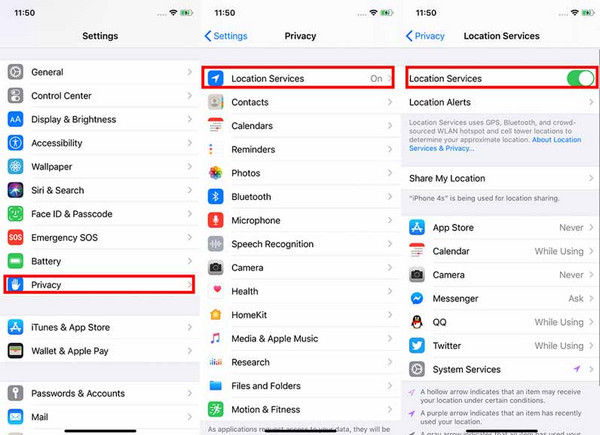
How to fix Find My location not updating? Well, turning on Find My, updating iOS, and restarting your iPhone are common ways. However, their success rate is low because they are not the common problem that causes the issue. Location Services needs to be enabled or refreshed. It is responsible for updating your current location. See how below.
Open the Settings button and select the Privacy or Privacy & Security button. Tap the Location Services slider to enable it.
Swipe down on the screen and tap Find My button. Set it to While Using the App or Always to fix the issue.
Part 3. How to Fix Find My for One Person's Location
You can turn off Find My iPhone from another device. So, fixing the Find My location issue on another device is also attainable. You might wonder: Why is Find My iPhone not updating someone's location? There might be a glitch from sharing their location with you, or they do not share their location with you at all. In this case, you can tell them to share their location with you again. There is no built-in way to fix the issue remotely. You can guide them with the following steps.
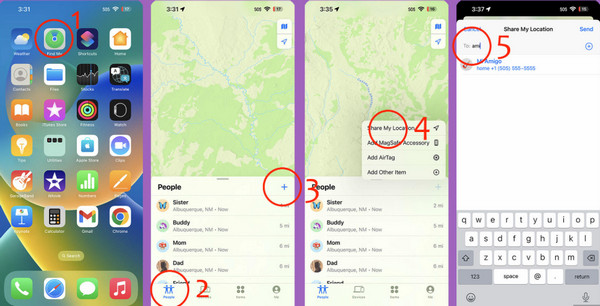
Open the Find My iPhone application. You may also visit the official website, which offers. Select the Plus button and choose the People button.
Select the Share My Location button. Turn it off and on afterward to give it a refresh. Select your name and select the Send button.
Part 4. Advanced & iCloud-Specific Fixes
If none of the previous methods work, the problem might be caused by an iCloud account problem. The two methods below are intended to fix account issues for not updating Find My location. See them from the list below.
1. Force an iCloud Refresh
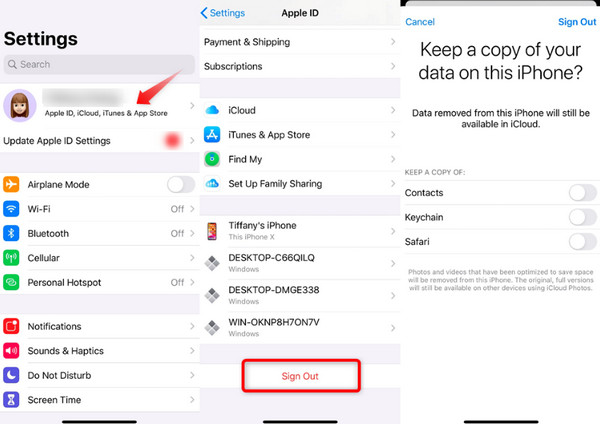
You can force an iCloud refresh to fix the account issues. Signing out of the iCloud account on your iPhone can help. Sign in to the account again to access the services, including Find My. The proper steps are posted below.
Please open the Settings app. Then, select your account name at the top of the main interface.
Swipe down on the screen. After that, select the Sign Out button at the bottom. Tap the same button at the top right to confirm the process, including the Apple ID password.
2. Check Device List
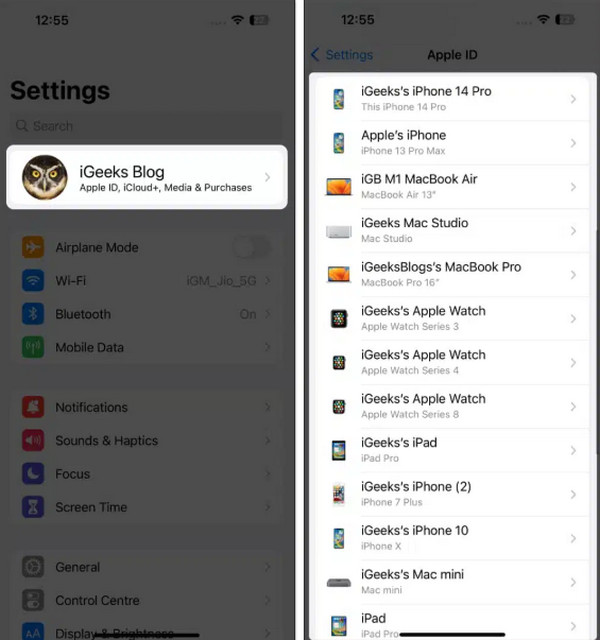
You can also check the device list from the iCloud account. This way, you will know if the iPhone is supported with Find My. Perform the steps below.
Open the Settings app. Then, select your name at the top.
Swipe down on the screen. Then, check the name of your iPhone at the bottom.
Part 5. How to Change and Correct My Location Manually
If account and system issues do not fix the issue, you can change and correct your Find My iPhone location. If so, use imyPass iLocaGo. It is a third-party tool that can help you change your location on your iPhone in multiple ways. It includes the Custom, Multi-stop Mode, One-stop Mode, and Joystick Mode.
The software does not require a strong internet connection. All of its features work with a USB connection. Besides your iPhone, this software also supports Android phones. Earlier and later versions of the supported mobile phones can be processed. Use the steps below to use the tool properly.
Get the updated version of imyPass iLocaGo. Then, install and open it on your computer to begin the procedure.
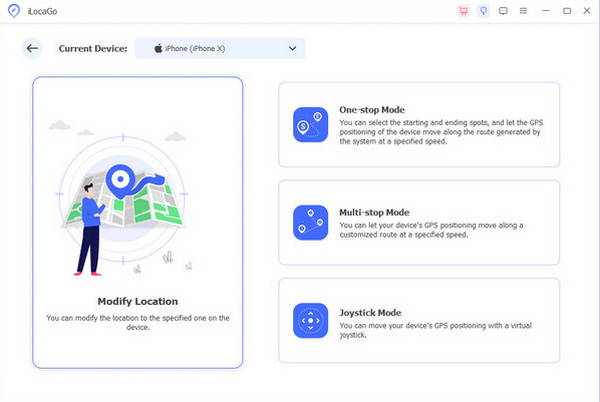
The four supported features will be prompted. Please select one of them. It could be the Modify Location, Multi-stop Mode, One-stop Mode, and Joystick Mode buttons. A new screen will appear afterward.
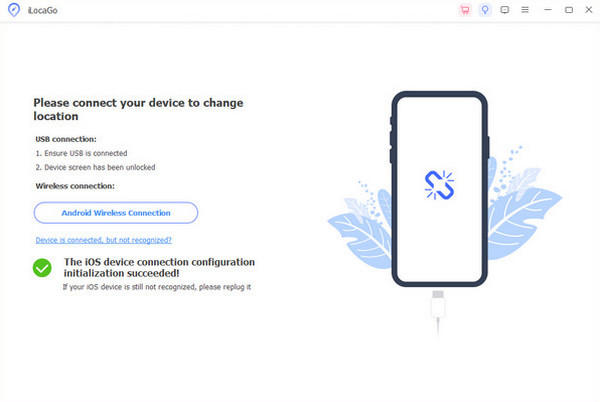
After that, you will see the connecting interface. Please utilize a USB cable to plug your iPhone into the computer. Later, the Map screen will appear. Follow the on-screen instructions, depending on the chosen location changer feature.
Conclusion
All in all, Find My not updating location is caused by a wrong setup for the feature of iPhone, system issues, or account problems. Five of the easiest methods are in this post. imyPass iLocaGo is included. It can manually change your location on your iPhone. This way, you can update your iPhone location. Download the tool to experience its powerful features.
Penny is a senior editor from imyPass. She has focused on discovering perfect GPS location solutions in all scenarios, and also has experience in fixing computers.
Hot Solutions
-
GPS Location
- Best Pokemon Go Locations with Coordinates
- Turn Your Location Off on Life360
- How to Change Location on iPhone
- Review of iSpoofer Pokemon Go
- Set Virtual Locations on iPhone and Android
- TikTok Track Your Location
- Monster Hunter Now Joystick
- Review of IP Location Finder
- Change Mobile Legends Location
- Change Location on Tiktok
-
Unlock iOS
-
iOS Tips
-
Unlock Android


