Solution
 Support Center
 About Us
 Contact
Motorola FRP Bypass: 3 Ways to Remove Google Lock Quickly
 Gideon Byron Published on November 13, 2026Unlock Android3-min reading
Motorola phones use Factory Reset Protection (FRP), a Google security feature that prevents unauthorized use after a factory reset. If FRP is triggered, you must verify ownership with a Google Account previously synced to the device. You may encounter this FRP lock after resetting a Motorola phone, buying a second-hand Motorola, or forgetting the Google Account password. In this guide, we'll show you how to bypass Motorola FRP. You can pick the method that feels easiest for you.

In this article:
Part 1: What is Motorola FRP and Why Does it Lock Your Phone
Motorola FRP (Factory Reset Protection) is a Google security feature built into Android devices. It helps prevent unauthorized access when someone resets a protected phone without the owner's permission. When you add a Google Account to your Motorola phone and set a screen lock, device protection is enabled. If someone performs a factory on your Motorola phone, it will ask for a Google Account that was previously synced to the device.
A factory reset does not remove FRP. It erases local data, apps, and settings, but the ownership verification requirement remains. To turn off FRP before selling or giving away your phone, remove the screen lock and Google Account from the device before resetting it.
When Does Motorola FRP Get Triggered?
What actually triggers FRP:
- Resetting through Recovery Mode: You use the buttons to reset your Motorola phone without removing the Google Account.
- Buying a second-hand phone: The previous owner resets the device but does not remove their Google Account before selling it.
- Forgetting your Google Account: You reset your own phone but cannot remember the Google email address or password.
- Remote factory reset: You erase a protected device remotely through Google's Find Hub.
Part 2: Recover Your Google Account to Unlock Motorola FRP
If you forgot the Google Account linked to your Motorola phone, try recovering it before using a Motorola FRP bypass tool. Google Account Recovery lets you reset your password or find your forgotten email address.
On a computer or another phone, open the Google Account Recovery page. Enter your Gmail address or phone number to verify your identity.
Choose the verification method you still control. You can choose a code to the recovery phone or the recovery email. If you have none of these, click Try another way to find other methods that is still valid for your account.
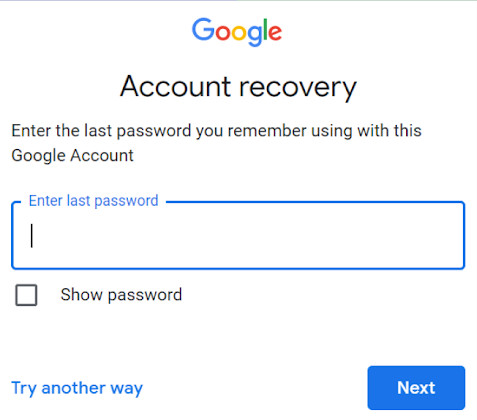
Set a new password when prompted, then wait. If you recently changed your Google password, wait 24 hours before trying again, as recommended by Motorola.
Part 3: Bypass Motorola FRP Without a Computer (Emergency Call)
What if you are stuck at the Motorola FRP screen and do not have a computer? Fortunately, there is a small trick that works on some Motorola models. The way is through the Emergency Call feature found on the lock screen. By going through this path, you can reach the phone's settings and change key options to remove the lock. It only works on older Motorola devices that run on Android 9 or Android 10. Once done, the device will be clean, and you can sign in with a new Google account.
Note:
Its compatibility depends on more than the Android version. The device model, firmware build, security patch level, and available setup options can all affect whether the method works.
Please turn on your Motorola phone and connect it to a Wi-Fi network. On the lock screen, press Emergency Call. Then, press the Pencil button, choose Name, and select Change Profile Picture.
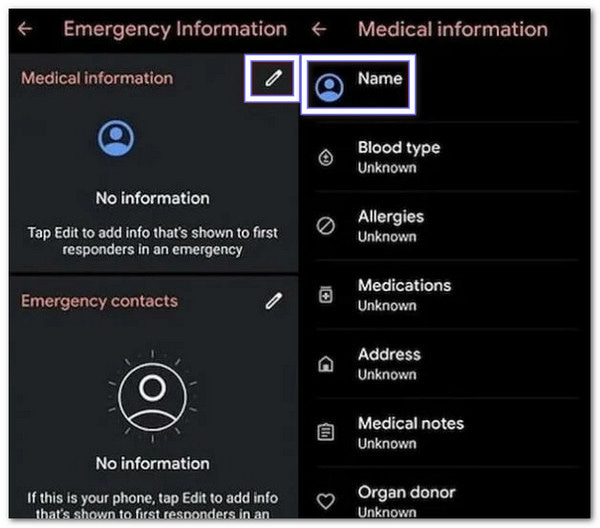
From the photo window, press Menu, then go to Photos > Permissions. Choose Contacts, then pick See All Apps with this permission. Next, use the search bar to look for Settings. Open the Settings App Info and press Open.
In the settings, go to Accessibility and turn on the Accessibility Menu. After that, return to Apps & Notifications > App Info. From here, look for the app linked to Google Services. Tap Android Setup, then select Force Stop and Clear all storage and cache. This step stops the setup process.
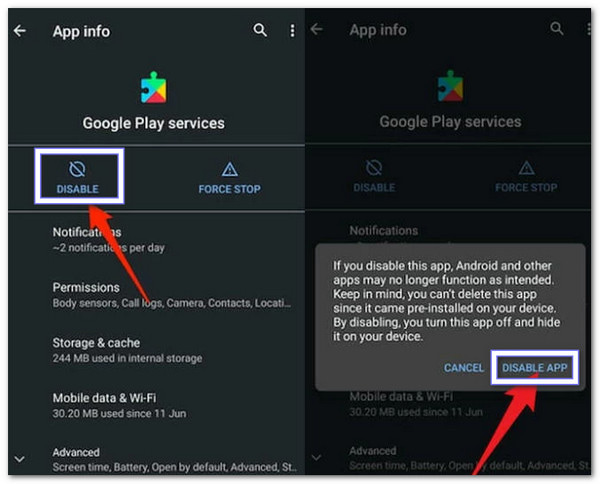
Go back to App Info and find Google Play Services. Tap Disable > Disable App. Now, restart your setup by going back to the Hello screen. Connect again to Wi-Fi, let it check for updates, then tap Skip > Continue > View more > Accept. It will let you move forward without asking for a Google account.
Once you reach the home screen, open Settings, go to System > Details > Reset > Erase All Data. It will fully wipe your phone and remove the Motorola FRP lock. After the reset, your phone will start fresh, and you can set it up with a new Google account.
Pros
- Does not require a computer or paid software.
- Provide an alternative on certain older Motorola firmware builds.
Cons
- Only applies to a limited range of device and firmware configurations.
- Security updates may close the system access paths used by this workaround.
- It is not an official Motorola FRP removal method and has no guaranteed success rate.
Part 4: The Easiest Way to Bypass FRP on Motorola (Android 5-17)
If you cannot recover the Google Account and the Emergency Call workaround is unavailable on your device, you can consider imyPass AnyPassGo. It supports phones running up to Android 17. You can safely bypass FRP lock and remove screen lock, like password, PIN, face recognition, or pattern. This desktop program provides a guided Motorola FRP bypass process. The process does not need advanced technical skills. Also, unlike other methods that can be confusing or risky, it is made for everyone, even first-time users.
Check out the steps below to learn how FRP bypass Motorola works using imyPass AnyPassGo below:
Head to the official imyPass AnyPassGo website and download and install it on your Windows computer.
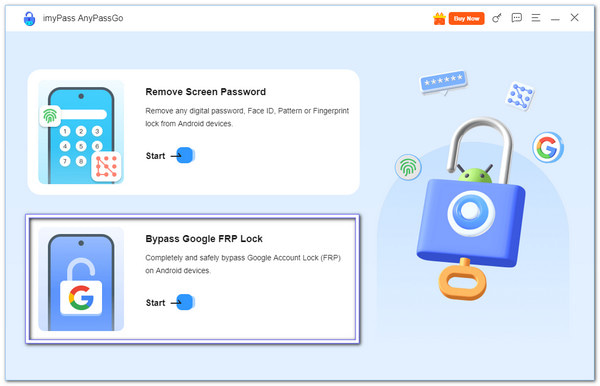
Go to the Bypass Google FRP Lock menu by clicking the Start button. This feature is built to remove the Google account lock on Motorola devices in a safe and simple way.
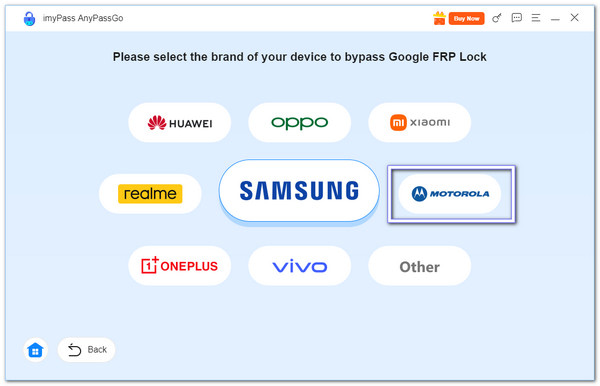
Use a reliable USB cable to connect your Motorola device, for example, the Motorola Sofia XT2041-4, to the computer. From the list of supported brands, click Motorola so the program can recognize the phone.
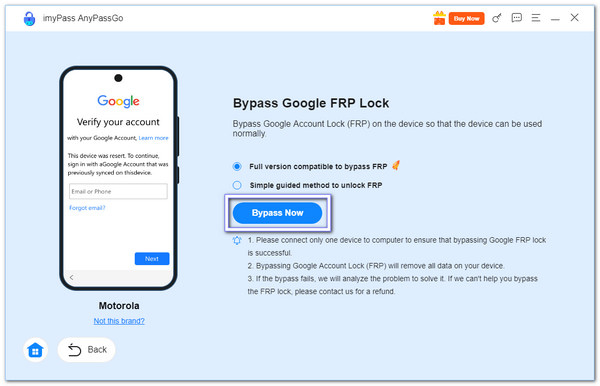
Hit the Bypass Now button to begin. Now, you can see that the program is in the process of removing the Google FRP lock. Seconds later, the FRP lock on your Motorola will be removed successfully, and the phone may restart during this stage.
Pros
- Bypass Google FRP lock and remove lock screen on Android 5-17.
- Support FRP bypass on all popular brands like Motorola, Samsung, and Huawei.
- Easy to use and beginner-friendly.
Cons
- Removing the FRP lock requires a Purchased license.
Conclusion
So, that is all you need to know about Moto FRP bypass. If you own the account, recover it and you are done in minutes; if you do not, the Emergency Call path can help on older models that were never patched. If you search for an all-in-one solution covers all situations, we recommend imyPass AnyPassGo, since it makes the whole job faster and easier.
Gideon writes about unlocking iOS, Android, and Windows devices. He previously worked as a mobile device specialist in a repair center, assisting customers with locked devices and password recovery. In his spare time, he tests new unlock tools, customizes smart devices and makes complex unlock processes simple and safe.
Hot Solutions
-
Unlock Android
-
Unlock iOS
-
Password Tips
-
iOS Tips