Solution
 Support Center
 About Us
 Contact
Turn Off Lock Screen on Android to Access It Faster
 Gideon Byron Published on July 01, 2026Unlock Android4-min reading
Android can store thousands of files and data of its users. These data can be important for school, work, personal, and other matters. So, adding a screen lock is important. In this case, there will be no unauthorized access. However, the screen lock is a bit inconvenient when they need to unlock it frequently.
How to remove screen lock on Android? There are standard and advanced methods for the process. In this article, the most recommended ones are included as your references. If you want to know all their details, please continue browsing this post.

In this article:
Part 1. The Standard Method - Disable Screen Lock Through Settings
When you perform an Android disable lock screen, there are standard methods that can be used. They do not need third-party tools or apps. The best thing about them is that novices can do them. Since Android has different models and brands, there are some different methods that are needed. See them from the list below.
1. General Steps for Most Android Devices (Pixel, OnePlus, Motorola, Xiaomi)
Pixel, Motorola, Xiaomi, OnePlus, and other Android phone brands have general steps to disable the screen lock. See the steps below.
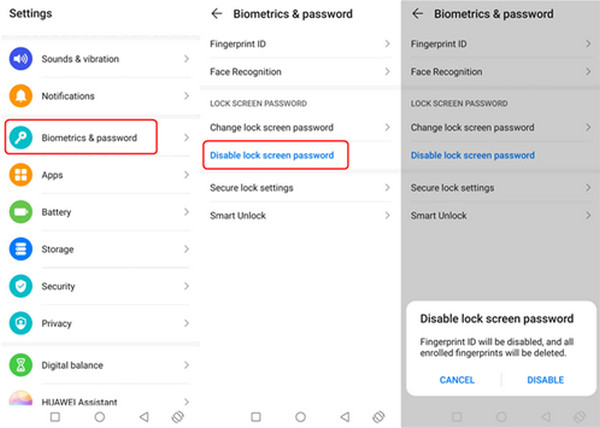
Tap Settings and choose Biometrics & Password. Later, choose the Disable Lock Screen Password button.
Choose the Disable button at the bottom. This way, the process will be confirmed.
2. How to Disable Lock Screen on Samsung Galaxy (One UI)
How to disable screen lock on Android One UI? It is the proprietary user interface of Samsung phones. But you need to know the screen lock passcode. If not, you need to bypass the Samsung lock screen. Please refer to the steps below to know how.
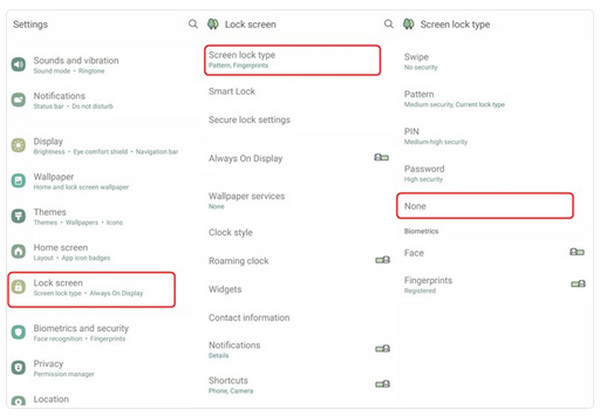
Open Settings. Tap Security & Privacy. Later, choose the Device Lock button.
Enter your current passcode. Then, select None to confirm the process.
3. How to Disable Lock Screen on Google Pixel / Stock Android
Google Pixel and Stock Android phones have different procedures. There is nothing to worry about because they have almost the same process. Please perform the steps below for the best results.
Tap Settings. Choose Security & Privacy. Tap Device Unlock and choose Screen Lock.
Choose None. Finally, confirm it to apply the changes.
Part 2. Advanced Methods for Disabling the Lock Screen
Besides the standard methods, advanced methods can also be used. However, most require intermediate to professional skills. We have got your back to help you know them more. Scroll below to know their full details.
1. Using Smart Lock (Not a Full Disable, but Convenient)
Smart Lock keeps the lock screen active but bypasses your phone automatically in safe situations. You may go to the trusted places, devices, etc. But you cannot permanently unlock it.
2. Forgetting Your Password? What to Do When You're Locked Out
If you cannot get into your device settings because you've forgotten your PIN, pattern, or password, you'll need recovery methods. See them from the list below.
1. Google's Find My Device
Google Find My Device or Find Hub can remotely lock or erase your phone from any web browser. The steps below will guide you on how.
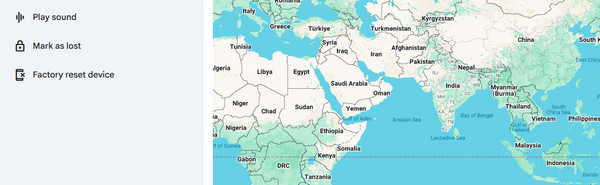
Search the Google Find Hub website. Sign in with your Google account.
Click Devices. Select your device from the list. Finally, choose the Factory Reset Device button.
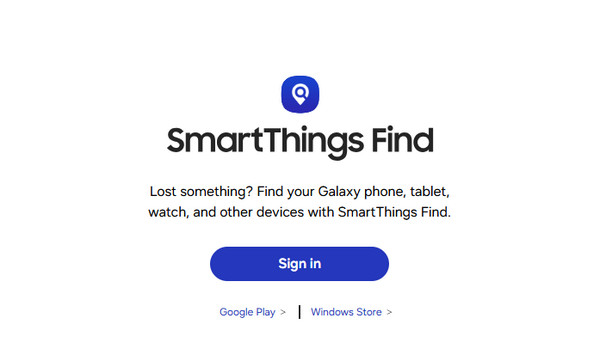
2. Samsung's SmartThings Find
Samsung SmartThings Find can remotely unlock your Samsung device. It is almost the same as the previous method. But it is exclusive to Samsung devices.
Visit the website of Samsung SmartThings Find. Sign in with your Samsung account. Select your device on the left.
Please select the Erase Data button. Confirm the process by selecting Erase.
3. Factory Reset
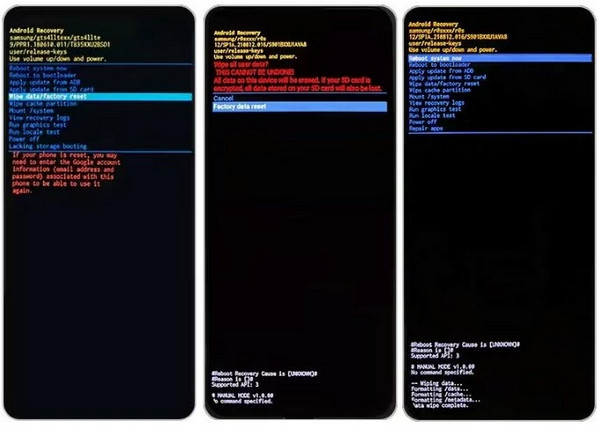
A factory reset erases all data but removes the lock. This method requires professional skills. See the steps below as your guide.
Turn off the Android phone. Press Power and Volume Down. Wait for the recovery mode screen to appear.
Choose Wipe Data/Factory Reset. Select Factory Data Reset. Select the Reboot System Now option.
4. Third-Party Unlocking Tools
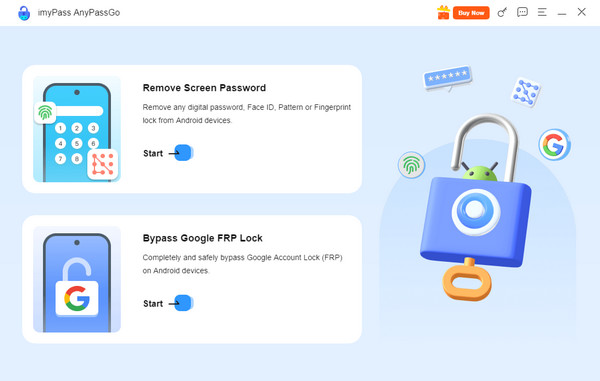
imyPass AnyPassGo is the best tool to delete the lock screen on Android. It supports different Android phone brands, including Google phones, LG, Asus, Alcatel, Lenovo, Vivo, Oppo, Huawei, and more. The tool can also be used to bypass Google FRP lock from the mentioned brands. The software can also function offline! See how to use the tool with the detailed steps below.
Visit the website of imyPass AnyPassGo. Then, set up, install, and open the tool.
Select Remove Screen Password. Plug your Android phone into the computer using a USB cable.
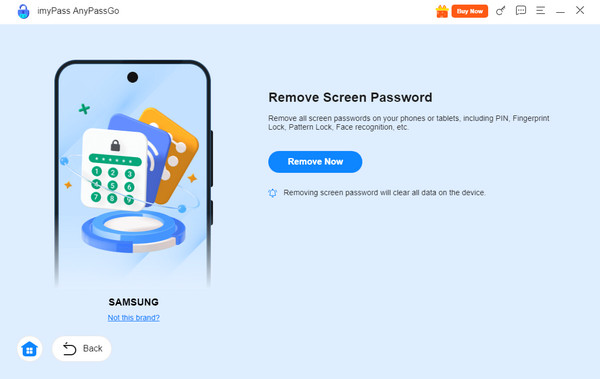
Select the brand of your Android phone. Later, click the Remove Now button.
Part 3. Turning Off Lock Screen Notifications & Quick Settings
Besides the Android lock screen passcode, you can also turn off the notifications and quick settings. In this section, you will see the two methods that can be used. Scroll below to discover them.
1. Hide Notification Content on Lock Screen
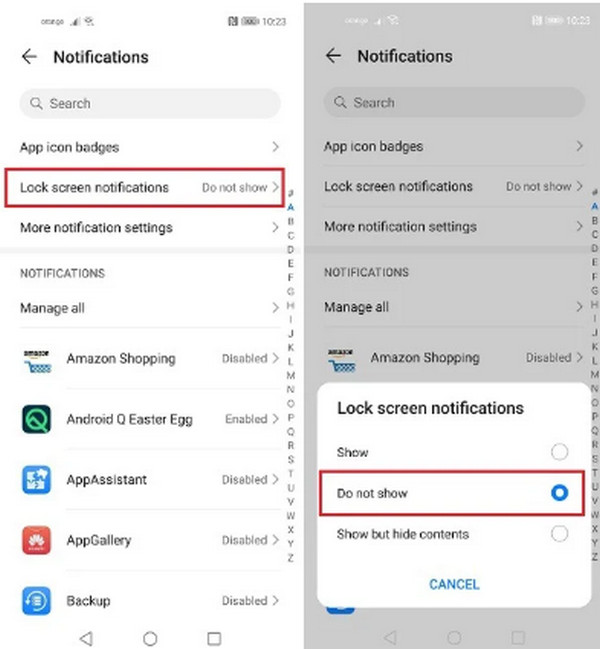
Sometimes, the Android notifications can be seen from the lock screen. This feature is not recommended because someone might see confidential notifications. If you want to turn it off, please use the steps below.
Open Settings. Then, go to the Notifications section.
Tap the Lock Screen Notifications button. Later, tap the Do Not Show button on the list.
2. Disable Quick Settings Access from Lock Screen (Google Pixel)
Some features can be accessed on Android phones. You can access Camera, Wallet, and other features. If you like to remove them, you can disable these concrete features. See how below.
Open Settings. Then, tap the Display & Touch button.
Choose the Lock Screen button. Later, turn off the Device Controls, Wallet, Camera, and other features that are available.
Part 4. Third-Party Apps - A Workaround for Full Control
The Settings method is always preferable because it is free and does not require downloading third-party tools or apps. But some users prefer lock screen manager applications for more granular control. Some of the applications that can be used are Widgetsmith, Color Widgets, Top Widgets, and Lock Screen 16.
Conclusion
All in all, you can turn off the lock screen on Android using the standard and advanced methods. Most are built-in and third-party tools. imyPass AnyPassGo is the best software that can unlock different Android phone brands when the password is unknown. If you are interested in knowing more about the tool, download it on your computer!
Gideon writes about unlocking iOS, Android, and Windows devices. He previously worked as a mobile device specialist in a repair center, assisting customers with locked devices and password recovery. In his spare time, he tests new unlock tools, customizes smart devices and makes complex unlock processes simple and safe.
Hot Solutions
-
Unlock Android
-
Unlock iOS
-
Password Tips
-
iOS Tips