Solution
 Support Center
 About Us
 Contact
How to Unlock Your OnePlus Phone or Tablet Without Password
 Gideon Byron Published on July 29, 2026Unlock Android4-min reading
OnePlus phones are renowned for their powerful performance and well-designed features. However, some users find themselves limited by screen locks, preventing them from enjoying full access to their devices. If you are wondering how to unlock your phone and regain access to your data, you have come to the right place. This guide shares four proven ways to unlock your OnePlus phone when you forgot your lock screen password.

In this article:
Part 1: How to Unlock a OnePlus Phone Without a Password
It is well known that OnePlus phones run Android OS. Without the lock screen password, you are locked out of your device. Fortunately, imyPass AnyPassGo enables you to unlock OnePlus 13/12 and other models directly. Plus, the user-friendly design simplifies the workflow.

4,000,000+ Downloads
Unlock OnePlus phones without the password.
Easy to use and complete the process in 3 steps.
Work for PIN, pattern, fingerprints, and face IDs.
Bypass FRP on OnePlus devices without the Google password.
Support almost all OnePlus phones.
How to Unlock Your OnePlus Phone Without the Password
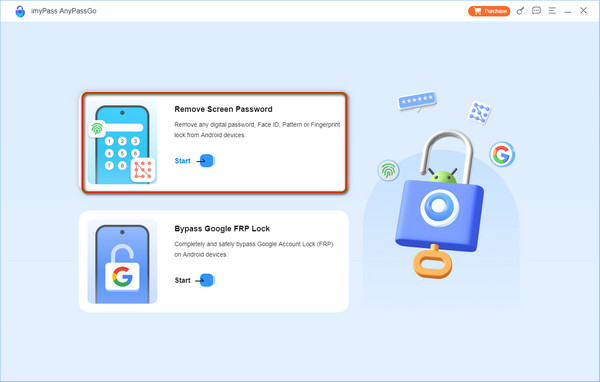
Install the OnePlus phone unlocker
Launch the OnePlus phone unlocking software as long as you install it on your computer. It is compatible with Windows 11/10/8/7. Choose the Remove Screen Password mode to proceed.
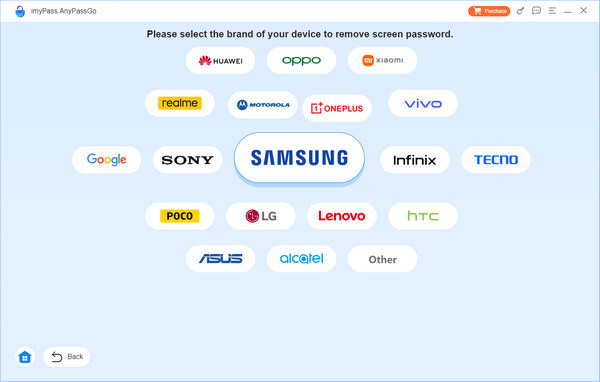
Connect to your phone
Choose OnePlus on the screen. Connect your OnePlus phone to your computer with a USB cable. If prompted, tap Trust on your screen to trust this computer. Then, the software will detect your phone immediately.
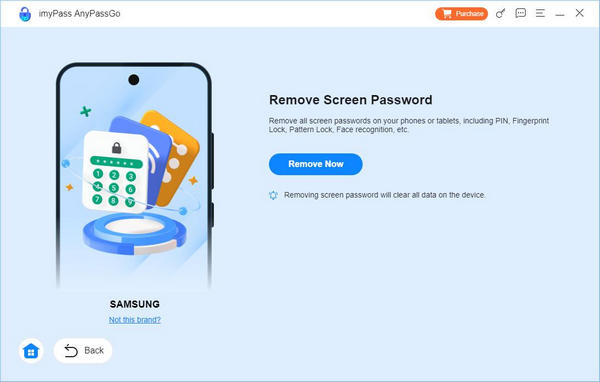
Unlock the OnePlus phone
Next, click on the Remove Now button to begin removing all types of screen locks on your OnePlus phone. It takes a while, and you need to keep your phone connected. When it is done, disconnect your phone and restart it.
Part 2: How to Unlock a OnePlus Phone in Recovery Mode
The Recovery Mode lets you access the system and perform a factory reset without entering Android. In other words, you can unlock a OnePlus phone in Recovery Mode when you forgot the password.
Hold down the Power button until the power-off screen appears.
Tap the Power off button to shut down your phone.
Next, long-press the Volume Down + Power buttons together.
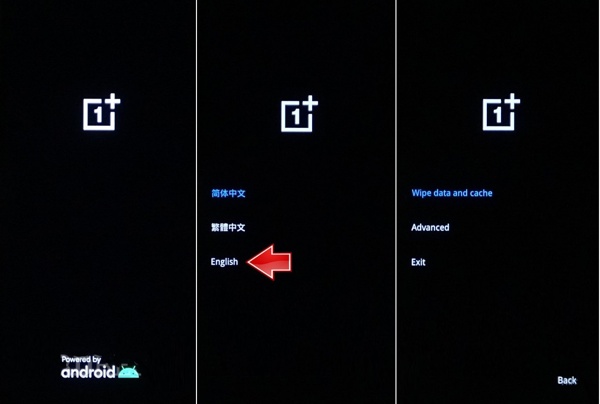
When you see the OnePlus logo, release the buttons.
Select your language and enter the Recovery Mode.
Then, select Wipe data and cache with the Volume buttons and press the Power button to confirm unlocking OnePlus from the bootloader screen.
When it is done, select Exit with the Volume buttons and press the Power button.
Note:
This way will erase all data on your OnePlus phone.
Part 3: How to Unlock a OnePlus Phone via Google Find Hub
If you have turned on Find My Device on your phone, you can unlock your OnePlus phone on Google's Find My Device online. In fact, Find My Device doesn't offer an unlock option. Alternatively, you can factory reset your phone remotely.
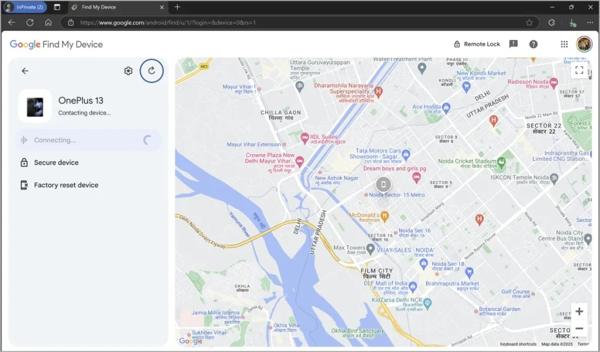
Go to https://www.google.com/android/find/about in a web browser.
Log in with the Google account credentials associated with your OnePlus phone.
Choose your phone if you add multiple devices to the account.
Click the Factory reset device button after your phone is detected.
When prompted, read the warnings and click Next.
Next, enter your Google account password again and click Next.
Finally, click on the Reset button and hit Erase to confirm it.
Once your phone restarts, you can use it again.
Part 4: How to Unlock a OnePlus Phone Using Another Phone
In addition to Google's Find My Device, you can unlock your OnePlus phone with Google Find Hub on another Android device. The precondition is that you have turned on Find My Device on your phone.
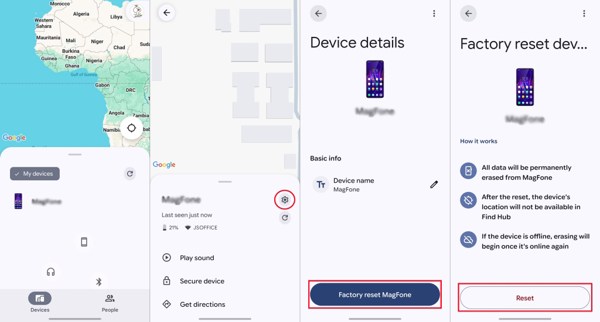
Install and open the Google Find Hub app on another Android device.
Log in with your Google account and password.
Go to the Devices tab and choose your OnePlus phone.
Tap the Settings button with a gear icon.
Choose the Factory reset option.
If prompted, enter your Google account password again.
Read the alert message and tap the Reset button.
When the process finishes, your OnePlus phone will restart.
Touch your phone screen to unlock it directly.
You May Also Like:
Conclusion
This guide shared four ways to unlock OnePlus phones without the password. The Recovery Mode allows you to regain access to your phone with the physical buttons. Google's Find My Device and the Find Hub app are available if you have set up Find My Device on your phone before you are locked out. imyPass AnyPassGo is the ultimate way to unlock any OnePlus phone.
Gideon writes about unlocking iOS, Android, and Windows devices. He previously worked as a mobile device specialist in a repair center, assisting customers with locked devices and password recovery. In his spare time, he tests new unlock tools, customizes smart devices and makes complex unlock processes simple and safe.
Hot Solutions
-
Unlock Android
-
Unlock iOS
-
Password Tips
-
iOS Tips