



 Solution
 Support Center
 About Us
 Contact
How to Freeze Location on iPhone for Privacy Control
 Penny Warren Published on December 19, 2025GPS Location3-min reading
The iPhone allows you to share your location through your GPS. It enables you to share your past or real-time location using Location Service. Some apps can share your current location, like Find My iPhone.
However, sharing the location on an iPhone can be a privacy issue for some users. This is the primary reason why they want to freeze their location on an iPhone. How do you freeze your location on iPhone? This article will guide you on how to do that quickly with the four easy methods. Kindly scroll below to see their full descriptions.

In this article:
Part 1. Why Freeze Your Location on iPhone?
The iPhone location is helpful, but it is risky in some aspects. It happens when someone sees it, or hackers secretly track your locations. It is the main reason why iPhone users want to freeze their locations. There are more reasons for this procedure, and you will know them as you scroll below.
1. Avoid Constant Real-time Location Sharing
Some iPhone applications share your real-time location instantly. It includes Find My iPhone, Life360, and more. In this case, your friends and family from these applications can track your location on your iPhone whenever there are changes to it. Freezing your location on your iPhone will help you hide your current location from your friends, family, or a specific contact.
2. Test Apps or Troubleshooting Operations
Professionals are fond of testing applications on the iPhone to try out their functions. This way, they can familiarize themselves with the features and operations on the iPhone. Also, some troubleshooting operations on your iPhone require location data that might leak it from some apps. Freezing the location will help you hide and secure your location on your iPhone.
3. Save iPhone Battery
Your iPhone uses the GPS to share your location. It mostly happens when the internet connection is enabled. In this case, the iPhone will use excess battery that will surely drain it while you are continuously sharing your iPhone location. Freezing the location will conserve the iPhone battery.
4. Avoid Being Tracked with Apps
There are applications on your iPhone that require your location and will not function without it. It is risky because some applications are not secure enough and can be tracked by hackers. Freezing the location will help you secure your location on your iPhone.
Part 2. 4 Ways to Freeze Your Location
Now, it is time to freeze your iPhone location! In this section, you will discover the four easy ways to freeze your location on iPhone quickly. Kindly scroll below to know them and choose the best option for you.
1. How to Turn Off Find My
Find My is a free app or service that allows you to manage your location on an iPhone. How to freeze the location on Find My iPhone? You can freeze the location on Find My Friends or other features of this service by stopping the sharing of your location. It does not exactly freeze your location on iPhone, but it will turn it off.
However, this procedure is a bit demanding. It is due to the individual procedure you need to make for turning off the location for each of your friends or family members. Also, ensure that you have your Apple ID associated with the iPhone to do this for authentication. This way, you will have a quick and smooth process. How to freeze your location on Find My iPhone? The steps below will be your guide.
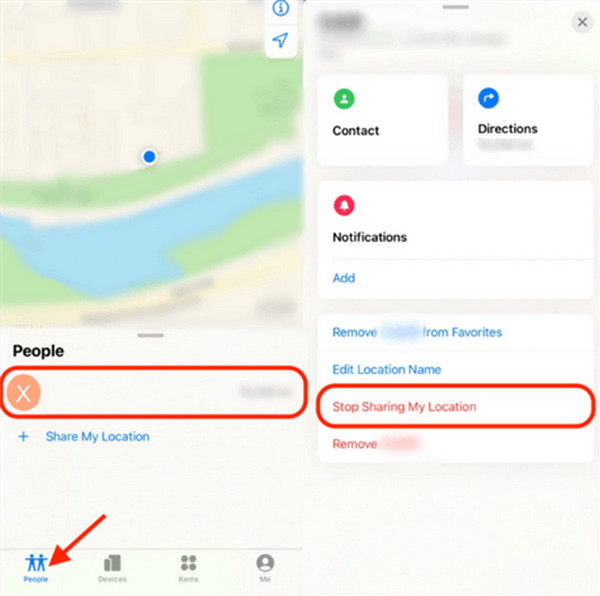
Open the Find My app on your iPhone. Please sign in to the Apple ID account associated with your iPhone. After that, tap the People button at the bottom left corner of the screen. Your friends and family will appear on the screen.
Tap the name of the person you want to turn your location off. Swipe the screen and locate the Stop Sharing My Location button. Tap it once you see it. Then, the person will no longer see your real-time location.
2. How to Freeze Your Location on iPhone by Location Settings
The iPhone has a location setting that allows you to enable and turn off your location. The Location Service is responsible for this procedure. It is a straightforward process that can be used when the iPhone is unlocked. In fact, it is the primary technique when the iPhone has No Location Found or No Location Available error message.
However, turning off the Location Service feature on your iPhone will turn off the location settings for all of your apps. Other applications might not function properly when this happens. Please follow the instructions given below to turn off Location Service on your iPhone to freeze your location.
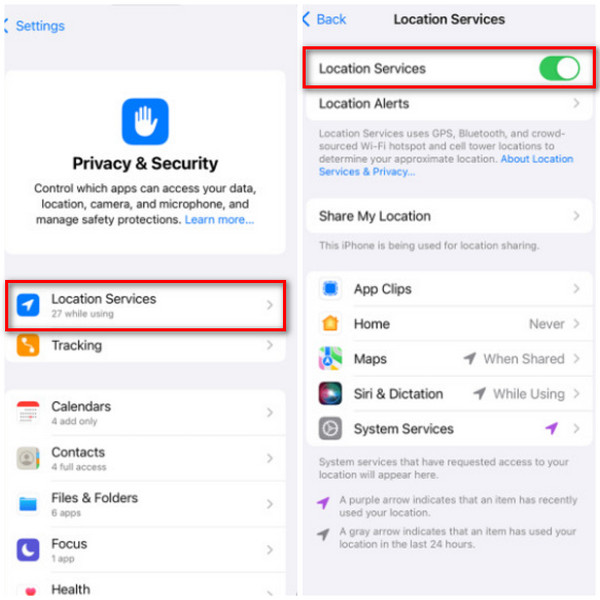
Unlock your iPhone, and you will be prompted to the Home Screen section. After that, tap the Settings app from the screen to open it. Then, select the Privacy & Security button from the list to see more options on the screen.
Please tap the Location Services button in the first column. Then, swipe down on the screen and toggle off the Location Service slider at the top to turn it off. Ensure that the slider is greyed out to ensure that it is turned off.
3. How to Freeze Find My iPhone without Anyone Knowing
You might wonder: Can you freeze your location on Find My iPhone without the app? Find My iPhone is a service that allows you to share your location with your contacts. Besides the built-in way to turn off the location from your iPhone, you can use imyPass iLocaGo to change it! This tool is 100% safe without risking the security features on your iPhone.
The tool has a simple interface, which helps users have a smooth process for changing their iPhone location. The steps below will show you how to use this tool.
Get the tool on your computer by downloading it from the main website it offers. Then, you are required to set up the file. Please set it up correctly and install it from the small window. Later, the software will be launched automatically on your computer.
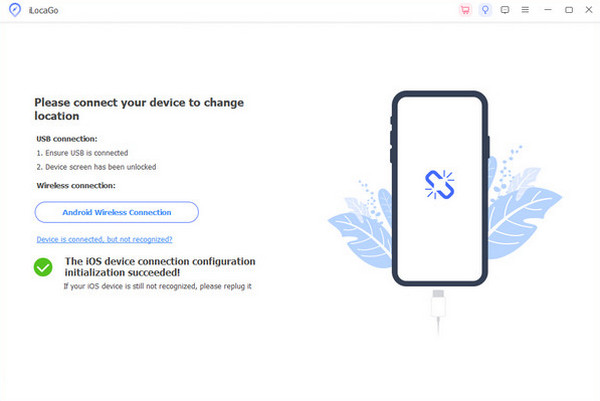
The first interface will show the instructions on how to plug your iPhone into the computer. Ensure that you follow it correctly for a successful process. You will see your iPhone name at the top afterward.
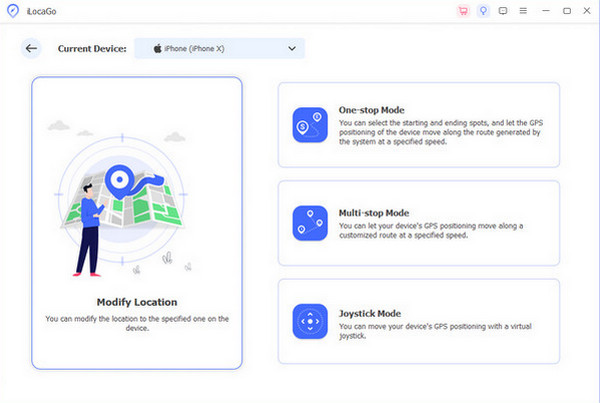
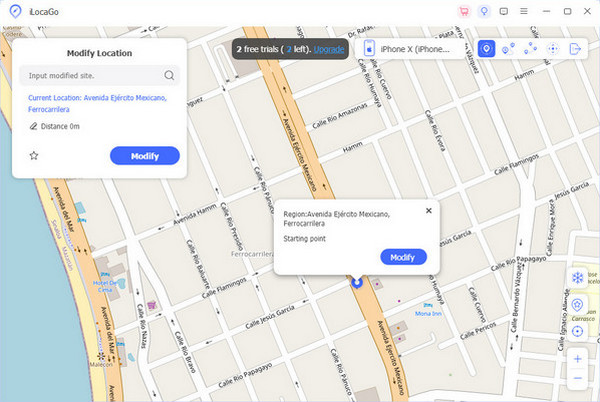
The four main features will appear on the screen. Please choose the Modify Location button on the left. The map screen will be prompted, and the current location where your iPhone is pinned.
Go to the Modify Location section at the top. Then, type your preferred location and click the Modify button to change it.
4. How to Freeze Find My iPhone with Airplane Mode
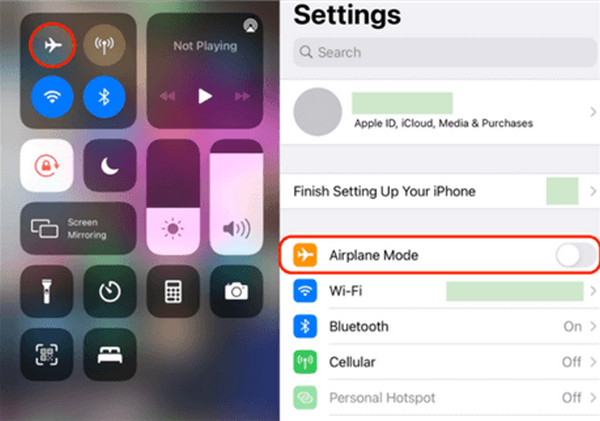
Airplane Mode is a feature that hinders the location on your iPhone when turned on. It refreshes the location when used. This feature will 100% freeze your location on iPhone. However, the cellular network will be affected. You will not receive text when this feature is turned on. To turn this feature on, swipe down on the Control Center section at the top of the screen. Tap the Airplane Mode option to turn it on.
Part 3. Why iLocaGo Is the Best Solution to Freeze iPhone Location
For all the methods for freezing the iPhone location, imyPass iLocaGo is the best solution. Do you want to know why? This tool has four location-changing modes that you can use.
• Modify Location - It helps you modify the location from a specified device, including an iPhone and an Android phone.
• Joystick Mode - It allows you to move your GPS positioning from the iPhone using a virtual joystick.
• One-stop Mode - This feature allows you to select the starting and ending points on your iPhone. It allows the GPS to position on the iPhone to move along a route generated by its system at a specified speed.
• Multi-stop Mode - This tool allows you to customize the route with multiple stops on your iPhone by positioning the iPhone GPS.
Also, this third-party tool supports Android 16 and iOS 26. It supports different applications on your iPhone and Android phone. It includes Tinder, Hinge, Facebook, WhatsApp, Snapchat, Life360, and more. It also supports history and favorite features for easy operations.
Conclusion
How do you freeze your location on iPhone after reading this post? We hope you chose the right and most convenient method for you! We assume that you use imyPass iLocaGo due to the helpful and easy procedure for hiding your location on your iPhone in a few clicks. Download the tool on your computer and explore it more.
Penny is a senior editor from imyPass. She has focused on discovering perfect GPS location solutions in all scenarios, and also has experience in fixing computers.
Hot Solutions
-
GPS Location
- Best Pokemon Go Locations with Coordinates
- Turn Your Location Off on Life360
- How to Change Location on iPhone
- Review of iSpoofer Pokemon Go
- Set Virtual Locations on iPhone and Android
- TikTok Track Your Location
- Monster Hunter Now Joystick
- Review of IP Location Finder
- Change Mobile Legends Location
- Change Location on Tiktok
-
Unlock iOS
-
iOS Tips
-
Unlock Android


