



 Solution
 Support Center
 About Us
 Contact
What Is MagFone Location Changer and How to Use It
 Penny Warren Published on June 23, 2026GPS Location4-min reading
Due to privacy concerns, location spoofer software has become crucial for internet users. However, according to our research, only a part of location-changing programs and apps can hide or fake your iPhone or Android phone location. MagFone Location Changer, for example, is able to modify your location on both iPhone and Android devices. Before you download this program, read our honest review to make the best decision.

In this article:
Part 1. What Is MagFone Location Changer
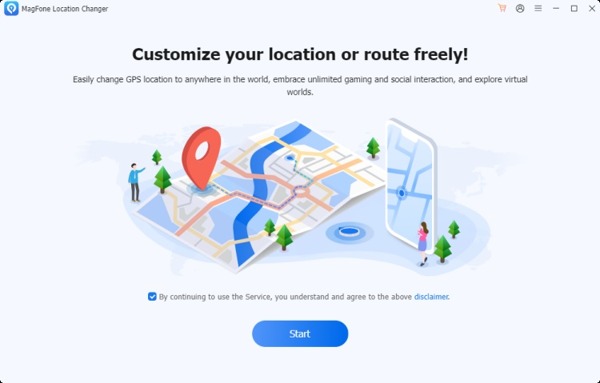
As mentioned previously, MagFone Location Changer is a stand-out location changer program for mobile devices. The program is designed for mobile games, streaming apps, social media, and more.
Key Features of MagFone Location Changer
- 1.Modify location on iPhone and Android in one click.
- 2.Simulate GPS movement in multiple modes.
- 3.Get GPS movement in various scenarios.
- 4.Make customized routes and speed.
- 5.Work with most location-based apps.
- 6.Support iOS 12 to 18 and Android 6.0 or above.
MagFone Location Changer Review
Pros
- It won’t ask you to jailbreak or root your mobile device.
- MagFone Location Changer can set a virtual location easily.
- It helps you to access geo-restricted content and services.
- There are custom options, like adjustable speed.
- It is able to enhance privacy and hide location information.
Cons
- It is only available in English.
- It can be detected by apps, such as Pokémon Go.
Is MagFone Free?
While you can download MagFone from the official website for free, you must purchase a license. The monthly license costs $9.95, the quarterly license costs $19.95, and the yearly license costs $39.95. There is a lifetime license, which costs $89.95.
Is MagFone Safe?
Yes, MagFone is safe and legit. It is a location changer program developed by MagFone, which is a legitimate software company. Plus, the program won’t install a virus or malware if you download it from the official website.
Part 2. How to Use MagFone Location Changer
Download MagFone Location Changer and install it on your computer.
Connect your iPhone or Android phone to your computer with a USB cable.
After the software detects your device, click the Next button to proceed.
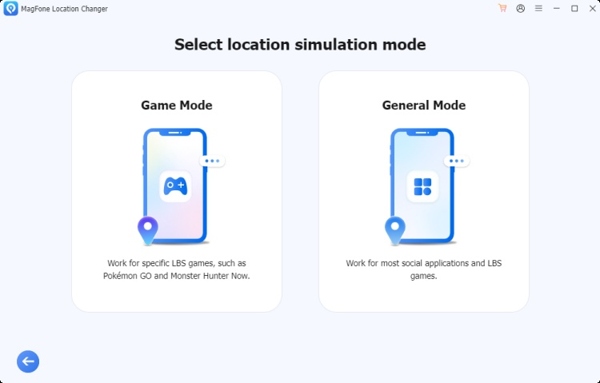
Choose a location simulation mode, like Game Mode or General Mode, according to your needs.
Next, follow the onscreen instructions to turn on Developer Mode on iPhone or Android.
Make sure to set the Mock Location app if you are running Android.
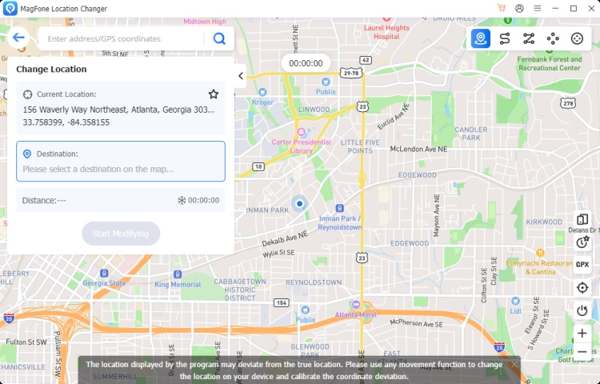
Then, you will be presented with the map window.
By default, it is the Change Location mode. You can set the destination and modify the static location.
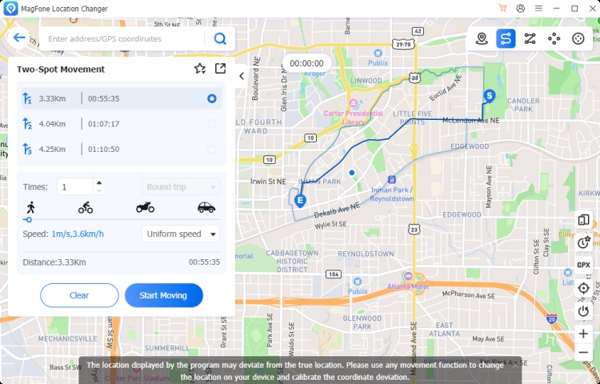
If you wish to simulate movements, switch the proper mode at the top right corner.
Finally, click the Start Modifying or Start Moving.
When you want to stop faking location, disconnect your mobile device.
Part 3. A Great Alternative to MagFone Location Changer
If you don’t like MagFone Location Changer or the program is unavailable on your device, imyPass iLocaGo is a great alternative solution. It is able to change location on your iPhone or Android phone without technical skills. Plus, it uses advanced technology to prevent being detected by apps or games.

4,000,000+ Downloads
Change mobile device location in one click.
Make virtual locations and routes to protect your real location.
Offer multiple modes for different purposes.
Provide custom options to change the route speed.
Support almost all iPhones and Android devices.
How to Use MagFone Location Changer Alternative
Connect to your device
Launch the MagFone Location Changer Alternative after you install it on your PC. There is another version for Mac. Connect your iPhone or Android phone to your PC with a compatible cable. If prompted, tap Trust on your screen to trust this PC. The software will recognize your device immediately.

Choose a mode
Once the mode window pops up, you will get four modes:
The Modify Location mode is used to fake your device location with a static position.
The One-stop Mode is used to simulate a movement with a start and end stop.
The Multi-stop Mode is used to make a virtual route with multiple stops.
The Joystick Mode is used to simulate movements with your keyboard or mouse.
Here, we choose Modify Location.

Change your location
Next, input an accurate address into the field or click a position on the map. Finally, click the Modify button to confirm it.

Related Readings:
Conclusion
This article shared an honest review of MagFone Location Changer, one of the best location spoofer programs for iPhone and Android devices. You can make a better decision according to your situation and our review. More importantly, we recommended an alternative, imyPass iLocaGo. It is easier to use and delivers a high success rate.
Penny focuses on GPS troubleshooting and Windows optimization. She formerly worked as a technical support engineer, helping clients solve location-based and system issues efficiently. Backed by IT support experience, she provides practical solutions that really work. In her free time, she likes hiking and geocaching, testing GPS tech in the real world.
Hot Solutions
-
GPS Location
-
Unlock iOS
-
iOS Tips
-
Unlock Android


