



 Solution
 Support Center
 About Us
 Contact
Recover Deleted Facebook Photos Using 3 Easy Methods
 Clara Prescott Published on November 21, 2025Recover Data3-min reading
"I deleted my photos on Facebook that were only saved there, is there a way to recover them?" According to Facebook, when you choose to delete photos you shared on Facebook, they are removed from the site. Some of them are permanently deleted from Facebook servers and backup systems. Others live on backup systems although it is no longer visible. This guide explains how to recover Facebook deleted photos and get back your precious images.

In this article:
Method 1. Recover Facebook Deleted Pictures from Archives
Sometimes, when you can't find a Facebook photo anywhere, it may not be lost, but archived on Facebook. In this case, you just need to download your information from Facebook and get your Facebook data. Facebook will send it through email. See the steps below:
Open your Facebook app, and sign in to your account. You must not forget your Facebook password.
Go to the Menu screen from the bottom, choose Settings & Privacy, and pick Settings.
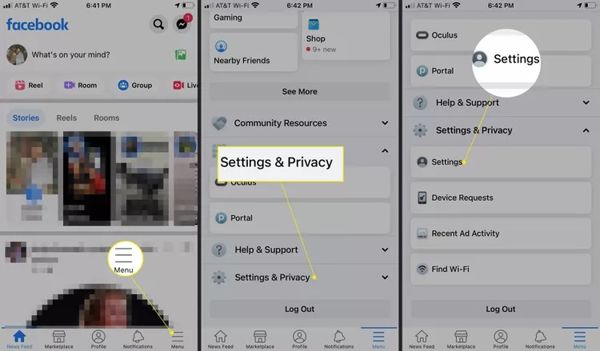
Scroll down to the Your Information section, and tap the Download Your Information button.
Next, select the desired data types and deselect the unwanted data. For instance, if you want to recover deleted Facebook photos from your messages, select the Messages option.
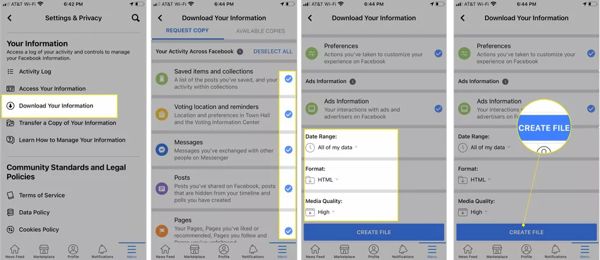
Then set the Date Range, Format, and Media Quality according to your needs. By default, All of my data, HTML, and High are selected.
Tap the Create File button at the bottom.
A few days later, you will get a notification when your download is ready. Then follow the instructions to download the data and recover all deleted Facebook photos.
Method 2. Recover Facebook Deleted Pictures from Memory Posts
The Facebook app doesn't offer a backup option, that is because it stores your information in the database. Even if you have uninstalled Facebook on your device, you can still recover some old photos from Facebook Memories.
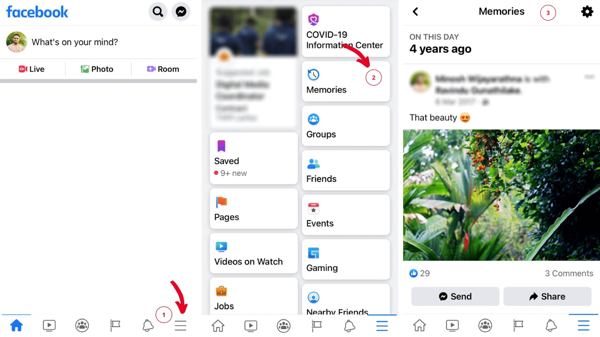
Select Memories after signing in to the Facebook website. If you cannot find it, go to Menu, and choose Memories.
You will see all your posts in the past on the Memories page.
Next, download the deleted Facebook photos from the posts.
Method 3. Recover Deleted Facebook Photos with a Recovery Tool
If you cannot find the deleted Facebook photos from the download data or Memories, you will need a photo recovery tool. imyPass iPhone Data Recovery is one of the powerful data recovery software for iOS users. It enables you to get back lost pictures without backup.
4,000,000+ Downloads
Recover deleted/lost/archived Facebook photos on iPhone.
Support any Facebook/Messenger versions, iPhone models, and iOS versions.
Also supports recovering Facebook/Messenger messages.
Compatible with Windows and Mac computers.
How to Recover Deleted Facebook Photos on iPhone Without Backup
Connect to your iPhone
Start the best iPhone data recovery software after you install it on your PC. There is another version for Mac. Go to the Recover from iOS Device tab from the left side. Connect your iPhone to your PC with a Lightning cable. For the first time connect to your PC, tap the Trust button on your iPhone screen. Next, click the Start Scan button to begin looking for deleted data on your device.
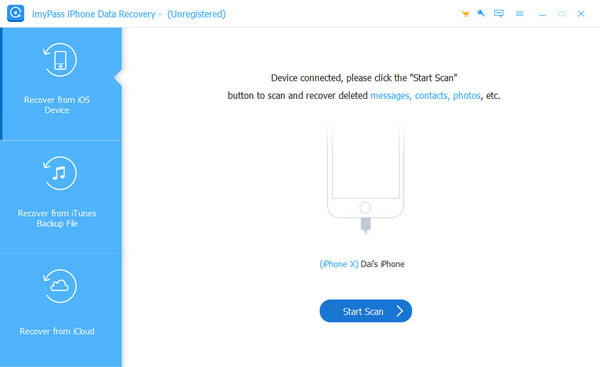
If you have an iTunes or iCloud backup, which may contain the deleted Facebook photos, choose Recover from iTunes Backup File or Recover from iCloud Backup File instead. Then follow the instructions to extract your FB pictures.
Preview deleted photos
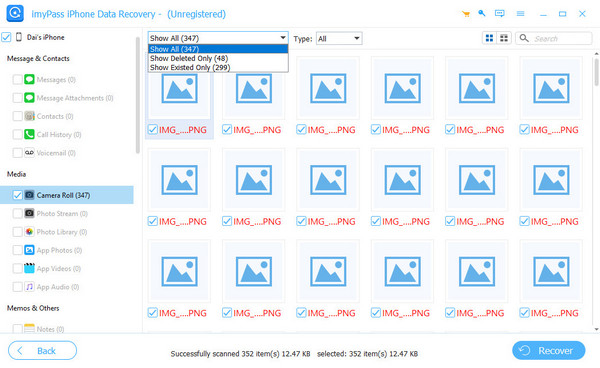
When it is done, choose a proper data type from the left side. Here we choose App Photos under the Media heading. Next, pull down the top list, and choose Show Deleted Only. Then view the thumbnails of deleted photos. You can browse them by type, date, or search for specific ones with keywords.
Recover deleted FB photos
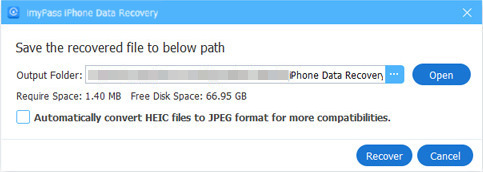
Check each filename of the deleted FB photo that you want to retrieve. Click the Recover button at the bottom right corner. Then click the Open button to select an output folder. By default, they will be saved to your Documents folder. At last, click the Recover button again. A few seconds later, you can find the pictures on your hard drive.
Conclusion
Now, you should understand how to recover removed Facebook pictures. The first two methods work when you didn't really delete the photos, or haven't deleted them for a long time. If they don't work for you, please try imyPass iPhone Data Recovery.
Clara has over 8 years of experience helping users recover lost files and transfer data. She previously worked as a data recovery technician for a major IT service company. Certified in Data Recovery and Digital Forensics, her articles focus on simple solutions that make complicated recovery tasks easier for everyday users.
Hot Solutions
-
Recover Data
- AppGeeker iOS Data Recovery Review
- Disk Drill iPhone Data Recovery Review
- How to Get iPhone Out of Recovery Mode
- How to Fix support.apple.com/iphone/restore
- How to Recover Data from DFU Mode
- Gbyte iPhone Data Recovery Review
- How to Recover iPhone Deleted Photos After 30 Days
- How to Recover Deleted Photos on iPad
-
Unlock iOS
-
Transfer Data
-
iOS Tips

