



 Solution
 Support Center
 About Us
 Contact
How to Check Recently Deleted Messages on iPhone [Quick Tutorial]
 Clara Prescott Published on January 23, 2026Recover Data3-min reading
Losing a text can feel sharp and sudden. One moment it is there, and the next it seems gone for good. Many users face this when they try to learn how to see recently deleted messages on an iPhone. The phone keeps removing texts for a short time, and you can bring many of them back with clear steps. Some messages hide due to settings, updates, or limits in the system. This guide shows how the feature works, why some messages do not appear, and what tools can recover more data. Now we can move into each part.

In this article:
Part 1. How to See Recently Deleted Messages on iPhone
If you accidentally delete a text message, the iPhone has a built-in folder that retains removed messages for a short time. Learning how to check recently deleted messages on an iPhone helps you see what is still recoverable before the system clears them. You can open the folder in a few taps and restore any message you still need.
Open the Messages app and stay on the main list of conversations.
Tap Edit in the top left, then pick Show Recently Deleted. This takes you to the folder where removed texts stay for up to 30 days.
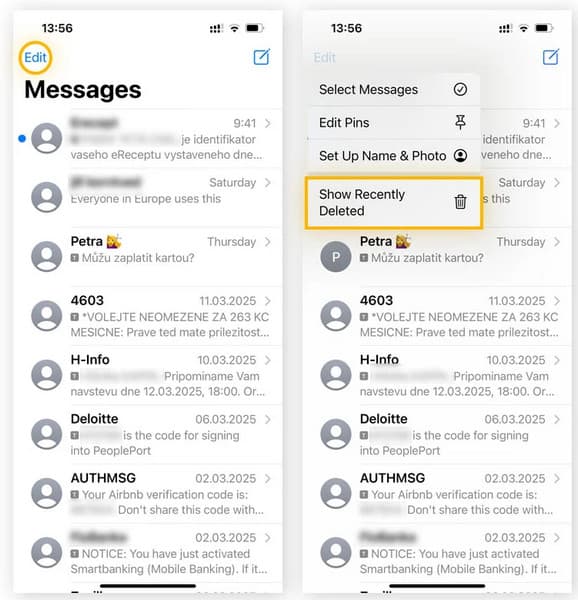
Browse the messages in the list and tap the ones you want to view or restore. You will see how many days each message has before it expires.
Tap Recover to bring the selected messages back to your inbox. If you want them gone for good, tap Delete. The folder will clear items on its own once the time limit is over.
Part 2. Why Can't See Recently Deleted Messages on iPhone
If your deleted messages do not appear, it can be confusing. Sometimes the folder is hidden, or the texts are gone for good. Knowing the reasons helps you fix the issue. This section explains why your show's recently deleted messages are not showing on your iPhone and what you can do to recover them.
1. Can't See the Option
If you cannot see the folder while trying to learn how to find recently deleted messages on iPhone, it may be due to your device or software. Older models and older iOS versions do not support this feature. The option can also hide when the Filters view is on. Go back to the main conversation list and tap Edit again. Update your iPhone if the option still does not show. The folder appears only when it has items stored inside it.
2. Can't See the Wanted Message on the Recently Deleted
If your recently deleted messages iPhone list does not show the text you want, it may be past the 30-day limit. The system clears messages on its own once time runs out. It may also be missing if the message was deleted on another synced device. Some messages, like those from blocked numbers or protected threads, do not appear in the folder. When this happens, check your iCloud or iTunes backups or try an iPhone data recovery software to look for older data.
Understanding why deleted messages do not appear helps you decide the next steps. If the messages are missing or the folder is hidden, you can use backups or recovery tools to retrieve older texts. In the next section, we will explain how to show recently deleted messages on iPhone and recover messages that no longer appear in the folder.
Part 3. How to Show More Recently Deleted Messages
Sometimes, the messages you need do not appear in the Recently Deleted folder. You can recover them using backups or third-party recovery tools. This part shows three reliable methods to recover missing texts on your iPhone.
Method 1: Recover Messages Using imyPass iPhone Data Recovery
imyPass iPhone Data Recovery is a safe and easy tool to recover texts that are missing from your iPhone recently deleted messages folder. It scans your device for deleted messages, lets you preview them, and restores only the messages you choose. This prevents overwriting current data and ensures you recover the texts you really need.
You can download the software on your Windows or Mac by clicking the download button that we have here, following the installation, and doing the setup. Launch the software as you follow through the steps in here.
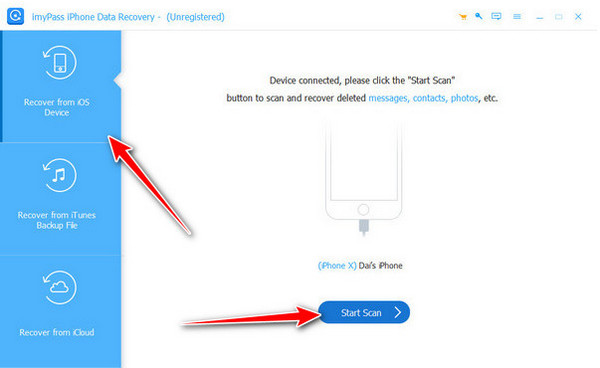
Open the Recover from iOS Device and connect the iPhone that you have to the PC where you installed the software. After detecting it, click the Start Scan button to proceed.
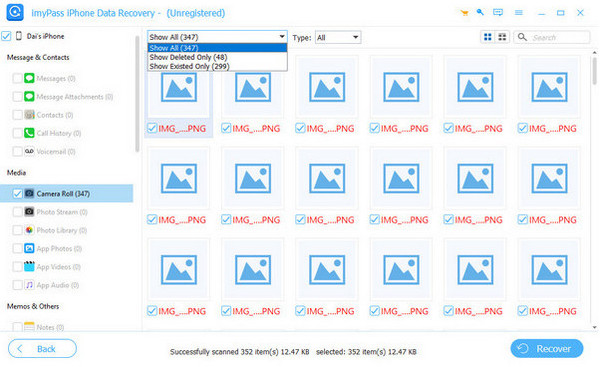
Go to Messages & Contacts > Messages, then click the dropdown and select Show Deleted Only, since you want to retrieve the messages that are already deleted. Select the messages that you want to retrieve after you preview them.
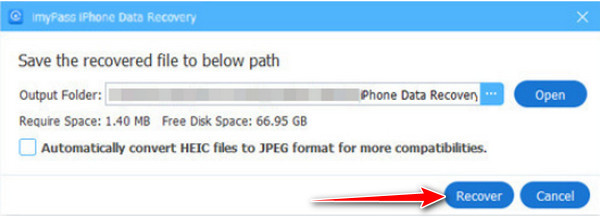
After selecting the messages, set the location where you want to save them and click Recover.
Method 2: Restore Messages Using iCloud Backup
Restoring from iCloud backup can bring back multiple messages at once, even if they are no longer in your recently deleted folder. This method works best if you back up your iPhone regularly and want a safe, official way to recover older texts. Learn how to view recently deleted messages on iPhone and retrieve them via iCloud Backup.
Go to Settings > Your Name > iCloud > Manage Storage > Backups. Check that the backup was created before messages were deleted.
Go to Settings > General > Transfer or Reset and tap Erase All Content and Settings.
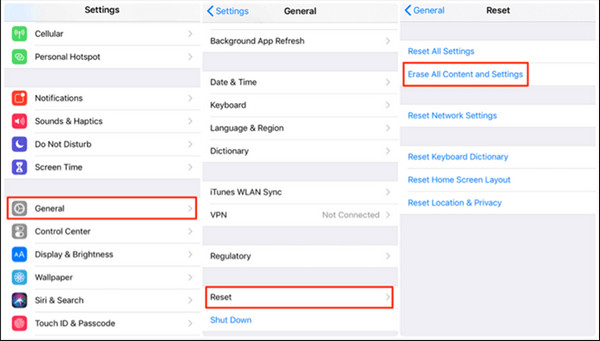
During setup, choose Restore from iCloud Backup and select the correct backup.
Wait for the restore to finish, then open Messages to check recovered texts.
Method 3: Restore Messages Using a Mac or PC Backup
If you backed up your iPhone to a Mac or PC, restoring through Finder or iTunes can recover recently deleted text messages iPhone that are no longer visible. This method lets you select a backup from before the messages were deleted and safely recover them without affecting other data. So, if you can not access Recently Deleted text messages on your iPhone, then try this.
Connect your iPhone to your computer. Open Finder and select your device, or open iTunes and click the device icon.
Click Restore Backup and choose the correct backup. Wait until the restore completes.
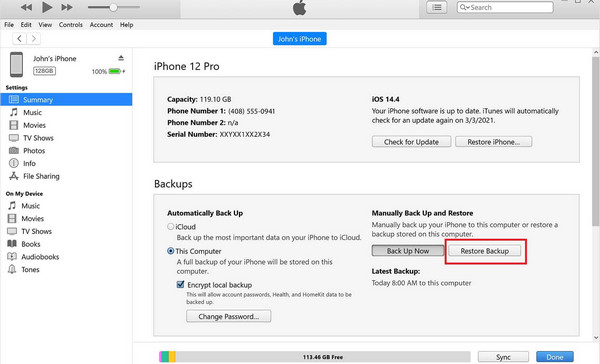
Step 3. Open Messages to confirm the deleted texts are back.
Bonus: Steps to Take When Deleted Text Messages Cannot Be Restored on iPhone
If the previous methods do not work, contacting your network provider may help. Some carriers keep records of SMS messages for a limited time, though this does not apply to iMessages, which are end-to-end encrypted and not stored by service providers.
Retrieval is not guaranteed and may require verifying your identity and providing account details, such as your phone number and the approximate date of the deleted messages. Policies and fees vary by provider, so it is important to check before requesting records. For iMessages, backups through iCloud or your device remain the best recovery option.
Conclusion
Deleted messages can disappear for several reasons. The folder may be hidden, the texts may be older than 30 days, or they may have been deleted on another device. Using backups or tools like imyPass can help retrieve them. Understanding these steps ensures you know how to recover your messages when recently deleted messages are not showing on your iPhone.
Clara has over 8 years of experience helping users recover lost files and transfer data. She previously worked as a data recovery technician for a major IT service company. Certified in Data Recovery and Digital Forensics, her articles focus on simple solutions that make complicated recovery tasks easier for everyday users.
Hot Solutions
-
Recover Data
- AppGeeker iOS Data Recovery Review
- Disk Drill iPhone Data Recovery Review
- How to Get iPhone Out of Recovery Mode
- How to Fix support.apple.com/iphone/restore
- How to Recover Data from DFU Mode
- Gbyte iPhone Data Recovery Review
- How to Recover iPhone Deleted Photos After 30 Days
- How to Recover Deleted Photos on iPad
-
Unlock iOS
-
Transfer Data
-
iOS Tips

