



 Solution
 Support Center
 About Us
 Contact
How to Recover Reminders on iPhone & Re-Establish Your Plans
 Clara Prescott Published on December 29, 2025Recover Data3-min reading
Before the technological era, we tended to write our reminders on our notebooks, notepads, sticky notes, and more. Nowadays, we have an iPhone Reminders app to take note of the things we need to do in a day. It is convenient since the iPhone is a handy device that can be brought anywhere.
However, some users reported that they cannot access their reminders data on their iPhone. Accidental deletion, software issues, and unwanted activities are some of the reasons why reminders are deleted. Recover reminders on iPhone in this informative article! Four of the easiest methods are included for your convenience. Please scroll below to know their full details.

In this article:
Part 1. Recover Reminders from the Recently Deleted Folder
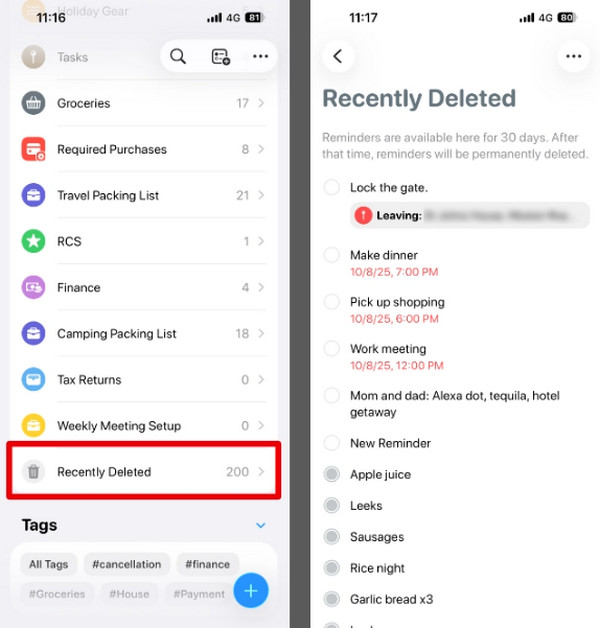
iPhone has the Reminders app to store the reminder data from the storage space. In this case, you can access the reminders on your iPhone. The reason is that the Reminders app manages the reminders data. Another good thing about this app is that it has a Recently Deleted folder to store the recently deleted reminders. You can restore the delete reminders quickly by accessing the folder.
However, not all iPhone models have the mentioned folder in the Reminders app. If your app does not have the app, you may skip this method and proceed to the others. Other people do not want to recover iPhone data after a factory reset. It does not require your iCloud in this process. How to recover deleted reminders on an iPhone without iCloud? Follow the instructions below.
Please open the Reminders app on your iPhone. After that, the recently made iPhone reminders will be prompted on the screen. Please tap the Recently Deleted section from the main interface.
Select the reminder you prefer to recover from the list. After that, tap the Restore button on the screen to get back the reminders.
Part 2. Find Deleted Reminders from a Different Account
You can also recover deleted reminders on different accounts. This account is iCloud. It is the built-in backup feature of Apple devices, including the iPhone. However, you need to get the Apple ID account credentials for the different account. The reason is that there will be multiple verification processes that will be encountered. Without this information, you cannot access the account.
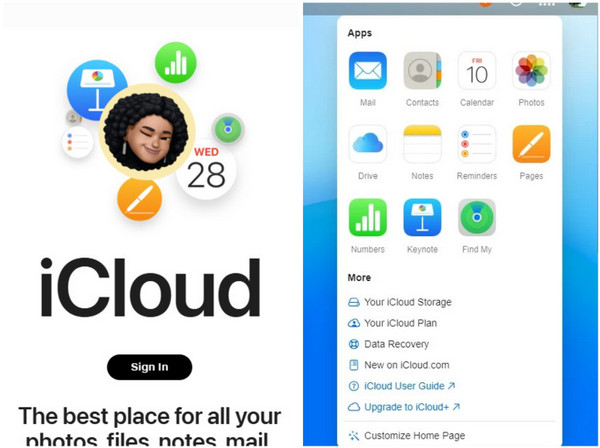
This procedure can also be performed with different devices. You can perform the process with the iCloud website. Besides reminders, this cloud-based storage website can restore your calendars, contacts, and more.
Open your most trusted website on your iPhone. After that, tap the Sign In button from the main interface of the website. Then, you will be required to enter the Apple ID account credentials, such as the email, phone number, and password.
You will see the multiple supported data types on the screen. Please click the Nine Dots button at the top right corner. Drop-down options will be prompted on the screen. Please select the Advanced button from the list to proceed with the process.
The data that can be restored will appear on the screen. Please select the Restore Calendars and Reminders button from the list at the bottom. Then, wait for the reminders to be restored on your iPhone afterward. Later, sign out of the account from the website.
Various iPhone data recovery tools can be downloaded on your computer. The best one will be discovered in the next section.
Part 3. Recover Deleted Reminders Using a Recovery Tool (Without iCloud)
You can use a recovery tool, like imyPass iPhone Data Recovery, to recover your iPhone reminders without iCloud. This tool does not require you to have an iCloud account to restore the mentioned data types. This tool can also recover your videos, photos, call history, WhatsApp files, app data, and more. The best thing about this tool is that it supports most of the iOS versions, including the latest ones. It can directly recover from your iPhone without a backup.
Furthermore, this third-party tool has a simple interface that will be convenient for novices. It uses a wired connection. It means that you will not rely on the strength of your internet connection. How to recover the reminder list on iPhone? Use the tool with the steps below.
Get the latest version of imyPass iPhone Data Recovery. After that, please download the tool from the main website. Later, set up, install, and open the tool on your computer to start the reminders recovery process.
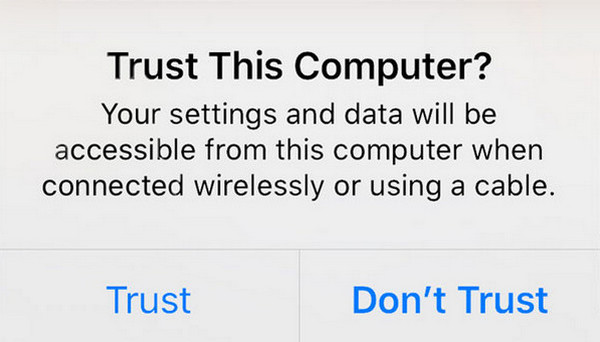
Plug the iPhone into the computer using a USB cable. After that, tap the Trust button on the iPhone that will be revealed in the small window. Then, you will see the iPhone information on the screen.
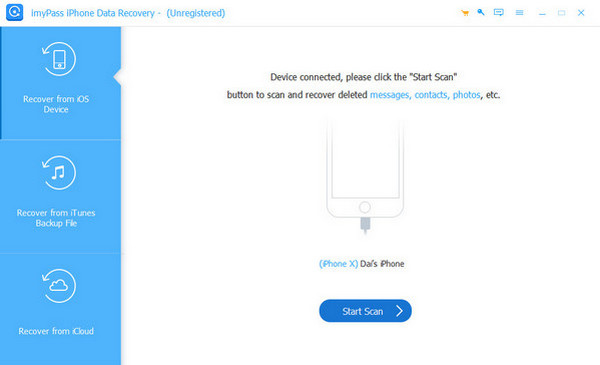
Click the Recover from iOS Device button in the top left corner. Then, click the Start Scan button, and the tool will scan the deleted reminders on your iPhone. The result will appear on the right afterward.
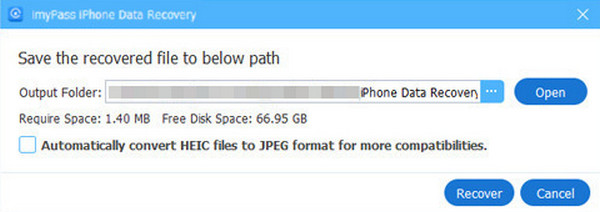
Please select the reminders you want to recover from the main interface. Later, click the Recover button at the bottom right. Later, you will be required to choose a destination path from your computer. Select the Recover option at the bottom to start the recovery.
Part 4. How to Recover Reminders with iCloud Recovery Feature
imyPass iPhone Data Recovery can also help you recover reminders from your iCloud account. The procedure is almost similar to the reminders recovery from the iCloud website. This tool also supports different recoverable scenarios, including accidental deletion, system issues, jailbreak failure, and more. Please follow the steps below to use the tool for iCloud account to recover your reminders data.
Suppose that you have downloaded, installed, and opened the tool on your computer. Please plug in the iPhone using a USB cable where you lost the reminders data. Then, click the Recover from iCloud button at the bottom left corner of the screen.
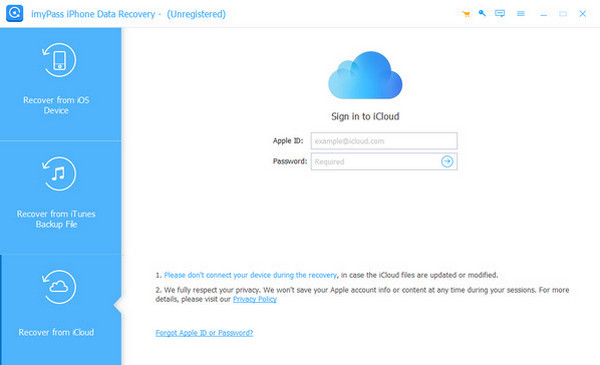
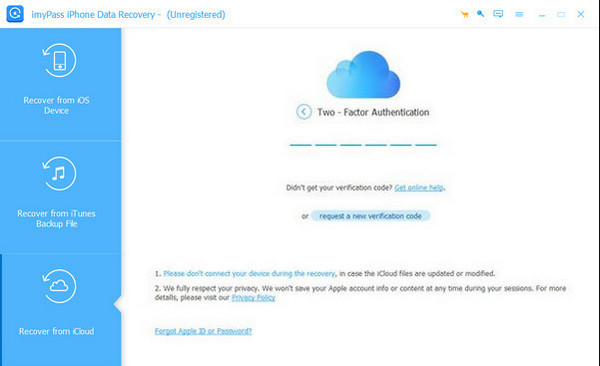
Please enter your iCloud account credentials on the screen. Enter the two-factor authentication to proceed. Enter the code correctly to sign in to the account successfully. The supported data will appear on the interface afterward.
Choose the iCloud Backup button on the right. Later, the tool will start to scan the available backups from the tool. You may also click the Start button at the bottom right corner of the screen.
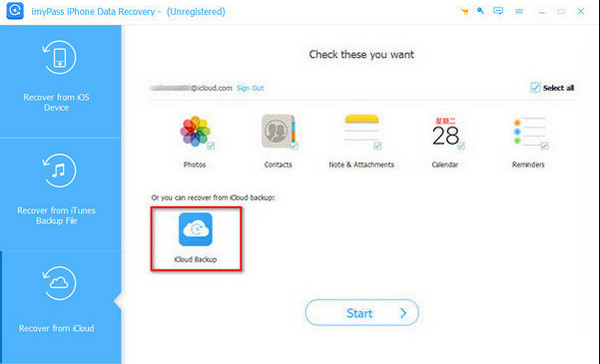
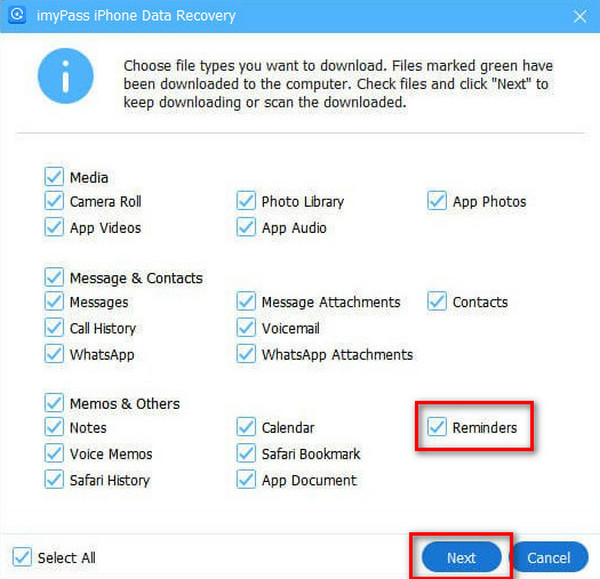
Select the backup where reminders are present. Then, select Reminders on the options list and click the Next button. The data will be restored on your iPhone afterward.
Conclusion
In conclusion, this article is all about how to recover a deleted reminder list on an iPhone. The four easiest methods are listed to give you a smooth recovery process. imyPass iPhone Data Recovery is also here to help you recover the reminders with or without iCloud. You may download the tool on your computer to access its full features.
Clara has over 8 years of experience helping users recover lost files and transfer data. She previously worked as a data recovery technician for a major IT service company. Certified in Data Recovery and Digital Forensics, her articles focus on simple solutions that make complicated recovery tasks easier for everyday users.
Hot Solutions
-
Recover Data
- AppGeeker iOS Data Recovery Review
- Disk Drill iPhone Data Recovery Review
- How to Get iPhone Out of Recovery Mode
- How to Fix support.apple.com/iphone/restore
- How to Recover Data from DFU Mode
- Gbyte iPhone Data Recovery Review
- How to Recover iPhone Deleted Photos After 30 Days
- How to Recover Deleted Photos on iPad
-
Unlock iOS
-
Transfer Data
-
iOS Tips

