



 Solution
 Support Center
 About Us
 Contact
How to Retrieve Deleted Emails on iPhone: Rescue Your Lost Data
 Clara Prescott Published on April 09, 2026Recover Data1-min reading
Emails, or electronic mail, are messages that can be sent or received by someone digitally. They are commonly used for work, school, etc. You can send them using your smartphones, computers, tablets, and more devices. This digital letter can contain text, images, videos, and other essential attachments. It is the main reason why losing or accidentally deleting them is a disaster.
Do you have a lost or deleted email? Eyes here! This article presents the six easy guides on how to recover deleted emails on an iPhone. Additional information will be encountered, including the things you must do when you cannot find your emails, a third-party tool that can directly retrieve emails from an iPhone, etc. Please kindly scroll below to know their full details.

In this article:
Part 1. The First Place to Check: Recently Deleted or Trash
The emails from your iPhone can be quickly deleted. The good thing about this Apple device is that it holds the deleted emails for 30 more days. It could be from the Recently Deleted or Trash folder. Learn how to get deleted emails back on iPhone if they were recently deleted. The steps are below.
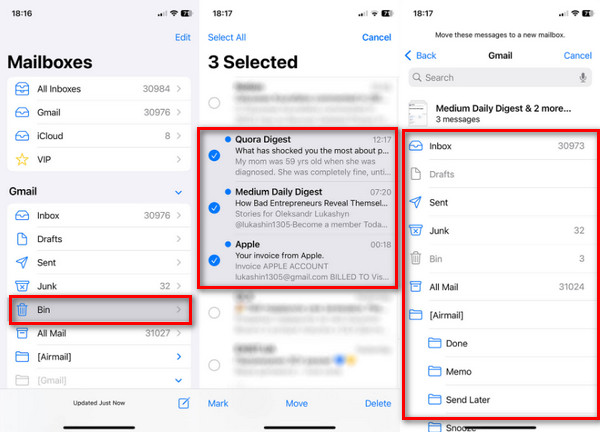
Open the iPhone Mail app. After that, please select the Mailboxes button from the main screen. Later, tap the Trash or Bin button from the options list that will be prompted.
Select the email you want to recover. Then, tap the Mailbox button. Choose another mailbox to recover it afterward.
Part 2. Server-Based Recovery (The Most Reliable Method)
There are multiple email services that can be used on your iPhone. It includes Gmail, Outlook, Yahoo, and more. In this section, we will see their built-in recovery guides on how to restore email on an iPhone.
1. For iCloud Mail Users
iCloud can help you recover your emails. The associated Apple ID is needed for the recovery process. However, the emails must be backed up with iCloud. Alternatively, you may use iCloud data recovery software. See how to restore your emails with your iCloud account below.
Visit the main website of iCloud. Then, choose the prompted Sign In option and enter your Apple ID account.
Click the Mail button. Then, select the Trash button. Choose your emails and restore them afterward.

2. For Gmail Users
Emails that are recently deleted from the Gmail account will be stored in the Bin folder. They will be stored for 30 days. You need to recover them within this time frame to not permanently losing them. The steps below will guide you on how.
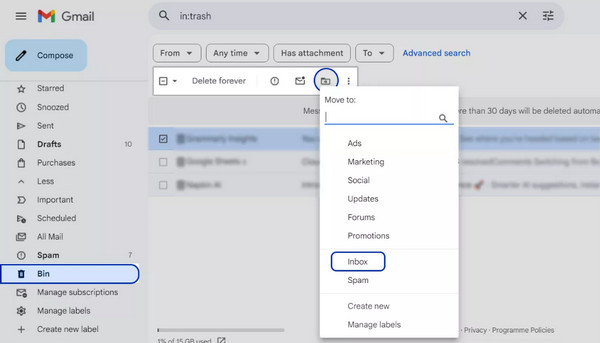
Open Gmail and tap the Bin button at the bottom left. If not yet signed in, enter your Google account from the first screen.
Select the emails you want to recover. After that, select the Move To button and choose a new folder to recover the emails.
3. For Outlook/Hotmail/Exchange Users
Outlook, Hotmail, and Exchange Users have almost the same procedures to recover emails. It uses the computer album. The recently deleted emails can only be stored for 14 to 30 days. Recover them before they are permanently deleted with the steps below.
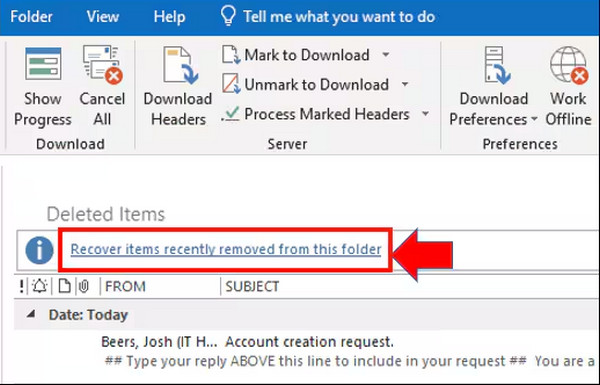
Open the Outlook app. Then, click the Deleted Items button on the left side of the screen. Click the Recover Items Recently Removed from This Folder button. Later, select the files you prefer to recover.
Click the OK button. Then, the emails will start to be recovered.
4. For Yahoo Mail Users
Yahoo also has its own folder where you can retrieve your deleted emails. Learn how to retrieve trashed emails on iPhone on Yahoo with the steps below.
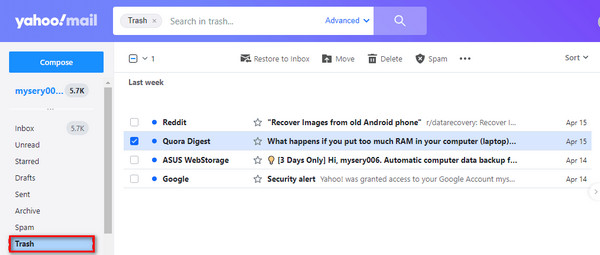
Sign in to your Yahoo account. Then, click the Trash folder from the main interface. Then, select the emails you need to recover.
Click the Move button and select the Inbox button. Finally, the emails will be restored.
Part 3. What to Do If Email is Nowhere to Be Found
Unfortunately, some iPhone users cannot find their emails. Some might be hidden in the folders of your emails. Additionally, there might be a glitch or bug that is causing the emails to be nowhere to be found.
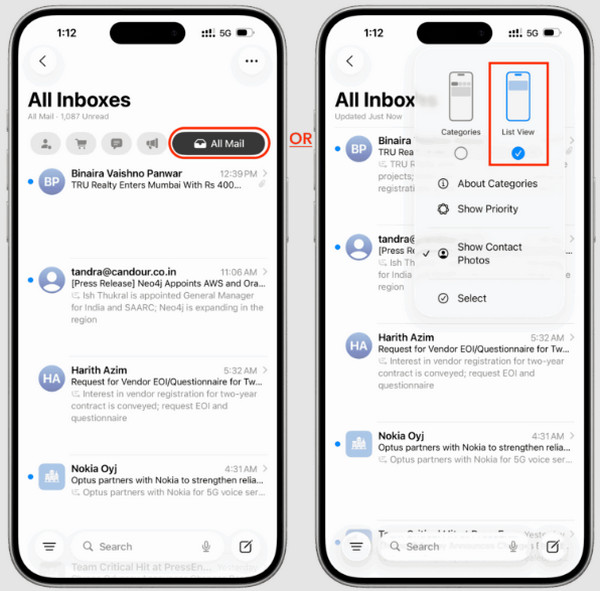
1. Check All Mail or Archive
iPhone allows you to use multiple email accounts. If you cannot find your emails, you might be viewing a different account. You can simply tap the All Mail or Archive section of the Mail app on your iPhone.
2. Use the Mail App Search
Alternatively, you can search from the search bar of the Mail app to search for a specific email. You can try to type the email account. It is the best option if you have thousands of emails from the app.
3. Remove & Re-add the Account on iPhone
The email account might be facing issues that lead to hidden emails. If so, it is recommended to sign out and sign in again to the account from the application. In this case, the account will be refreshed on your iPhone.
4. Contact Your Email Provider's Support
Lastly, you can contact the support team of your email provider. They can help you find or recover your lost and deleted emails.
Part 4. How to Recover Permanently Deleted Emails on iPhone
However, there are instances wherein the emails from your iPhone are permanently deleted. It means that they are not backed up or recoverable as recently deleted. imyPass iPhone Data Recovery can help you! It is a third-party program that allows you to directly recover from your iPhone without a backup. On the other hand, this tool can also recover from your iTunes and iCloud backups.
Emails are not only one of the supported data types of this tool. You can also retrieve your documents, photos, videos, call logs, and more. Discover how to recover permanently deleted emails on iPhone using this tool with the steps below.
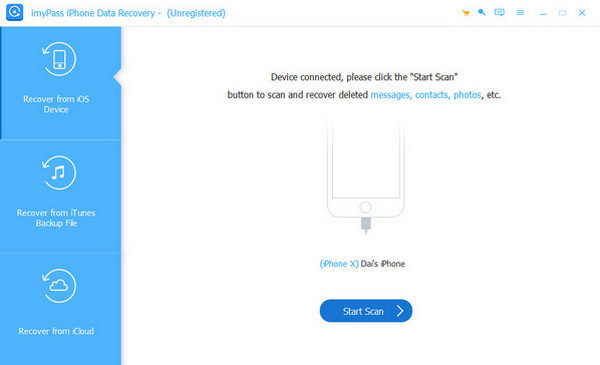
Download and set up the file of imyPass iPhone Data Recovery from its main website. Then, install and open it to start the process. On the first screen, click the Recover from iOS Device button.
Grab your USB cable and plug your iPhone into the computer using it. Then, click the Start Scan option at the bottom center. The results will appear. Locate and choose the email you want to retrieve.
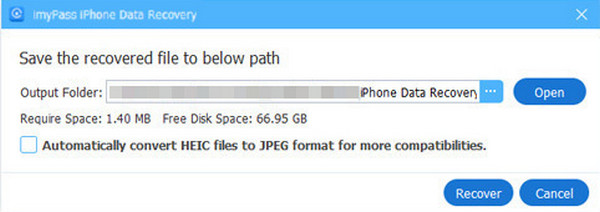
Click the Recover option and choose the destination path of the emails that will be recovered. Click the Recover button again to confirm the action.
Conclusion
How to retrieve deleted emails on iPhone? All in all, you can easily do that with the six methods this article contains. imyPass iPhone Data Recovery is also here to help you retrieve emails directly from your iPhone. It can also recover them from an iTunes, Finder, and iCloud backup. Download the tool to discover more of its helpful features.
Clara has over 8 years of experience helping users recover lost files and transfer data. She previously worked as a data recovery technician for a major IT service company. Certified in Data Recovery and Digital Forensics, her articles focus on simple solutions that make complicated recovery tasks easier for everyday users.
Hot Solutions
-
Recover Data
- AppGeeker iOS Data Recovery Review
- Disk Drill iPhone Data Recovery Review
- How to Get iPhone Out of Recovery Mode
- How to Fix support.apple.com/iphone/restore
- How to Recover Data from DFU Mode
- Gbyte iPhone Data Recovery Review
- How to Recover iPhone Deleted Photos After 30 Days
- How to Recover Deleted Photos on iPad
-
Unlock iOS
-
Transfer Data
-
iOS Tips

