



 Solution
 Support Center
 About Us
 Contact
How to Recover Deleted Photos from iCloud After Accidental Deletion
 Clara Prescott Published on March 13, 2026Recover Data3-min reading
iCloud is the Apple account that allows you to manage your iPhone files. Using it can benefit you in storing, sharing, backing up, and restoring your data, including photos. Thousands of photos can be backed up or stored on your iCloud account. However, accidental deletion is inevitable. Some users experience it every single day.
How to restore photos from iCloud? Honestly, there are multiple ways to get back your iPhone photos from iCloud. You will see the four quick methods for this process. Please continue reading this post to start the recovery process.

In this article:
Part 1. Recover from iCloud Photos (Recently Deleted Album)
An accidental deletion on your iPhone is something you do not need to worry about. iCloud, iPhone, and iPad have the Recently Deleted folder where you can retrieve your photos. There are two ways that can be used for this procedure. See them in the list below.
1. Recover on Your iPhone/iPad
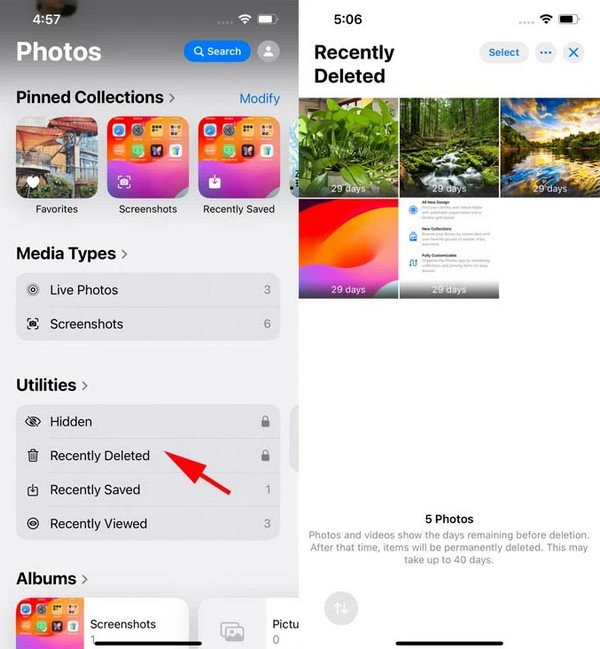
The iPhone or iPad Photos app is responsible for managing the images you store. The mentioned app has the Recently Deleted folder that holds the recently deleted photos from your iPhone or iPad. You have 30 days to recover the deleted photos before they are permanently deleted from the mentioned Apple devices.
However, this method can only be used when the iCloud Photos are synced on your iPhone or iPad. How to get deleted photos from iCloud? Use the Recently Deleted folder from your iPhone or iPad.
Open the Photos application on an iPhone or iPad. Then, tap the Albums button and go to the Utilities section.
Tap the Recently Deleted folder from the list. Authenticate the album and select the photos you need to retrieve. Tap the Recover button and follow the on-screen instructions.
2. Recover on iCloud.com
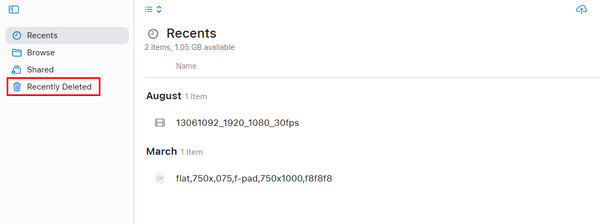
Also, iCloud is accessible on its website from any device that has a web browser. It also has a Recently Deleted folder where you can retrieve your photos. Please use the steps below as your guide.
Search for the iCloud website. After that, please select the Sign In button in the center. Enter your Apple ID in the empty boxes. Then, authenticate the sign-in process. You can also sign in with your iPhone.

Click the Drive button on the next screen. After that, click the Recently Deleted button at the top left. Select the photos you want to retrieve. Then, click the Recover option at the bottom.
Part 2. Restore Photos from an iCloud Backup
As mentioned, iCloud is a free service that can be used to back up your data, including photos. Do you have a backup for your photos before you delete them? You can restore this backup to get them back!
However, it is an all-or-nothing restore process. All of the content and settings from the backup need to be restored. It only means that you cannot restore the photos. Selective restore from the data is not allowed. Also, a factory reset is a must if the iPhone is not new. How to retrieve photos from iCloud backup? Please refer to the steps below.
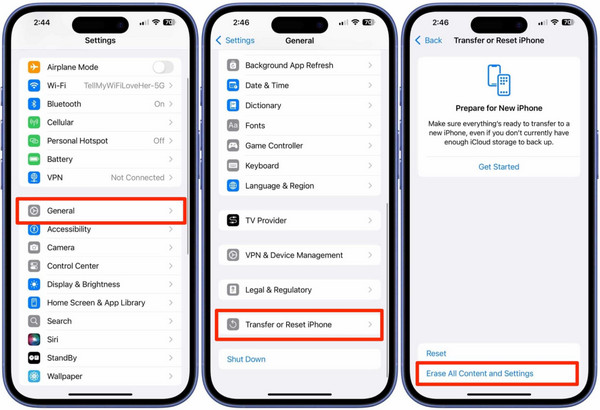
First, erase your iPhone or iPad. To do that, please tap the Settings app. Then, select the General button from the first list. Later, tap the Transfer or Reset iPhone/iPad. Tap Erase All Content and Settings. Enter your passcode and confirm.
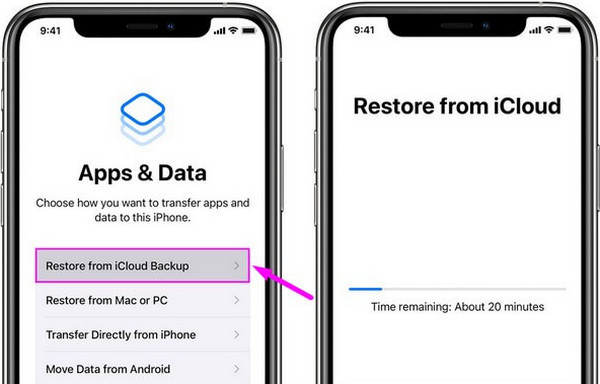
Ensure that the iPhone or iPad restarts. Then, set them up until you reach the Transfer Your Data & Apps screen. After that, select the Restore from iCloud Backup button. Sign in to your Apple ID account associated with the backup.
Choose the most relevant backup where the deleted photos are included. Then, the Restore from iCloud screen will be prompted. Wait for the procedure to be completed.
Part 3. How to Recover Permanently Deleted Photos
But what is the best method if the photos are permanently deleted from your Recently Deleted folder on iPhone and iPad? imyPass iPhone Data Recovery is a third-party tool that can help you! This tool can directly recover the photos from your iPhone and iPad, regardless of whether you have an iCloud backup or not. Besides your photos, you can also retrieve your call history, app data, WhatsApp messages or attachments, notes, etc. How to recover permanently deleted photos from iCloud? Use the steps below regarding the process of this tool.
Download imyPass iPhone Data Recovery. After that, install and open the tool on your computer. Please plug your iPhone or iPad into the computer with a USB cable afterward.
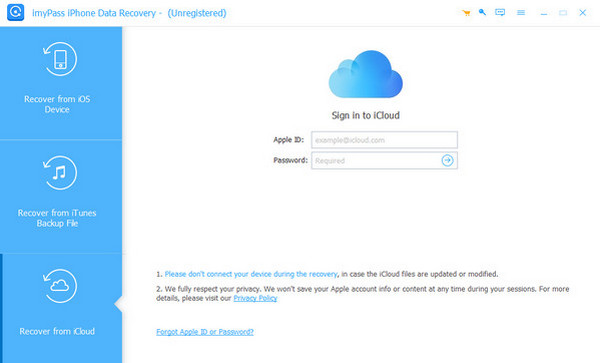
Click the Recover from iCloud button and enter your iCloud account associated with your backup. Click the iCloud Backup button on the next screen.
Note:
You can also click the Recover from iOS Device button. This way, you can recover your iCloud Photos if they are linked to the device. This feature does not require an iCloud backup because it restores the photos directly from your iPhone and iPad.
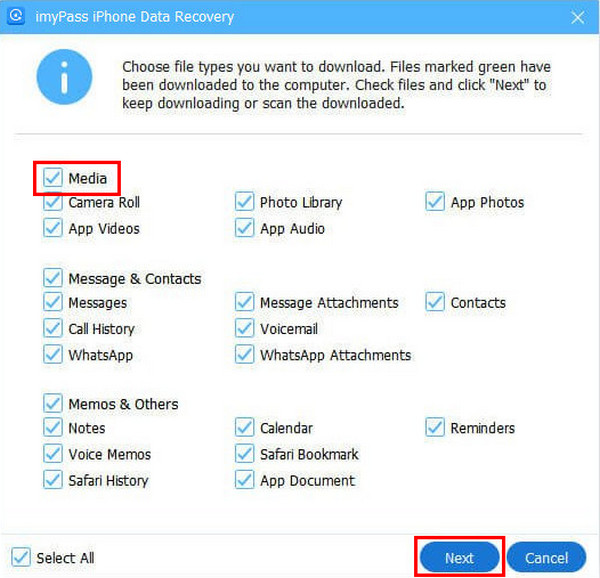
Click the Download button. Then, choose the Media button and select the category for the photos you want to retrieve. Click the Next button to restore them to your iPhone or iPad. Wait for the restore process to be completed.
Part 4. Preventative Measures & Best Practices
Are you tired of losing your data due to system issues or accidental deletion? Well, it is time to know the preventive measures to avoid the mentioned problem. The best practices are listed below as your reference.
1. Enable iCloud Backup
Enabling the iCloud backup on your iPhone and iPad ensures that your photos are safe. It can automatically back them up, and you can restore the backup anytime. Besides your photos, it can also back up other data, including videos, documents, and more.
Ensure that the iCloud account email and password are known to access the backups. If not, you need to perform an iCloud backup reset before you can continue restoring it.
2. Check the Recently Deleted Folder Regularly
Checking the Recently Deleted folder is also ideal. This way, you can check if there are accidentally deleted photos from an iPhone or iPad before they are permanently deleted.
3. Use a Secondary Backup
If you think that an iCloud backup is not enough, you can use alternative backup tools. It includes Google Drive, iTunes, and Finder. Having another backup is ideal if you want a safer backup for your iPhone and iPad photos.
Conclusion
To summarize, iCloud deleted photos recovery can be done in a few minutes or hours. It depends on the process your iCloud photos on your iPhone have undergone. The four easy ways are posted, including imyPass iPhone Data Recovery. This tool can recover from iCloud backup, iTunes backup file, and directly from an iPhone. Download the tool if you want to use the features!
Clara has over 8 years of experience helping users recover lost files and transfer data. She previously worked as a data recovery technician for a major IT service company. Certified in Data Recovery and Digital Forensics, her articles focus on simple solutions that make complicated recovery tasks easier for everyday users.
Hot Solutions
-
Recover Data
- AppGeeker iOS Data Recovery Review
- Disk Drill iPhone Data Recovery Review
- How to Get iPhone Out of Recovery Mode
- How to Fix support.apple.com/iphone/restore
- How to Recover Data from DFU Mode
- Gbyte iPhone Data Recovery Review
- How to Recover iPhone Deleted Photos After 30 Days
- How to Recover Deleted Photos on iPad
-
Unlock iOS
-
Transfer Data
-
iOS Tips

