



 Solution
 Support Center
 About Us
 Contact
How to Recover a Deleted Voice Message on iPhone [Complete Guide]
 Clara Prescott Published on February 06, 2026Recover Data3-min reading
Unlike text messages, iPhone voice messages are designed to expire. Apple limits its storage to control space, which can lead to unexpected loss. Many users never adjust these settings and only notice after a message is gone. Understanding this system behavior helps avoid false assumptions about recovery. In this article, you will learn how to recover voice messages on an iPhone by using options built into iOS, such as backups and message settings. Each step is grounded in how audio messages are stored and removed.

In this article:
Part 1. How Long Do Voice Messages Keep on iPhone
1. Voice Messages Expire Times
Many iPhone users do not realize that iMessage voice messages are not stored permanently. Unlike text messages, audio clips are deleted automatically two minutes after being played. Tapping the Keep option allows a message to stay on your iPhone, but without it, messages disappear quietly. Understanding this behavior is important if you ever need to recover a voice message iPhone.
This automatic deletion applies only to iMessage audio. Other types, such as Voice Memos or voicemail, follow different rules. Voicemail storage depends on your carrier and usually lasts 30 to 90 days unless manually saved. Knowing these differences helps you determine if a lost message can still be restored.
2. How to Change Voice Messages Expiration Time
To prevent future loss, you can adjust the default expiration settings in iPhone Messages. By default, Apple deletes audio messages after two minutes, but you can set them to stay until manually deleted. This change does not recover expired messages, but it reduces the need to figure out how to recover a deleted voice message on an iPhone in the future.
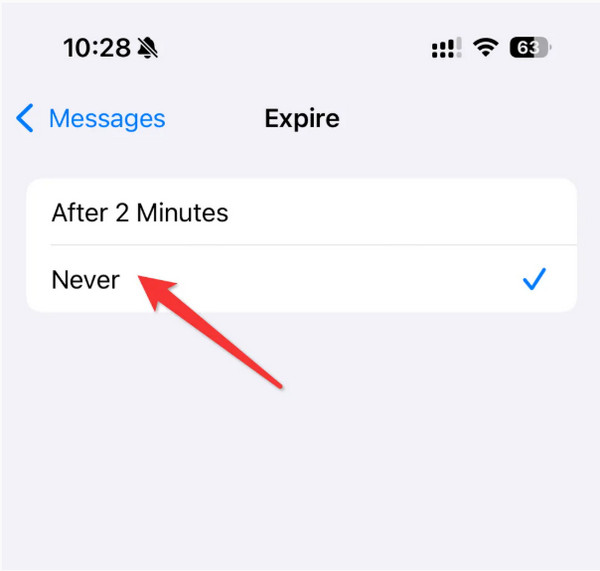
In some cases, recently deleted messages may still be available in the Messages app under the Recently Deleted section. On iOS 16 and later, this section acts like a temporary recycle bin where expired audio messages can sometimes be restored. It is a simple, free way to retrieve messages before exploring other recovery methods.
Part 2. 3 Ways to Recover Deleted Messages on iPhone
1. Use imyPass to Recover Expired/Deleted Voice Messages
imyPass iPhone Data Recovery is a strong and convenient program that helps to restore the deleted voice messages without any backup, directly on iPhones, iPads, and iPods. It is capable of recovering lost audio messages, photos, contacts, and other vital data and operates even when your phone is locked, damaged or reset.
The software can also access iTunes and iCloud backups without affecting other files. Recording essential voice messages, imyPass allows you to find and restore them very fast due to its transparent interface and intelligent scanning.
The app can be downloaded on either your Windows or Mac operating system, and after launching the app, you can begin using it. After that, connect the device where you want to do a deep scan and retrieve the deleted messages.
Proceed by ticking the Restore from iOS Device and clicking the Start Scan. While scanning, ensure that the connection is undisturbed so it will not fail in doing its task.
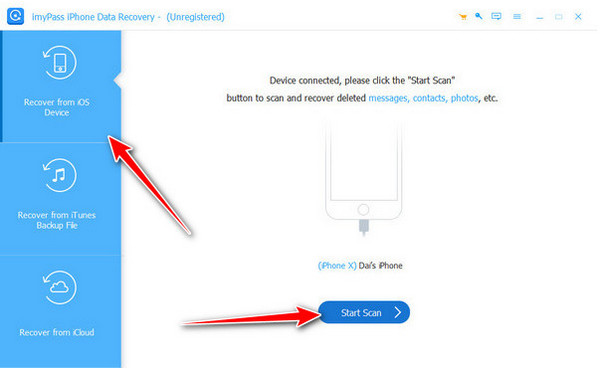
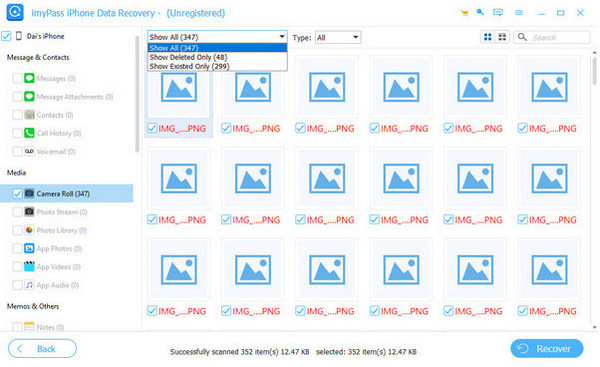
Go to Messages & Contacts, click the drop-down and choose Show Deleted Only, and tick the box of the messages you want to retrieve here. Then, click the Recover button to proceed.
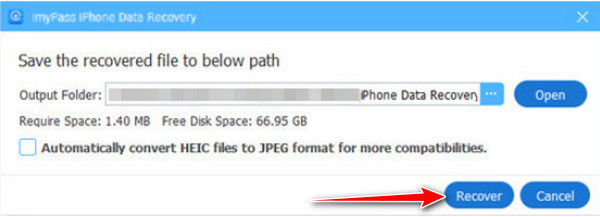
Set the location where you want your recovered message to be found and click the Recover button again to process it.
2. Check the Recently Deleted Folder
If a voice message was deleted recently, it may still be in its Recently Deleted folder. This folder acts like a temporary recycle bin, holding audio messages for a limited time before permanent deletion. You can also check Voice Memos or Voicemail for lost recordings. This method is often the quickest way how to recover voice messages on an iPhone.
Open the Messages app, tap Filters, and select Recently Deleted.
Browse the list to find the deleted audio message or recording.
Select the message and tap Recover to restore it to your conversation.
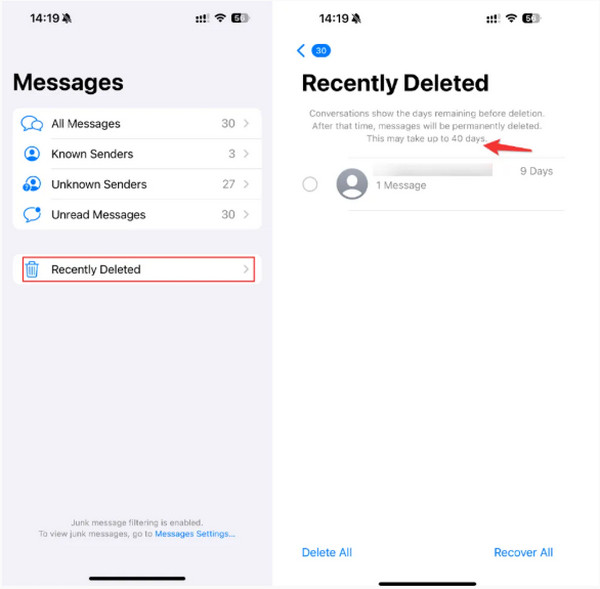
For Voice Memos, open the app and check its Recently Deleted section. For Voicemail, open the Phone app, go to the Voicemail tab, and see if your carrier allows retrieval.
3. Restore from iCloud Backup
Provided that you frequently back up your iPhone to iCloud, you may be capable to recover deleted voice messages by restoring a backup created before the messages were lost. This method replaces your current data with the older backup, so it is important to be aware that any new data added after the backup will be overwritten.
Go to Settings > General > Transfer or Reset iPhone > Erase All Content and Settings.
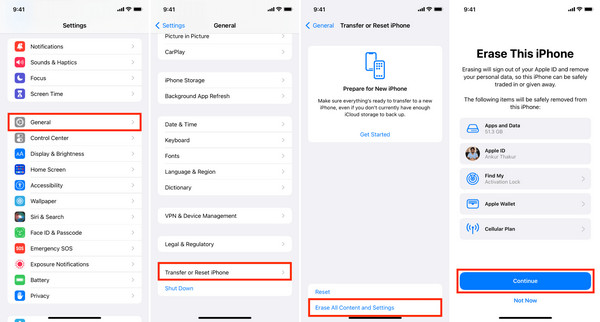
Restart your iPhone and follow the setup instructions.
When prompted at Apps & Data, select Restore from iCloud Backup, log in with your Apple ID, and pick a backup dated before the voice messages were deleted.
This method is effective to retrieve audio messages that have been lost and are not in the Messages app or the Recently Deleted section, but it should be used cautiously because of overwriting data. Also, you can do the same steps to recover deleted messages.
Part 3. Tips to Manage iPhone Voice Messages
Accidental loss of your voice message on your iPhone can be avoided by managing your voice messages properly, and it will be easier to recover them in case they are lost. Here are five practical tips:
1. Regularly Back Up Your iPhone
Keeping your iPhone backed up to iCloud or iTunes ensures that your voice messages are safe. If messages are accidentally deleted or lost, having a recent backup makes it possible how to recover voice messages on iPhone without losing other data.
2. Adjust Audio Message Expiration Settings
By default, iMessage audio messages are deleted two minutes after playback. Changing this setting to Never in Settings > Messages > Audio Messages prevents automatic deletion. This adjustment makes it easier to recover voice messages on iPhone when you need important messages later.
3. Check the Recently Deleted Folder
iOS keeps deleted messages in the Recently Deleted folder for a short period before permanent removal. Reviewing this folder can help you locate missing audio messages and provide a simple way to how to recover a deleted voice message on iPhone without extra software.
4. Use Trusted Recovery Tools
If messages cannot be found in backups or Recently Deleted, third-party tools like imyPass iPhone Data Recovery can retrieve lost audio messages. These tools make it easier to learn how to recover deleted voice messages on iPhone safely and efficiently.
5. Organize Important Messages
Marking essential messages to Keep or saving them in Notes or Voice Memos reduces the risk of loss. Taking this extra step minimizes the chances that you will need to recover deleted voice messages in the future.
Conclusion
Synaptic loss of voice messages on iphone is the order of the day, yet with the correct procedure, it is possible to avoid voice message loss and even restore deleted messages. Modify expiration options, manage backups and Recently Deleted, and rely on such reliable systems as imyPass. By following these methods, you can confidently learn how to recover deleted voice messages on iPhone when needed.
Clara has over 8 years of experience helping users recover lost files and transfer data. She previously worked as a data recovery technician for a major IT service company. Certified in Data Recovery and Digital Forensics, her articles focus on simple solutions that make complicated recovery tasks easier for everyday users.
Hot Solutions
-
Recover Data
- AppGeeker iOS Data Recovery Review
- Disk Drill iPhone Data Recovery Review
- How to Get iPhone Out of Recovery Mode
- How to Fix support.apple.com/iphone/restore
- How to Recover Data from DFU Mode
- Gbyte iPhone Data Recovery Review
- How to Recover iPhone Deleted Photos After 30 Days
- How to Recover Deleted Photos on iPad
-
Unlock iOS
-
Transfer Data
-
iOS Tips

